







Facebook Twitter Instagram
    Trending
    • Elux Legend 10ml Nic Salts Review at £2.99 – Smooth, Flavourful Nicotine Salt E‑Liquid
    • IVG Reload Mini Prefilled Pod Kit at £4.99-Compact, Easy, and Flavourful
    • How to Tell When Your Disposable Vape Is Running Out?
    • Fumo Japan has added “Electric Purple” color to the IQOS ILUMA i series and will expand it to convenience store channels starting from February
    • How to Set the Time to 24 Hours on Redmi K90 Pro Max Smartphone?
    • Samsung Galaxy Buds4 Pro Preview: New peach color catches the eye, and supports reverse pairing of the earphone case with mobile devices
    • iQOO 15 Ultra has been Officially Announced to Feature a 2K Samsung QFeng Screen: its Peak Brightness has been pushed up to 8000 Nits
    • NQD M646 RC Car Review: A Miniature Racer with Big Features
    Facebook YouTube
    Login Register
    IGeeKphone China Phone, Tablet PC, VR, RC Drone News, Reviews
    • HOME
      • NEWS
        • DeepSeek
        • ChatGPT
        • Minecraft
    • Amazon
    • NEW YEAR
    • PHONE
      • Top Phones For Your First Choice
      • Phone Comparison
      • Xiaomi
      • Blackview
      • Doogee
      • Black Shark
      • Geekbuying
      • Banggood
      • TEMU
      • TikTok
      • Aliexpress
      • Walmart
      • MercadoLibre
      • Lazada
    • TOP VAPE Awards for 2026
    • VAPES
      • E-CIGAR Upcoming
      • Vape News
      • Vape Deals
      • Vape Comparison
      • Vape Guide
      • Giveaway
    • BEST VAPE
      • Best Vape Stores
      • Best Starter Vape Kits
      • Best Vapes for Beginners
      • Best Disposable Vapes
      • Best Pod Systems
      • Best Pod Mod Vapes
      • Best Mods
      • Best Nicotine Pouches
      • Best Clearomizers/Tanks
      • Best E-Liquid
      • Best EGO/Pens
      • Best Vapes for Nic Salt E-Juice
      • Best Vapes to Quit Smoking
      • RDA vs. RDTA vs. RTA
    • Best Vape Brand 2026
      • VAPORESSO
      • VOOPOO
      • OXVA
      • NEXA BAR
      • ORIONBARTECH
      • MASKKING VAPE
      • MEMERS
      • SP2S
      • JNR
      • TODOO
      • MRFOG
      • VEIIK
    • REVIEW
      • E-cigar Review
      • Phones
      • Tablet PC
      • TV Box
      • RC Drone
      • Wearables
      • Camera
      • Accessories
      • VR Headset
    • MORE
      • TABLET
        • Chuwi
        • INNOCN
        • Teclast
        • Top Tablet for Your First Choice
        • Tablet/Laptop Comparison
      • RC DRONE
      • CAMERA
      • WEARABLES
        • OneOdio
        • BlitzWolf
        • Top Smartwatch for First Choice
      • 3D PRINTER
        • 3D Printer Review
        • Anycubic
        • FLSUN
        • Xtool
        • LONGER
        • Top 3D printer to Choose First
      • POWER STATION
        • Oukitel
        • FOSSIBOT
      • GAMING
        • Top Gaming Products
      • E-BIKE
        • Samebike
        • Happyrun
        • ENGWE
      • SMART HOME
      • TV BOX
      • ACCESSORIES
      • VR HEADSET
      • CLOTHES
      • AUTO CAR
    • DEAL
    • Shop
    IGeeKphone China Phone, Tablet PC, VR, RC Drone News, Reviews
    You are at:Home»FAQ»How to create PDF on your iPhone or iPad
    FAQ

    How to create PDF on your iPhone or iPad

    Brady CottonBy Brady CottonSeptember 9, 2022
    Facebook Twitter Pinterest LinkedIn Tumblr Email

    Part 1:  Introduction of Wondershare PDFelement for iOS 14 and iPadOS 14

    Since its launch in March 2018, PDFelement has been one of the most popular PDF editors available. The software is available for Windows, Mac, iOS, and Android, making it a versatile tool for users with different operating systems.

    This article will focus on the latest versions of the PDFelement PDF editor app for iOS, which offer a number of new features and improvements.

    We were surprised that PDFelement free pdf editor had made many changes in its latest iOS 2.0 release in August 2022. For example, they have added a function that allows users to convert their PDF files into other formats, such as Word or Excel.
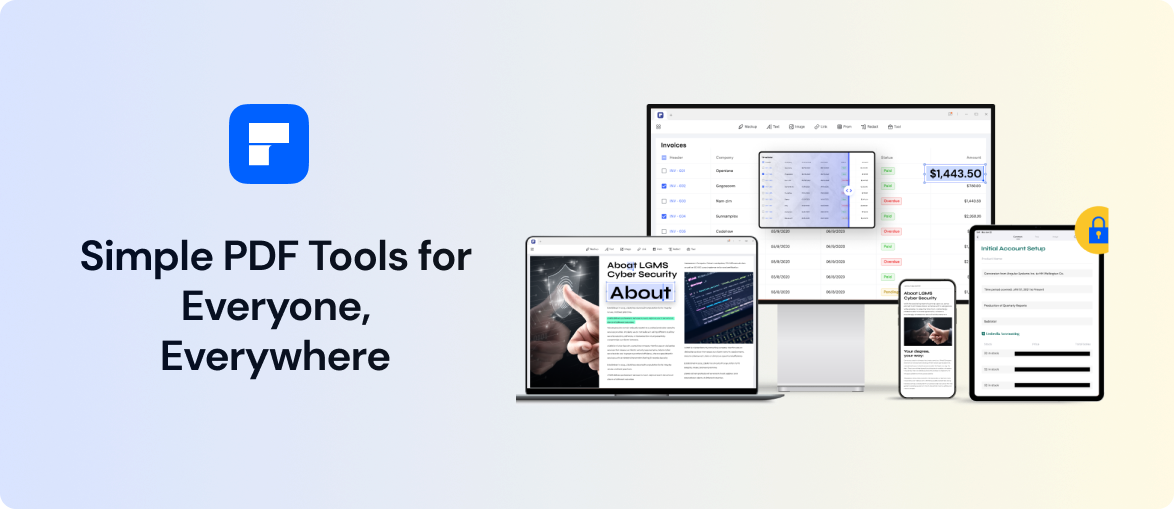
    Another change that we noticed is that PDFelement has made it easier to scan multiple pages at once. This is a great feature for those who need to scan a large document quickly.

    Automatic saving, conversion, and batch scanning are all new additions that make this PDF editor app even more useful.

    One of the most noticeable changes in the latest versions of PDFelement is the redesigned user interface. The interface is now more intuitive and user-friendly, making it easier to navigate around the software. Other notable improvements include better support for touch devices and an enhanced search function.

    Overall, the latest versions of PDFelement offer a number of significant improvements over previous versions. If you’re looking for a powerful and versatile PDF editor for iOS, then PDFelement is definitely worth considering.

    Part 2: How to create PDFs with PDFelement iOS

    1. Scanning to PDF

    With the PDFelement app for iOS, you can quickly and easily scan documents to PDF. The app offers a range of features that make it simple to get high-quality scans, including the ability to crop and add filters to images. You can also use the app to merge multiple images into a single PDF file.

    Step1:Simply launch the app, choose the document you want to scan, and PDFelement will do the rest.

    Step2: You can use the camera on your iOS device to scan a document to PDF. To do this, open the Wondershare PDFelement app and tap the “+” button in the upper-right corner. Then select “Scan Document.”

    Step3: The app will automatically remove any background clutter and scan your document to PDF. You can tap the “Edit” button to crop or rotate your scanned document.
    Step4: If you need to scan multiple pages, tap the “Multi-Page Scan” button in the upper-right corner.

    1. Convert to PDF

    PDFelement for iOS allows you to convert the 11 most common formats into PDF, including Word, Excel, PowerPoint, JPG, and PNG.

    1. Create a blank PDF file

    With this app, you can easily create PDF files from scratch or convert existing documents, images, and web pages into PDFs on your iPhone or iPad. The app offers a variety of templates and layouts to choose from, making it simple to create a professional-looking document. Once the file is created, PDFelement also allows users to add text, images, signatures, and form fields. The app is free to download and use, and it’s compatible with all major iOS devices.

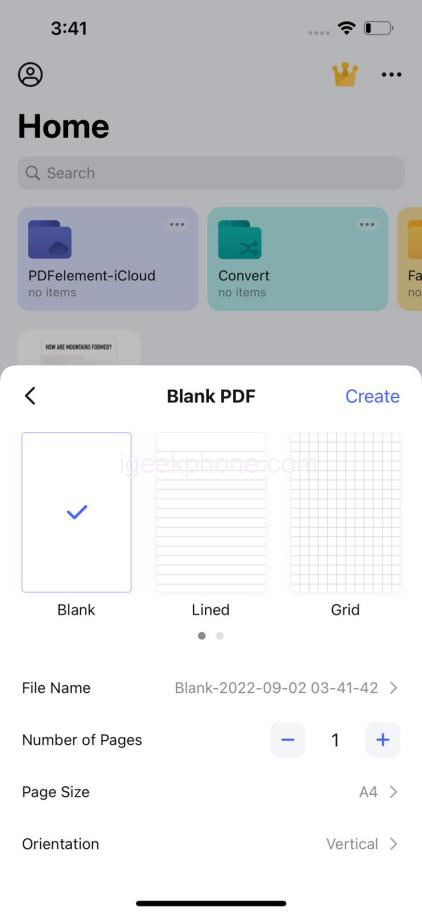
    Step1: Tap the + symbol on the bottom-right corner of the PDFelement iOS app.

    Step2: After you select the “Blank PDF” option, a new file will be generated that you can easily edit and add content to.

    Step3: To insert text into the newly created PDF, select the Text tab located at the top of the screen and then tap Add Text underneath it.

    Step4: To add text, tap where you want the text to go and then hit “Edit” in the toolbar that appears. Type in the text you want and finish by tapping “Done.”

    Step5: You can easily add an image by tapping on the “Image” button and then selecting either an existing image from your camera or taking a new photo. You can also move the picture once it’s been uploaded.

    Part 3: Other features of PDFelement for iOS

    Sync PDFs with Cloud service:

    You can access your documents from anywhere and make sure that they are always up-to-date. The app supports a variety of popular cloud services, including iCloud, Dropbox, and OneDrive.

    Crop PDF:

    This can be useful if you only need to view a portion of a document or if you want to remove unnecessary margins.

    Watermark PDF:

    Another useful feature of PDFelement for iOS is the ability to add watermarks to documents. Watermarks can be used for a variety of purposes, such as indicating that a document is confidential or identifying the author.

    PDF pages organizing:

    This is an extremely useful feature, especially when you need to gather together a bunch of related pages from different pdf into a single document. You can decide to view your files in a grid or list, and you can also sort and search for them.

    Markup and Annotate:

    It allows you to insert text boxes with arrows, text call-outs, stamps, freehand drawings, and erasers to annotate PDFs. It also lets you locate any notes and markings quickly using the search function.

    Fill forms with signature:

    You may also add your own text, images, and even signatures to PDF documents. You can use a handwritten signature with this PDF form editor, for instance.

    Part 4: Verdict

    With PDFelement for iOS, you can create high-quality PDFs on your iPhone or iPad. The app has a number of features that make it easy to create and edit PDFs, including the ability to add annotations, signatures, and watermarks. You can also convert files to PDFs and vice versa, making it a versatile tool for managing your documents.

    PDFelement for iOS is a powerful and user-friendly app for PDFs on your iPhone or iPad. With its wide range of features, you can easily create, edit, sign, and share PDFs with others. So why not download PDFelement for iOS today and start enjoying its many benefits?

    Share. Facebook Twitter Pinterest LinkedIn Tumblr Email

    Related Posts

    The Healing Powers of CBD: A Holistic Ally for Emotional and Physical Wellness

    5 Casino Games Every Beginner Should Try

    Quantum Cryptography: Securing Data in the Age of Quantum Computing

    Comments are closed.

    voopoo drag s3
    oxva xlim 3 ultra
    sp2s sen x disposable vape
    jnr 100k
    • Popular
    • 3D Printer REVIEW
    • XIAOMI
    January 21, 2026

    VOOPOO ARGUS P3 VS ARGUS P2: Which Square Pod Suits You?

    January 21, 2026

    VOOPOO Drag X3 vs VOOPOO Drag X2: Hands-On Comparison

    January 1, 2026

    VOOPOO ARGUS P3: The Touchscreen Pod That Feels Like a Mini Mod (Review)

    December 26, 2025

    Vaporesso XROS 5 Nano: Touchscreen Control Meets True Nano Portability (Review)

    December 26, 2025

    ACMER ASCARVA 4S: Precision CNC Power for Makers, DIYers & Small Workshops

    June 23, 2024

    ACMER P2 20W Laser Engraver Fixed Focus Engraving: Hands on Review

    May 30, 2024

    xTool F1 Ultra Review: World’s First 20W Fiber & 20W Diode Laser Engraver

    May 30, 2024

    Anycubic Kobra 3 Combo Review: The Multicolor Masterpiece?

    January 29, 2026

    Xiaomi Launches REDMI Monitor G25 with 200Hz High Refresh Rate for Just 609 Yuan

    January 29, 2026

    The Specifications of the Strongest Flagship Model of Redmi, Redmi K100 Pro Max, have been Released

    January 28, 2026

    Xiaomi’s First Outdoor 4G Camera is Released: Free data, no Speed Limit. One Unit is Equivalent to two at 379 yuan

    January 28, 2026

    Xiaomi Redmi Turbo 5 Smartphone has been officially Announced to be Equipped with MediaTek 8500-Ultra Processor

    fc 26 coins
    New Arrivals
    • Airis Neo P40K Disposable Vape Airis Neo P40K Disposable Vape
    • Maskking Extre 100K Disposable Vape Maskking Extre 100K Disposable Vape
    • SMOK Volle Pod System Kit SMOK Volle Pod System Kit
    • Lost Vape Astara Pod System Kit Lost Vape Astara Pod System Kit
    • SALT BAE 50 40K DISPOSABLE SALT BAE 50 40K DISPOSABLE
    • CRAVE X ULTRA SLIM 40K DISPOSABLE CRAVE X ULTRA SLIM 40K DISPOSABLE
    • AVOTX SPACE 3 40K DISPOSABLE AVOTX SPACE 3 40K DISPOSABLE
    • ARRO Infiniti 40K Nicotine Free Disposable Vape ARRO Infiniti 40K Nicotine Free Disposable Vape
    • GRANDFADDA 3000 DISPOSABLE E-CIGAR GRANDFADDA 3000 DISPOSABLE E-CIGAR
    About
  • Igeekphone.com provides the first global tech news and reviews about smartphone, vapes, e-cigar, smart home, 3D printers, e-bike,tablets, RC drones, VR headset, and other accessories. It's the best platform to improve your brand and product.
  • Contact us: info@igeekphone.com
  • Check Our Privacy Policy Here.
  • Note: *Right now we have US editor and EU editors for review, especially for Amazon US and EU.
  • *Shop and Compare Price Here*
  • Facebook
  • Youtube
  • OUR BEST VAPE PARTNERS
  • VAPE ONLINE STORE
  • HAYATI PRO MAX PLUS
  • VAPORESSO
  • VOOPOO
  • OXVA
  • NEXA
  • MASKKING
  • LOSTVAPE ORIONBAR
  • MEMERS
  • TODOO
  • SP2S
  • JNR
  • VEIIK
  • OTHER BEST PARTNERS
  • SVBONY
  • Chuwi
  • Blackview
  • Fossibot
  • Unihertz
  • Flsun
  • Anycubic
  • Xtool
  • Oukitel
  • Mukkpet Ebike
  • Ugreen
  • Copyright © 2026 igeekphone

    Type above and press Enter to search. Press Esc to cancel.