









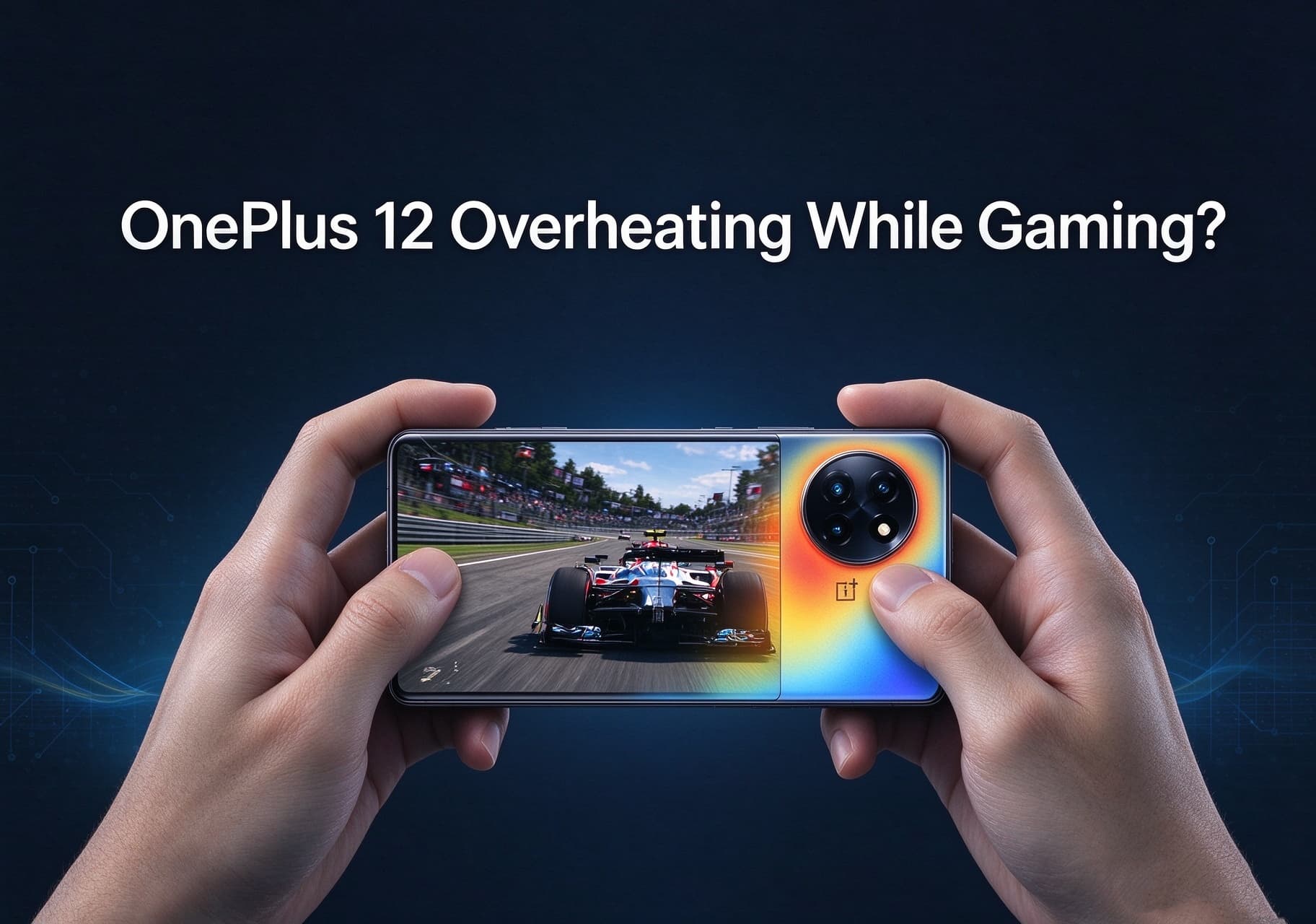
OnePlus 12 is designed to deliver strong performance in demanding mobile games, but extended gaming sessions can cause the phone to become noticeably warm. High frame rates, demanding graphics, background apps, fast charging, and warm surroundings can all contribute to rising temperatures.
If your OnePlus 12 gets too hot while gaming, you may not need to replace the phone or give up your favorite games. A few adjustments to graphics settings, system performance, charging habits, and background activity can help manage heat and maintain a more consistent gaming experience.
This guide explains practical ways to reduce gaming-related heat on the OnePlus 12 while balancing performance, battery life, and smooth gameplay.
Why Does the OnePlus 12 Get Hot During Gaming?
Before changing settings, it helps to understand what causes the temperature to rise.
1. Demanding Graphics and High Frame Rates
Games with detailed environments, complex effects, and high frame-rate targets place sustained demands on the processor and graphics hardware. The more work these components perform, the more heat they generate.
Running a game at its highest graphics quality and maximum frame rate may look impressive, but it can increase power consumption and temperature. The difference is particularly noticeable during long sessions.
2. Extended Gaming Sessions
A short gaming session may not cause a major temperature increase. Playing continuously for an hour or longer gives the phone less opportunity to cool down, especially when a game keeps the processor and graphics hardware busy.
Taking short breaks between matches can help prevent heat from building up over time.
For a closer look at the phone’s hardware and gaming capabilities, read our OnePlus 12 performance overview.
3. Gaming While Charging
Charging produces heat, and demanding games also generate heat. Doing both simultaneously can increase the phone’s overall thermal load.
Fast charging is useful when you need to replenish the battery quickly, but it is better to avoid intensive gaming while the phone is charging whenever practical.
4. Background Apps and Network Activity
Apps running in the background can consume processor time, memory, battery power, and network resources. Downloads, app updates, cloud synchronization, and unstable mobile connections may also add to the workload.
Closing unnecessary activity before launching a demanding game can help reduce avoidable power consumption.
5. Warm Surroundings and Phone Cases
Room temperature matters. Direct sunlight, hot vehicles, and poorly ventilated spaces make it harder for the phone to release heat.
Some thick cases can also make heat dissipation less effective during sustained gaming. If the device becomes unusually warm, removing the case temporarily may help it cool, provided the phone is placed in a safe, shaded location.
7 Ways to Reduce OnePlus 12 Gaming Heat
1. Adjust Graphics and Frame-Rate Settings
One of the most effective changes is to reduce the game’s workload.
Open the settings menu of the game you play most often and consider:
- Lowering graphics quality from Ultra to High or Medium.
- Choosing a stable frame-rate target instead of the maximum available option.
- Reducing demanding effects such as shadows, reflections, or advanced lighting where supported.
- Disabling optional visual effects that make little difference to your experience.
A stable frame rate can feel better than a higher frame rate that frequently drops as the phone heats up. Start with one adjustment at a time so you can identify which setting makes the biggest difference.
You can also try these Android gaming performance optimization tips to improve gameplay without relying exclusively on maximum graphics settings.
2. Choose the Appropriate Performance Mode
The OnePlus 12 includes gaming-related features through its software, although the available options may differ by OxygenOS version, region, and game.
Open the game’s tools or gaming settings and review the available performance options. If the phone offers a high-performance mode, remember that prioritizing maximum performance may increase power consumption and heat.
For longer sessions, a balanced mode may offer a better compromise between responsiveness and thermal comfort. Reserve more demanding settings for situations where the extra performance is genuinely useful.
Avoid assuming that every gaming mode reduces heat. Some modes prioritize maximum performance rather than lower temperatures.
3. Close Unnecessary Background Apps
Before launching a demanding game, close apps you do not need and pause unnecessary downloads or updates.
You can also review which apps use the most battery in Settings. If an app repeatedly consumes power in the background, check its permissions and background-activity settings.
There is no need to force-close every app constantly. Modern Android software manages memory automatically, and repeatedly closing and reopening apps can sometimes consume additional resources. Focus on apps that are actively downloading, syncing, or using substantial processing power.
4. Avoid Intensive Gaming While Charging
If possible, charge the OnePlus 12 before starting a long gaming session rather than keeping it connected to a charger throughout the match.
When the phone becomes unusually warm during charging and gaming:
- Save your progress and stop the demanding game.
- Disconnect the charger if it is safe to do so.
- Move the phone away from direct sunlight and other heat sources.
- Allow it to cool naturally before resuming use.
Do not put a hot phone in a refrigerator or freezer. Rapid temperature changes and condensation can damage electronics.
5. Optimize Display Settings
The OnePlus 12 has a high-refresh-rate display, which can provide smoother motion in supported games. However, higher refresh rates may increase power consumption.
If a game does not benefit meaningfully from its highest frame rate, try a lower frame-rate target or a less demanding display configuration. You can also reduce screen brightness when playing indoors.
The goal is not necessarily to disable every premium display feature. Instead, choose settings that provide the smoothness you want without creating unnecessary workload.
6. Improve the Phone’s Cooling Environment
Simple environmental changes can make a difference during extended gaming.
- Play in a cool, well-ventilated room.
- Avoid direct sunlight and hot surfaces.
- Remove a thick case temporarily if it appears to trap heat.
- Keep the phone away from bedding or other materials that obstruct heat dissipation.
- Take breaks between long matches.
If you use an external phone cooler, choose a compatible accessory and follow its instructions. An accessory should not obstruct ports or damage the phone, and cooling accessories are not a substitute for addressing an underlying hardware or battery problem.
7. Keep OxygenOS and Games Updated
System and game updates may include performance improvements, bug fixes, and changes to power management.
To check for updates, open Settings and look for the software update section. You can also check the Play Store for updates to your games and installed apps.
After a major update, monitor the phone’s behavior over several sessions. Some temporary battery use or warmth may occur while the system completes background tasks, but persistent overheating should not simply be dismissed as normal.
What If the OnePlus 12 Still Overheats?
If the phone continues to become excessively hot after you have adjusted settings, check whether the issue occurs in a particular game or across multiple apps.
Try these troubleshooting steps:
Test another game. If only one game causes the problem, its graphics settings, recent updates, or software optimization may be responsible.
Check battery usage. Review the battery settings for apps consuming unusually high amounts of power.
Restart the phone. A restart can resolve temporary software issues or processes that are behaving abnormally.
Inspect the charging setup. Use compatible charging equipment and stop using damaged cables or accessories.
Watch for warning signs. Repeated temperature warnings, unexpected shutdowns, battery swelling, or heat during light use warrant further investigation. Stop using the device if the battery appears swollen or damaged and seek qualified service.
Do not use third-party applications that claim to force-cool the processor by aggressively manipulating system settings. Software cannot eliminate the heat generated by demanding hardware workloads.
Does Gaming Heat Mean the OnePlus 12 Is Defective?
Not necessarily. Some temperature increase is expected when a smartphone performs intensive tasks such as gaming, recording video, or fast charging.
Modern phones use thermal management to protect internal components. When temperatures rise, the system may reduce performance, lower charging speed, or limit certain functions to control heat. This can cause frame rates to fluctuate during long gaming sessions.
The important distinction is between ordinary warmth under heavy workloads and persistent, excessive heat under light use or normal conditions. The latter may indicate a software issue, a charging problem, or a hardware fault that deserves attention.
Final Thoughts
If your OnePlus 12 gets hot while gaming, start with the changes that have the clearest practical impact: lower demanding graphics settings, choose a sensible frame-rate target, avoid gaming while charging, reduce unnecessary background activity, and play in a cooler environment.
You do not have to sacrifice every high-performance feature to manage temperatures. The best configuration is one that delivers stable gameplay without forcing the phone to operate at maximum workload throughout every session.
If overheating continues even after these adjustments, particularly alongside temperature warnings or unexpected shutdowns, investigate the cause instead of relying solely on cooling accessories or performance tweaks.