










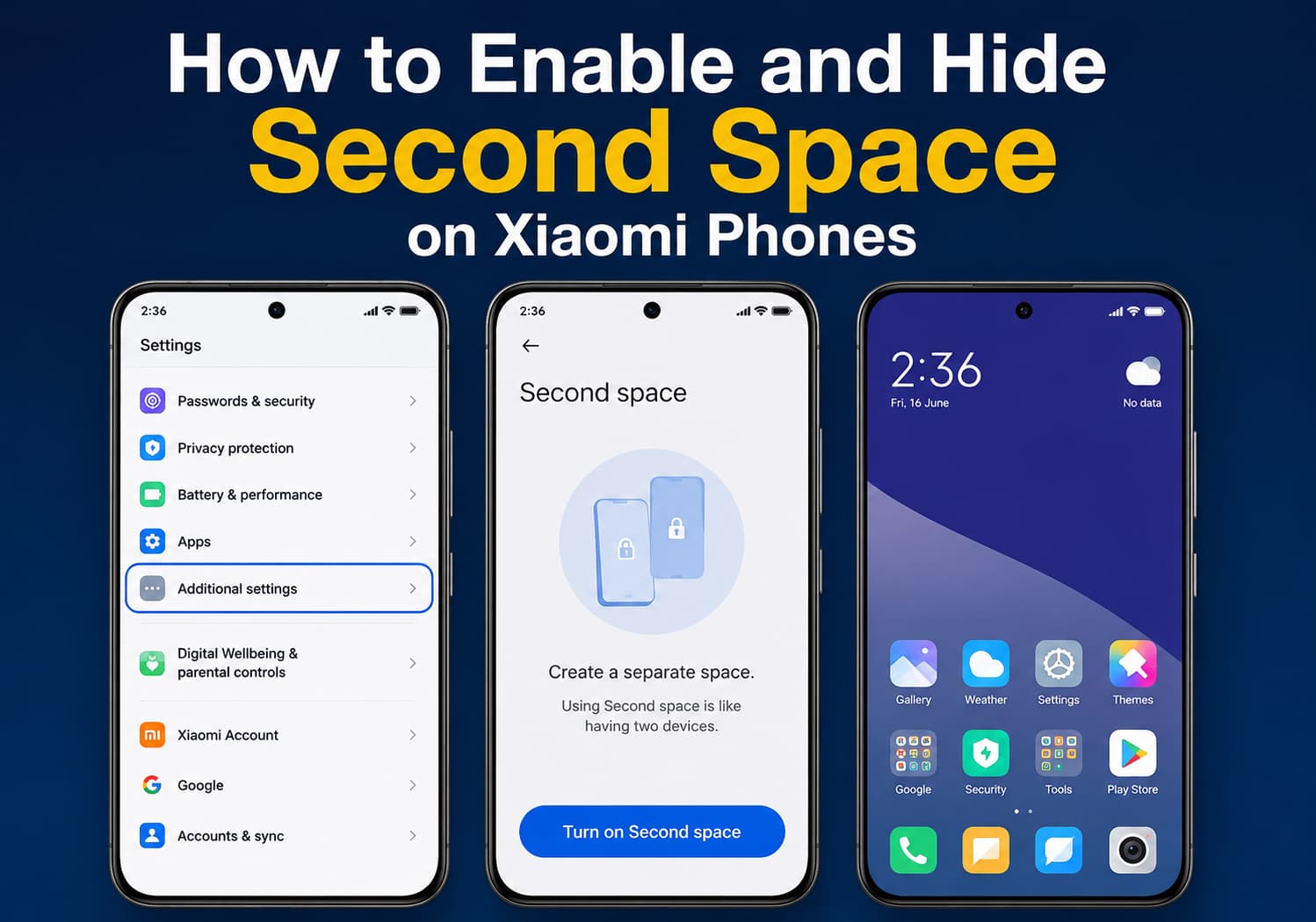
Xiaomi smartphones come with a useful privacy feature called Second Space, which allows users to create a separate environment on the same device. Similar to having two phones in one, Second Space provides an independent space for apps, files, photos, accounts, and settings without affecting the main system.
Whether you want to separate work and personal data, create a private area for sensitive files, or share your phone while keeping your information protected, Xiaomi’s Second Space feature offers a convenient solution.
This guide explains how to enable Second Space on a Xiaomi phone and how to hide it for better privacy.
What Is Xiaomi Second Space?
Second Space is a built-in feature in Xiaomi’s MIUI and HyperOS systems that creates a separate user environment on your smartphone.
Each space works independently and can have its own:
- Apps
- Photos and videos
- Files
- Contacts
- Accounts
- Wallpapers
- Home screen layout
- App settings
- Password protection
For example, you can use:
- First Space for personal apps and private information
- Second Space for work apps, guest access, or hidden content
Switching between the two spaces feels like using two different smartphones.
Requirements Before Enabling Second Space
Before setting up Second Space, make sure:
- Your Xiaomi phone supports the feature
- Your phone is running MIUI or HyperOS
- You have enough storage space for additional apps and files
- You remember your Xiaomi account details (recommended for recovery)
Some newer Xiaomi, Redmi, and POCO models may place the feature in different settings menus depending on the software version and region.
How to Enable Second Space on Xiaomi Phones
Follow these steps to create a Second Space:
Step 1: Open Settings
Unlock your Xiaomi phone and open the:
Settings app.
Step 2: Find Second Space
Scroll down and select:
Additional settings → Second Space
On some HyperOS devices, the option may appear under:
Settings → Privacy → Second Space
Step 3: Turn On Second Space
Tap:
Turn on Second Space
The phone will begin creating a separate environment.
The process may take a few seconds depending on your device and storage.
Step 4: Set Up a Password or Fingerprint
After creating Second Space, Xiaomi will ask you to set a security method.
You can choose:
- Password
- PIN
- Pattern
- Fingerprint unlock
Using a different fingerprint for each space makes switching between spaces faster and more convenient.
Step 5: Customize Your Second Space
After entering Second Space, you can customize it just like a new phone.
You can:
- Install new apps
- Add Google accounts
- Import photos and files
- Change wallpapers
- Configure notifications
Your First Space data remains separate and unchanged.
How to Switch Between First Space and Second Space
There are several ways to switch spaces.
Method 1: From Settings
Go to:
Settings → Additional settings → Second Space
Then tap:
Go to Second Space
Method 2: Using the Home Screen Shortcut
Some Xiaomi phones automatically create a Switch Spaces shortcut after Second Space is enabled.
Tap the shortcut to switch environments.
Method 3: Using Different Fingerprints
If configured, you can unlock the phone using:
- Fingerprint A → First Space
- Fingerprint B → Second Space
This is one of the fastest ways to access different spaces.
How to Hide Second Space on Xiaomi Phones
If you want to make Second Space less visible, Xiaomi provides options to hide access points.
Step 1: Enter Second Space Settings
Open:
Settings → Additional settings → Second Space
Step 2: Disable the Shortcut
Turn off options such as:
- Show Second Space shortcut
- Display switch icon
This removes the visible shortcut from your home screen.
Step 3: Use Password or Fingerprint Access Only
After hiding the shortcut, access to Second Space will require authentication.
This prevents other users from easily discovering that a separate space exists.
How to Hide Apps Inside Second Space
In addition to hiding Second Space itself, you can hide apps within it.
Steps:
- Open Settings
- Go to Apps
- Select App Lock or Hide Apps
- Choose the apps you want to protect
- Enable password protection
This provides another layer of privacy.
How to Move Files Between Spaces
Xiaomi allows users to transfer selected data between First Space and Second Space.
To move files:
- Open Second Space
- Go to Second Space Settings
- Select Move Data
- Choose:
- Photos
- Files
- Contacts
- Apps
- Confirm the transfer
The original data can remain in the first space or be moved completely.
How to Delete Second Space
If you no longer need Second Space, you can remove it.
Steps:
- Open Settings
- Go to Additional settings → Second Space
- Tap the delete option
- Confirm your password
Important:
Deleting Second Space permanently removes all data stored inside it, including:
- Apps
- Photos
- Files
- Accounts
- Settings
Make sure to back up important information before deleting it.
Benefits of Using Second Space
1. Better Privacy Protection
Keep private photos, messages, and applications separated from your main phone environment.
2. Work and Personal Separation
Create a dedicated workspace with different apps and accounts.
3. Guest Mode Alternative
Allow someone else to use your phone without exposing your personal information.
4. Multiple Accounts
Use separate accounts for:
- Social media
- Messaging apps
- Gaming
- Work platforms
5. Better Organization
Keep different types of content organized without needing another device.
Tips for Using Xiaomi Second Space Safely
- Use a different password for Second Space
- Enable fingerprint authentication
- Avoid storing important files without backup
- Regularly check storage usage
- Keep MIUI/HyperOS updated
- Remember your Second Space password
Final Thoughts
Xiaomi’s Second Space feature is a powerful privacy tool that allows users to create a completely separate digital environment on one smartphone. Whether you need a hidden personal area, a dedicated work profile, or a safe guest space, Second Space provides a simple and effective solution.
By combining Second Space with password protection, fingerprint access, and hidden shortcuts, Xiaomi users can enjoy greater privacy and flexibility without needing a second phone.