







Facebook Twitter Instagram
    Trending
    • Xiaomi 18 Series Reportedly Set to Debut on September 24 With Snapdragon 8E6
    • GLM-5.3 Released: Zhishu Claims New Open-Source AI Leader With Major Gains in Coding and Agentic Tasks
    • KQ Eva In-Car Robot Launches for 799 Yuan, Featuring Type-C Power and 30+ Dynamic Expressions
    • Xiaomi 18 Rumored to Debut Snapdragon 8 Supreme Edition Gen 6, Starting Price Could Exceed 5,499 Yuan
    • Xiaomi HyperOS 4 Beta Rollout Begins: First Batch of Devices Now Receiving Update
    • Sonos Ace Ultra Renderings Leak Ahead of Expected September 2026 Launch, With AI-Powered Smart Home Controls
    • DWi Colorful Light RC Helicopter Review: 2.4G 4.5CH Helicopter with 360° Obstacle Avoidance
    • UTAB F26 PRO Smartphone Review: Compact 3.5-Inch 4G Android Phone with Dual SIM
    Facebook YouTube
    IGeeKphone China Phone, Tablet PC, VR, RC Drone News, Reviews
    • HOME
    • BREAKING NEWS
      • AI NEWS
    • Amazon
    • PHONE
      • Top Phones For Your First Choice
      • Phone Comparison
      • Xiaomi
      • Blackview
      • Doogee
      • Black Shark
      • Geekbuying
      • Banggood
      • TEMU
      • TikTok
      • Aliexpress
      • Walmart
      • MercadoLibre
      • Lazada
    • TOP VAPE Awards for 2026
    • VAPES
      • E-CIGAR Upcoming
      • Vape News
      • Vape Deals
      • Vape Comparison
      • Vape Guide
      • VAPE LAWS
      • Giveaway
    • BEST VAPE
      • Best Vape Stores
      • Best Starter Vape Kits
      • Best Vapes for Beginners
      • Best Disposable Vapes
      • Best Pod Systems
      • Best Pod Mod Vapes
      • Best Mods
      • Best Nicotine Pouches
      • Best Clearomizers/Tanks
      • Best E-Liquid
      • Best EGO/Pens
      • Best Vapes for Nic Salt E-Juice
      • Best Vapes to Quit Smoking
      • RDA vs. RDTA vs. RTA
    • Best Vape Brand 2026
      • VAPORESSO
      • VOOPOO
      • OXVA
      • NEXA BAR
      • MASKKING VAPE
      • SP2S
      • IPLAY
      • TODOO
      • MRFOG
      • LOSTVAPE
      • VEIIK
    • REVIEW
      • E-cigar Review
      • Phones
      • Tablet PC
      • TV Box
      • RC Drone
      • Wearables
      • Camera
      • Accessories
      • VR Headset
    • MORE
      • TABLET
        • Chuwi
        • INNOCN
        • Teclast
        • Top Tablet for Your First Choice
        • Tablet/Laptop Comparison
      • RC DRONE
      • CAMERA
      • WEARABLES
        • OneOdio
        • BlitzWolf
        • Top Smartwatch for First Choice
      • 3D PRINTER
        • 3D Printer Review
        • Anycubic
        • FLSUN
        • Xtool
        • LONGER
        • Top 3D printer to Choose First
      • POWER STATION
        • Oukitel
        • FOSSIBOT
      • GAMING
        • Top Gaming Products
      • E-BIKE
        • Samebike
        • Happyrun
        • ENGWE
      • SMART HOME
      • TV BOX
      • ACCESSORIES
      • VR HEADSET
      • CLOTHES
      • AUTO CAR
    • DEAL
    • Shop
    IGeeKphone China Phone, Tablet PC, VR, RC Drone News, Reviews
    You are at:Home»Guide»How to Enable and Hide the Second Space Feature on a Xiaomi Phone?
    Guide

    How to Enable and Hide the Second Space Feature on a Xiaomi Phone?

    Brady CottonBy Brady CottonAugust 3, 2026
    Facebook Twitter Pinterest LinkedIn Tumblr Email

    Xiaomi smartphones come with a useful privacy feature called Second Space, which allows users to create a separate environment on the same device. Similar to having two phones in one, Second Space provides an independent space for apps, files, photos, accounts, and settings without affecting the main system.

    Whether you want to separate work and personal data, create a private area for sensitive files, or share your phone while keeping your information protected, Xiaomi’s Second Space feature offers a convenient solution.

    This guide explains how to enable Second Space on a Xiaomi phone and how to hide it for better privacy.

    What Is Xiaomi Second Space?

    Second Space is a built-in feature in Xiaomi’s MIUI and HyperOS systems that creates a separate user environment on your smartphone.

    Each space works independently and can have its own:

    • Apps
    • Photos and videos
    • Files
    • Contacts
    • Accounts
    • Wallpapers
    • Home screen layout
    • App settings
    • Password protection

    For example, you can use:

    • First Space for personal apps and private information
    • Second Space for work apps, guest access, or hidden content

    Switching between the two spaces feels like using two different smartphones.

    Requirements Before Enabling Second Space

    Before setting up Second Space, make sure:

    • Your Xiaomi phone supports the feature
    • Your phone is running MIUI or HyperOS
    • You have enough storage space for additional apps and files
    • You remember your Xiaomi account details (recommended for recovery)

    Some newer Xiaomi, Redmi, and POCO models may place the feature in different settings menus depending on the software version and region.

    How to Enable Second Space on Xiaomi Phones

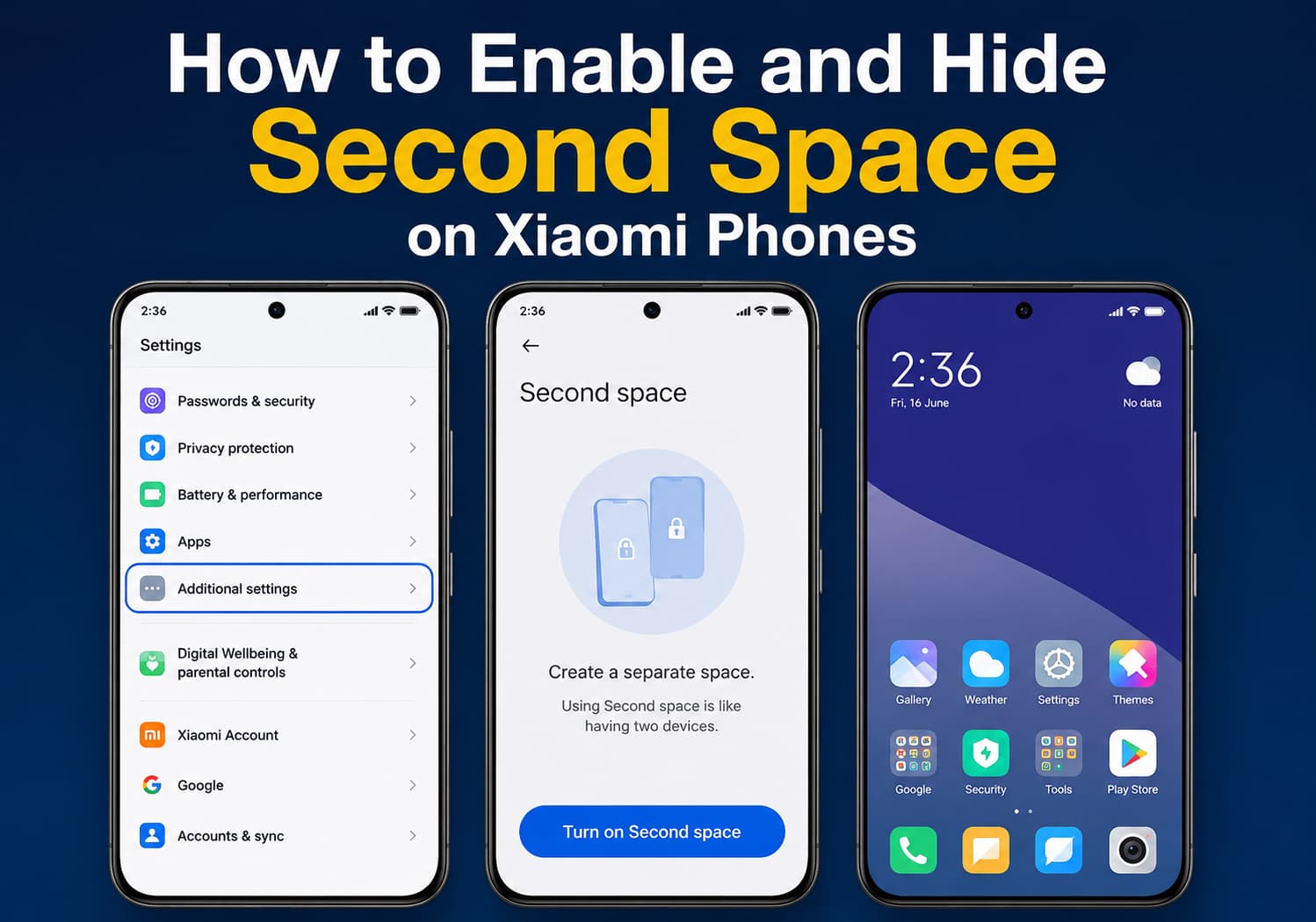
    Follow these steps to create a Second Space:

    Step 1: Open Settings

    Unlock your Xiaomi phone and open the:

    Settings app.

    Step 2: Find Second Space

    Scroll down and select:

    Additional settings → Second Space

    On some HyperOS devices, the option may appear under:

    Settings → Privacy → Second Space

    Step 3: Turn On Second Space

    Tap:

    Turn on Second Space

    The phone will begin creating a separate environment.

    The process may take a few seconds depending on your device and storage.

    Step 4: Set Up a Password or Fingerprint

    After creating Second Space, Xiaomi will ask you to set a security method.

    You can choose:

    • Password
    • PIN
    • Pattern
    • Fingerprint unlock

    Using a different fingerprint for each space makes switching between spaces faster and more convenient.

    Step 5: Customize Your Second Space

    After entering Second Space, you can customize it just like a new phone.

    You can:

    • Install new apps
    • Add Google accounts
    • Import photos and files
    • Change wallpapers
    • Configure notifications

    Your First Space data remains separate and unchanged.

    How to Switch Between First Space and Second Space

    There are several ways to switch spaces.

    Method 1: From Settings

    Go to:

    Settings → Additional settings → Second Space

    Then tap:

    Go to Second Space

    Method 2: Using the Home Screen Shortcut

    Some Xiaomi phones automatically create a Switch Spaces shortcut after Second Space is enabled.

    Tap the shortcut to switch environments.

    Method 3: Using Different Fingerprints

    If configured, you can unlock the phone using:

    • Fingerprint A → First Space
    • Fingerprint B → Second Space

    This is one of the fastest ways to access different spaces.

    How to Hide Second Space on Xiaomi Phones

    If you want to make Second Space less visible, Xiaomi provides options to hide access points.

    Step 1: Enter Second Space Settings

    Open:

    Settings → Additional settings → Second Space

    Step 2: Disable the Shortcut

    Turn off options such as:

    • Show Second Space shortcut
    • Display switch icon

    This removes the visible shortcut from your home screen.

    Step 3: Use Password or Fingerprint Access Only

    After hiding the shortcut, access to Second Space will require authentication.

    This prevents other users from easily discovering that a separate space exists.

    How to Hide Apps Inside Second Space

    In addition to hiding Second Space itself, you can hide apps within it.

    Steps:

    1. Open Settings
    2. Go to Apps
    3. Select App Lock or Hide Apps
    4. Choose the apps you want to protect
    5. Enable password protection

    This provides another layer of privacy.

    How to Move Files Between Spaces

    Xiaomi allows users to transfer selected data between First Space and Second Space.

    To move files:

    1. Open Second Space
    2. Go to Second Space Settings
    3. Select Move Data
    4. Choose:
      • Photos
      • Files
      • Contacts
      • Apps
    5. Confirm the transfer

    The original data can remain in the first space or be moved completely.

    How to Delete Second Space

    If you no longer need Second Space, you can remove it.

    Steps:

    1. Open Settings
    2. Go to Additional settings → Second Space
    3. Tap the delete option
    4. Confirm your password

    Important:

    Deleting Second Space permanently removes all data stored inside it, including:

    • Apps
    • Photos
    • Files
    • Accounts
    • Settings

    Make sure to back up important information before deleting it.

    Benefits of Using Second Space

    1. Better Privacy Protection

    Keep private photos, messages, and applications separated from your main phone environment.

    2. Work and Personal Separation

    Create a dedicated workspace with different apps and accounts.

    3. Guest Mode Alternative

    Allow someone else to use your phone without exposing your personal information.

    4. Multiple Accounts

    Use separate accounts for:

    • Social media
    • Messaging apps
    • Gaming
    • Work platforms

    5. Better Organization

    Keep different types of content organized without needing another device.

    Tips for Using Xiaomi Second Space Safely

    • Use a different password for Second Space
    • Enable fingerprint authentication
    • Avoid storing important files without backup
    • Regularly check storage usage
    • Keep MIUI/HyperOS updated
    • Remember your Second Space password

    Final Thoughts

    Xiaomi’s Second Space feature is a powerful privacy tool that allows users to create a completely separate digital environment on one smartphone. Whether you need a hidden personal area, a dedicated work profile, or a safe guest space, Second Space provides a simple and effective solution.

    By combining Second Space with password protection, fingerprint access, and hidden shortcuts, Xiaomi users can enjoy greater privacy and flexibility without needing a second phone.

    Share. Facebook Twitter Pinterest LinkedIn Tumblr Email

    Related Posts

    BAT Expands Strategic Technology Partnership With ITC Infotech Across Poland, Romania and India

    The Rise of Gamification in Education: Making Learning Fun and Engaging

    How Can I Restore My Photos That Were Completely Deleted from iPhone?

    Leave A Reply Cancel Reply

    You must be logged in to post a comment.

    voopoopintch
    oxva nexlim 2
    sp2s sen x disposable vape
    • Popular
    • 3D Printer REVIEW
    • XIAOMI
    July 13, 2026

    OXVA Nexlim 2 Mini Pod Vape Hands on Review

    July 13, 2026

    OXVA Nexlim 2 Pod Vape Hands on Review

    June 21, 2026

    iPlay LUMO 8K Review – A Compact Prefilled Pod Kit with Big Flavor and Everyday Convenience

    June 21, 2026

    iPlay HOOLA 150K Review – A Cloud-Chasing Giant with Music, Modes & Massive Longevity

    December 26, 2025

    ACMER ASCARVA 4S: Precision CNC Power for Makers, DIYers & Small Workshops

    June 23, 2024

    ACMER P2 20W Laser Engraver Fixed Focus Engraving: Hands on Review

    May 30, 2024

    xTool F1 Ultra Review: World’s First 20W Fiber & 20W Diode Laser Engraver

    May 30, 2024

    Anycubic Kobra 3 Combo Review: The Multicolor Masterpiece?

    August 14, 2026

    Xiaomi 18 Series Reportedly Set to Debut on September 24 With Snapdragon 8E6

    August 14, 2026

    Xiaomi 18 Rumored to Debut Snapdragon 8 Supreme Edition Gen 6, Starting Price Could Exceed 5,499 Yuan

    August 14, 2026

    Xiaomi HyperOS 4 Beta Rollout Begins: First Batch of Devices Now Receiving Update

    August 13, 2026

    Xiaomi MIX Fold 5 Teased in HyperOS 4 Beta Poster, Hinting at the Company’s Next Large-Screen Foldable

    fc 26 coins
    New Arrivals
    • Pod Juice Tobacco Series E-juice Pod Juice Tobacco Series E-juice
    • Huawei Watch GT 7 Pro Huawei Watch GT 7 Pro
    • Huawei Watch GT 7 Huawei Watch GT 7
    • Vapetasia Better Salt Series E-juice Vapetasia Better Salt Series E-juice
    • JNR Mega Box Pro 50K Disposable Vape JNR Mega Box Pro 50K Disposable Vape
    • HQD SiSA 80K Hookah Disposable Vape HQD SiSA 80K Hookah Disposable Vape
    • VOZOL SWAP 70K Disposable Vape VOZOL SWAP 70K Disposable Vape
    • Oppo Reno16 F Oppo Reno16 F
    • Oppo Reno16c Oppo Reno16c
    About
  • Igeekphone.com provides the first global tech news and reviews about smartphone, vapes, e-cigar, smart home, 3D printers, e-bike,tablets, RC drones, VR headset, and other accessories. It's the best platform to improve your brand and product.
  • Contact us: info@igeekphone.com
  • Check Our Privacy Policy Here.
  • Note: *Right now we have US editor and EU editors for review, especially for Amazon US and EU.
  • *Shop and Compare Price Here*
  • Facebook
  • Youtube
  • OUR BEST VAPE PARTNERS
  • VAPE ONLINE STORE
  • VAPORESSO
  • VOOPOO
  • OXVA
  • NEXA
  • MASKKING
  • SP2S
  • IPLAY
  • TODOO
  • OTHER BEST PARTNERS
  • SVBONY
  • Chuwi
  • Blackview
  • Fossibot
  • Unihertz
  • Flsun
  • Anycubic
  • Xtool
  • Oukitel
  • Mukkpet Ebike
  • Ugreen
  • Copyright © 2026 igeekphone

    Type above and press Enter to search. Press Esc to cancel.