









Taking a selfie with a foldable iPhone can be easier when you use its outer display to frame the shot. Instead of relying on the front-facing camera, you can use the rear cameras for a selfie and check the composition on the cover screen before taking the picture.
If you want time to get into position, adjust your hair, or include friends in the frame, the Camera app’s timer can help. On Apple’s iPhone Duo, you can also use features such as Duo Preview and Smart Take to make hands-free photography more convenient.
Here is how to set up a countdown selfie, use the outer display correctly, and troubleshoot common problems.
Why Use the Cover Screen for Selfies?
The outer display makes it possible to frame a selfie while using the phone’s rear cameras. This can be helpful when you want to include more people, capture a wider background, or take advantage of the rear camera system.
A countdown adds another benefit: it gives you a few seconds to move into position without having to reach for the shutter at the last moment.
Before starting, place your foldable iPhone on a stable surface or secure it with a suitable stand. Make sure the rear cameras have an unobstructed view and that the outer display is visible from where you plan to stand.
Before taking your shot, you can also explore our guide to adjusting selfie settings on iPhone 17 to learn about composition aids and camera adjustments.”
Step 1: Open the Camera App
Unfold your iPhone Duo and open the built-in Camera app.
If you want to take a selfie with the rear cameras, tap the camera-switching control to select the rear-facing cameras. Turn the phone so the rear cameras point toward you.
On iPhone Duo, Apple provides an outer-display control that lets you show the camera preview and relevant controls while composing a selfie. Depending on the camera mode, you may need to use the on-screen option to activate the outer display.
Step 2: Enable the Outer Display Preview
With the phone open and the rear cameras aimed at yourself, look for the outer-display camera control.
On iPhone Duo, Apple’s documented process is to open Camera, select the rear cameras if needed, turn the phone around, and drag the Show Camera slider on the outer display.
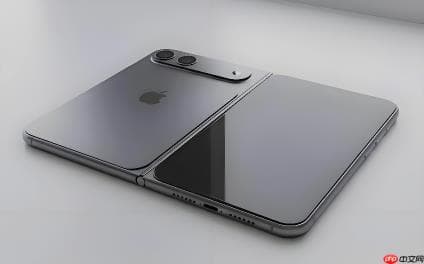
You can then use the cover screen to check your position and composition before taking the photo.
If you are photographing another person, the Duo Preview feature can show them a live preview on the outer display. This is useful for group photos because people can adjust their position without repeatedly asking the photographer to check the framing.
Step 3: Set the Camera Countdown Timer
Once the composition looks right, set the timer:
- Open the Camera app and select Photo mode.
- Open the camera controls. Depending on the interface, you may need to tap the controls button or swipe up on the camera view.
- Find the Timer control.
- Choose one of the available countdown options, such as 3 or 10 seconds, if offered by your device and camera mode.
- Return to the camera preview and confirm that the timer is enabled.
- Tap the shutter button, then move into position before the countdown finishes.
The available timer options and the placement of camera controls can vary by iOS version and camera mode. If the Timer control is not immediately visible, open the additional camera controls and check there.
Tip: For a full-body selfie, place the phone farther away and check the outer-screen preview before starting the countdown. Leave enough space around the edges of the frame so nobody is accidentally cropped out.
Step 4: Use the Countdown to Improve Your Shot
The timer is particularly useful when the phone is resting on a table, shelf, or tripod. After pressing the shutter, you can step back, look toward the camera, and settle into a natural pose.
For more consistent results:
- Choose a stable position. A secure stand reduces camera shake and helps keep the composition consistent.
- Check the lighting first. Face a window or another soft light source when possible.
- Keep the lens clear. Fingerprints on the rear cameras can make photos look hazy.
- Check the background. Use the outer display to spot clutter or objects that appear to stick out behind someone’s head.
- Take several photos. Small changes in expression and posture can make a noticeable difference.
A countdown does not automatically improve image quality, but it makes hands-free framing more practical.
If you want to learn more about Apple’s camera interface, read our report on iOS 18.2 camera control improvements.
Step 5: Try Smart Take for Hands-Free Photos
If your goal is to get into the frame without rushing against a countdown, iPhone Duo also supports Smart Take.
According to Apple, Smart Take can detect when people pose or hold still and capture photos automatically. To use it:
- Open Camera on iPhone Duo.
- Place the phone securely on a stable surface or hold it steady.
- Look for the Smart Take control. If it is not visible, open Camera Controls and select Smart Take.
- Start Smart Take, then move into the frame and pose.
- Wait for the camera to capture photos. The flash indicates when a photo has been taken.
- Tap the Smart Take control again when you want to stop.
Smart Take can capture multiple photos over a short session, giving you a choice of expressions and poses afterward. It is especially useful for group photos or situations where you need both hands free.
Feature availability and behavior depend on the supported iPhone model and software version.
Timer vs. Smart Take: Which Should You Use?
Both options help with hands-free photography, but they work differently.
| Feature | Countdown timer | Smart Take |
|---|---|---|
| How it works | Takes a photo after a set delay | Captures when it detects a pose or stillness |
| Best for | A single planned shot | Several poses or group photos |
| User control | You choose when the countdown starts | The camera detects when to capture |
| Preparation | Set the timer and move into position | Start the session and pose |
| Main advantage | Predictable delay | Less need to race against a countdown |
Choose the timer when you know exactly when you want the picture taken. Try Smart Take when you want to experiment with different poses or take a group photo without repeatedly returning to the phone.
What If the Timer or Cover Screen Preview Does Not Appear?
If you cannot find the controls, try these checks:
The Timer option is missing: Make sure you are in a supported photo mode, then open the additional Camera controls. Some controls may appear in different places depending on the software version.
The outer display does not show the preview: Confirm that you are using a supported camera configuration and have selected the rear cameras when needed. On iPhone Duo, use the documented outer-display controls to enable the camera view.
The picture looks blurry: Clean the camera lenses, stabilize the phone, and avoid moving as the shutter activates. In low light, use brighter lighting where possible.
The countdown finishes before you are ready: Try a longer available timer option, prepare your pose before pressing the shutter, or use Smart Take instead.
The subject cannot see the framing: If you are taking a photo of someone else, enable Duo Preview so they can see how they appear in the frame.
Final Thoughts
Setting a countdown for cover-screen selfies is a simple way to make hands-free photography more comfortable on a foldable iPhone. The timer gives you time to get into position, while the outer display helps you check the framing before the shot.
On iPhone Duo, Duo Preview adds a live view for the person being photographed, and Smart Take offers another approach by capturing photos when people pose or hold still.
For a single, carefully planned selfie, start with the Camera app’s Timer control. If you want several natural poses or need to join a group photo, Smart Take may be the more convenient option.