









I’ve been using the AULA F108 Pro, and it’s one of those keyboards that just gets the basics right. It’s a full-sized mechanical board that doesn’t try to reinvent the wheel, but brings together everything you’d actually want in a daily driver.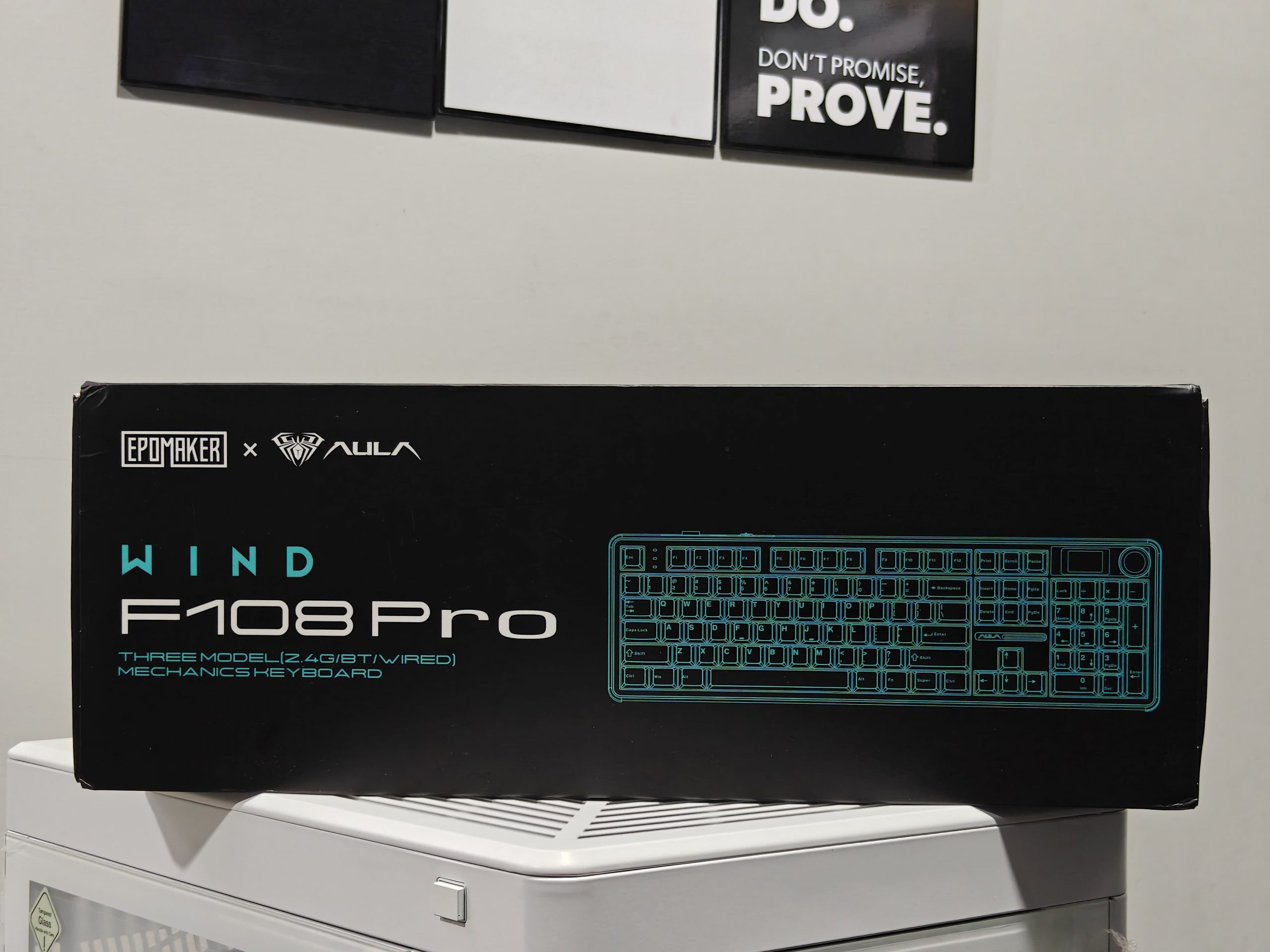
What stands out is how it balances old-school keyboard design with genuinely useful modern touches. The build quality feels solid in your hands, and I really appreciate the hot-swappable switches; swapping them out takes seconds if you want to change things up. It handles both wired and wireless connections without fuss, and the RGB lighting adds some personality without going overboard.
The typing experience is comfortable whether I’m gaming or just working through emails and documents. Nothing about it feels overcomplicated or gimmicky. Since I’d already spent time with the compact AULA F75 Max, I was curious to see how their full-sized 100% layout would compare, and it’s been a pleasant surprise so far.
Unboxing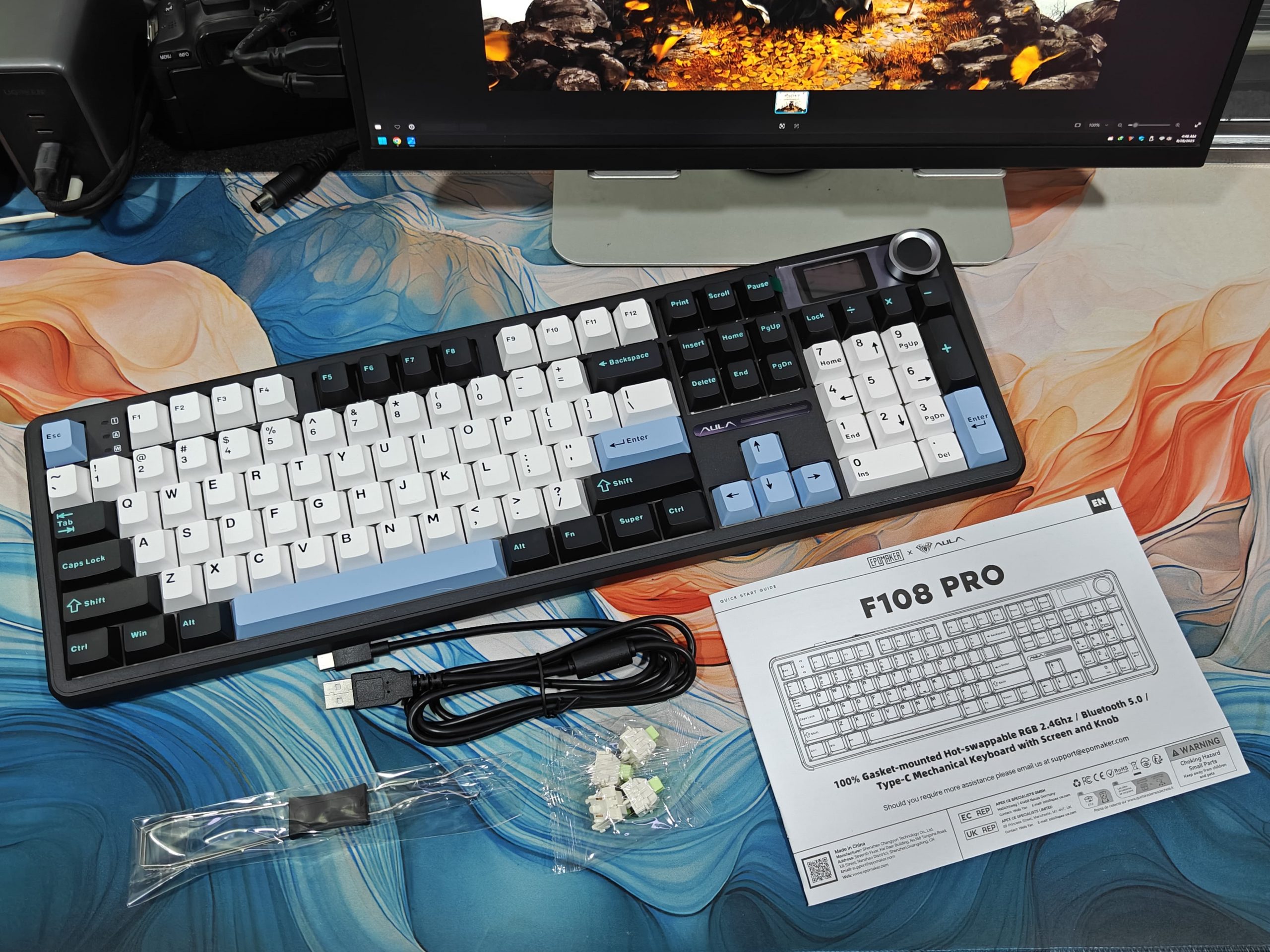
When you open the box, you’ll find the AULA F108 Pro keyboard along with its cable, a keycap and switch puller, some spare switches, and the instruction manual. The keyboard comes wrapped in protective plastic with an additional cover to keep the surface from getting scratched during shipping. I have to say, the packaging was better than I expected. It’s pretty much on par with what you’d get from most other keyboard brands out there.
Design and Switches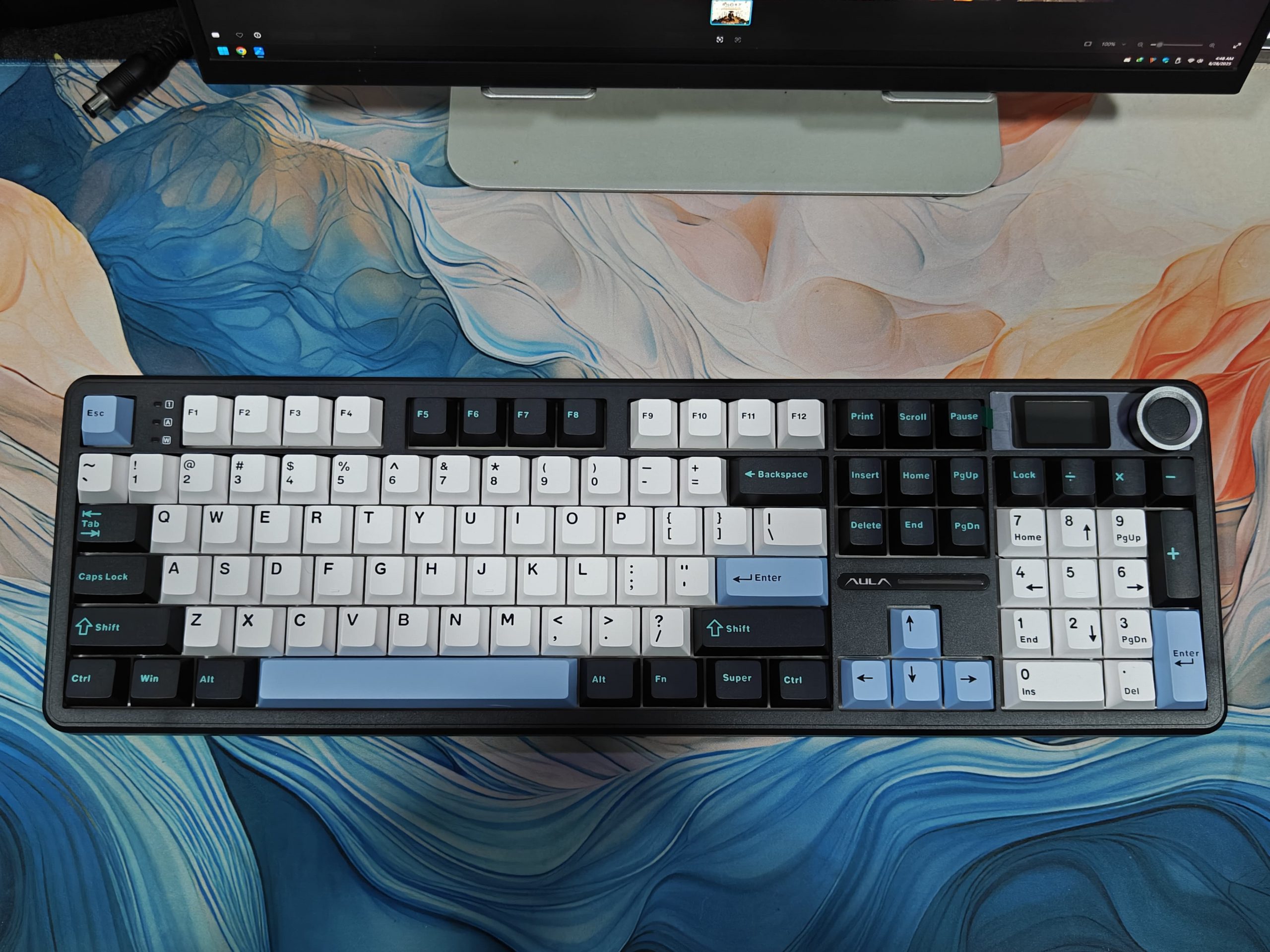
The Aula F108 Pro is basically Epomaker & Aula’s enhanced to their F75 Max, just scaled up to full size and with a customizable screen thrown in. You can check out my full review here.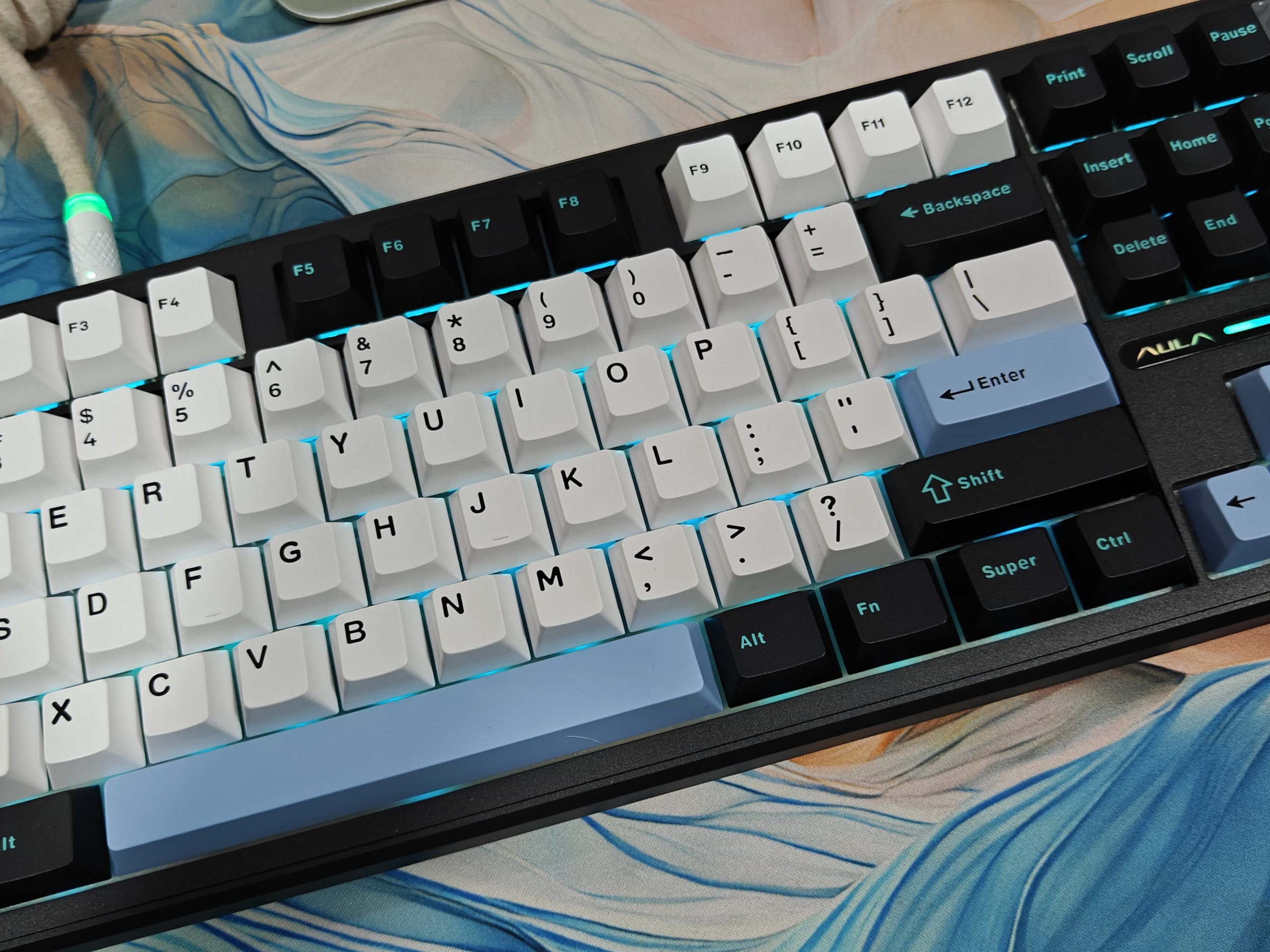
What I really like about the F108 Pro is how it nails the classic full-size setup. You get all 104 keys, a proper numpad, that neat TFT screen, and a three-tone color scheme that catches your eye without being obnoxious. Honestly, the colors just click together perfectly. The subtle logo placement and rounded corners give it a polished look. I tested the gradient Black-White Blue version, and it quickly became the star of my desk, managing to look both fun and sophisticated at the same time.
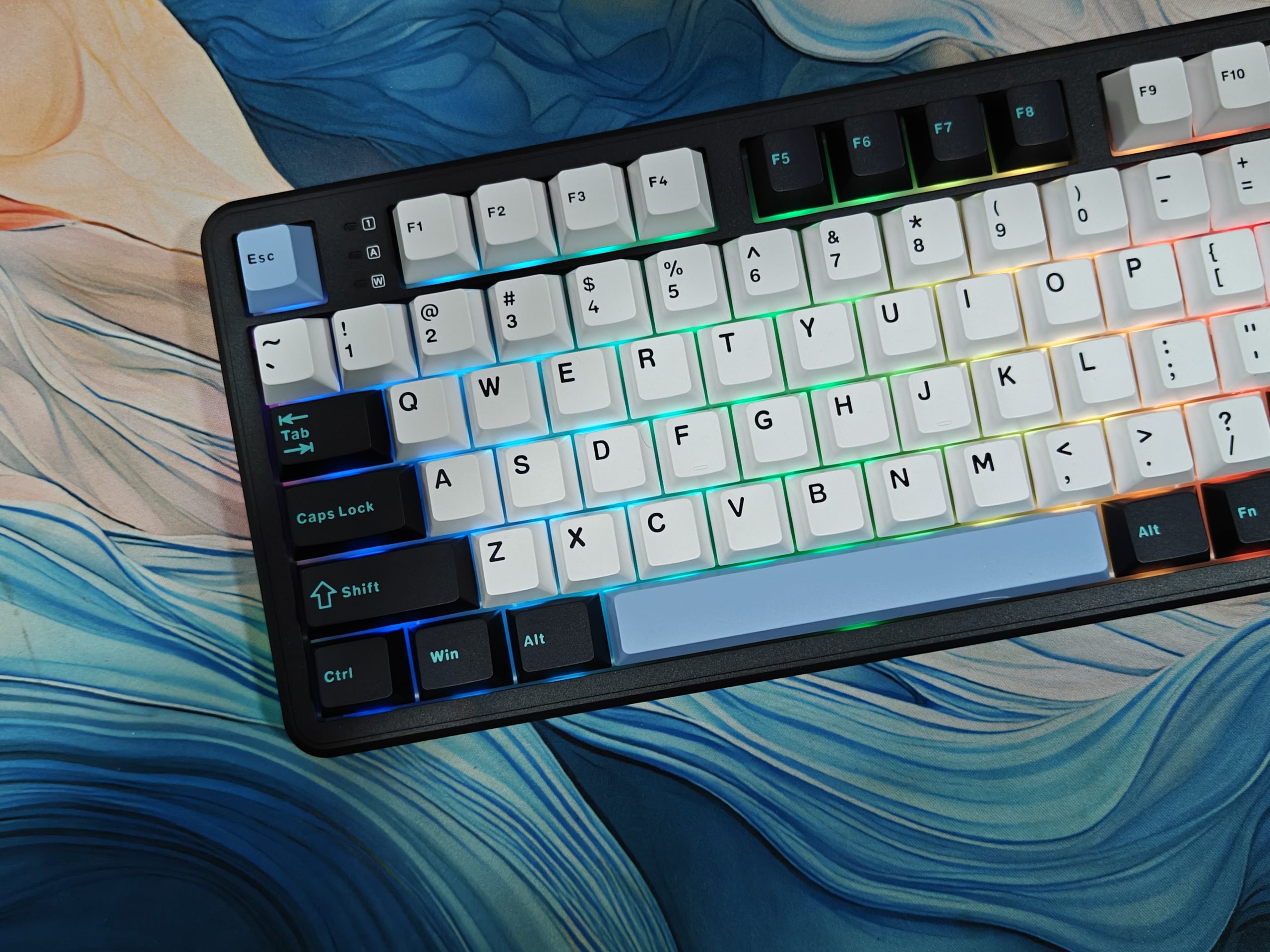
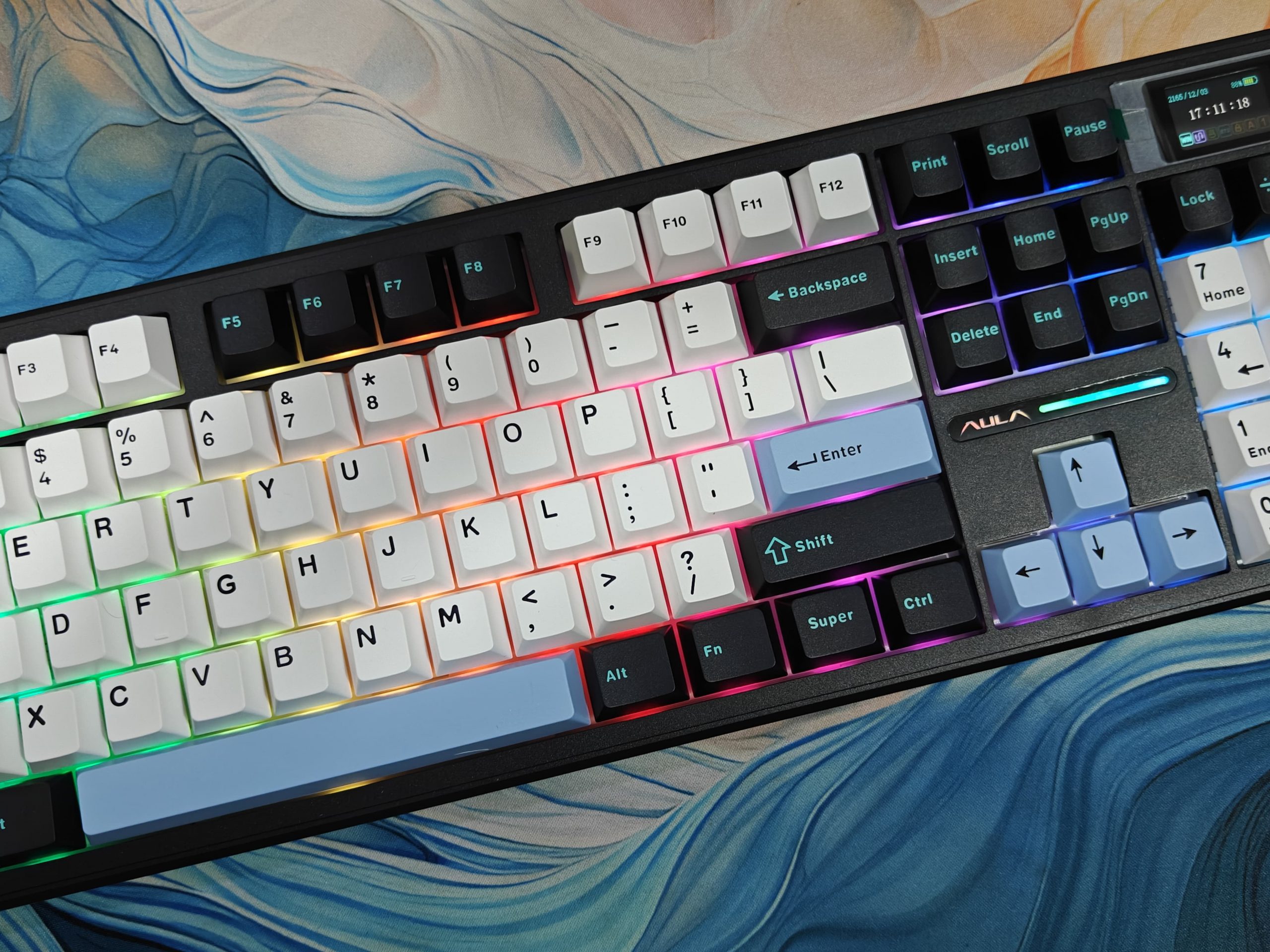
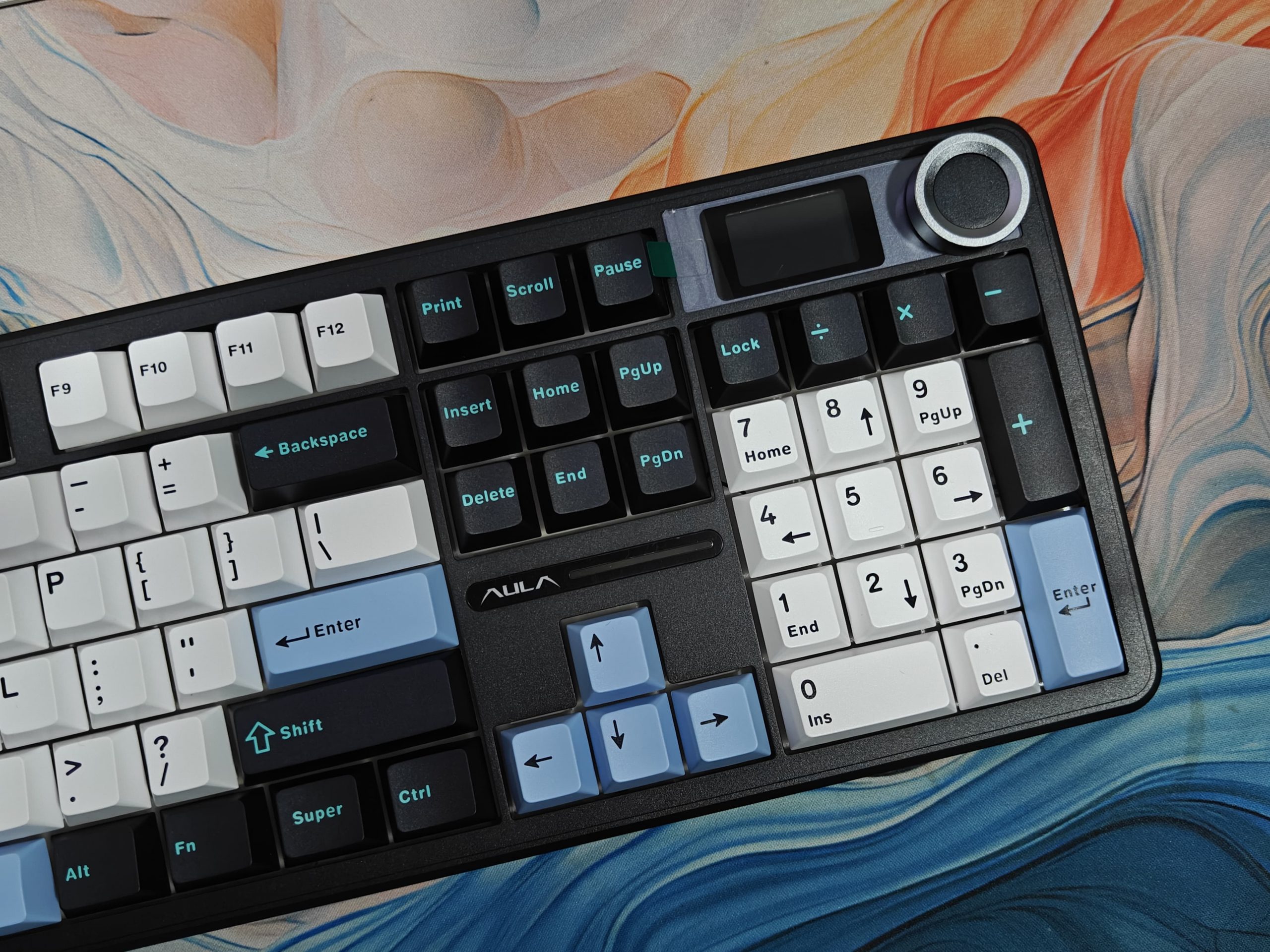
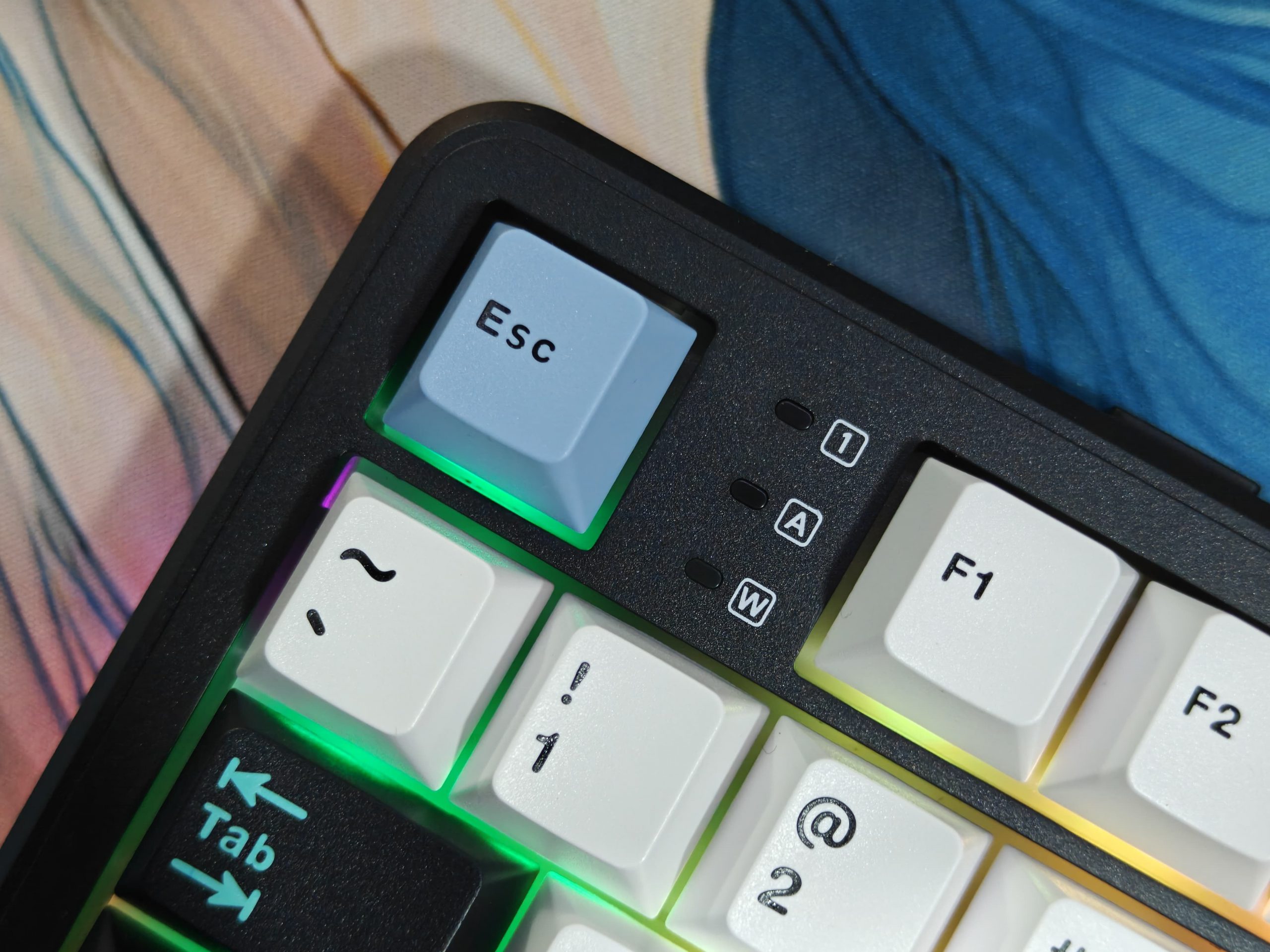
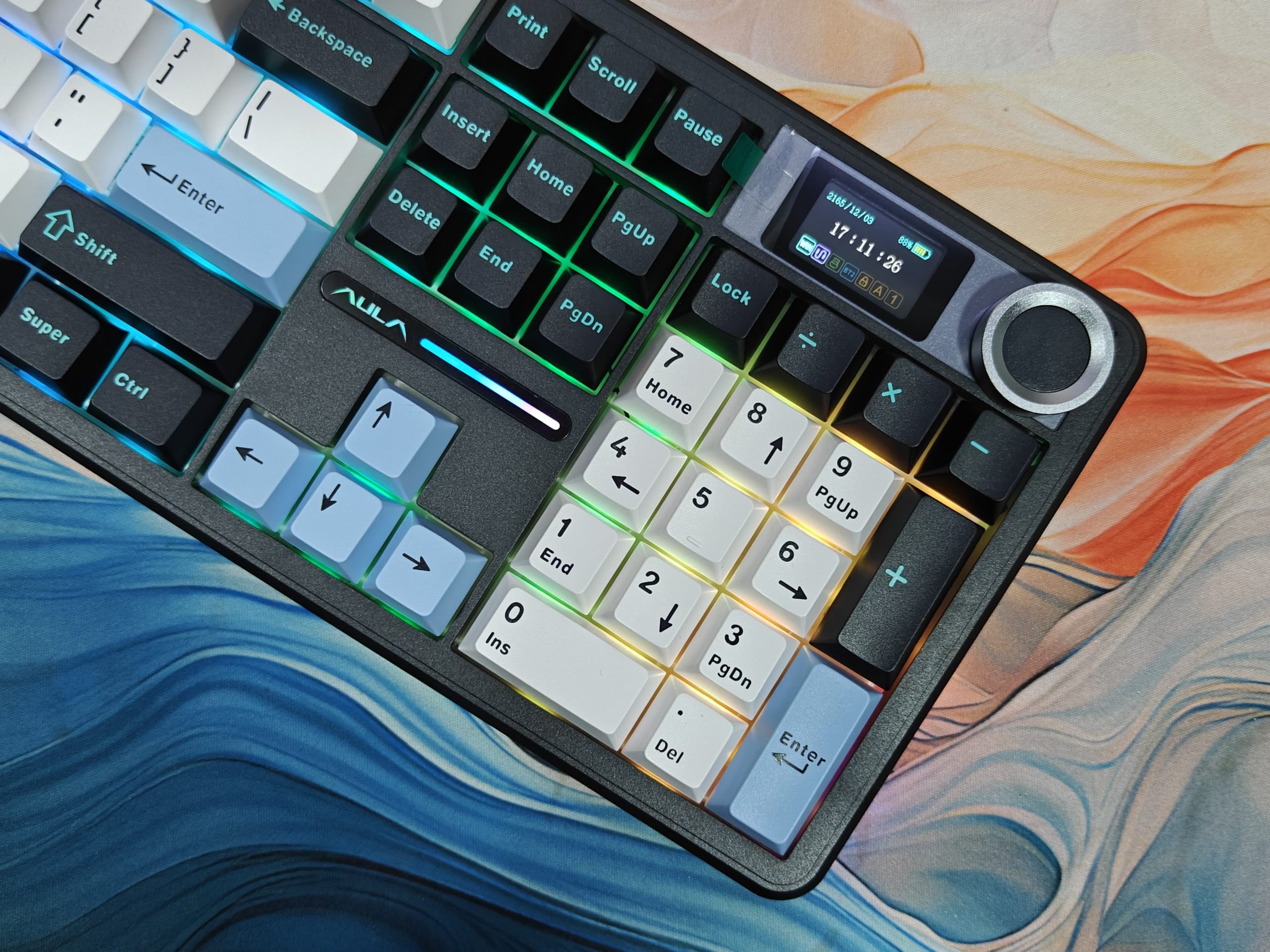
The keyboard has adjustable feet (two positions) that actually stay put when you’re typing hard. Around back, you’ll find an ON/OFF switch, a spot to stash the dongle (super handy), and a USB-C port. I’m a fan of the side LED panels; they add some nice RGB flair along the edges. There are also tiny LED indicators on the left that come in handy.
Build & Feel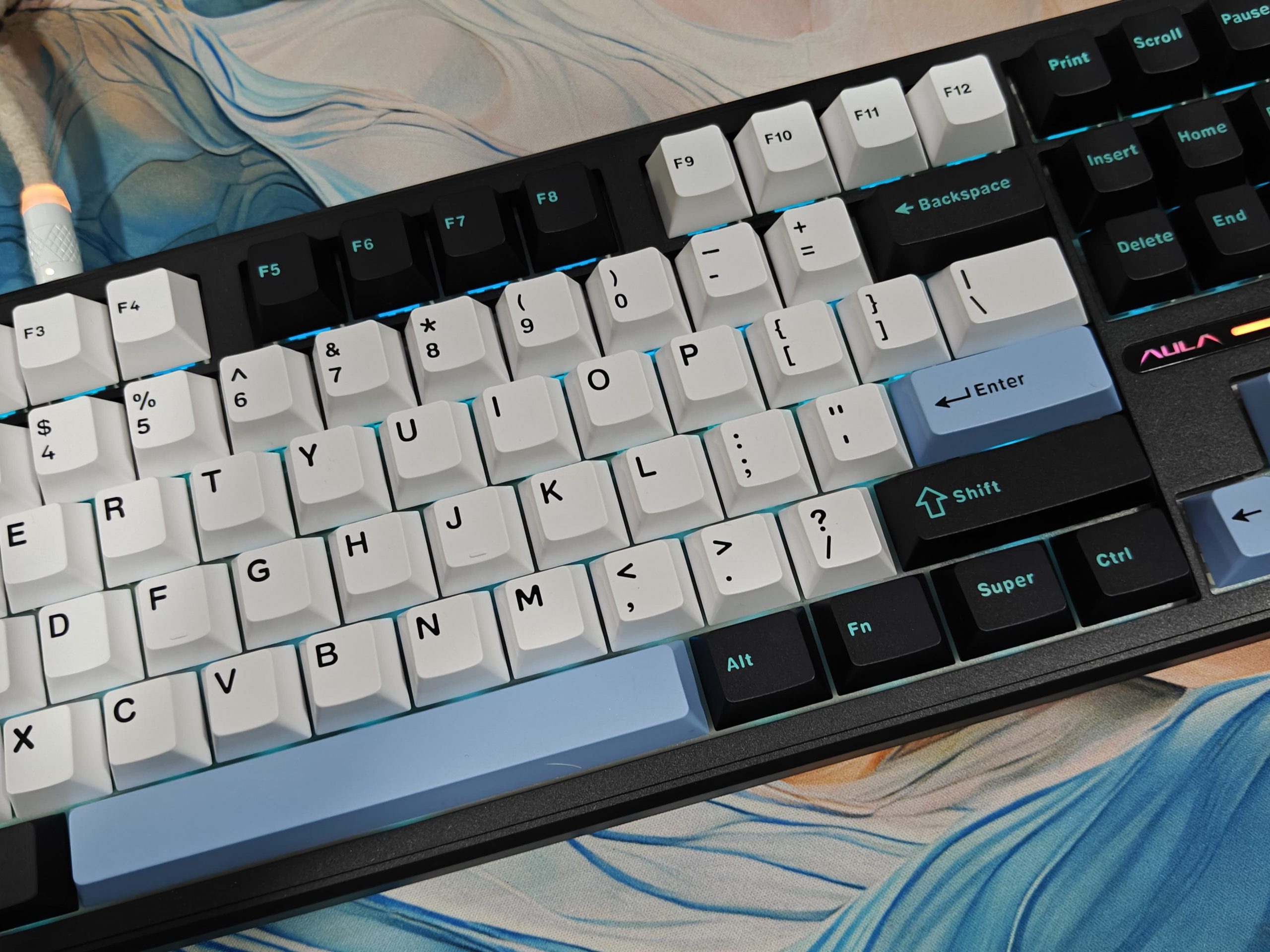
Even though it’s all ABS plastic, this keyboard feels surprisingly solid. There’s good weight to it, and zero of that cheap hollow feeling — the gasket-mount setup combined with a partially flex-cut PC plate makes bottoming out feel softer without getting mushy. Five layers of foam (PO sandwich, switch pads, PET pad, bottom foam, and silicone) work together to create a satisfying, muted “thock” that hits the sweet spot — not too quiet, not too pingy.
The bright per-key RGB lighting (south-facing) and full hot-swap capability are pretty standard features now, but they’re still welcome additions.
Keycaps and Switches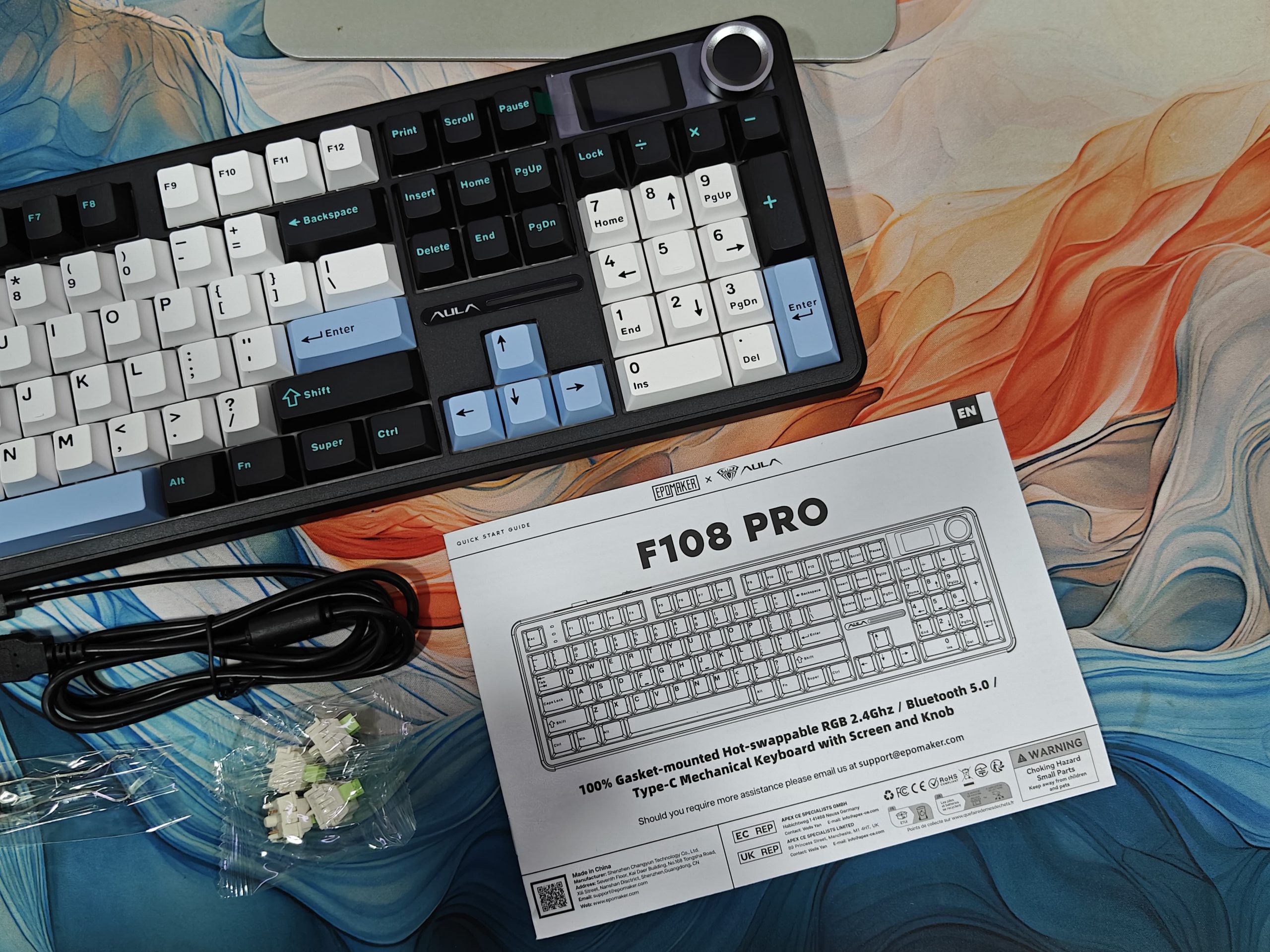
The LeoBog Reaper switches are 5-pin linears that start moving at 1.5mm with a 40g actuation force. They’ve got this smooth, creamy feel with a nice, deep sound—factory lubed right out of the box. Pop some keycaps on, and they really come alive. These are closed-bottom, box-mounted switches with the following details:
- Switch Type: 5-pin Linear Mechanical Switch
- Lubrication: Factory Pre-Lubed
- Trigger Force: 40±3gf
- Bottom-out Force: 53gf±3g
- Pre-Travel: 1.5±0.3mm
- Total Travel: 3.6±0.3mm
- Top Case: PC
- Bottom Case: Nylon
- Stem: POM
- Light Diffuser: No Light Diffuser
The double-shot PBT keycaps with front-printed legends are a solid choice. Cherry profile fits your fingers naturally and won’t wear you out during long typing sessions. Everything feels good under your fingertips—weighted just right so you can type quickly without mistakes. And since it’s hot-swappable (works with 3-pin and 5-pin switches) with well-lubed stabs, you’ve got plenty of room to tinker and make it your own.
Display
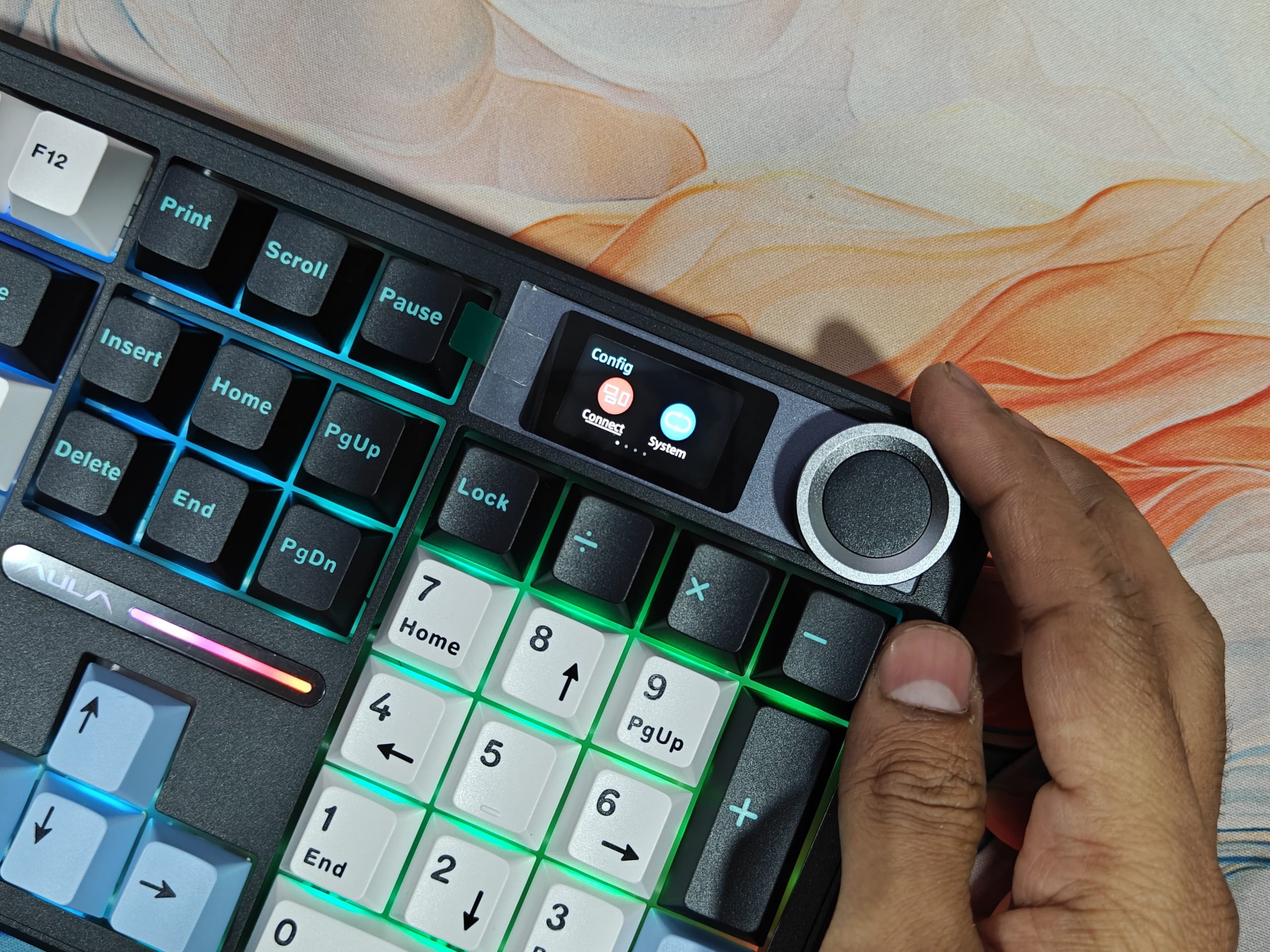
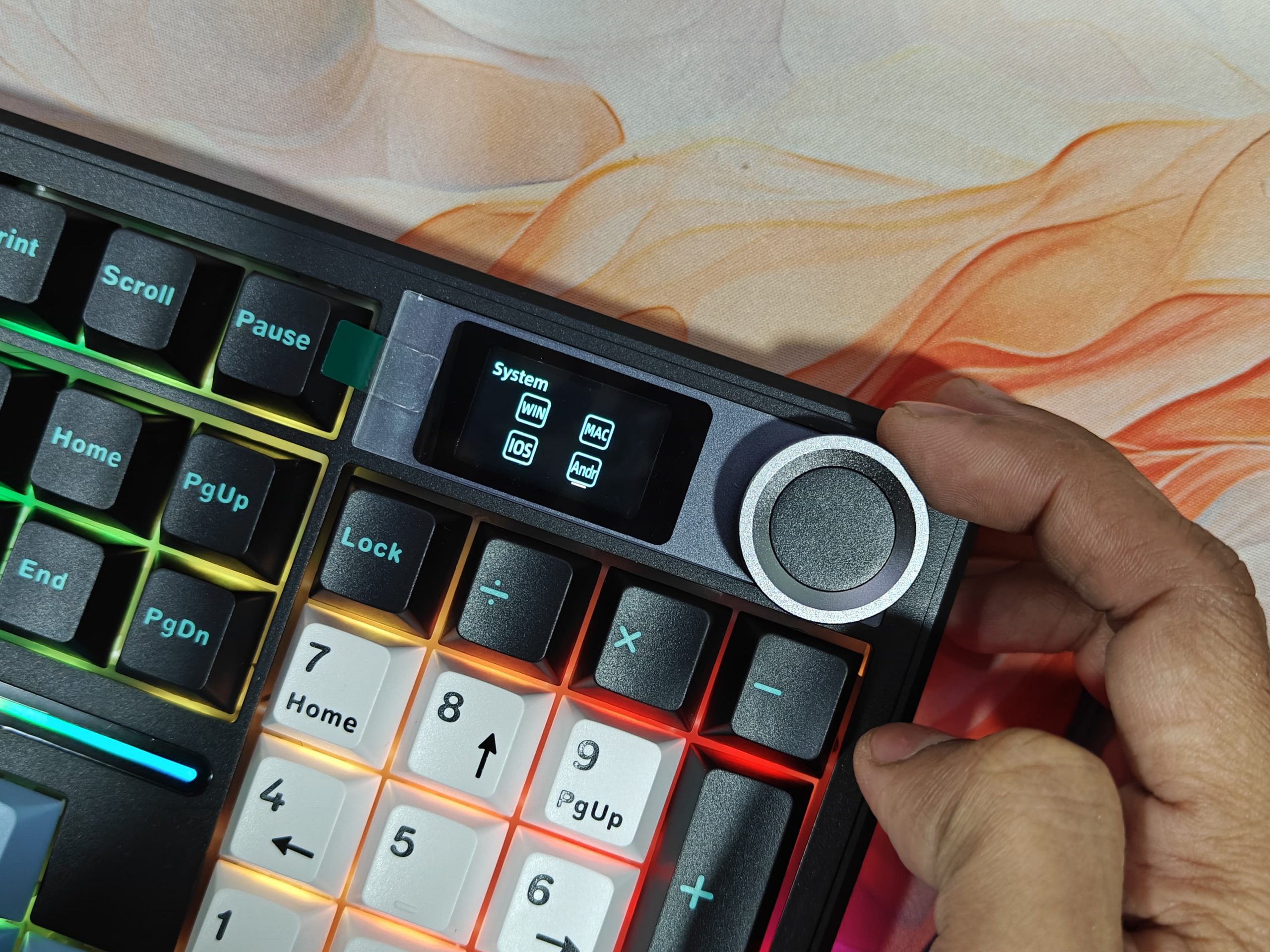
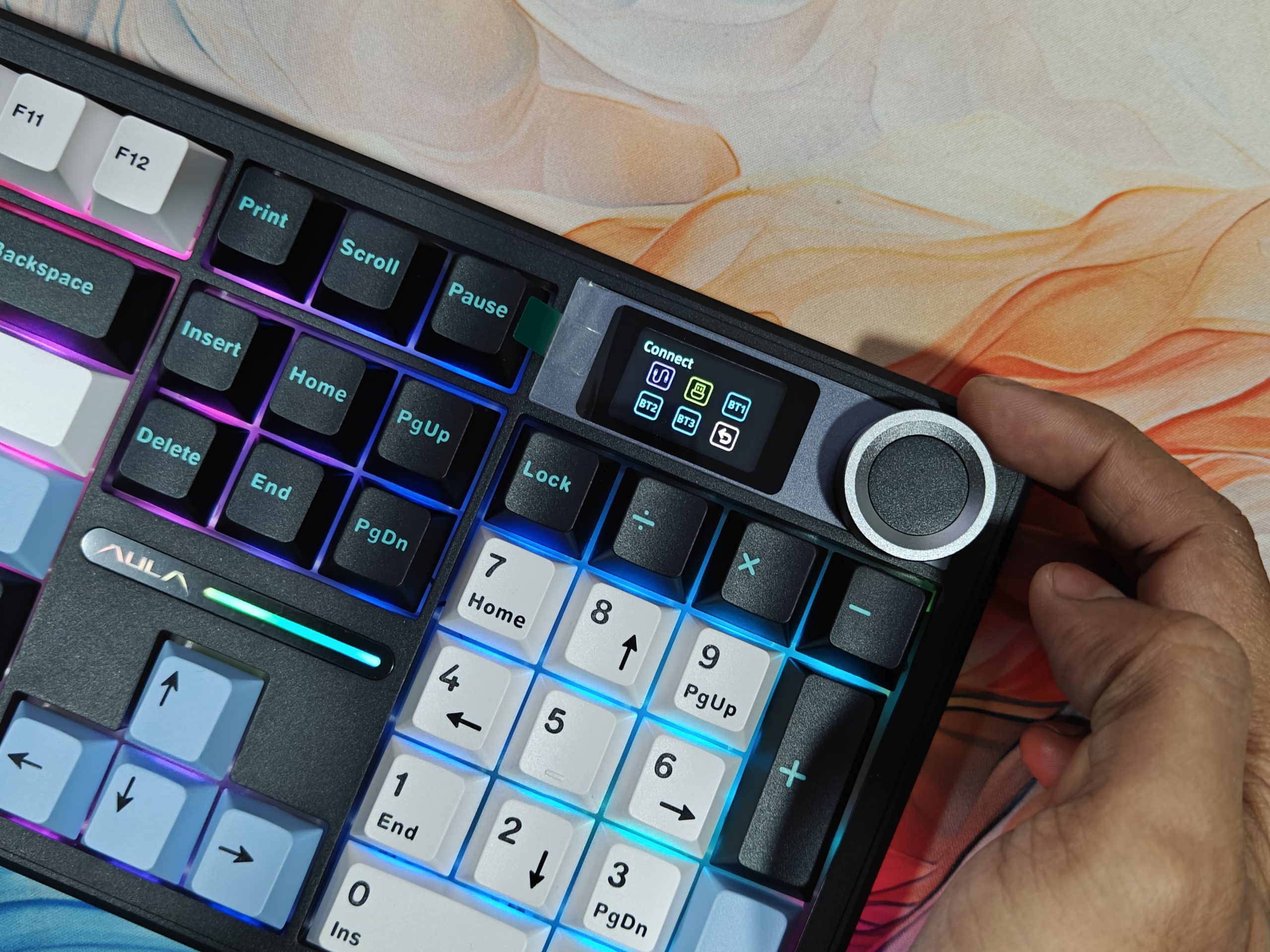
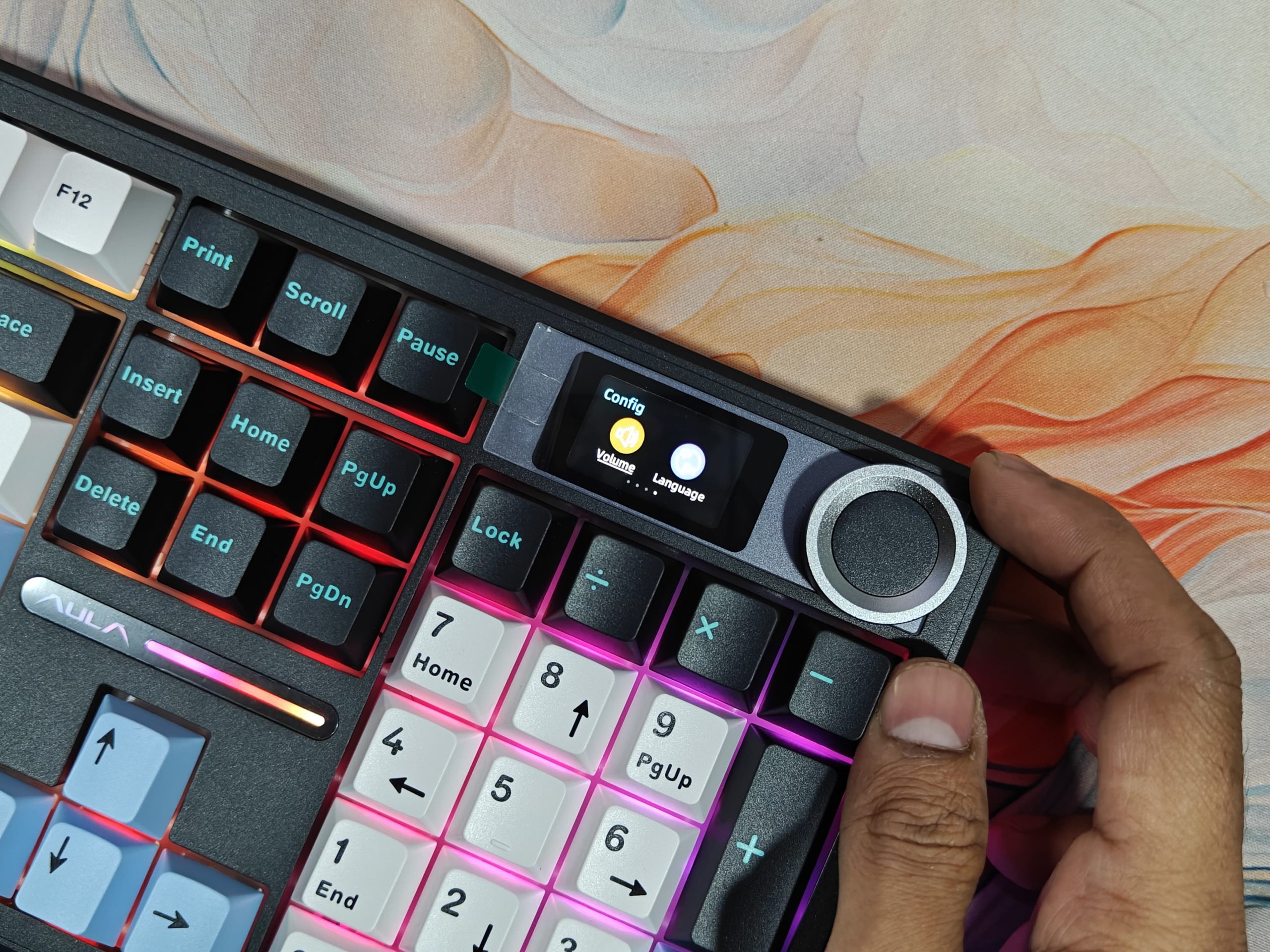
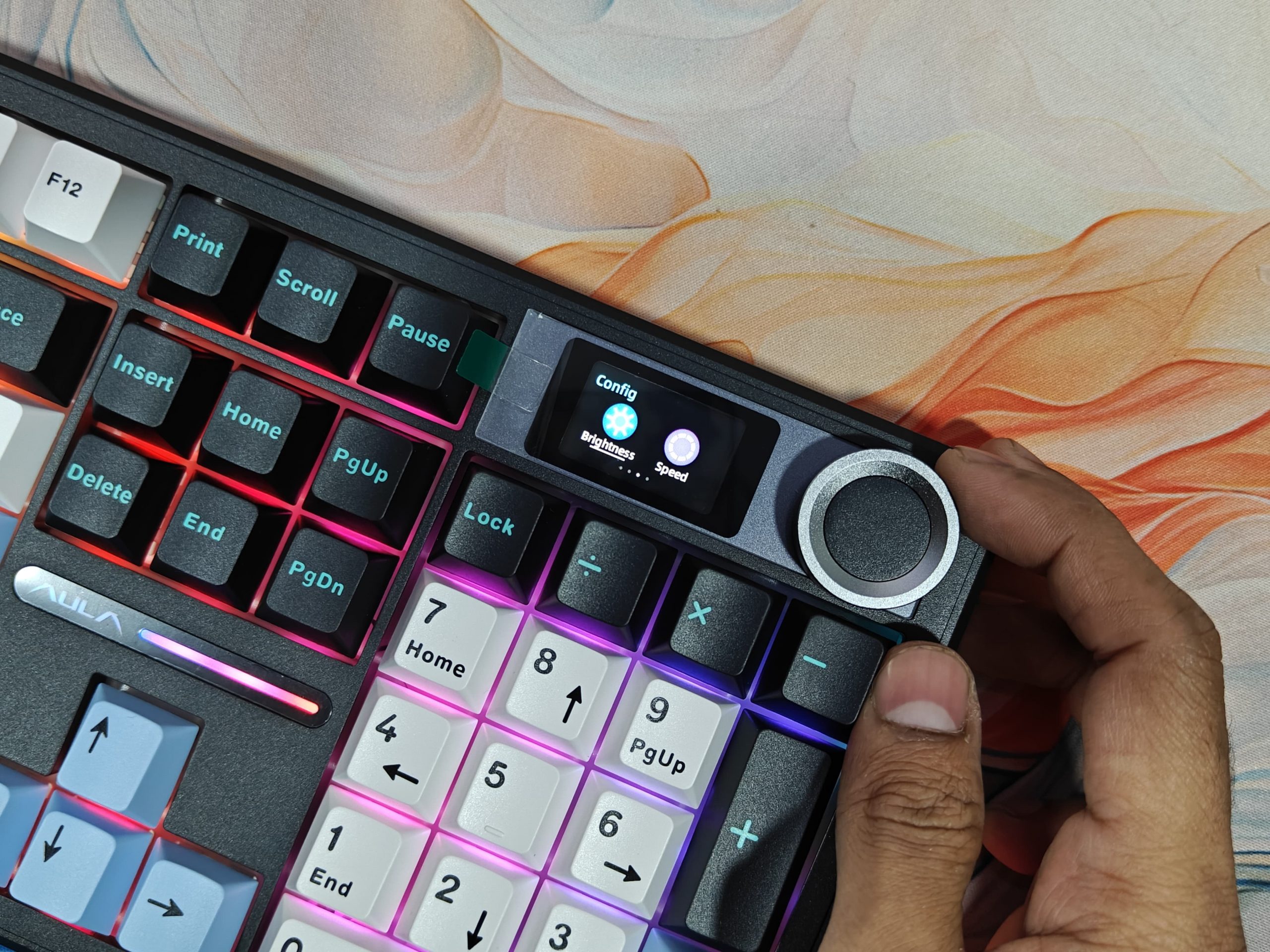
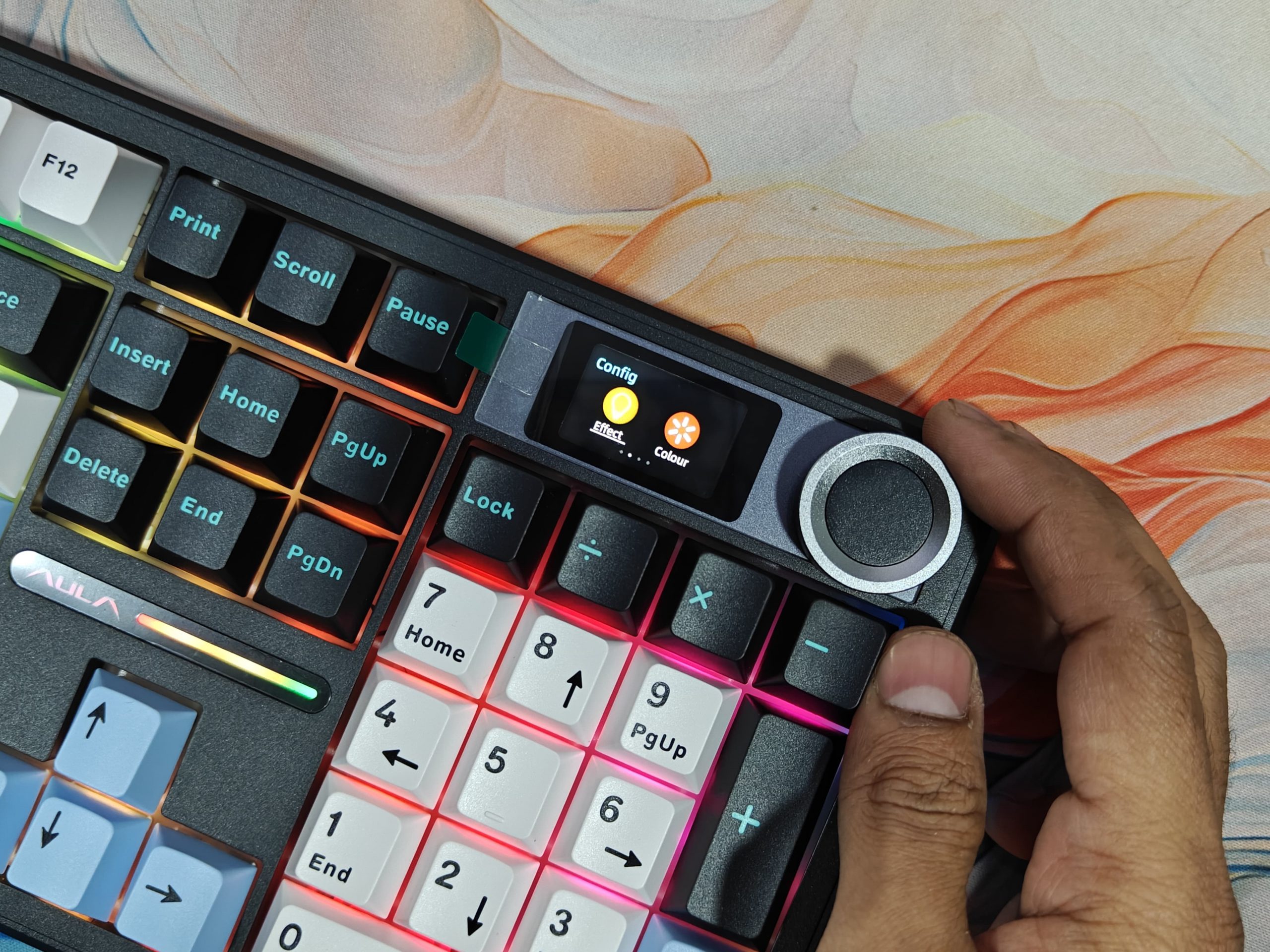
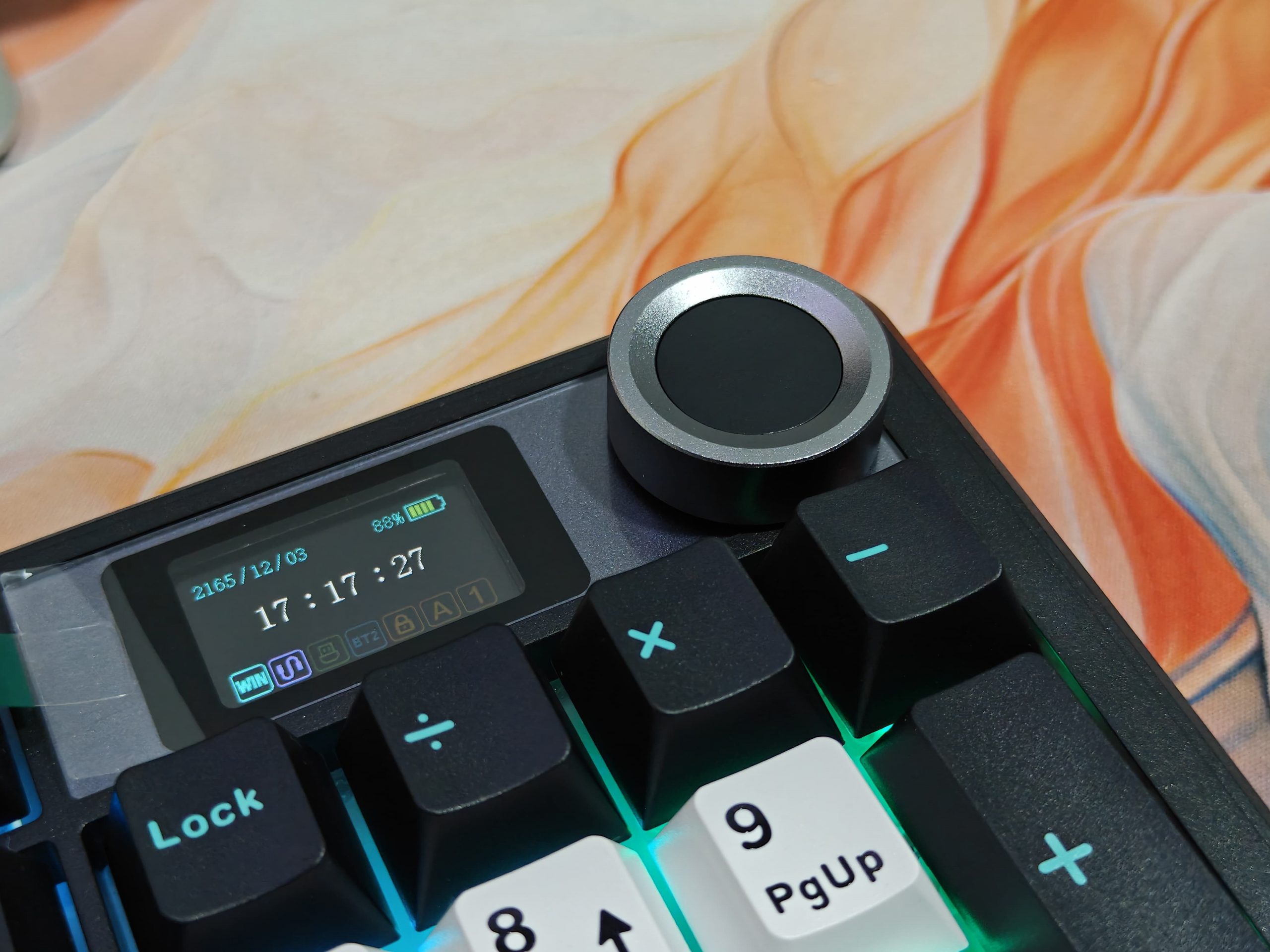
What really caught my eye is that 1.14-inch LCD screen sitting on top, and it’s actually useful, not just there for show. Right away, you get your time, battery status, and whether you’re connected via Bluetooth or the dongle. But dig into the software a bit, and you can throw up your own graphics, swap between profiles, and even tweak the RGB lighting without touching your PC. There’s also this multi-purpose dial next to the screen that lets you adjust volume, mess with the lighting, and do a few other things. It feels good to use and comes in handy more than you’d think.
RGB
The Aula F108 Pro RGB setup really catches your eye. Those side-printed keycaps on the Black Grey model? They create this neat effect where the letters glow from the edges instead of straight through the top. Since the LEDs sit at the bottom of each key (south-facing), the light comes through clean and crisp, no weird shadows from the switches getting in the way.
What I genuinely liked were the light strips running down both sides of the keyboard. They throw off this nice underglow that adds some personality when the board’s sitting on your desk. It’s not over-the-top, just a subtle touch that makes things feel more premium.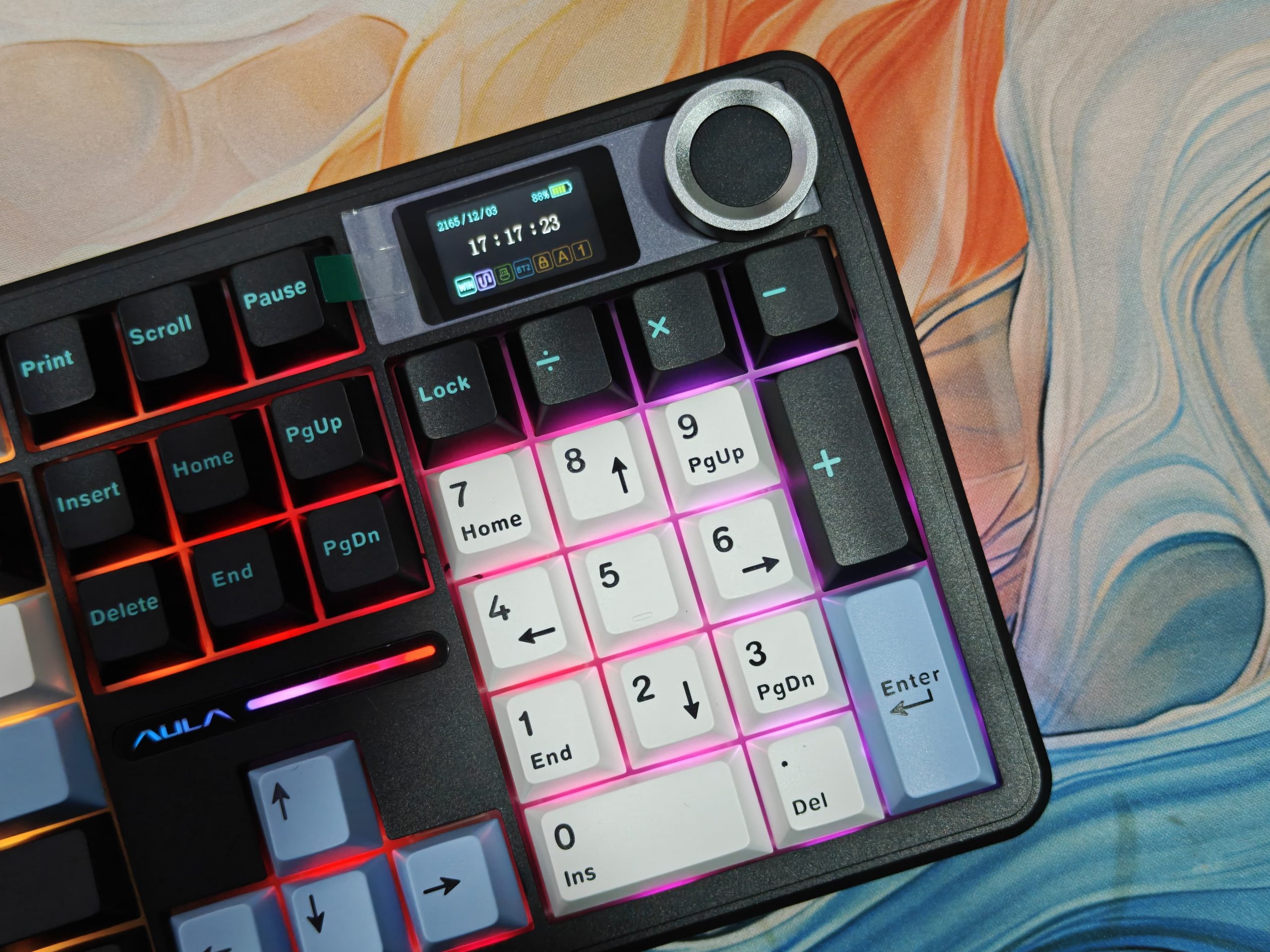
Switching between lighting modes is straightforward; just use the built-in shortcuts. You’ve got your usual suspects: wave effects, breathing patterns, rainbow cycles, solid colors, and a few others. Even in a completely dark room, everything stays bright and smooth.
Bottom line? The lighting does exactly what it should. It makes the keys easy to spot in low light while giving the keyboard that modern, gaming-focused vibe without feeling tacky.
Battery and Connectivity
The AULA F108 Pro packs a 8000mAh battery, pretty standard for compact keyboards, honestly. What’s interesting is that despite being a full-sized board with all those extra keys and flashy RGB lighting, it still manages respectable battery life. The manufacturer claims you’ll get around 200 hours per charge, though that really depends on how much you crank up those lights.
You’ve got options. There’s a USB Type-A to Type-C cable in the box if you prefer the reliability of a wired setup. But when you want to ditch the cables, just flip to Bluetooth mode. It’s perfect for keeping your desk looking clean and clutter-free.
Switching between the two modes is straightforward enough, and we didn’t run into any annoying delays when typing wirelessly. Plus, it handles multi-device pairing, which is handy if you’re bouncing between your computer and tablet throughout the day.
Software
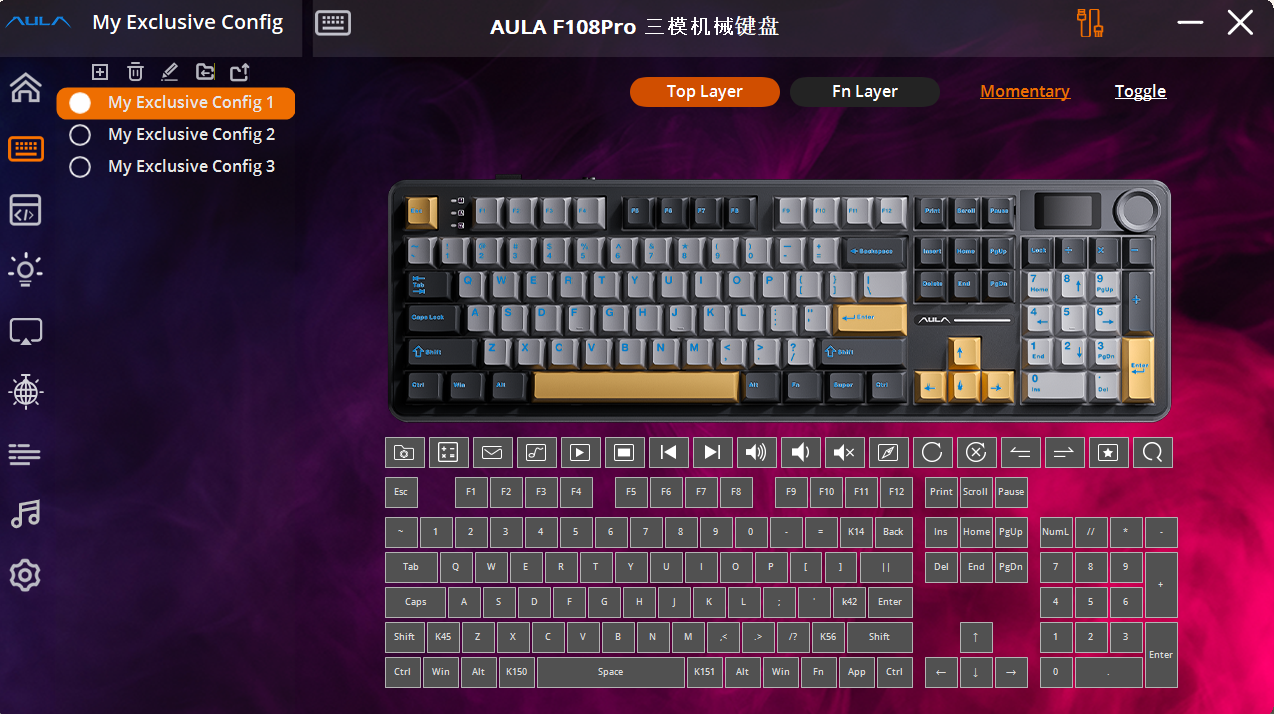
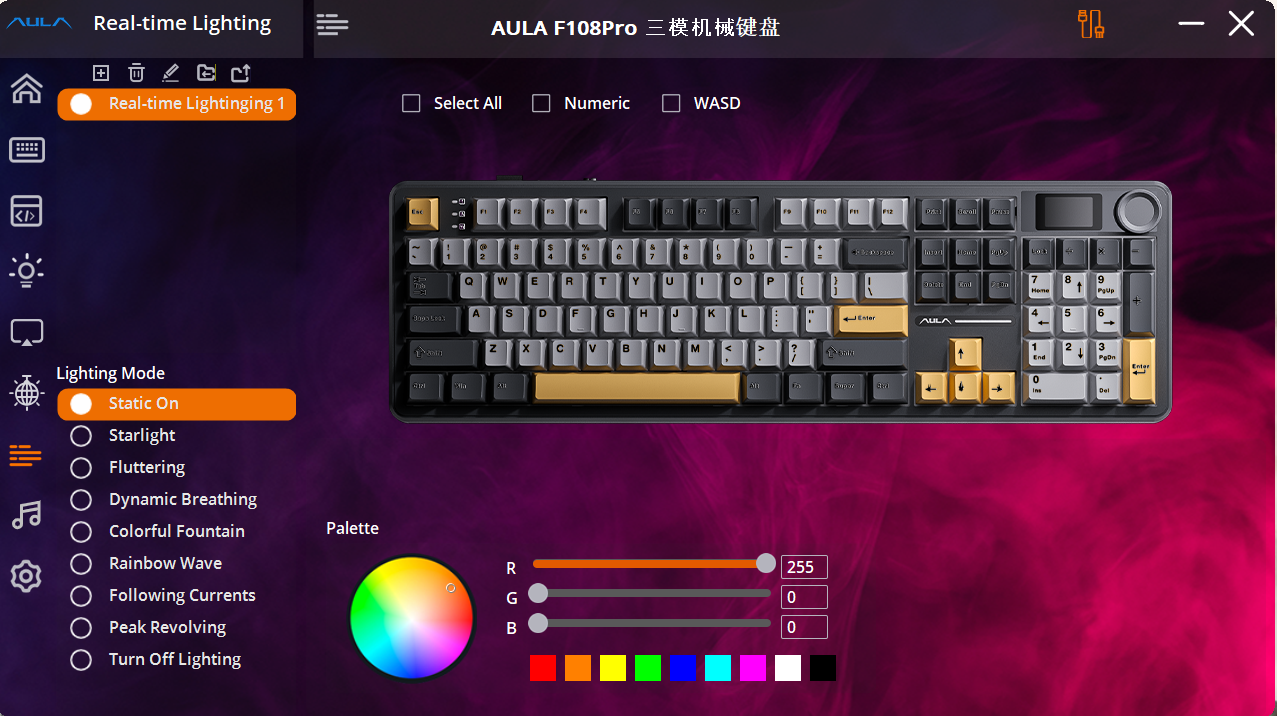
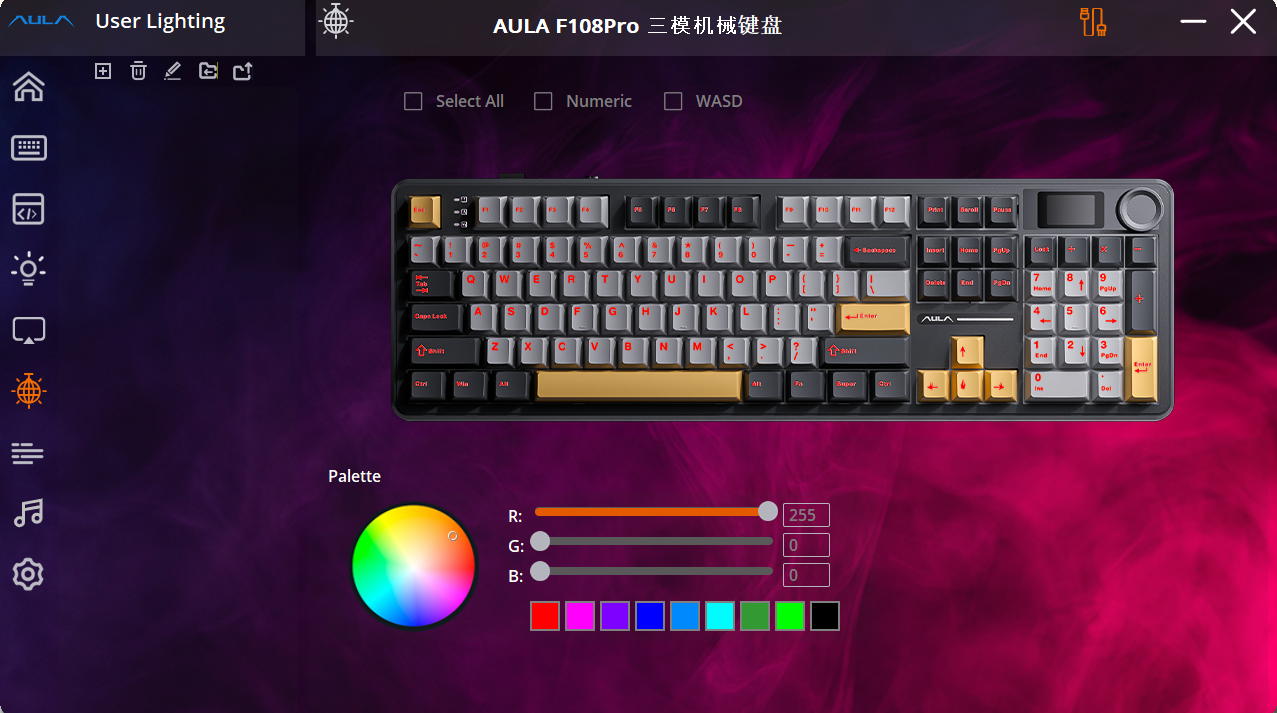
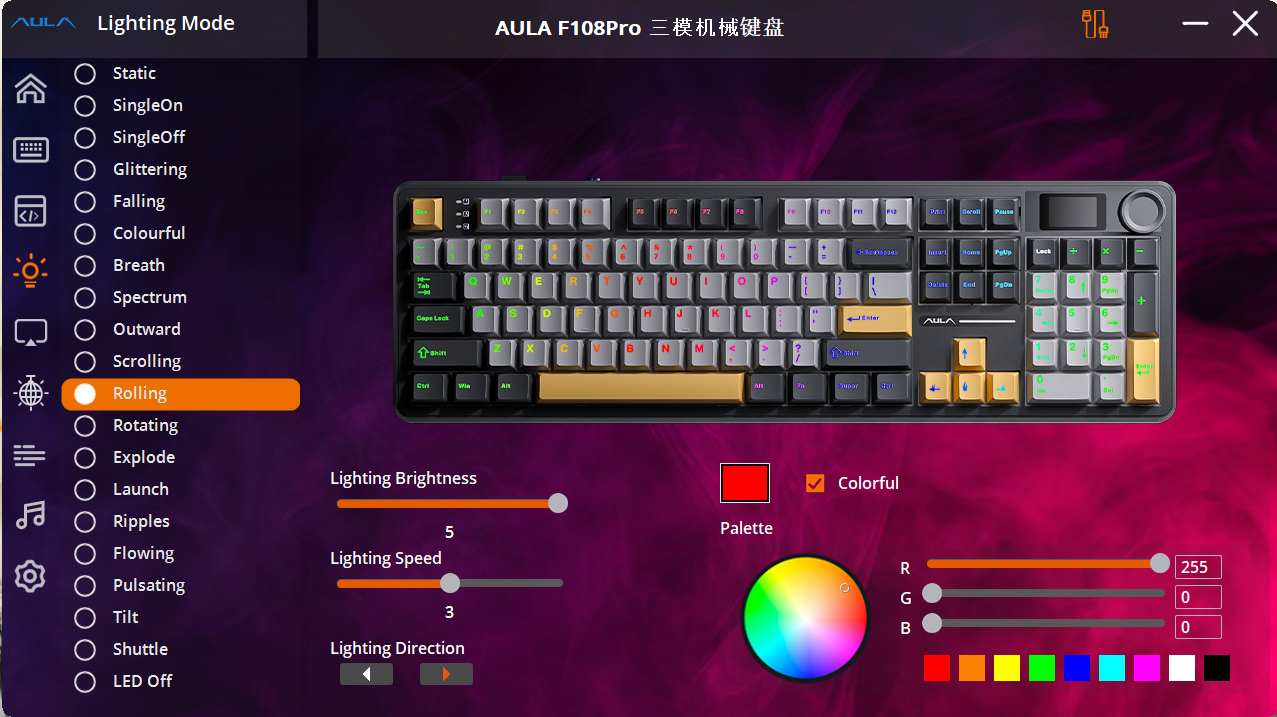
The AULA F108 Pro comes with AULA’s own software that gives you control over how the keyboard looks and behaves. Through this program, you can tweak the RGB lighting, remap keys, and create macros.
The software interface is straightforward and doesn’t take long to figure out. There’s a decent selection of lighting patterns to choose from, or you can design your own if you’re feeling creative. What’s particularly useful is that you can store your settings directly on the keyboard itself, meaning your preferences travel with you between different computers.
One feature worth mentioning is the customization of those four dedicated keys sitting above the numpad. By default, they handle things like volume and calculator access, but you’re free to assign them to whatever suits your workflow, whether that’s opening specific programs or inserting commonly used text shortcuts.
Sure, the software won’t match the depth of what premium gaming brands offer, but it handles everything most people will actually need. For personalizing your typing experience and making the keyboard work the way you want, it does the job nicely.
Verdict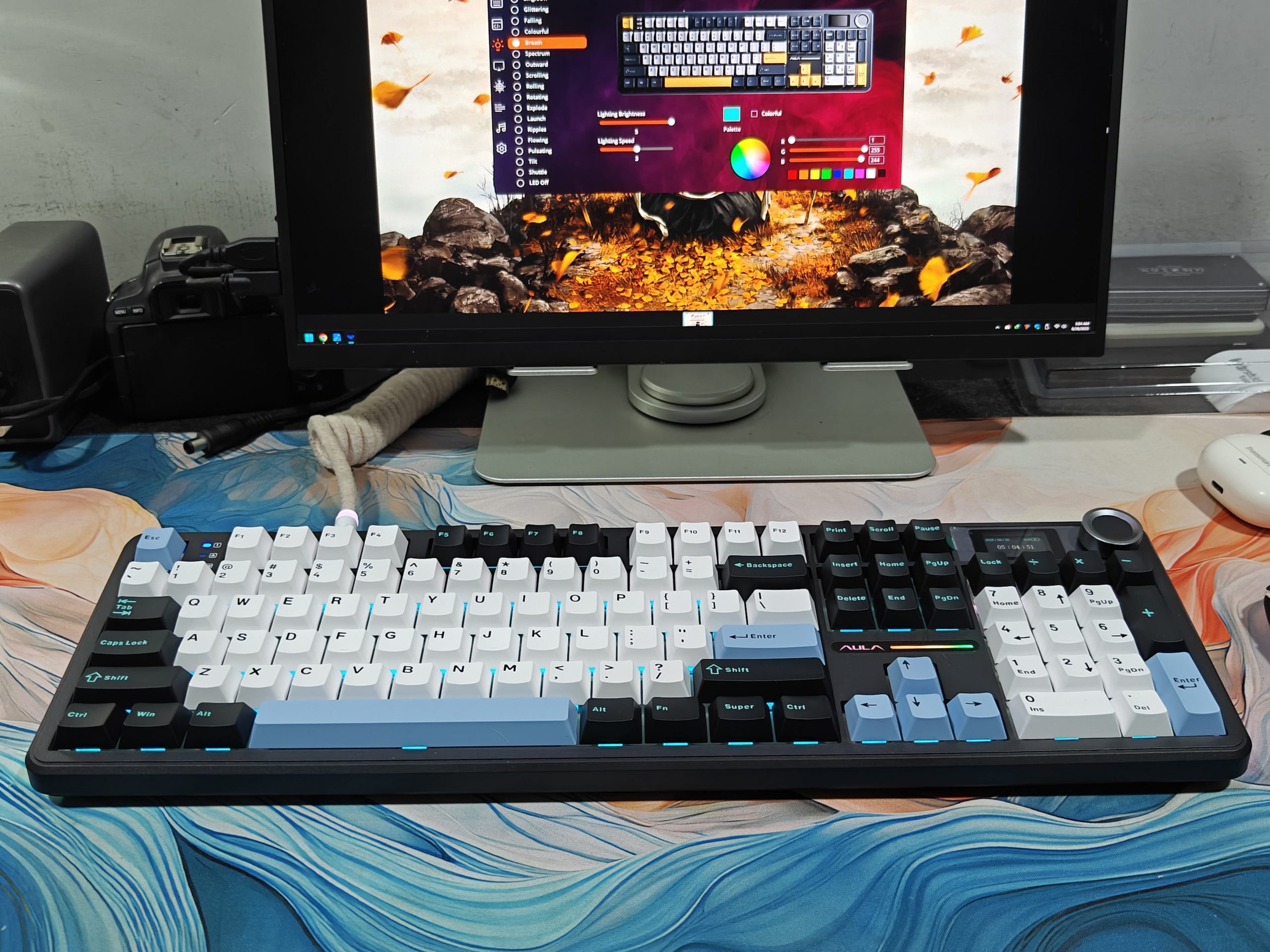
The AULA F108 Pro software is bright, colorful, and surprisingly simple to navigate. That’s honestly the first thing you’ll notice when you fire it up. Everything just makes sense from the moment you open it. The interface breaks down all the controls into neat categories along the left side, stuff like tweaking how fast the keys respond (which is genuinely useful), customizing lighting effects, setting up macros and different profiles, and even personalizing what shows up on that little LED screen in the keyboard’s top-right corner.
Speed and simplicity seem to be what they were going for here, and honestly? They nailed it. Using this software feels effortless.
That said, there’s one thing worth mentioning, and it’s tied directly to how the keyboard itself is built, specifically, those south-facing LEDs. Now, the keys themselves look absolutely stunning. It’s a bold design choice that really pays off visually. But here’s the catch: if you start playing around with certain lighting patterns, things can get tricky when the backlights go dim or turn off completely.
Take the breathing effect, for example. I set mine to red, and while it looks gorgeous as it pulses on, when it fades to black between breaths, suddenly the keys become tough to make out. So yeah, the software gives you tons of customization options, but depending on your typing style and how much light you need, you might find yourself stuck with only certain effects. Some of those fancier lighting modes? They’re off-limits unless you’ve got ninja-level touch-typing skills or enjoy a little chaos. If you’re the adventurous type who likes a challenge, go for it, but be prepared for some seriously hardcore keyboard difficulty.
Aside from that one quirk, though, the software really delivers. It’s responsive, user-friendly, and just works without any hassle. That ease of use alone makes this keyboard way more approachable for anyone just starting to explore mechanical keyboards or gaming peripherals.
Read Also: Aula F99 Pro Worth It? In-Depth Review of the $89 Wireless Keyboard