









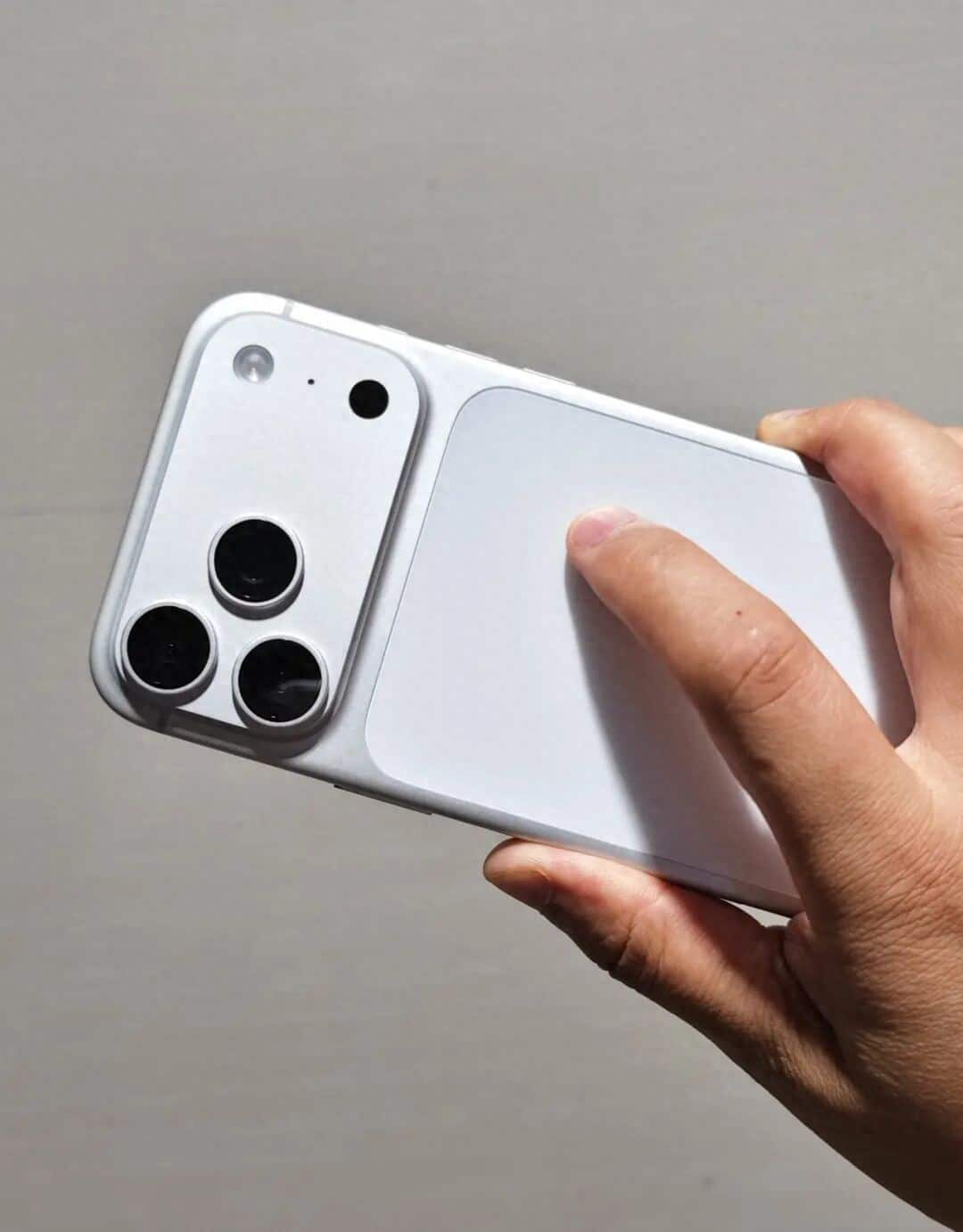
In the field of smartphone photography, the dynamic photo function has become a powerful tool for capturing vivid moments of life. The iPhone 17 Pro Max, with its powerful hardware performance and deeply optimized software algorithms, has elevated this function to a new level. Through the “Live Photo” mode, users can capture 3-second dynamic clips without the need for professional equipment, giving static images a new lease of life. This article will systematically explain the complete usage process of this function, covering preparation for shooting, operation techniques, post-editing, and cross-platform sharing.
I. Core Settings Before Shooting
To start dynamic shooting, the “Live Photo” mode must be activated first. After opening the camera application, find the circular icon labeled “LIVE” at the top toolbar and click on it. Once the icon turns yellow, it indicates that the function has been enabled. To improve operational efficiency, you can turn on the “Live Photo” switch in “Settings – Camera – Save Settings” to automatically activate it each time the camera is started. Before shooting, it is recommended to turn on the grid lines to assist in composition. This can be done by going to “Settings – Camera – Grid” and making the settings. This will help users precisely control the balance of the picture.
II. Three Core Techniques of Dynamic Shooting
Stability control: Although the iPhone 17 Pro Max is equipped with sensor-shift optical image stabilization technology, auxiliary equipment is still required in situations of rapid movement or low light. When shooting handheld, hold the device with both hands or use a magnetic tripod to fix it; when shooting moving scenes, you can pair it with the DJI RS 4 Mini stabilizer, whose intelligent follow function can automatically lock onto the subject and ensure smooth dynamic trajectories.
2. Light Management: Adequate lighting is crucial for the clarity of dynamic photos. For outdoor shooting, choose periods with soft light to avoid subjects appearing too dark due to backlighting. For indoor shooting, you can use LED fill lights or reflectors to enhance ambient light. If shooting portraits dynamically, it is recommended to position the light source at a 45-degree angle to the side front to create a three-dimensional lighting effect.
3. Action Design: The movement range of the subject being filmed should be moderate. Excessive movements may cause the picture to become blurry, while too small movements may fail to convey the sense of dynamics. For example, when filming pets playing, you can guide them to perform consecutive actions such as jumping and turning; when shooting water flow, choose a place with a rapid waterfall or stream, and use the “long exposure” effect to create a silk-like texture.
III. Advanced Editing and Creative Realization
The completed dynamic photos can be deeply edited using the photo album application:
1. Cover frame selection: In the editing interface, drag the timeline and select the most expressive moment from the 3-second dynamic video as the static cover image to solve the problem of the first frame being unsatisfactory when sharing. For example, when shooting a child blowing out a candle, the flickering of the candle flame at the moment of extinguishing can be chosen as the cover image.
2. Enhanced Dynamic Effects: Click on the “Effects” option to choose “Loop Playback” to make the jumping action repeat indefinitely, or use “Reverse Playback” to create a novel sense of time reversal. When shooting city street scenes, the “Long Exposure” mode can convert the movement of pedestrians into light trails, creating a visual impact similar to time-lapse photography.
3. Multi-frame Composite Creation: Utilize the “Continuity” tool to stitch together multiple dynamic photos to create a short film. For instance, when capturing the process of a sunrise, take a live photo every 10 minutes. In the post-production stage, extract the key frames and combine them to create a time-lapse animation, presenting a stunning effect of the passage of time.
IV. Cross-platform Sharing and Format Conversion
The sharing of dynamic photos should be done according to the platform’s characteristics and in an appropriate format:
Native ecosystem sharing: Through iMessage or AirDrop, the dynamic effects can be fully preserved. The recipient can simply play the dynamic video by long-pressing the screen.
2. Social media adaptation: When sharing on platforms such as Instagram and TikTok, the system will automatically convert the dynamic photos into MP4 format short videos. If you want to retain the looping playback feature, you can “save as video” in the album in advance to generate a 4K resolution dynamic clip.
3. GIF format conversion: Download applications such as “GIF Brewery” and “Lively” from the App Store. Export real-time photos as GIF files with custom dimensions and frame rates. For example, after converting the pet’s movements into a GIF, you can add text stickers or background music to create an emoticon package that can be used in WeChat group chats to enhance the interactive fun.
From the moment the shutter is pressed until it is finally shared and disseminated, the dynamic shooting feature of iPhone 17 Pro Max enables every user to become a creator of visual narratives. Whether it’s capturing the surprise expression on a child’s face as they blow out the candles, or capturing the dynamic trajectory of the traffic flow in the city at night, this feature can meet diverse creative needs with professional-level performance.