




Facebook Twitter Instagram
    Trending
    • Blackview OSCAL MARINE 3 AI Smartphone Review: Rugged Power Meets Cutting-Edge Technology
    • XKJ K22 MAX RC Quadcopter Review: A Blend of Innovation and Fun
    • The Rise of Gamification in Education: Making Learning Fun and Engaging
    • The Healing Powers of CBD: A Holistic Ally for Emotional and Physical Wellness
    • Airis Neo P40K Disposable Vape Review: High-Capacity Performance with Smart Design
    • Maskking Extre 100K Disposable Vape Review: Ultra-Long-Lasting Performance with Premium Flavor
    • Huawei Pura X2’s Design Details Revealed: Exaggerated screen size on the front, 200 million pixels on the Rear
    • SMOK Volle Kit Review: The Compact and Convenient Pod System for Effortless Vaping
    Facebook YouTube
    Login Register
    IGeeKphone China Phone, Tablet PC, VR, RC Drone News, Reviews
    • HOME
      • NEWS
        • DeepSeek
        • ChatGPT
        • Minecraft
    • Amazon
    • NEW YEAR
    • PHONE
      • Top Phones For Your First Choice
      • Phone Comparison
      • Xiaomi
      • Blackview
      • Doogee
      • Black Shark
      • Geekbuying
      • Banggood
      • TEMU
      • TikTok
      • Aliexpress
      • Walmart
      • MercadoLibre
      • Lazada
    • TOP VAPE Awards for 2026
    • VAPES
      • E-CIGAR Upcoming
      • Vape News
      • Vape Deals
      • Vape Comparison
      • Vape Guide
      • Giveaway
    • BEST VAPE
      • Best Vape Stores
      • Best Starter Vape Kits
      • Best Vapes for Beginners
      • Best Disposable Vapes
      • Best Pod Systems
      • Best Pod Mod Vapes
      • Best Mods
      • Best Nicotine Pouches
      • Best Clearomizers/Tanks
      • Best E-Liquid
      • Best EGO/Pens
      • Best Vapes for Nic Salt E-Juice
      • Best Vapes to Quit Smoking
      • RDA vs. RDTA vs. RTA
    • Best Vape Brand 2026
      • VAPORESSO
      • VOOPOO
      • OXVA
      • NEXA BAR
      • ORIONBARTECH
      • MASKKING VAPE
      • MEMERS
      • SP2S
      • JNR
      • TODOO
      • MRFOG
      • VEIIK
    • REVIEW
      • E-cigar Review
      • Phones
      • Tablet PC
      • TV Box
      • RC Drone
      • Wearables
      • Camera
      • Accessories
      • VR Headset
    • MORE
      • TABLET
        • Chuwi
        • INNOCN
        • Teclast
        • Top Tablet for Your First Choice
        • Tablet/Laptop Comparison
      • RC DRONE
      • CAMERA
      • WEARABLES
        • OneOdio
        • BlitzWolf
        • Top Smartwatch for First Choice
      • 3D PRINTER
        • 3D Printer Review
        • Anycubic
        • FLSUN
        • Xtool
        • LONGER
        • Top 3D printer to Choose First
      • POWER STATION
        • Oukitel
        • FOSSIBOT
      • GAMING
        • Top Gaming Products
      • E-BIKE
        • Samebike
        • Happyrun
        • ENGWE
      • SMART HOME
      • TV BOX
      • ACCESSORIES
      • VR HEADSET
      • CLOTHES
      • AUTO CAR
    • DEAL
    • Shop
    IGeeKphone China Phone, Tablet PC, VR, RC Drone News, Reviews
    You are at:Home»Guide»Quickest and Simplest Method to Transfer WhatsApp and Data from Android to iPhone
    Guide

    Quickest and Simplest Method to Transfer WhatsApp and Data from Android to iPhone

    Brady CottonBy Brady CottonOctober 11, 2022
    Facebook Twitter Pinterest LinkedIn Tumblr Email

    If you want to move from Redmi to iPhone, there is one dreaded step you must go through, the phone to phone transfer of all your data. We recommend Wondershare MobileTrans, to turn this potentially hectic and slow process of transfer messages from Android to iPhone and other essential data into a breeze.

    Part 1: MobileTrans – Phone Transfer: How to Transfer Phone Data from Android to iPhone

    Your essential data on the Android device is needed to be transferred, and there are many ways. The process can be complex and slow if you use conventional methods like data cable or “Move to iOS.” Since you are moving to iPhone, you may be unable to move some types of data or apps using conventional methods. So, you need a tool that can move all your essential data and apps to the new iPhone.

    MobileTrans – Phone Transfer is the tool you are looking for the phone transfer. It allows you to transfer over 18 types of data and all the apps you want to transfer. Using it, you can transfer iCloud data of your iPhone to any Android device later. To complete the phone data transfer using it, go through the following steps:

    Step 1: Start the Phone Transfer

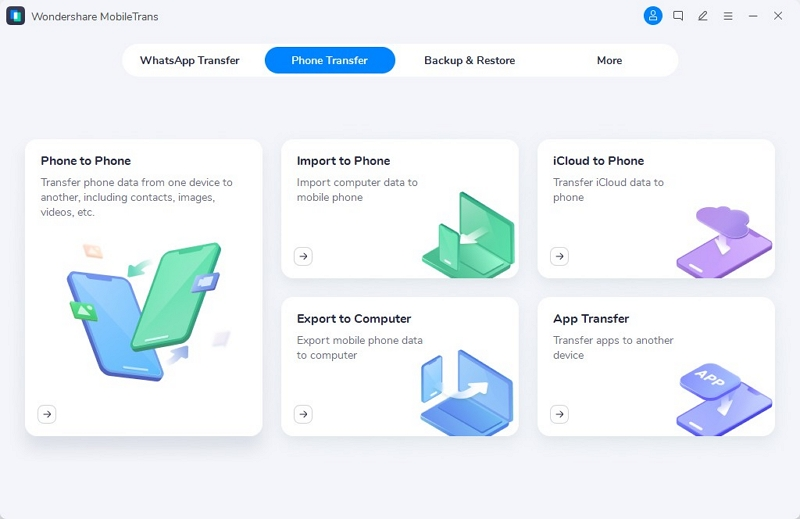
    Open the MobileTrans app and select “Phone Transfer.” In this tab, choose the option “Phone to Phone” and connect both old Redmi and new iPhone devices to your computer via USB cables.
    Step 2: Ensure Android and iPhone are Connected to System

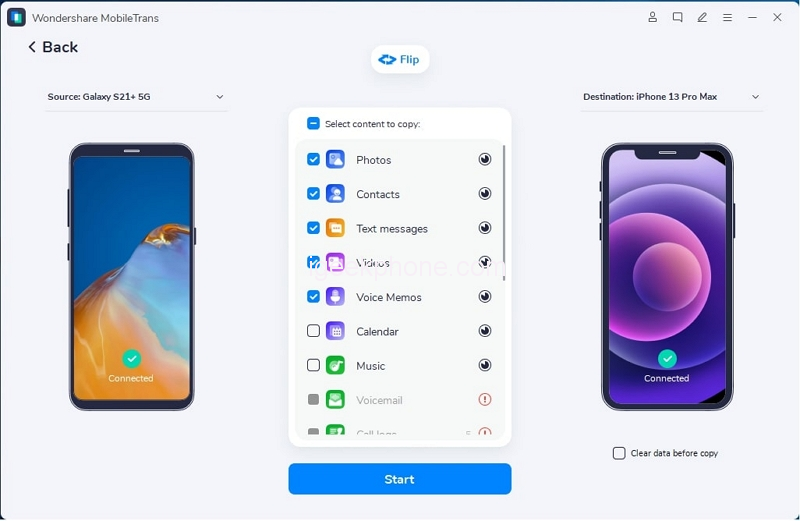
    With both devices now connected, check if they are correctly positioned at “Source” and “Destination.” If not, tap “Flip” to change their positions. Once confirmed, select the data you want to transfer. If you want to delete the existing data on your iPhone, check the “Clear data before copy” option.
    Step 3: Start and Wait for Process Completion

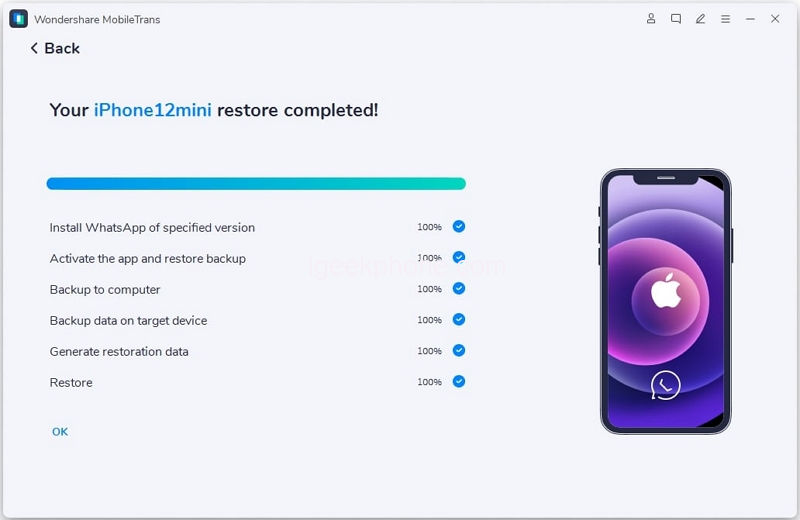
    Now you can press “Start” to begin the process. When the transfer is happening, do not move or touch the devices. Once the process is completed, you will receive a notification of its success.
    Part 2: MobileTrans – WhatsApp Transfer: WhatsApp Data Transfer from Android to iPhone

    Although you have transferred all major types of data, there is one major part left, and that is WhatsApp transfer. Your WhatsApp likely contains some of your most essential data, and so it needs a tool made specifically to move all its data. MobileTrans – WhatsApp Transfer is a tool designed to handle all the issues regarding WhatsApp transfer. No worries if the data is deleted; it can recover data back. This app covers you even if you need to restore Google Drive WhatsApp backup to your iPhone.

    If you need to merge newly transferred data with old one; consider it done if you are using MobileTrans – WhatsApp Transfer. You can follow these steps to transfer your WhatsApp data from Android to your iPhone:

    Step 1: Open the “WhatsApp Transfer” Tab on MobileTrans App

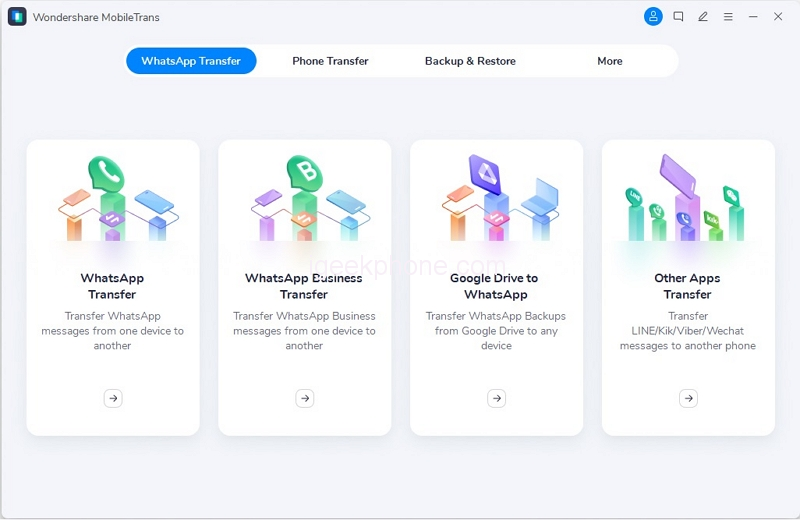
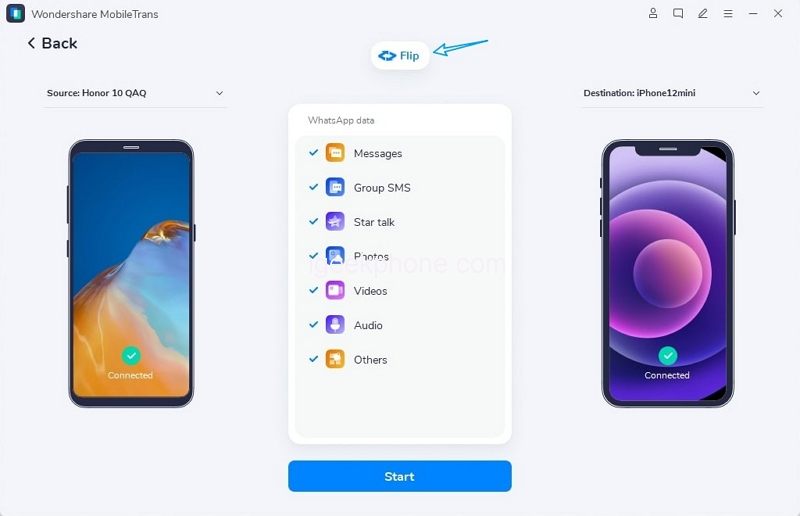
    You need to select the “WhatsApp Transfer” tab after opening the app. Here, choose the “WhatsApp Transfer” option and tap on the “Transfer WhatsApp messages” feature to get started. Connect both of your devices to your computer to establish a connection between them.
    Step 2: Connect Android and iPhone to Your System

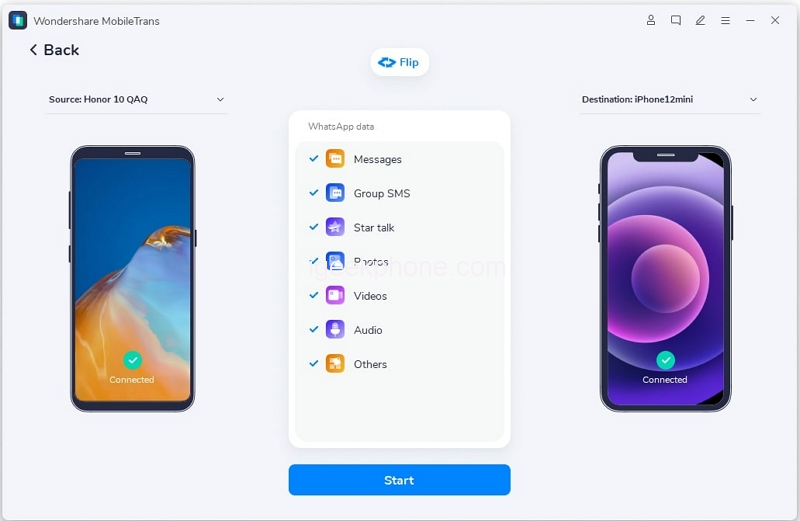
    After you have connected the Redmi and iPhone to the system, allow the program to load and place these devices in their respective positions. If the placement order being shown is wrong, click “Flip” to correct it. Following this, select the WhatsApp data you want to transfer and hit “Start.”
    Step 3: Transferring All WhatsApp Data on iPhone

    Once you have hit the “Start” button, patiently wait for the process to end. Don’t be in a hurry, and no touching or moving of devices as it can disrupt the transfer. It should take a couple of minutes to complete the WhatsApp transfer from Android to iPhone.
    Bonus Tips: Overview of a Mobile App for Transferring Phone and WhatsApp Data

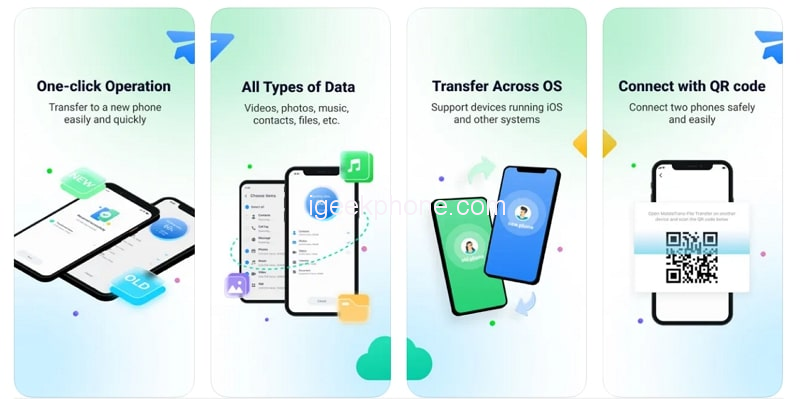
    MobileTrans is available not only on your computer but also in the form of Android and iOS apps. If you don’t want to go through the hassle of a computer, you need to install the Android app and the iOS app on iPhone. There is no need for any USB cables or Wi-Fi to complete the process. Install the MobileTrans app on both devices, and you can transfer data between them.
    1. Phone Transfer

    MobileTrans, the mobile app, allows you to transfer multiple types of data from one device to another. It allows the transferring of messages, photos, videos, audio, documents, and many more types of data. You can also transfer your apps using it, whether on the same platform or across the platform. All you need to do is install the app on both devices, select the data you want to send, pair it up with the new device, and press “Send.”

    2. WhatsApp Transfer

    The WhatsApp Transfer feature of the MobileTrans mobile app also offers you to transfer all types of WhatsApp data from one device to another. It can transfer all kinds of data, including chats, stickers, emojis, attachments, documents, contacts, locations, etc. What you need to do is pair up both the old Redmi device and the new iPhone using MobileTrans app. Then select the WhatsApp data you want to transfer and hit “Send” to complete the process.

    Final Thoughts

    While Android phones offer many benefits at very low prices, it cannot be denied that they have some glaring problems regarding security. So, it would be better to move to a secure platform where your data is saved from third parties and is not actively harvested. Wondershare MobileTrans can make the transitioning period between different devices less hectic for you by solving your data transfer problems.

    Share. Facebook Twitter Pinterest LinkedIn Tumblr Email

    Related Posts

    The Rise of Gamification in Education: Making Learning Fun and Engaging

    How to Take Panoramic Photos with iPhone Air?

    Key Elements of SEO Implemented by Your Trusted San Francisco SEO Agency

    Comments are closed.

    voopoo drag s3
    oxva xlim 3 ultra
    sp2s sen x disposable vape
    jnr 100k
    • Popular
    • 3D Printer REVIEW
    • XIAOMI
    January 21, 2026

    VOOPOO ARGUS P3 VS ARGUS P2: Which Square Pod Suits You?

    January 21, 2026

    VOOPOO Drag X3 vs VOOPOO Drag X2: Hands-On Comparison

    January 1, 2026

    VOOPOO ARGUS P3: The Touchscreen Pod That Feels Like a Mini Mod (Review)

    December 26, 2025

    Vaporesso XROS 5 Nano: Touchscreen Control Meets True Nano Portability (Review)

    December 26, 2025

    ACMER ASCARVA 4S: Precision CNC Power for Makers, DIYers & Small Workshops

    June 23, 2024

    ACMER P2 20W Laser Engraver Fixed Focus Engraving: Hands on Review

    May 30, 2024

    xTool F1 Ultra Review: World’s First 20W Fiber & 20W Diode Laser Engraver

    May 30, 2024

    Anycubic Kobra 3 Combo Review: The Multicolor Masterpiece?

    January 29, 2026

    Xiaomi Launches REDMI Monitor G25 with 200Hz High Refresh Rate for Just 609 Yuan

    January 29, 2026

    The Specifications of the Strongest Flagship Model of Redmi, Redmi K100 Pro Max, have been Released

    January 28, 2026

    Xiaomi’s First Outdoor 4G Camera is Released: Free data, no Speed Limit. One Unit is Equivalent to two at 379 yuan

    January 28, 2026

    Xiaomi Redmi Turbo 5 Smartphone has been officially Announced to be Equipped with MediaTek 8500-Ultra Processor

    fc 26 coins
    New Arrivals
    • Airis Neo P40K Disposable Vape Airis Neo P40K Disposable Vape
    • Maskking Extre 100K Disposable Vape Maskking Extre 100K Disposable Vape
    • SMOK Volle Pod System Kit SMOK Volle Pod System Kit
    • Lost Vape Astara Pod System Kit Lost Vape Astara Pod System Kit
    • SALT BAE 50 40K DISPOSABLE SALT BAE 50 40K DISPOSABLE
    • CRAVE X ULTRA SLIM 40K DISPOSABLE CRAVE X ULTRA SLIM 40K DISPOSABLE
    • AVOTX SPACE 3 40K DISPOSABLE AVOTX SPACE 3 40K DISPOSABLE
    • ARRO Infiniti 40K Nicotine Free Disposable Vape ARRO Infiniti 40K Nicotine Free Disposable Vape
    • GRANDFADDA 3000 DISPOSABLE E-CIGAR GRANDFADDA 3000 DISPOSABLE E-CIGAR
    About
  • Igeekphone.com provides the first global tech news and reviews about smartphone, vapes, e-cigar, smart home, 3D printers, e-bike,tablets, RC drones, VR headset, and other accessories. It's the best platform to improve your brand and product.
  • Contact us: info@igeekphone.com
  • Check Our Privacy Policy Here.
  • Note: *Right now we have US editor and EU editors for review, especially for Amazon US and EU.
  • *Shop and Compare Price Here*
  • Facebook
  • Youtube
  • OUR BEST VAPE PARTNERS
  • VAPE ONLINE STORE
  • HAYATI PRO MAX PLUS
  • VAPORESSO
  • VOOPOO
  • OXVA
  • NEXA
  • MASKKING
  • LOSTVAPE ORIONBAR
  • MEMERS
  • TODOO
  • SP2S
  • JNR
  • VEIIK
  • OTHER BEST PARTNERS
  • SVBONY
  • Chuwi
  • Blackview
  • Fossibot
  • Unihertz
  • Flsun
  • Anycubic
  • Xtool
  • Oukitel
  • Mukkpet Ebike
  • Ugreen
  • Copyright © 2026 igeekphone

    Type above and press Enter to search. Press Esc to cancel.