









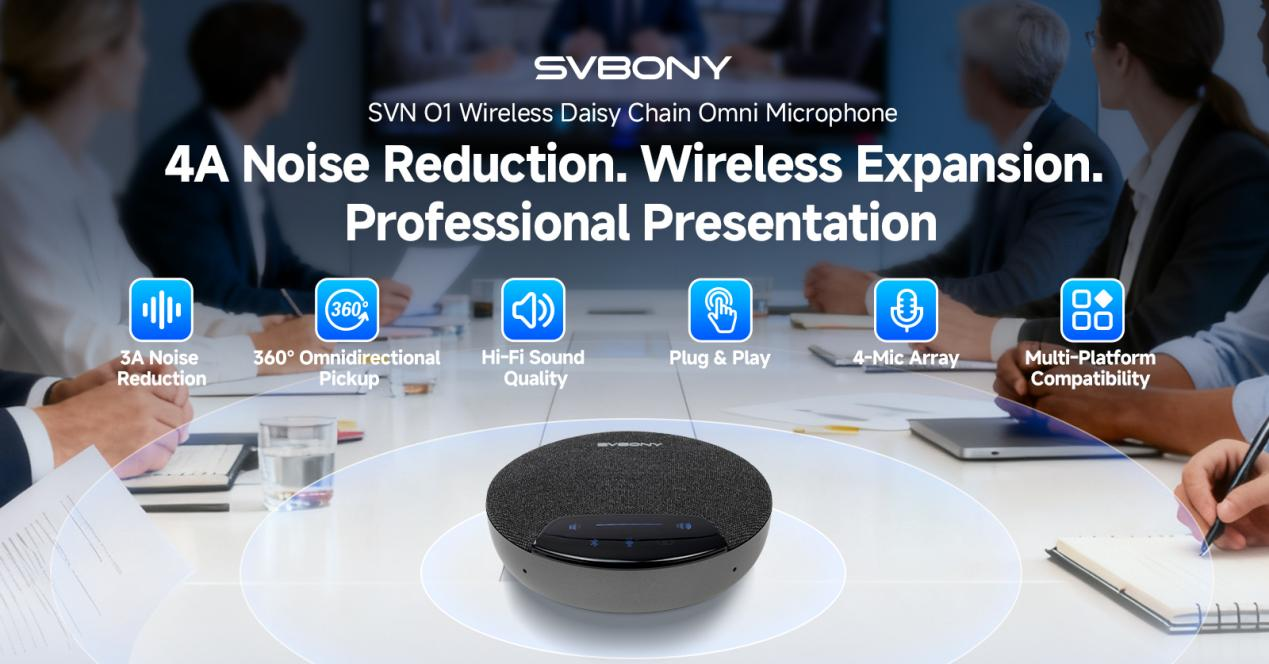
Hello everyone, and welcome to today’s tutorial! Today, we’ll be introducing the quick pairing method for the SVBONY SVN O1 Wireless Omni Microphone.
Using the simple “Daisy Chain” mode, you can connect two microphones in seconds, making it ideal for recordings, remote meetings, hybrid work, and small to medium-sized conference rooms. Plus, we’ll show you how to easily access AI transcription.
Key Features at a Glance
- 4-Mic Array for Precise Pickup: Captures clear audio from all directions with enhanced sensitivity, making it an excellent video conferencing microphone for any setup.
- 2×4 Wireless Cascade (8 Mics): Supports 20–30 participants, ideal for large meetings and conference rooms. It functions seamlessly as a conference speaker and microphone combo, covering all your audio needs.
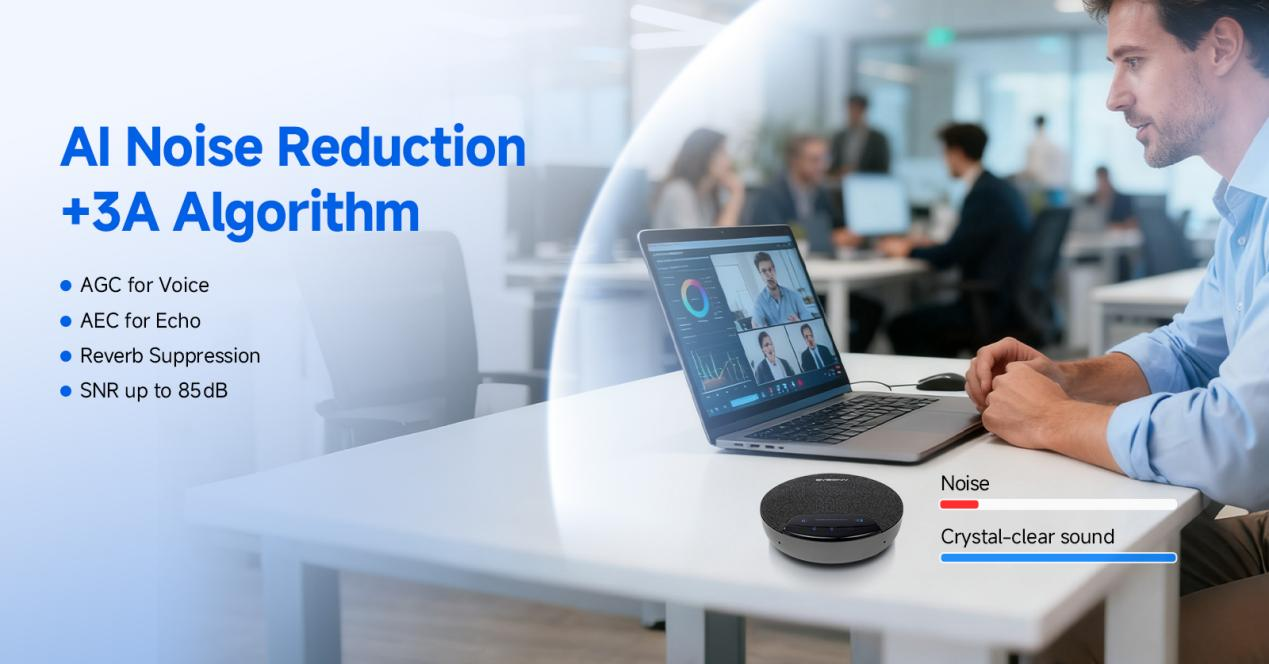
- AI Noise Reduction + 3A Algorithm: Features AGC for Voice, AEC for Echo, and Reverb Suppression, delivering crystal-clear sound with SNR up to 85dB.
Preparation
Before you start, please ensure both SVN O1 microphones are fully charged and you are familiar with the three buttons on the device: BT Key, Mute Key, and Cascade Key.
Step 1: Power On
Turn on the power switch for both microphones simultaneously.
Step 2: Enter Slave Mode
On one microphone, press and hold the Cascade Key to put it into Slave mode. Wait for the white indicator light to turn off automatically, indicating the slave mode is ready. The other microphone will function as the master by default.
Step 3: Activate Pairing Mode
Press and hold the Mute Key on both microphones at the same time. Observe the light next to the Cascade Key; it will turn orange, indicating the device has entered pairing mode.
Step 4: Reboot the Devices
After the pairing signal exchange, restart both the master and slave microphones by turning the power off and on again. It is recommended to complete this reboot step within 3 seconds for a more stable pairing.
Step 5: Complete the Connection
After both devices have restarted, press and hold the Cascade Key again. Wait for the indicator lights to stabilize; this means the Daisy Chain connection is successful! This setup transforms your device into a powerful meeting room speaker system, perfect for collaborative spaces.
Bonus: Easily Access AI Transcription
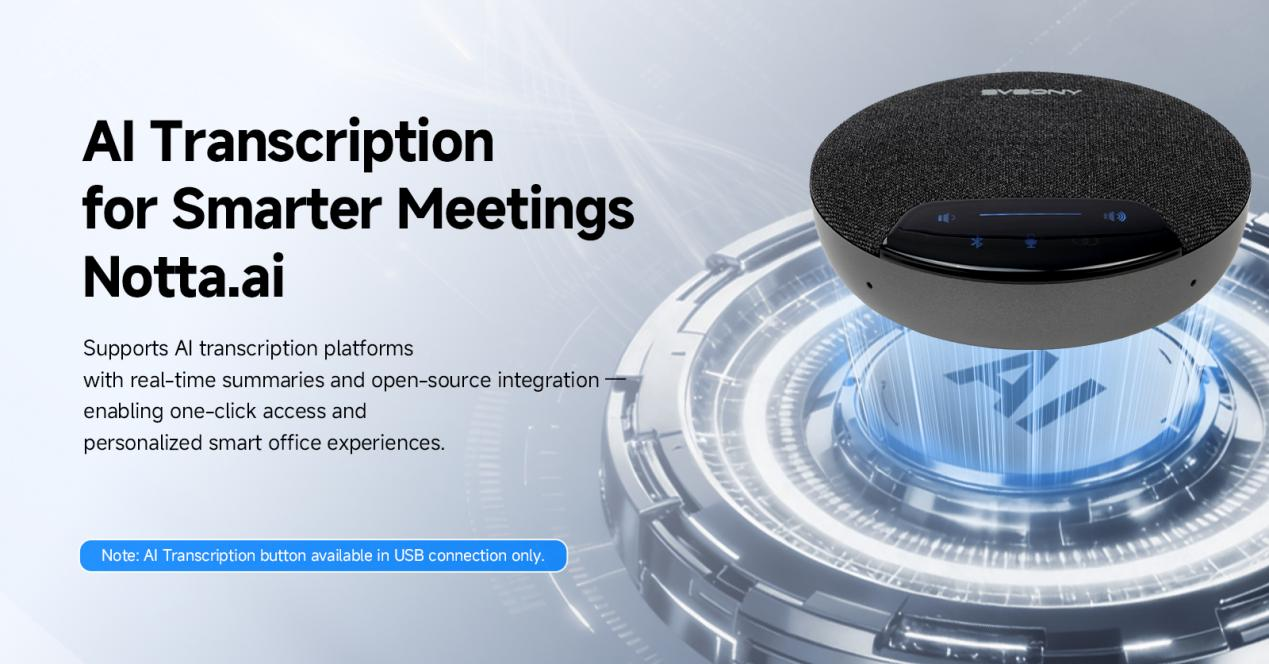
The SVN O1 also offers smart AI transcription features, making it perfect for professional environments. Here’s how to use it:
Step 1: Connect your microphone to a computer via USB.
Step 2: Double-tap the mute button to launch the AI app.
Step 3: Works with the notta.ai web platform for instant transcription.
This functionality makes it an ideal choice for anyone searching for meeting speakers for laptop or a reliable usb conference speaker for daily use.
Advanced Audio Processing
The SVN O1 is equipped with AI Noise Reduction and a 3A Algorithm that includes:
- AGC (Automatic Gain Control) for Voice: Maintains consistent volume levels.
- AEC (Acoustic Echo Cancellation): Eliminates echo for natural conversations.
- Reverb Suppression: Removes unwanted reverberation.
- SNR up to 85dB: Ensures crystal-clear sound even in noisy environments.
Whether you’re in a quiet office or a bustling conference room, the SVN O1 delivers professional-grade audio quality. It truly stands out as a versatile conference microphone and speaker solution for modern workplaces.
Tips
It’s best to perform the initial pairing in a quiet environment. If pairing fails, simply repeat Steps 2 through 5. Once successfully connected, the devices will automatically recognize each other when powered on.
The Daisy Chain feature of SVBONY SVN O1 Wireless Omni Microphone makes using wireless microphones more flexible and efficient, while the AI transcription integration adds a layer of productivity—perfect for today’s hybrid workplace.
We hope this tutorial helps you get started quickly! If you have any other questions, feel free to leave a comment below.