





Facebook Twitter Instagram
    Trending
    • HUAWEI FreeBuds 7i TWS Bluetooth Earbuds Review: The Ultimate Blend of Performance and Convenience
    • V380PRO Tri-Lens WiFi IP Security Camera Review: The Future of Smart Surveillance
    • Maskking Somo vs Maskking Camo: Which Pod Is Better in 2026?
    • Vaporesso VIBE SE 2 vs SP2S Touch: Best Beginner Pod System in 2026
    • Lost Mary MT35000 vs NEXA PIX: Which 35K Puff Vape Is Better in 2026?
    • OXVA XLIM Pro 3 vs XLIM Pro: Which Pod is Worth It in 2026?
    • Geekvape Kloud Refillable Disposable Vape Review: The Best of Both Worlds in Vaping Innovation
    • Suonon Amber 80K Disposable Vape Kit Review: A Premium Vaping Experience with Convenience and Flavor
    Facebook YouTube
    IGeeKphone China Phone, Tablet PC, VR, RC Drone News, Reviews
    • HOME
      • NEWS
        • DeepSeek
        • ChatGPT
        • Minecraft
    • Amazon
    • PHONE
      • Top Phones For Your First Choice
      • Phone Comparison
      • Xiaomi
      • Blackview
      • Doogee
      • Black Shark
      • Geekbuying
      • Banggood
      • TEMU
      • TikTok
      • Aliexpress
      • Walmart
      • MercadoLibre
      • Lazada
    • TOP VAPE Awards for 2026
    • VAPES
      • E-CIGAR Upcoming
      • Vape News
      • Vape Deals
      • Vape Comparison
      • Vape Guide
      • Giveaway
    • BEST VAPE
      • Best Vape Stores
      • Best Starter Vape Kits
      • Best Vapes for Beginners
      • Best Disposable Vapes
      • Best Pod Systems
      • Best Pod Mod Vapes
      • Best Mods
      • Best Nicotine Pouches
      • Best Clearomizers/Tanks
      • Best E-Liquid
      • Best EGO/Pens
      • Best Vapes for Nic Salt E-Juice
      • Best Vapes to Quit Smoking
      • RDA vs. RDTA vs. RTA
    • Best Vape Brand 2026
      • VAPORESSO
      • VOOPOO
      • OXVA
      • NEXA BAR
      • ORIONBARTECH
      • MASKKING VAPE
      • MEMERS
      • SP2S
      • TODOO
      • MRFOG
      • VEIIK
    • REVIEW
      • E-cigar Review
      • Phones
      • Tablet PC
      • TV Box
      • RC Drone
      • Wearables
      • Camera
      • Accessories
      • VR Headset
    • MORE
      • TABLET
        • Chuwi
        • INNOCN
        • Teclast
        • Top Tablet for Your First Choice
        • Tablet/Laptop Comparison
      • RC DRONE
      • CAMERA
      • WEARABLES
        • OneOdio
        • BlitzWolf
        • Top Smartwatch for First Choice
      • 3D PRINTER
        • 3D Printer Review
        • Anycubic
        • FLSUN
        • Xtool
        • LONGER
        • Top 3D printer to Choose First
      • POWER STATION
        • Oukitel
        • FOSSIBOT
      • GAMING
        • Top Gaming Products
      • E-BIKE
        • Samebike
        • Happyrun
        • ENGWE
      • SMART HOME
      • TV BOX
      • ACCESSORIES
      • VR HEADSET
      • CLOTHES
      • AUTO CAR
    • DEAL
    • VAPE LAWS
    • Shop
    IGeeKphone China Phone, Tablet PC, VR, RC Drone News, Reviews
    You are at:Home»Guide»What Should I Do if the Wireless Network Connection of the Notebook Fails? – A Step-by-Step Troubleshooting Guide
    Guide

    What Should I Do if the Wireless Network Connection of the Notebook Fails? – A Step-by-Step Troubleshooting Guide

    Brady CottonBy Brady CottonMarch 17, 2026
    Facebook Twitter Pinterest LinkedIn Tumblr Email

    Experiencing issues with your notebook’s wireless network connection can be frustrating, especially when you’re in the middle of an important task. If your notebook fails to connect to Wi-Fi or loses its connection frequently, it’s important to understand the common causes and know how to troubleshoot the problem.

    In this guide, we’ll walk you through a series of troubleshooting steps to help you fix your wireless network connection issues and get your notebook back online.

    1. Check the Wireless Network and Router

    The first step in troubleshooting any wireless connection issue is to ensure the problem is not related to your Wi-Fi network itself. Here are a few things to check:

    • Verify Wi-Fi availability: Confirm that your wireless router is powered on and functioning properly. Check the lights on the router to ensure it’s connected to the internet.

    • Check other devices: Test the Wi-Fi connection with other devices (smartphones, tablets, or other computers) to see if they are able to connect. If other devices can connect, the issue is likely with your notebook.

    • Restart the router: Sometimes, simply restarting your router can fix network connectivity problems. Turn it off for about 10 seconds and then power it back on.

    If other devices are not connecting to the Wi-Fi, the problem might be with the router or your internet service provider.

    2. Restart Your Notebook

    It may sound simple, but restarting your notebook can often resolve temporary software or network issues. Restarting will refresh the network settings and can clear minor glitches that may be affecting the wireless connection.

    • Click on the “Start” menu (Windows) or Apple logo (macOS) and select Restart.

    • After your notebook restarts, check if you’re able to reconnect to your wireless network.

    3. Turn the Wireless Adapter Off and On

    Sometimes, toggling the wireless adapter can help fix connectivity issues. Here’s how to do it:

    For Windows:

    1. Go to “Device Manager” by typing it into the search bar.

    2. Find and expand “Network adapters”.

    3. Right-click on your wireless network adapter and select “Disable”.

    4. Wait for a few seconds, then right-click again and select “Enable”.

    For macOS:

    1. Click on the Wi-Fi icon in the menu bar.

    2. Select “Turn Wi-Fi Off” and wait for a few seconds.

    3. Click “Turn Wi-Fi On” to re-enable the connection.

    4. Forget and Reconnect to the Wi-Fi Network

    Your notebook might be having trouble connecting due to a corrupt or outdated connection profile. Forgetting and reconnecting to the Wi-Fi network can help resolve the issue:

    For Windows:

    1. Open Settings > Network & Internet > Wi-Fi.

    2. Click on “Manage Known Networks”.

    3. Select your network and click “Forget”.

    4. Go back to Wi-Fi settings, select your network, and enter the password to reconnect.

    For macOS:

    1. Click the Apple menu > System Preferences > Network.

    2. Select Wi-Fi in the left sidebar and click Advanced.

    3. From the list of networks, select your network and click the minus (-) button to remove it.

    4. Reconnect to your Wi-Fi network by selecting it from the list and entering the password.

    5. Update Your Wireless Network Drivers (Windows)

    Outdated or incompatible drivers can cause connection issues. Make sure your wireless network drivers are up-to-date:

    1. Open Device Manager.

    2. Expand “Network adapters” and right-click on your wireless adapter.

    3. Select “Update Driver”.

    4. Choose “Search automatically for updated driver software”. Windows will search for and install any available updates.
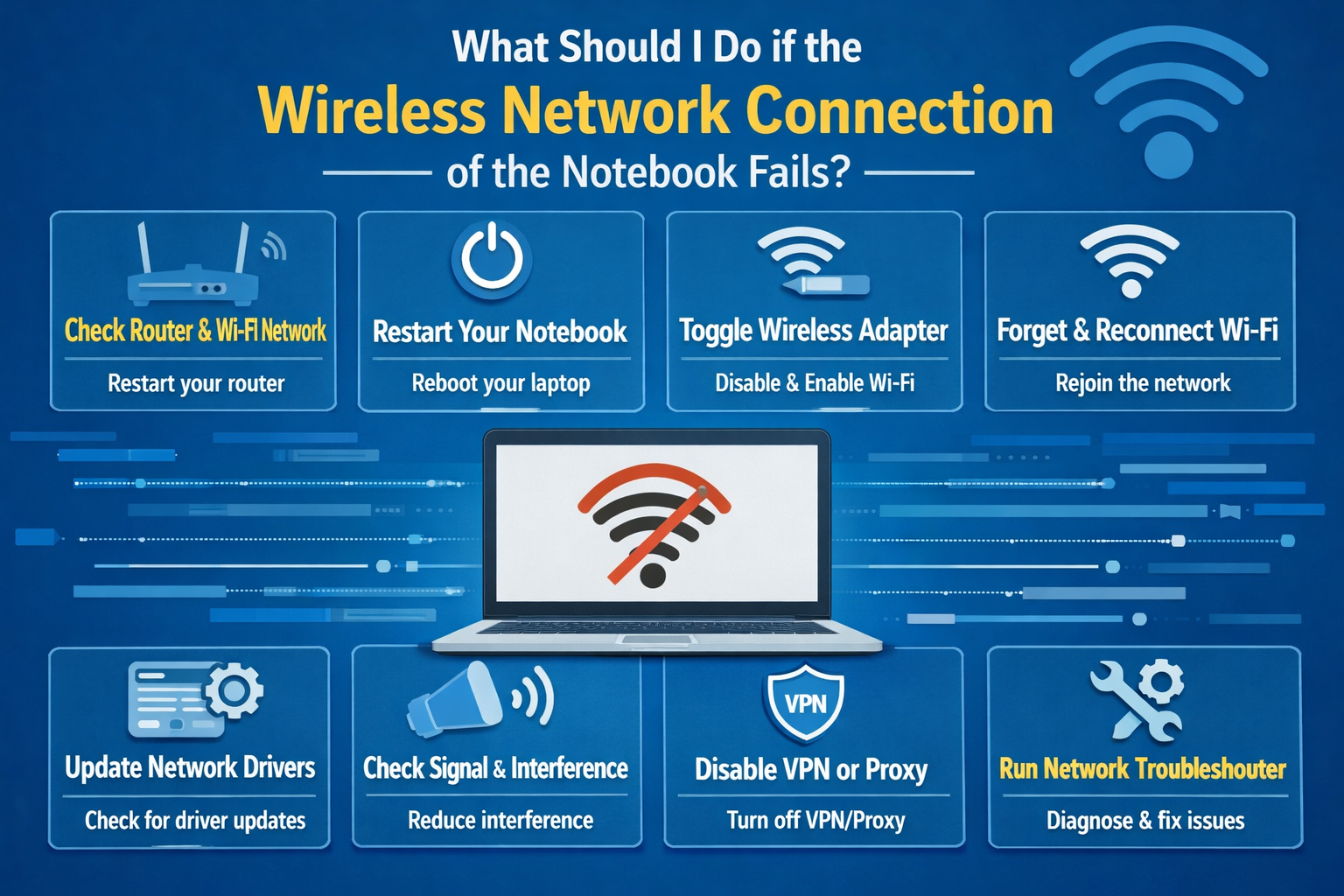
    6. Check for Interference or Signal Issues

    Wireless interference from other electronic devices or physical obstructions can cause your Wi-Fi signal to drop or become unstable. Consider these factors:

    • Distance from the router: If your notebook is far from the router, try moving closer to see if the connection improves.

    • Interference: Devices like microwaves, cordless phones, and other electronics can interfere with Wi-Fi signals. Try moving your notebook or router away from these devices.

    • Network congestion: If too many devices are connected to the same Wi-Fi network, this could result in a slow or unstable connection. Try disconnecting other devices temporarily to see if it improves the connection.

    7. Disable VPN or Proxy Settings

    If you’re using a VPN or proxy, it might be causing issues with your wireless connection. Try disabling the VPN or proxy to see if that resolves the problem:

    For Windows:

    1. Open Settings > Network & Internet > VPN.

    2. Click on the VPN connection and choose Disconnect.

    For macOS:

    1. Click the Apple menu > System Preferences > Network.

    2. Select VPN and click Disconnect.

    8. Run the Windows Network Troubleshooter

    If you’re using a Windows laptop, the built-in Network Troubleshooter can automatically detect and fix common network problems:

    1. Right-click the Wi-Fi icon in the taskbar and select “Troubleshoot problems”.

    2. Follow the prompts and let Windows diagnose and fix any network-related issues.

    9. Reset Network Settings (Last Resort)

    If none of the above steps resolve your wireless connection issues, you may need to reset your network settings. This will remove all saved networks and restore default network settings:

    For Windows:

    1. Go to Settings > Network & Internet > Status.

    2. Scroll down and click Network Reset.

    3. Follow the prompts to reset your network settings.

    For macOS:

    1. Open System Preferences > Network.

    2. Select Wi-Fi and click the minus (-) sign to remove it.

    3. Add Wi-Fi back by clicking the plus (+) sign, selecting Wi-Fi, and clicking Create.

    10. Check Hardware Issues

    If the above steps don’t fix the problem, your wireless network card or router could be malfunctioning. Here are some things to consider:

    • Test with another device: Try connecting other devices to the same Wi-Fi network to see if the issue is isolated to your notebook.

    • Hardware failure: If your notebook cannot detect any Wi-Fi networks or frequently loses connection, it could indicate a hardware failure. In this case, you may need to contact your laptop’s manufacturer for further assistance or get it checked by a technician.

    Conclusion

    Dealing with a failed wireless network connection on your notebook can be frustrating, but with these troubleshooting steps, you should be able to quickly identify and fix the issue. Whether it’s a simple software glitch, network interference, or a more complex hardware issue, the steps outlined above will help you restore your Wi-Fi connection and get back online in no time.

    Remember, keeping your drivers up to date, ensuring your router is functioning correctly, and performing regular network resets can prevent many common wireless connectivity issues. If all else fails, don’t hesitate to seek professional help.

    Share. Facebook Twitter Pinterest LinkedIn Tumblr Email

    Related Posts

    Why Should Companies Obtain a Forex License?

    Master the Art of Melting: A Complete Guide to Choosing the Best Wax Melter

    You need to know most common mistakes rookies in gaming

    Leave A Reply Cancel Reply

    You must be logged in to post a comment.

    voopoo drag 6
    oxva xlim 3 ultra
    sp2s sen x disposable vape
    • Popular
    • 3D Printer REVIEW
    • XIAOMI
    March 16, 2026

    OXVA Slimstick VS OXVA Slimstick X Vape Hands-on Review

    March 5, 2026

    OXVA XLIM PRO 3 vs XLIM Pro 2 DNA: Hands-On Review

    March 5, 2026

    OXVA XLIM PRO 3 vs XLIM GO 2: Hands-On Review

    March 2, 2026

    OXVA XLIM PRO 3 vs XLIM 3 ULTRA: Hands-On Review

    December 26, 2025

    ACMER ASCARVA 4S: Precision CNC Power for Makers, DIYers & Small Workshops

    June 23, 2024

    ACMER P2 20W Laser Engraver Fixed Focus Engraving: Hands on Review

    May 30, 2024

    xTool F1 Ultra Review: World’s First 20W Fiber & 20W Diode Laser Engraver

    May 30, 2024

    Anycubic Kobra 3 Combo Review: The Multicolor Masterpiece?

    April 1, 2026

    Xiaomi Smart Camera 4 Max AI Zoom Edition Released: 12x zoom, supports elderly/children/pet monitoring at 799 yuan!

    March 29, 2026

    Xiaomi Watch S5 Review: 316L Stainless Steel, Ultra-Long Battery Life

    March 26, 2026

    The Telephoto Lens of Xiaomi 18 Ultra has Undergone a Comprehensive Upgrade: with an Ultra-Large Sensor, LOFIC Technology

    March 26, 2026

    Xiaomi Redmi Pad 2 Pro 5G Edition is available for purchase: Supports 5G all-network and China Unicom eSIM, 8G + 256G priced at 2599 yuan.

    fc 26 coins
    New Arrivals
    • Waspe Bar 60K Disposable Vape Waspe Bar 60K Disposable Vape
    • Dojo Purex 60K Disposable Vape Dojo Purex 60K Disposable Vape
    • Geekvape Kloud Refillable Disposable Vape Geekvape Kloud Refillable Disposable Vape
    • Suonon Amber 80K Disposable Vape Kit Suonon Amber 80K Disposable Vape Kit
    • iJOY XP50000 Zero Nicotine Disposable Vape iJOY XP50000 Zero Nicotine Disposable Vape
    • OXBAR ROVOTA DTL 40K Disposable Vape OXBAR ROVOTA DTL 40K Disposable Vape
    • Pachamama 75K Disposable Vape Pachamama 75K Disposable Vape
    • Pillow Talk 50K Patriotic Edition Disposable Vape Pillow Talk 50K Patriotic Edition Disposable Vape
    • Realme P5 5G Realme P5 5G
    About
  • Igeekphone.com provides the first global tech news and reviews about smartphone, vapes, e-cigar, smart home, 3D printers, e-bike,tablets, RC drones, VR headset, and other accessories. It's the best platform to improve your brand and product.
  • Contact us: info@igeekphone.com
  • Check Our Privacy Policy Here.
  • Note: *Right now we have US editor and EU editors for review, especially for Amazon US and EU.
  • *Shop and Compare Price Here*
  • Facebook
  • Youtube
  • OUR BEST VAPE PARTNERS
  • VAPE ONLINE STORE
  • HAYATI PRO MAX PLUS
  • VAPORESSO
  • VOOPOO
  • OXVA
  • NEXA
  • MASKKING
  • TODOO
  • SP2S
  • VEIIK
  • OTHER BEST PARTNERS
  • SVBONY
  • Chuwi
  • Blackview
  • Fossibot
  • Unihertz
  • Flsun
  • Anycubic
  • Xtool
  • Oukitel
  • Mukkpet Ebike
  • Ugreen
  • Copyright © 2026 igeekphone

    Type above and press Enter to search. Press Esc to cancel.