Facebook Twitter Instagram
    Trending
    • Turning Digital Dreams Into Reality: A Guide to Bitcoin Exchange for Cash
    • Exploring the Boundaries: A Comprehensive Comparison of Gaming and Gambling
    • Exploring Risk Management through Futures: Delving into Hedging and Speculation
    • The Hidden Science of Flavor: How the Chemical Composition of Vape Liquids Affects Taste and Experience
    • The Impact Of Pickleball Paddle Surface Texture On Ball Spin And Control
    • What are the Top Money-Making Apps for Beginners?
    • How to Use a Newsletter to Promote Your Website better
    • Narwal Flow 2 Robot Vacuum & Mop Review: AI-Powered Cleaning with Powerful Suction and Hands-Free Maintenance
    Facebook YouTube
    IGeeKphone China Phone, Tablet PC, VR, RC Drone News, Reviews
    • HOME
      • NEWS
        • DeepSeek
        • ChatGPT
        • Minecraft
    • Amazon
    • PHONE
      • Top Phones For Your First Choice
      • Phone Comparison
      • Xiaomi
      • Blackview
      • Doogee
      • Black Shark
      • Geekbuying
      • Banggood
      • TEMU
      • TikTok
      • Aliexpress
      • Walmart
      • MercadoLibre
      • Lazada
    • TOP VAPE Awards for 2026
    • VAPES
      • E-CIGAR Upcoming
      • Vape News
      • Vape Deals
      • Vape Comparison
      • Vape Guide
      • Giveaway
    • BEST VAPE
      • Best Vape Stores
      • Best Starter Vape Kits
      • Best Vapes for Beginners
      • Best Disposable Vapes
      • Best Pod Systems
      • Best Pod Mod Vapes
      • Best Mods
      • Best Nicotine Pouches
      • Best Clearomizers/Tanks
      • Best E-Liquid
      • Best EGO/Pens
      • Best Vapes for Nic Salt E-Juice
      • Best Vapes to Quit Smoking
      • RDA vs. RDTA vs. RTA
    • Best Vape Brand 2026
      • VAPORESSO
      • VOOPOO
      • OXVA
      • NEXA BAR
      • MASKKING VAPE
      • SP2S
      • IPLAY
      • TODOO
      • MRFOG
      • LOSTVAPE
      • VEIIK
    • REVIEW
      • E-cigar Review
      • Phones
      • Tablet PC
      • TV Box
      • RC Drone
      • Wearables
      • Camera
      • Accessories
      • VR Headset
    • MORE
      • TABLET
        • Chuwi
        • INNOCN
        • Teclast
        • Top Tablet for Your First Choice
        • Tablet/Laptop Comparison
      • RC DRONE
      • CAMERA
      • WEARABLES
        • OneOdio
        • BlitzWolf
        • Top Smartwatch for First Choice
      • 3D PRINTER
        • 3D Printer Review
        • Anycubic
        • FLSUN
        • Xtool
        • LONGER
        • Top 3D printer to Choose First
      • POWER STATION
        • Oukitel
        • FOSSIBOT
      • GAMING
        • Top Gaming Products
      • E-BIKE
        • Samebike
        • Happyrun
        • ENGWE
      • SMART HOME
      • TV BOX
      • ACCESSORIES
      • VR HEADSET
      • CLOTHES
      • AUTO CAR
    • DEAL
    • VAPE LAWS
    • Shop
    IGeeKphone China Phone, Tablet PC, VR, RC Drone News, Reviews
    You are at:Home»Apple»Jailbreaking Made Easy: Palera1n’s Guide to Freedom on iOS 16.3.1
    Apple

    Jailbreaking Made Easy: Palera1n’s Guide to Freedom on iOS 16.3.1

    HabibBy HabibMarch 4, 2023
    Facebook Twitter Pinterest LinkedIn Tumblr Email

    These are instructions on jailbreaking your iPhone running iOS 15.0 – 16.3.1 using palera1n for Mac. The palera1n jailbreak is primarily intended for developers; however, most users can follow our steps to jailbreak with few difficulties. You can check jailbreak ios 16.3.1 here.

    Palera1n is (semi-)tethered checkm8 jailbreak that supports the following A8-A11 devices:
    ● iPhone SE
    ● iPhone 6 / iPhone 6 Plus
    ● iPhone 6s / iPhone 6 Plus
    ● iPhone 7 / iPhone 7 Plus
    ● iPhone 8 / iPhone 8 Plus
    ● iPhone X
    ● iPod touch 6
    ● iPod touch 7
    ● iPad mini 4
    ● iPad Air 2
    ● iPad 5
    ● iPad Pro 12.9-inch (2015)
    ● iPad Pro 9.7-inch (2016)
    ● iPad 6
    ● iPad 7
    ● iPad Pro 12.9-inch (2nd generation, 2017)
    ● iPad Pro 10.5-inch (2017)

    PALERA1N JAILBREAK

    Step 1
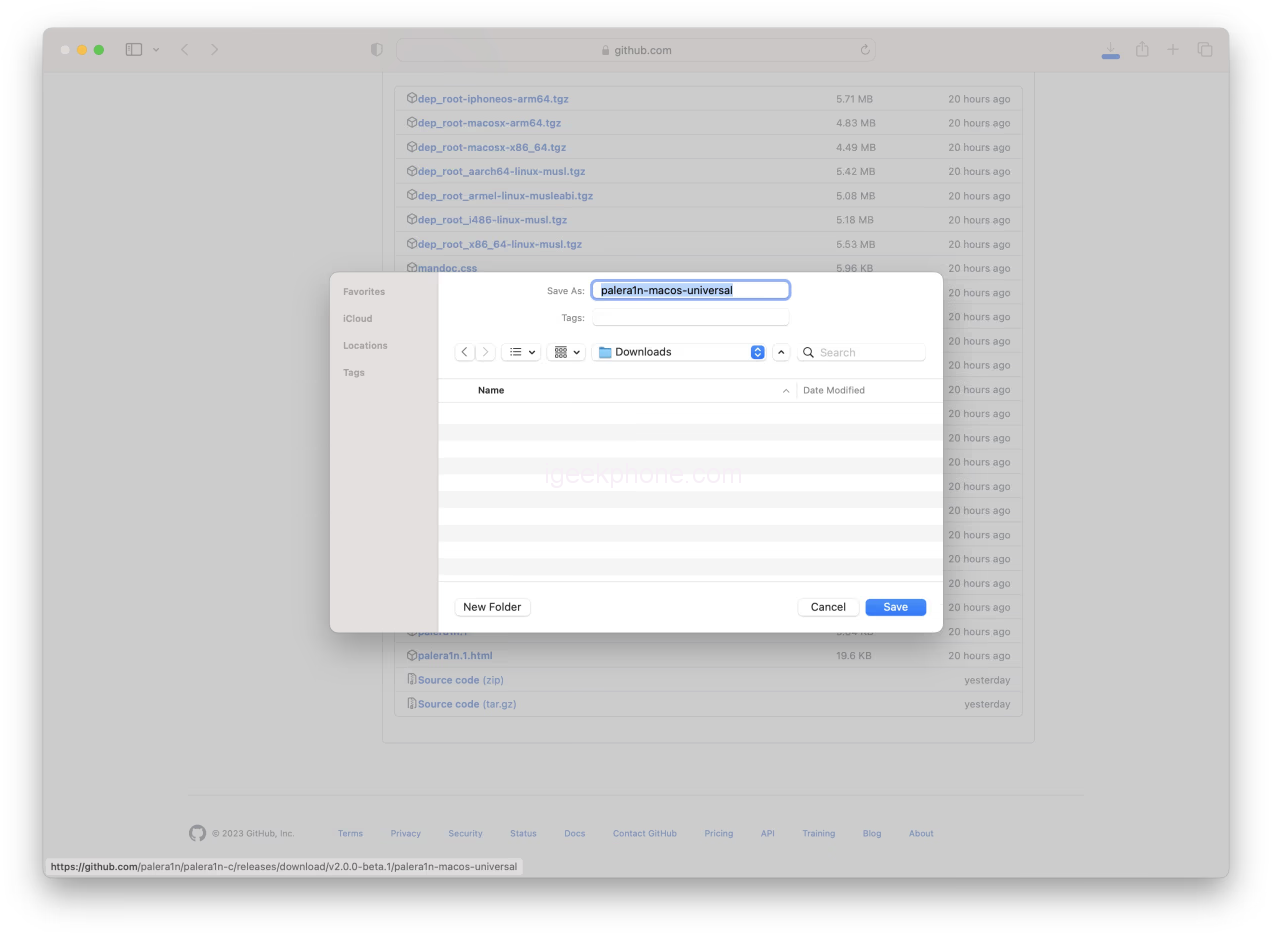
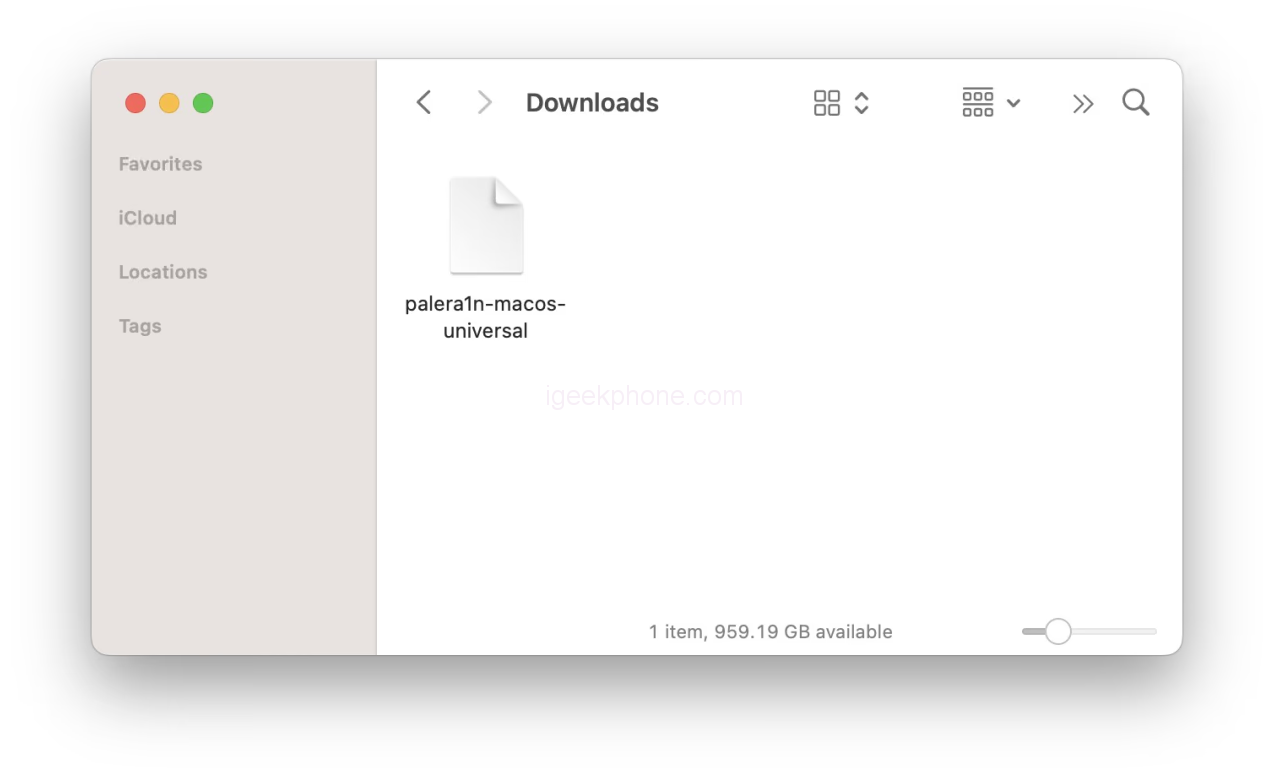
    • Download the universal palera1n binary from Github and save it to your Downloads folder.
    • palera1n-macos-universal

    You can find additional downloads for Linux here.

    Step 2

    • Open Terminal from your Applications > Utility folder

    Step 3
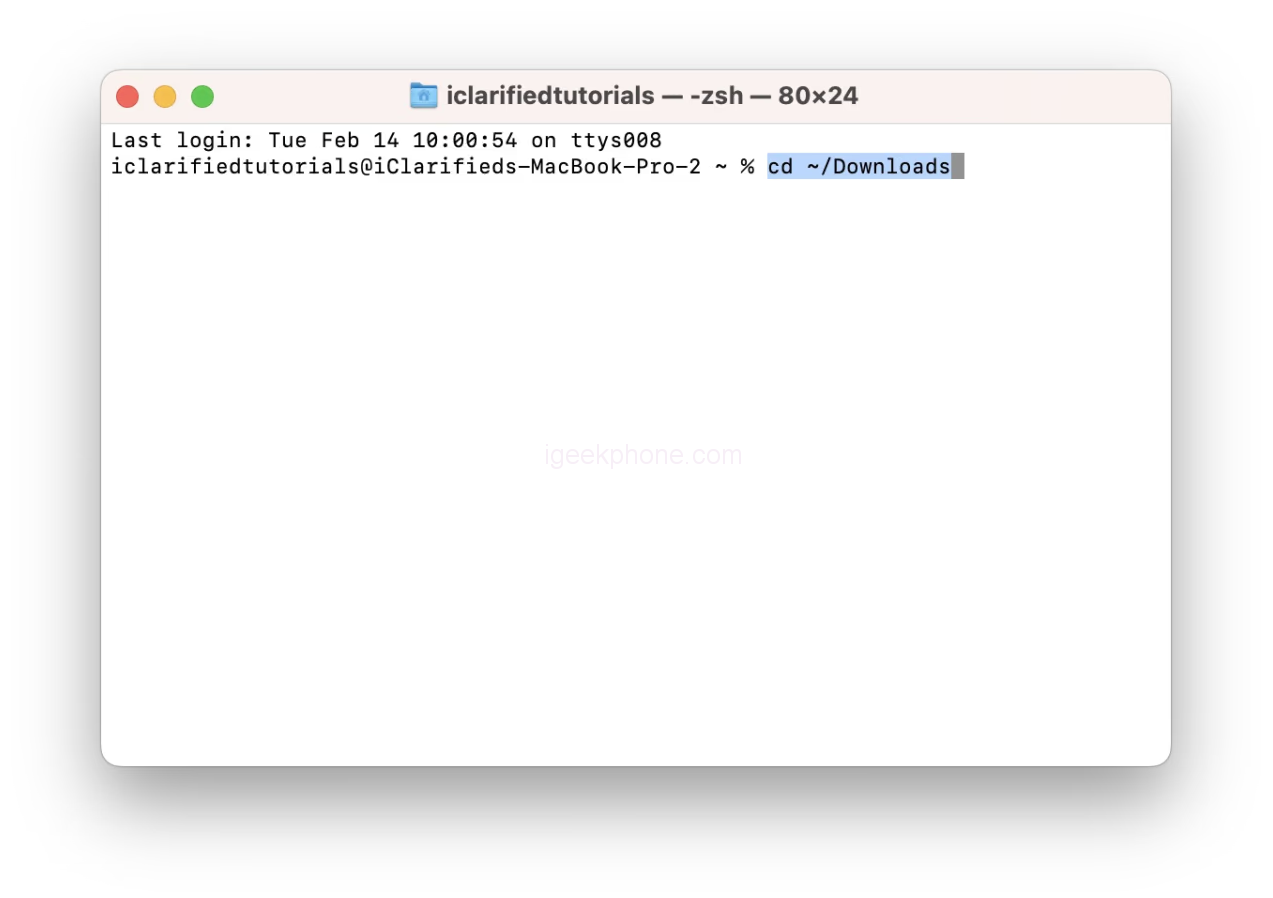
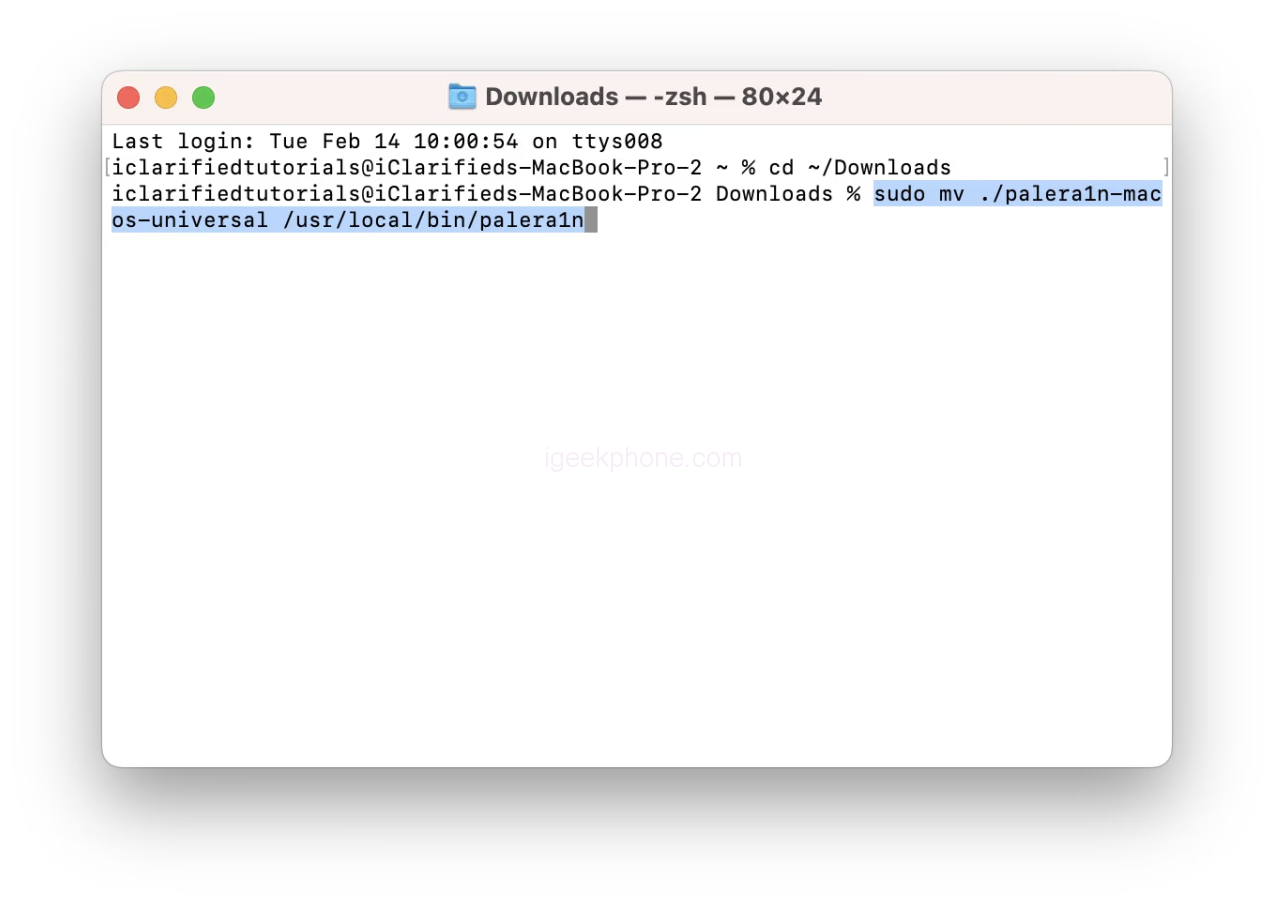
    • Execute the following commands in the Terminal window:
    • cd ~/Downloads
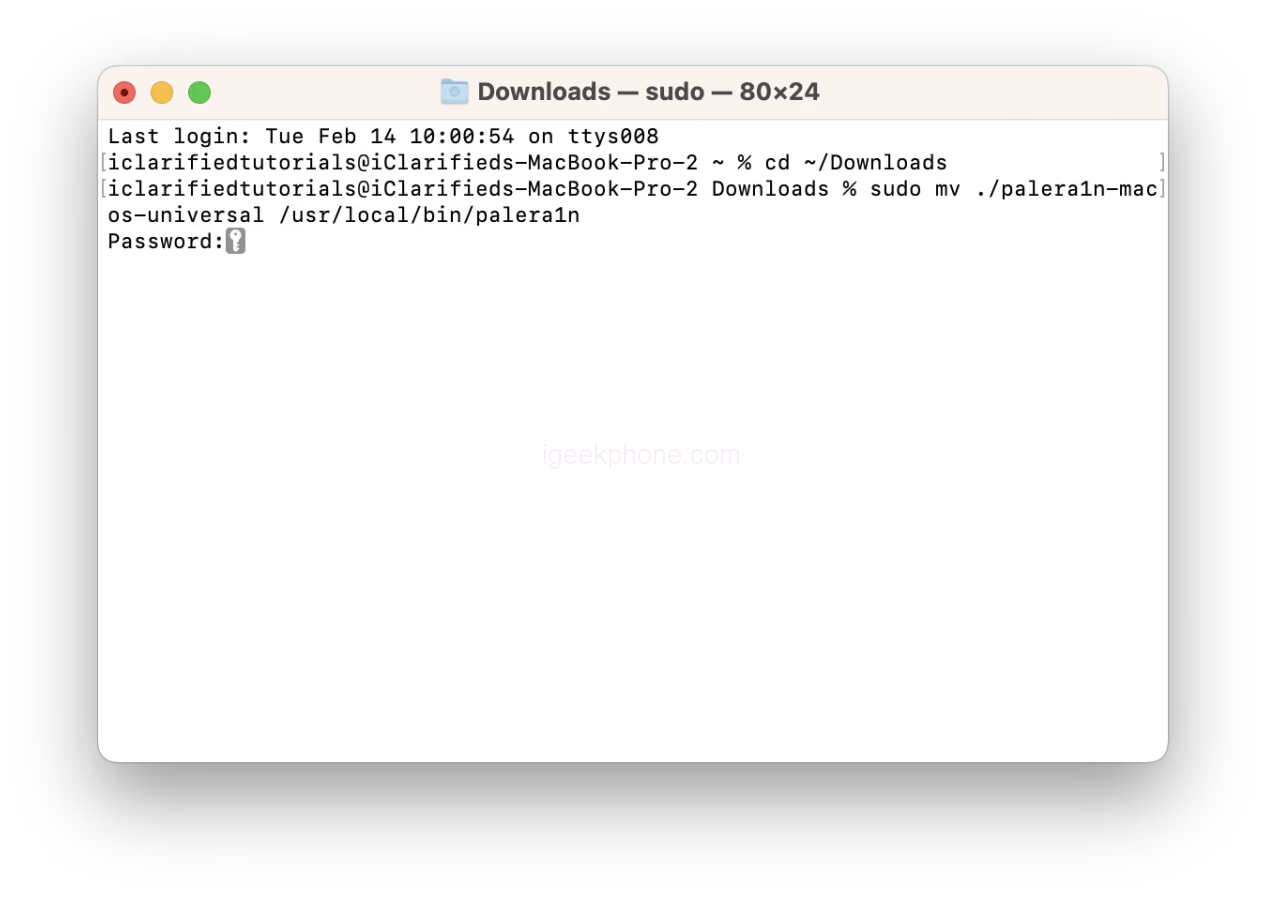
    • sudo mv ./palera1n-macos-universal /usr/local/bin/palera1n
    • Enter your administrator password if prompted.
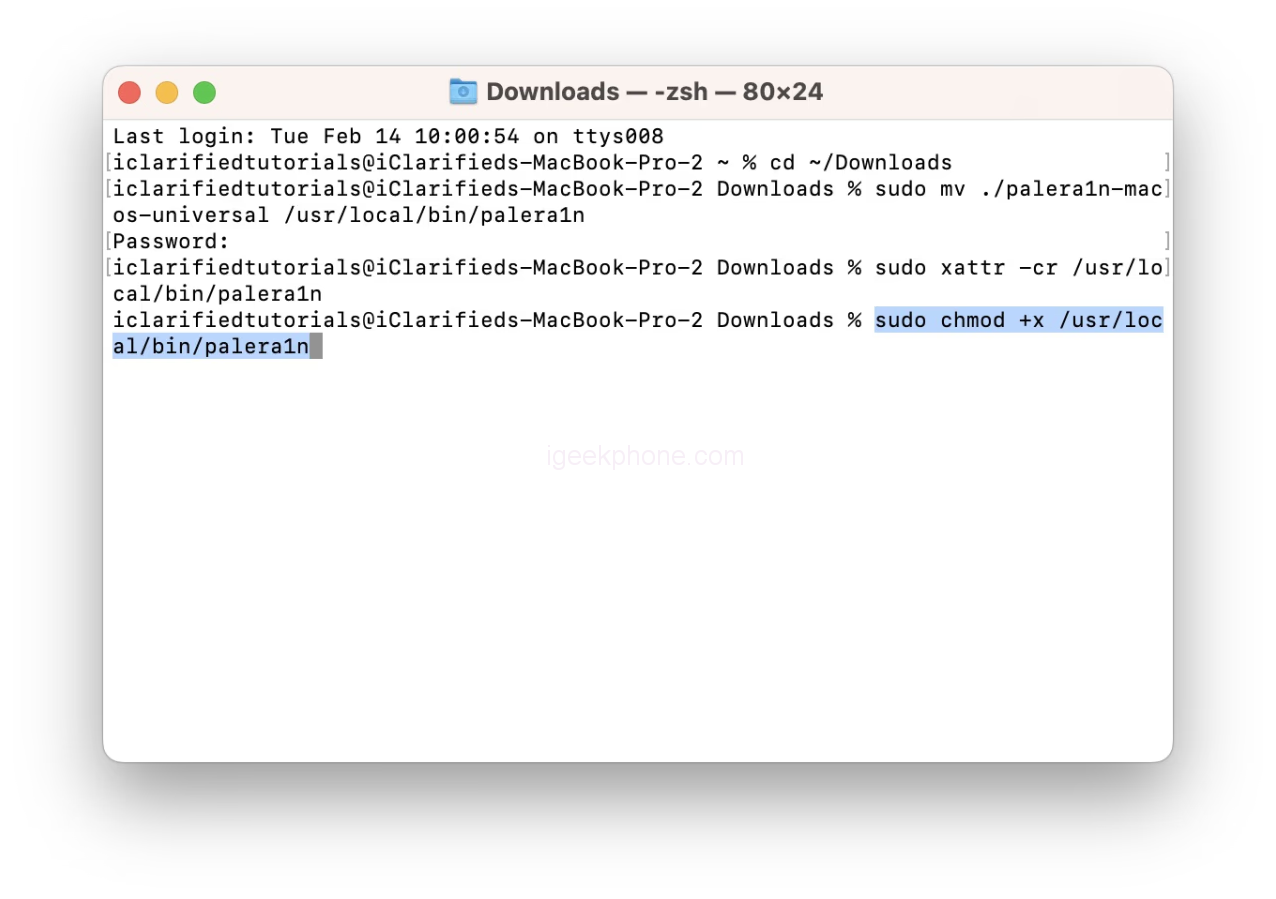
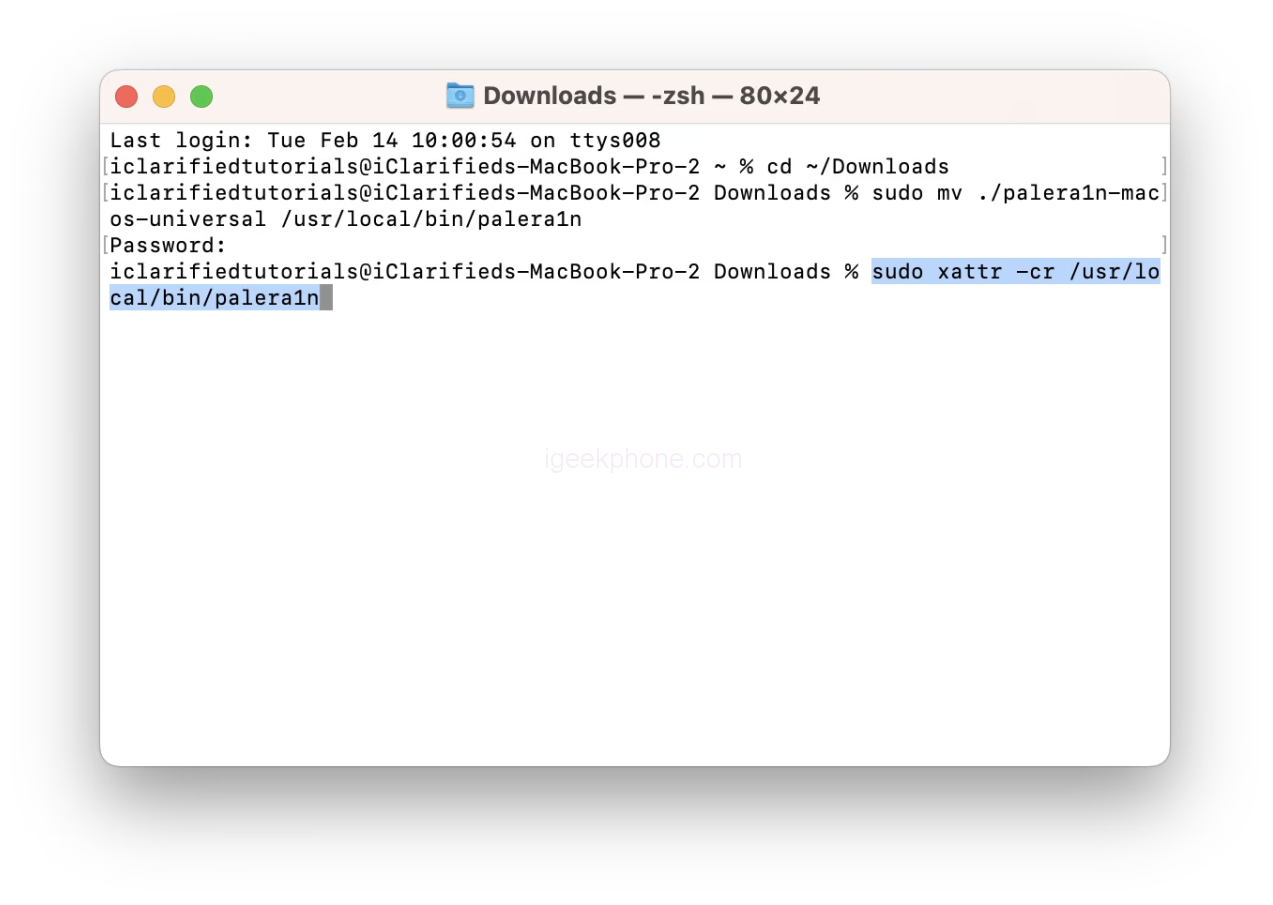
    • sudo xattr -cr /usr/local/bin/palera1n
    • sudo chmod +x /usr/local/bin/palera1n

    Step 4

    • On A11 devices, you must disable your passcode and cannot use your passcode or related functionality like Face ID/Touch ID and Apple Pay until you boot into a stock state.

    Additionally, if you are on iOS 16 with an A11 processor and have ever set a passcode, you must erase all content and settings before jailbreaking. You can do this from Settings > General > Transfer or Reset iPhone > Erase All Content and Settings.

    MAKE SURE TO MAKE A BACKUP OF YOUR IPHONE BEFORE THESE STEPS.

    Step 5

    Connect your iPhone to your computer. If using a USB-C to Lightning cable, you will likely need to use a USB-C to USB-A adapter and a USB-A to Lightning cable instead. This is because some USB-C to Lightning cables do not allow you to put your iPhone into DFU mode.

    ● Apple USB-C to USB-C Adapter
    ● Apple USB-A Lightning Cable

    Step 6

    Execute the following command in the Terminal window to create a new APFS volume required for roomful jailbreak. Note that this will require 5GB – 10GB of space, so we don’t advise trying it on a 16GB device.

    • palera1n -cf
    • Your device will be placed into Recovery Mode to prepare for entering DFU mode.
    • When ready to enter DFU mode, hit Return on your keyboard.
    • Following the prompts, hold down the Volume Down and Side buttons for about five seconds, then release the Side button and continue holding down the Down Volume button until DFU mode is detected.
    • If you have trouble timing, check out the more detailed instructions below.
    • ● How to Put Your iPhone Into DFU Mode

    Step 7

    Palera1n will detect your device in DFU and begin performing the exploit. Your device will then be reconnected in Download mode.

    You may receive the following error.

    Error: Timed out waiting for download mode (error code: -status_exploit_timeout_error)

    To resolve this, disconnect the cable from your iPhone and reconnect it. Palera1n will then continue. Alternatively, you could use a USB hub between your computer and iPhone to avoid the error.

    Step 8

    • After creating the fakes (5 minutes), your device will boot to IOS 16.
    • Return to the Terminal window and execute the following command to jailbreak in roomful mode.
    • palera1n -f
    • Your device will again be placed into Recovery Mode to prepare for entering DFU mode.
    • When ready to enter DFU mode, hit Return on your keyboard.

    Following the prompts, hold down the Volume Down and Side buttons for about five seconds, then release the Side button and continue holding down the Down Volume button until DFU mode is detected.

    Check out the more detailed instructions below if you still have trouble timing.

    ● How to Put Your iPhone Into DFU Mode

    Step 9

    After detecting your iPhone in DFU mode, palera1n will continue the exploit. Your device will be reconnected in Download mode once more.

    You may receive the following error.

    Error: Timed out waiting for download mode (error code: -status_exploit_timeout_error)

    To resolve this, disconnect the cable from your iPhone and reconnect it. Palera1n will then continue. Alternatively, you could use a USB hub between your computer and iPhone to avoid the error.

    Step 10

    Your iPhone will reboot into IOS 16. This time, a palera1n app will be added to the Springboard. Note: This may take 10-20 seconds.

    Tap to launch the palera1n app.

    Step 11

    Tap the Install button to jailbreak.

    Step 12

    Once complete, tap the Repair button to respring into a jailbroken state.

    Step 13
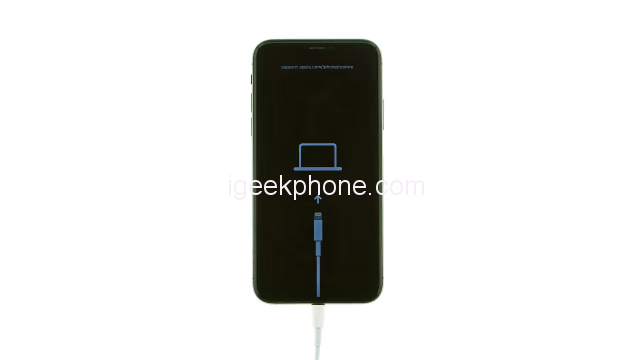
    Finally, you’ll have the Sileo package manager installed on your Springboard. Tap to launch Sileo and install tweaks on your jailbroken iPhone.

    Read Also: Spy on iPhone With Just the Number No Access to Target Phone

    Do not forget to follow us on our Facebook group and page to keep you always aware of the latest advances, News, Updates, review, and giveaway on smartphones, tablets, gadgets, and more from the technology world of the future.

    Source: iclarified

    Share. Facebook Twitter Pinterest LinkedIn Tumblr Email

    Related Posts

    Turning Digital Dreams Into Reality: A Guide to Bitcoin Exchange for Cash

    Exploring Risk Management through Futures: Delving into Hedging and Speculation

    How to Use a Newsletter to Promote Your Website better

    Leave A Reply Cancel Reply

    You must be logged in to post a comment.

    voopoopintch
    oxva nexlim 2
    sp2s sen x disposable vape
    • Popular
    • 3D Printer REVIEW
    • XIAOMI
    June 21, 2026

    iPlay LUMO 8K Review – A Compact Prefilled Pod Kit with Big Flavor and Everyday Convenience

    June 21, 2026

    iPlay HOOLA 150K Review – A Cloud-Chasing Giant with Music, Modes & Massive Longevity

    June 21, 2026

    Vaporesso VIBE SE 2 Review – Simple on the Outside, Surprisingly Smart on the Inside

    June 21, 2026

    VOOPOO DRAG H40 Pro Review – The Return of the Pocket Powerhouse

    December 26, 2025

    ACMER ASCARVA 4S: Precision CNC Power for Makers, DIYers & Small Workshops

    June 23, 2024

    ACMER P2 20W Laser Engraver Fixed Focus Engraving: Hands on Review

    May 30, 2024

    xTool F1 Ultra Review: World’s First 20W Fiber & 20W Diode Laser Engraver

    May 30, 2024

    Anycubic Kobra 3 Combo Review: The Multicolor Masterpiece?

    June 25, 2026

    Xiaomi has launched the Mijia Smart Electric Pressure Cooker 2 Pro: It can debone the food in just 15 minutes at 899 yuan.

    June 24, 2026

    Not only the Original Xuanji O3! Key Information about Xiaomi MIX Fold 5 is Revealed in Advance

    June 24, 2026

    The Battery Upgrade Service for Xiaomi 14 series has been officially Announced: It is expected to be launched in the fourth quarter.

    June 23, 2026

    Xiaomi Redmi 17C mobile phone is available for purchase: 6.88-inch 120Hz large screen, 5160mAh battery, starting from 799 yuan.

    fc 26 coins
    New Arrivals
    • Vfeel Muse 50000 Disposable Vape Vfeel Muse 50000 Disposable Vape
    • Bounce Turbo 60K Disposable Vape Bounce Turbo 60K Disposable Vape
    • Samsung Galaxy Tab A13 Plus Samsung Galaxy Tab A13 Plus
    • Samsung Galaxy Tab A13 Samsung Galaxy Tab A13
    • Honor Magic 9 Lite Honor Magic 9 Lite
    • Smyle Labs Inhaler 510 Thread Battery Smyle Labs Inhaler 510 Thread Battery
    • Vivo iQOO Neo12 Pro Vivo iQOO Neo12 Pro
    • Vivo S60 Pro Mini Vivo S60 Pro Mini
    • Vivo S60 Vivo S60
    About
  • Igeekphone.com provides the first global tech news and reviews about smartphone, vapes, e-cigar, smart home, 3D printers, e-bike,tablets, RC drones, VR headset, and other accessories. It's the best platform to improve your brand and product.
  • Contact us: info@igeekphone.com
  • Check Our Privacy Policy Here.
  • Note: *Right now we have US editor and EU editors for review, especially for Amazon US and EU.
  • *Shop and Compare Price Here*
  • Facebook
  • Youtube
  • Mashable is a global, multi-platform media and entertainment company

    For more queries and news contact us on this

    Email: info@mashablepartners.com

  • OUR BEST VAPE PARTNERS
  • VAPE ONLINE STORE
  • HAYATI PRO MAX PLUS
  • VAPORESSO
  • VOOPOO
  • OXVA
  • NEXA
  • MASKKING
  • SP2S
  • IPLAY
  • TODOO
  • OTHER BEST PARTNERS
  • SVBONY
  • Chuwi
  • Blackview
  • Fossibot
  • Unihertz
  • Flsun
  • Anycubic
  • Xtool
  • Oukitel
  • Mukkpet Ebike
  • Ugreen
  • Copyright © 2026 igeekphone

    Type above and press Enter to search. Press Esc to cancel.