







Facebook Twitter Instagram
    Trending
    • DoorDash and Vapes: The 2026 Delivery Rules
    • Philip Morris International launched a new color variant of IQOS ILUMA i, “Electric Purple”, in South Korea. This new color is available on three Devices
    • How to Set a Password for Computer Startup: A Step-by-Step Guide to Enhance Security
    • The three color options for Xiaomi Notebook Pro 14 have been announced: white, elegant gray, and soft mist blue.
    • New Renderings of Samsung Galaxy A37 Smartphone Unveiled: Exynos 1480 chip, 5000mAh Battery
    • OPPO Watch X3 Officially Reveals its Key Features: Simultaneous Connection with both Android and iOS Devices
    • It is Reported that a New 16GB LPDDR6 + 1TB UFS 5.0 Solution for a Certain Factory has been Prototyped. It is Expected to be Used by Xiaomi.
    Facebook YouTube
    Login Register
    IGeeKphone China Phone, Tablet PC, VR, RC Drone News, Reviews
    • HOME
      • NEWS
        • DeepSeek
        • ChatGPT
        • Minecraft
    • Amazon
    • PHONE
      • Top Phones For Your First Choice
      • Phone Comparison
      • Xiaomi
      • Blackview
      • Doogee
      • Black Shark
      • Geekbuying
      • Banggood
      • TEMU
      • TikTok
      • Aliexpress
      • Walmart
      • MercadoLibre
      • Lazada
    • TOP VAPE Awards for 2026
    • VAPES
      • E-CIGAR Upcoming
      • Vape News
      • Vape Deals
      • Vape Comparison
      • Vape Guide
      • Giveaway
    • BEST VAPE
      • Best Vape Stores
      • Best Starter Vape Kits
      • Best Vapes for Beginners
      • Best Disposable Vapes
      • Best Pod Systems
      • Best Pod Mod Vapes
      • Best Mods
      • Best Nicotine Pouches
      • Best Clearomizers/Tanks
      • Best E-Liquid
      • Best EGO/Pens
      • Best Vapes for Nic Salt E-Juice
      • Best Vapes to Quit Smoking
      • RDA vs. RDTA vs. RTA
    • Best Vape Brand 2026
      • VAPORESSO
      • VOOPOO
      • OXVA
      • NEXA BAR
      • ORIONBARTECH
      • MASKKING VAPE
      • MEMERS
      • SP2S
      • JNR
      • TODOO
      • MRFOG
      • VEIIK
    • REVIEW
      • E-cigar Review
      • Phones
      • Tablet PC
      • TV Box
      • RC Drone
      • Wearables
      • Camera
      • Accessories
      • VR Headset
    • MORE
      • TABLET
        • Chuwi
        • INNOCN
        • Teclast
        • Top Tablet for Your First Choice
        • Tablet/Laptop Comparison
      • RC DRONE
      • CAMERA
      • WEARABLES
        • OneOdio
        • BlitzWolf
        • Top Smartwatch for First Choice
      • 3D PRINTER
        • 3D Printer Review
        • Anycubic
        • FLSUN
        • Xtool
        • LONGER
        • Top 3D printer to Choose First
      • POWER STATION
        • Oukitel
        • FOSSIBOT
      • GAMING
        • Top Gaming Products
      • E-BIKE
        • Samebike
        • Happyrun
        • ENGWE
      • SMART HOME
      • TV BOX
      • ACCESSORIES
      • VR HEADSET
      • CLOTHES
      • AUTO CAR
    • DEAL
    • VAPE LAWS
    • Shop
    IGeeKphone China Phone, Tablet PC, VR, RC Drone News, Reviews
    You are at:Home»Guide»How to Install Soundcore app on PC
    Guide

    How to Install Soundcore app on PC

    Brady CottonBy Brady CottonFebruary 28, 2026
    Facebook Twitter Pinterest LinkedIn Tumblr Email

    If there’s one brand that can compete the likes of Apple’s wireless headphones, it has to be Soundcore. With more than 85 million units sold worldwide and more than 50 million global users, it’s surely the hot favorite. It doesn’t matter if you’re a party animal or looking for a sound sleep, there’s a headphone or earbuds for everyone.

    That said, when you pair your headphones with your device, there’s a dedicated application for users called Soundcore app that lets you customize various options based on your needs.

    So let us first check what all customizations and options you get in the app and after that we will explain you how to download Soundcore app for PC using an Android emulator.
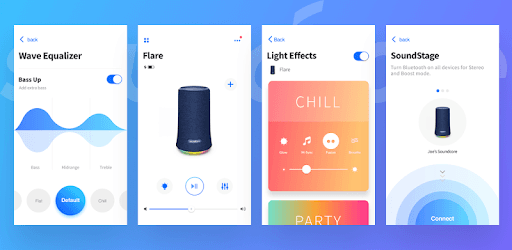
    Seamless Connectivity

    Be it a headphone, speaker or an earbud, you can connect every device with ease within the Soundcore app. Simply click on add device option within the app and you can start pairing the headphone to the app within the matter of seconds. This allows you to customize the sound options that are available in the app and as per your requirements too.

    Customize the Noise

    Irrespective of where you’re at present, the app has got all customizations included in it. Say for example, if you’re traveling in a car or you’re hiking a mountain, there’s customization available for every situation. That said, the White Noise can be customized too based on the recommendations available in the app or you do it yourself with more customizations with the DIY option available in the app.

    The equalizer in the app is simply amazing. With easy to understand interface, and multiple options to customize, you can always control the output you want to.

    Dual Connectivity

    If you’re having one or more devices, simply head over to the dual connectivity option and you can easily connect multiple devices at once. That said, you must also know which devices are compatible with the Soundcore app and its features. Let’s see that in the next section below.

    Supported Devices

    Remember that not all devices support every feature that’s available within the app. However, most of the devices like the Liberty series, Rave series, Life Note series, Space, Model series, Sleeps series and many more are supported with Soundcore app.

    Now that you know most of the features of Soundcore app, let us now see how you can use the app on your Windows PC if and when needed.

    Download Soundcore app on your Windows PC

    The overall process is pretty simple as you just need an Android emulator and a Google account. Let’s get started.

    • Download Nox Player from the official website or any trusted third party source.
    • Install the emulator using on-screen instructions or you can customize the installation too as per your requirements.
    • Once done, launch the emulator and set up your Google account.
    • Now head over to Google Play Store within the emulator and search for Soundcore app. Once you find the app, click on install option to complete the process.

    Once the app is installed, you can now connect your Soundcore devices to your PC using this Soundcore PC app and customize the sound options as per your requirements.

    Share. Facebook Twitter Pinterest LinkedIn Tumblr Email

    Related Posts

    How to Set a Password for Computer Startup: A Step-by-Step Guide to Enhance Security

    How to Send Live Photos by OnePlus Ace 6t?

    The Future of AI Art: What Lies Ahead for Artists and Creators

    Leave A Reply Cancel Reply

    You must be logged in to post a comment.

    voopoo drag 6
    oxva xlim 3 ultra
    sp2s sen x disposable vape
    jnr 100k
    • Popular
    • 3D Printer REVIEW
    • XIAOMI
    March 5, 2026

    OXVA XLIM PRO 3 vs XLIM Pro 2 DNA: Hands-On Review

    March 5, 2026

    OXVA XLIM PRO 3 vs XLIM GO 2: Hands-On Review

    March 2, 2026

    OXVA XLIM PRO 3 vs XLIM 3 ULTRA: Hands-On Review

    February 23, 2026

    Voopoo DRAG S3 vs DRAG X3 Review – Which One Fits Your Vaping Lifestyle?

    December 26, 2025

    ACMER ASCARVA 4S: Precision CNC Power for Makers, DIYers & Small Workshops

    June 23, 2024

    ACMER P2 20W Laser Engraver Fixed Focus Engraving: Hands on Review

    May 30, 2024

    xTool F1 Ultra Review: World’s First 20W Fiber & 20W Diode Laser Engraver

    May 30, 2024

    Anycubic Kobra 3 Combo Review: The Multicolor Masterpiece?

    March 12, 2026

    The three color options for Xiaomi Notebook Pro 14 have been announced: white, elegant gray, and soft mist blue.

    March 10, 2026

    Xiaomi 18 Pro Max leaks out: First to Feature Snapdragon 8E6 Pro with a 6.9-inch Large Screen

    March 9, 2026

    Xiaomi Redmi K90 Supreme Edition,New model of Dimensity 9500 from a certain factory has been Exposed

    March 3, 2026

    Starting from 7,999 yuan, Leica Announces that Leica Version of Xiaomi 17 Ultra in Black and Silver will be Available on Official Channels

    fc 26 coins
    New Arrivals
    • Juice Head iFlex Nixodine 50K Disposable Vape Juice Head iFlex Nixodine 50K Disposable Vape
    • MASKKING CAMO Disposable Vape MASKKING CAMO Disposable Vape
    • Pod Salt Air 40K Disposable Vape Pod Salt Air 40K Disposable Vape
    • OXVA Xlim Go Lite Pod System Kit OXVA Xlim Go Lite Pod System Kit
    • OXVA ARTIO 2 Vape OXVA ARTIO 2 Vape
    • Wala Yo 50000 Disposable Vape Wala Yo 50000 Disposable Vape
    • BD Vape Mod Rayden 220 Box Mod BD Vape Mod Rayden 220 Box Mod
    • Airmez Lux 60K Disposable Vape Airmez Lux 60K Disposable Vape
    • YOVO JB50K Nixodine Disposable Vape Kit YOVO JB50K Nixodine Disposable Vape Kit
    About
  • Igeekphone.com provides the first global tech news and reviews about smartphone, vapes, e-cigar, smart home, 3D printers, e-bike,tablets, RC drones, VR headset, and other accessories. It's the best platform to improve your brand and product.
  • Contact us: info@igeekphone.com
  • Check Our Privacy Policy Here.
  • Note: *Right now we have US editor and EU editors for review, especially for Amazon US and EU.
  • *Shop and Compare Price Here*
  • Facebook
  • Youtube
  • OUR BEST VAPE PARTNERS
  • VAPE ONLINE STORE
  • HAYATI PRO MAX PLUS
  • VAPORESSO
  • VOOPOO
  • OXVA
  • NEXA
  • MASKKING
  • LOSTVAPE ORIONBAR
  • MEMERS
  • TODOO
  • SP2S
  • JNR
  • VEIIK
  • OTHER BEST PARTNERS
  • SVBONY
  • Chuwi
  • Blackview
  • Fossibot
  • Unihertz
  • Flsun
  • Anycubic
  • Xtool
  • Oukitel
  • Mukkpet Ebike
  • Ugreen
  • Copyright © 2026 igeekphone

    Type above and press Enter to search. Press Esc to cancel.