







Facebook Twitter Instagram
    Trending
    • How to Set up the Dual-Screen Function of Oppo Reno 15 Pro?
    • How to Delete the Default Camera Settings on Huawei Mate 80?
    • KINYO S06 AI Smart Translation TWS Wireless Headphones Review: Revolutionizing Communication and Audio Quality
    • H3 1080P Mini Projector 4K Review: Your Ultimate Portable Home Cinema Experience
    • XK K270 UH-60L Review: A High-Flying RC Helicopter for Enthusiasts and Aficionados
    • LDRC 18401 PRO Review: A Beast of an RC Car for Off-Road Enthusiasts
    • Teclast T65 Plus Tablet PC Hands on Review: The True Experience of a Large Screen and Long Battery Life
    • JOOZY PRO 30K Disposable Kit Review: The Ultimate Vaping Experience with 30,000 Puffs
    Facebook YouTube
    Login Register
    IGeeKphone China Phone, Tablet PC, VR, RC Drone News, Reviews
    • HOME
      • NEWS
        • DeepSeek
        • ChatGPT
        • Minecraft
    • Amazon
    • CHRISTMAS
    • PHONE
      • Top Phones For Your First Choice
      • Phone Comparison
      • Xiaomi
      • Blackview
      • Unihertz
      • Doogee
      • Black Shark
      • Geekbuying
      • Banggood
      • TEMU
      • TikTok
      • Aliexpress
      • Walmart
      • Newegg
      • MercadoLibre
      • Lazada
    • TOP VAPE Awards for 2025
    • VAPES
      • E-CIGAR Upcoming
      • Vape News
      • Vape Market Trend
      • Vape Deals
      • Expo News
      • Vape Comparison
      • Vape Guide
        • Guide For Beginners
        • Guide for Best Users
      • Giveaway
    • BEST VAPE
      • Best Vape Stores
      • Best Starter Vape Kits
      • Best Vapes for Beginners
      • Best Disposable Vapes
      • Best Pod Systems
      • Best Pod Mod Vapes
      • Best Mods
      • Best Nicotine Pouches
      • Best Clearomizers/Tanks
      • Best E-Liquid
      • Best EGO/Pens
      • Best Vapes for Nic Salt E-Juice
      • Best Vapes to Quit Smoking
      • RDA vs. RDTA vs. RTA
    • Best Vape Brand 2025
      • VAPORESSO
      • VOOPOO
      • OXVA
      • NEXA BAR
      • ORIONBARTECH
      • MASKKING VAPE
      • VEIIK
      • MEMERS
      • SP2S
      • JNR
      • TODOO
      • MRFOG
    • REVIEW
      • E-cigar Review
      • Phones
      • Tablet PC
      • TV Box
      • RC Drone
      • Wearables
      • Camera
      • Accessories
      • VR Headset
    • MORE
      • 3D PRINTER
        • 3D Printer Review
        • Anycubic
        • FLSUN
        • Xtool
        • LONGER
        • Top 3D printer to Choose First
      • TREND
      • CLOTHES
      • AUTO CAR
      • POWER STATION
        • Oukitel
        • FOSSIBOT
      • GAMING
        • Top Gaming Products
      • E-BIKE
        • Samebike
        • Happyrun
        • ENGWE
      • TABLET
        • Chuwi
        • INNOCN
        • Teclast
        • Top Tablet for Your First Choice
        • Tablet/Laptop Comparison
      • WEARABLES
        • OneOdio
        • BlitzWolf
        • Top Smartwatch for First Choice
      • SMART HOME
      • TV BOX
        • Chuwi mini pc
        • Beelink
        • GMKTEC
        • MOREFINE
      • RC DRONE
        • DJI
        • MJX
        • JJRC
        • Hubsan
        • Top RC Drone
      • CAMERA
        • Gopro
        • Insta360
        • Andoer
      • ACCESSORIES
      • VR HEADSET
      • ROM
        • SAMSUNG
        • XIAOMI
        • ASUS
        • MEIZU
        • LENOVO
        • HUAWEI
        • ONEPLUS
        • ZTE
        • UMIDIGI
        • DOOGEE
        • HOMTOM
        • ELEPHONE
        • ULEFONE
        • BLACKVIEW
        • VERNEE
        • LEAGOO
        • CHUWI
        • TECLAST
        • PIPO
        • TV BOX ROM
    • DEAL
    • Shop
    IGeeKphone China Phone, Tablet PC, VR, RC Drone News, Reviews
    You are at:Home»Guide»How to Set up the Dual-Screen Function of Oppo Reno 15 Pro?
    Guide

    How to Set up the Dual-Screen Function of Oppo Reno 15 Pro?

    Brady CottonBy Brady CottonDecember 29, 2025
    Facebook Twitter Pinterest LinkedIn Tumblr Email

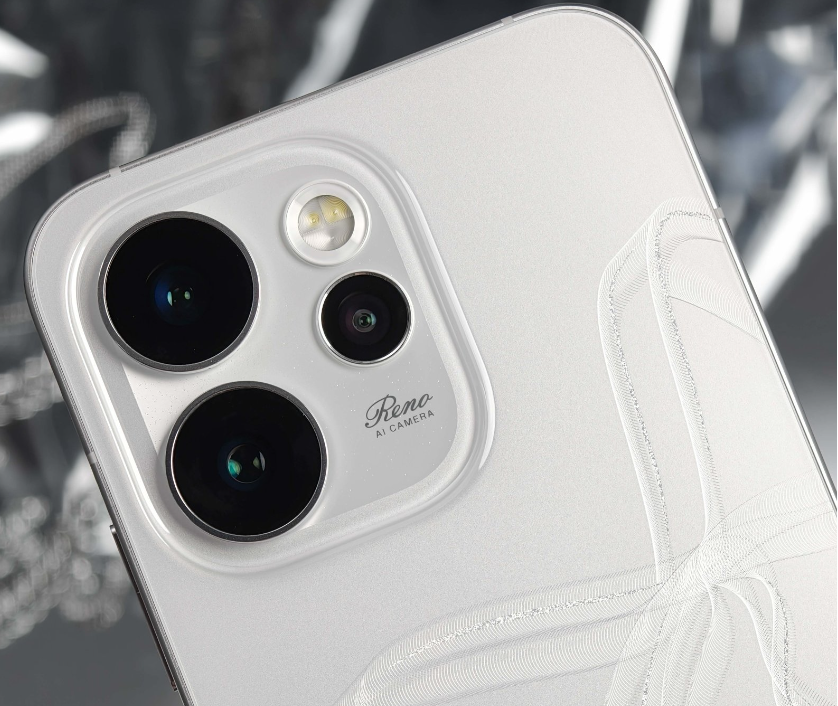
    OPPO Reno15 Pro, as a flagship model that combines technology and aesthetics, features a split-screen function that offers users an unprecedented multitasking experience. Whether it’s watching a show while chatting, or handling documents and emails simultaneously, the split-screen function enables users to effortlessly multitask. Below, we will detail the method of setting up the split-screen on OPPO Reno15 Pro, helping users quickly master this practical skill.

    1. Enable the split-screen function of the application

    Before using the split-screen function, make sure that the function is enabled. Go to the phone’s “Settings” interface, find the “Apps” or “App Management” option, click on it, and then select “App Split Screen”. On this interface, users can see the “App Split Screen” switch. Just turn it on. Some ColorOS versions may place this option in “Convenience Tools” or “Accessibility Features”. Users can search for it based on the actual interface.

    2. Start the split-screen by sliding your finger upwards on the second and third fingers.

    After enabling the split-screen function of the application, users can use the three-finger upward swipe gesture on the split-screen-enabled application interface to quickly start the split-screen. The specific operation is as follows: On the application interface that requires split-screen, use three fingers to slide upward from the bottom of the screen. The screen will automatically be divided into two parts, and at this time, users can select another application that supports split-screen for split-screen display. This operation method is simple and efficient, suitable for quickly switching between multiple tasks.

    III. Using the multi-task interface for split-screen display

    In addition to gesture operations, users can also achieve split-screen display through the multi-task interface. First, open an application that supports split-screen. Then, use the full-screen gesture navigation method to gently slide upwards from the bottom of the screen and hold it. This will enter the recent task interface. On this interface, find the application card that needs to be split-screen, click the “Split Screen” button on the upper right corner, and the application will enter the waiting for split-screen state. At this time, open another application that supports split-screen. The two applications will display in split-screen mode.
    4. Intelligent Side Panel Split Screen

    The OPPO Reno15 Pro also supports split-screen functionality through the intelligent sidebar. Users can enable the “Intelligent Sidebar” feature in the “Settings” menu, and when they need to split the screen, they can slide out the sidebar from the side of the screen, select the applications that support split-screen, and drag them to the other side of the screen. This feature provides users with more split-screen options, further enhancing the ease of operation.

    V. Adjust the screen split ratio and position

    In the split-screen mode, users can adjust the size ratio of the upper and lower screens by dragging the divider between the screens. Additionally, clicking on the divider allows users to switch the positions of the upper and lower screens or save the commonly used split-screen combinations to the desktop, enabling one-click activation. These functions enable users to flexibly adjust the split-screen layout according to their actual needs, enhancing the usage experience.

    Share. Facebook Twitter Pinterest LinkedIn Tumblr Email

    Related Posts

    How to Delete the Default Camera Settings on Huawei Mate 80?

    How to Send Live Photos by OnePlus Ace 6t?

    The Future of AI Art: What Lies Ahead for Artists and Creators

    Leave A Reply Cancel Reply

    You must be logged in to post a comment.

    voopoo drag s3
    oxva xlim pro 3
    sp2s sen x disposable vape
    jnr 100k
    • Popular
    • 3D Printer REVIEW
    • XIAOMI
    December 26, 2025

    VOOPOO ARGUS P3: The Touchscreen Pod That Feels Like a Mini Mod (Review)

    December 26, 2025

    Vaporesso XROS 5 Nano: Touchscreen Control Meets True Nano Portability (Review)

    December 9, 2025

    OXVA Xlim Go vs. OXVA Xlim Go 2: Hands-On Review

    December 9, 2025

    OXVA XLIM PRO 3 VS XLIM PRO 2 Review: Hands-on Comparison

    June 23, 2024

    ACMER P2 20W Laser Engraver Fixed Focus Engraving: Hands on Review

    May 30, 2024

    xTool F1 Ultra Review: World’s First 20W Fiber & 20W Diode Laser Engraver

    May 30, 2024

    Anycubic Kobra 3 Combo Review: The Multicolor Masterpiece?

    May 15, 2024

    SCULPFUN SF-A9 40W Laser Engraver Cutting Machine: Hands On Review

    December 25, 2025

    Xiaomi REDMI A7 Pro phone exposed: Unisoc T7250 chip, 6000mAh battery, 6.9-inch LCD waterdrop screen

    December 24, 2025

    Xiaomi 17 Ultra has made an Appearance on Geekbench: Qualcomm’s 5th generation Snapdragon 8 Ultra and Hyper OS 3

    December 23, 2025

    Xiaomi 17 Ultra is the Industry’s First to Feature a 200-Megapixel Continuous Optical Variable Sensor

    December 22, 2025

    The Appearance details of Xiaomi 17 Ultra in Starry Green have been revealed: a large R-corner 2D straight screen

    fc 26 coins
    New Arrivals
    • Chuwi CoreBook Air Plus Laptop Chuwi CoreBook Air Plus Laptop
    • Teclast T65 Plus Tablet Teclast T65 Plus Tablet
    • Oukitel WP60 5G Rugged Phone Oukitel WP60 5G Rugged Phone
    • Blackview MEGA 12 Tablet 5G Blackview MEGA 12 Tablet 5G
    • UMIDIGI Note 100 5G Smartphone UMIDIGI Note 100 5G Smartphone
    • DOOGEE Fire 7 Ultra DOOGEE Fire 7 Ultra
    • Ulefone Armor 34 Pro+ Ulefone Armor 34 Pro+
    • Honor Win RT Honor Win RT
    • Honor Win Honor Win
    About
  • Igeekphone.com provides the first global tech news and reviews about smartphone, vapes, e-cigar, smart home, 3D printers, e-bike,tablets, RC drones, VR headset, and other accessories. It's the best platform to improve your brand and product.
  • Contact us: info@igeekphone.com
  • Check Our Privacy Policy Here.
  • Note: *Right now we have US editor and EU editors for review, especially for Amazon US and EU.
  • *Shop and Compare Price Here*
  • Facebook
  • Youtube
  • OUR BEST VAPE PARTNERS
  • VAPE ONLINE STORE
  • HAYATI PRO MAX PLUS
  • VAPORESSO
  • VOOPOO
  • OXVA
  • NEXA
  • MASKKING
  • LOSTVAPE ORIONBAR
  • VEIIK
  • MEMERS
  • TODOO
  • SP2S
  • JNR
  • OTHER BEST PARTNERS
  • SVBONY
  • Chuwi
  • Blackview
  • Fossibot
  • Unihertz
  • Flsun
  • Anycubic
  • Xtool
  • Oukitel
  • Mukkpet Ebike
  • Ugreen
  • Copyright © 2025 igeekphone

    Type above and press Enter to search. Press Esc to cancel.