









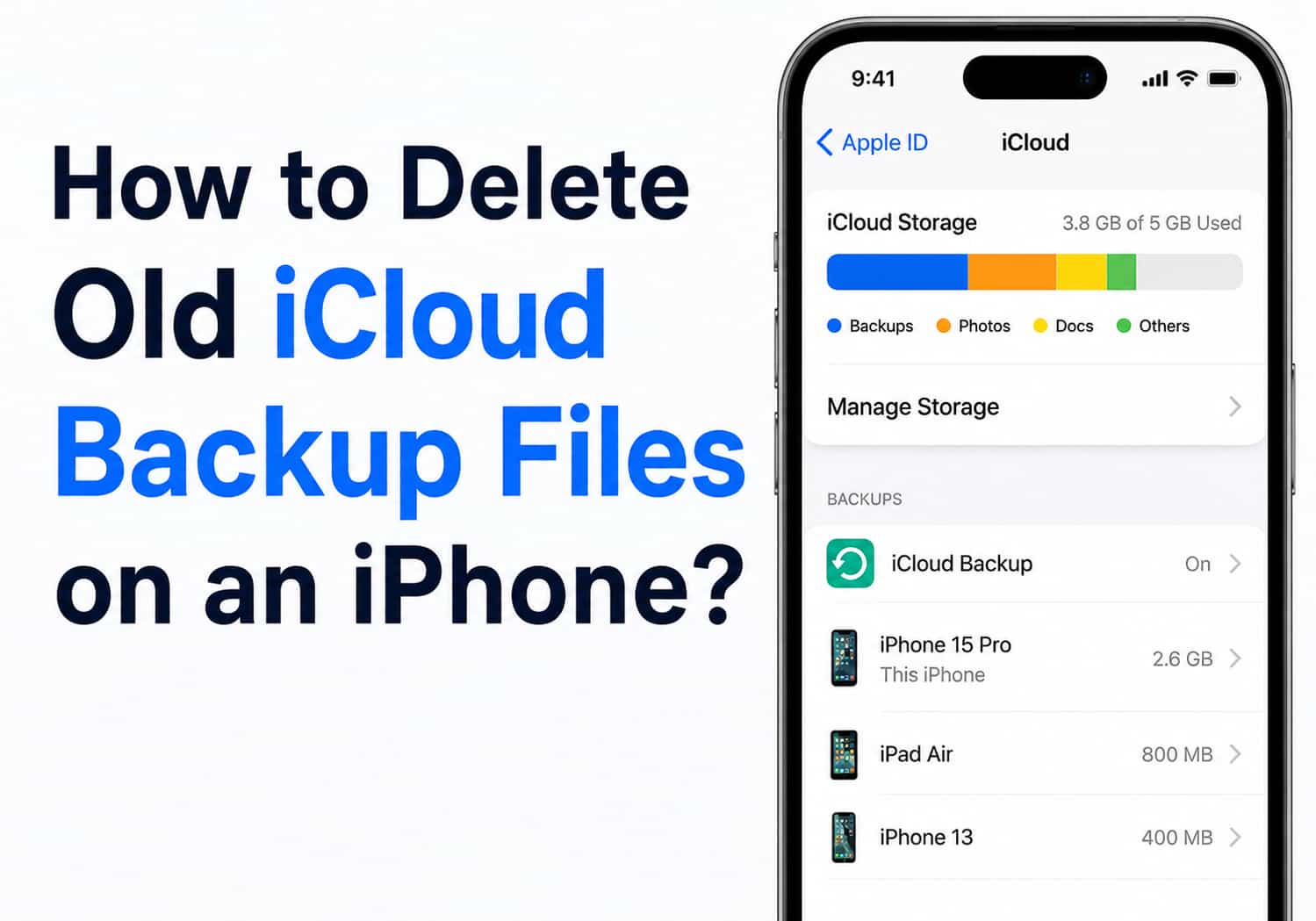
iCloud is a convenient way to back up your iPhone, ensuring that your photos, app data, settings, and important information are safe if your device is lost or replaced. However, over time, old backups from previous iPhones or unused devices can consume valuable iCloud storage.
If you’re running out of storage or simply want to clean up your iCloud account, deleting old iCloud backup files is a quick and effective solution. In this guide, we’ll show you exactly how to delete old iCloud backups on your iPhone.
Why Delete Old iCloud Backups?
Old iCloud backups can take up several gigabytes of storage, especially if they include photos, videos, and app data. Removing backups you no longer need can help you:
- Free up iCloud storage space
- Avoid paying for additional iCloud storage
- Keep your iCloud account organized
- Remove backups from devices you no longer own
- Make it easier to manage your current backups
Before deleting a backup, make sure it’s not for a device you still use. Once deleted, the backup cannot be recovered.
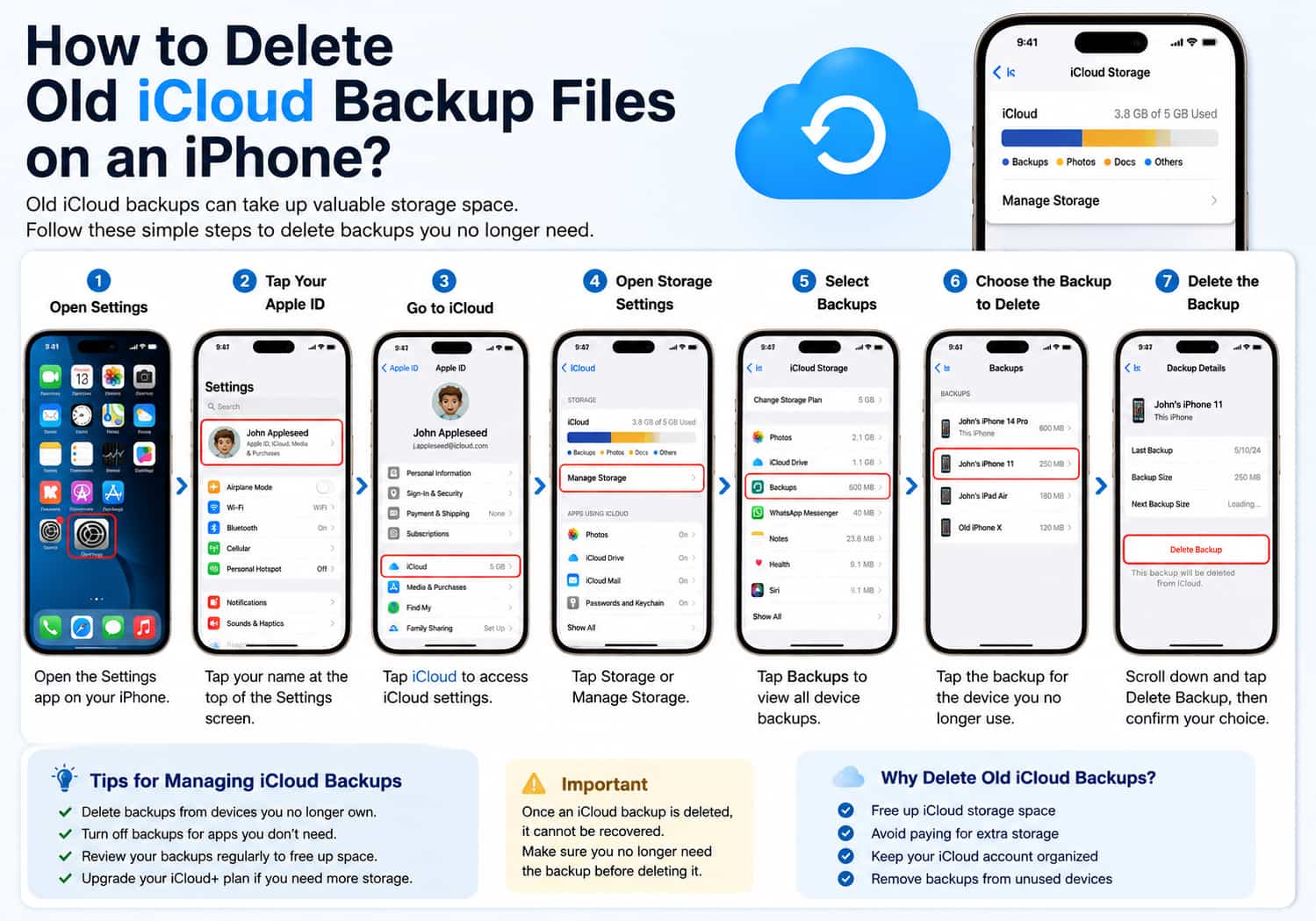
How to Delete an Old iCloud Backup on iPhone
Follow these simple steps:
Step 1: Open the Settings App
Unlock your iPhone and tap the Settings app.
Step 2: Tap Your Apple ID
At the top of the Settings screen, tap your name to open your Apple Account settings.
Step 3: Go to iCloud
Tap iCloud to access your iCloud storage and backup options.
Step 4: Open Storage Settings
Tap Storage (or Manage Storage, depending on your version of iOS).
You’ll see a breakdown of what’s using your iCloud storage.
Step 5: Select Backups
Tap Backups to view all device backups stored in your iCloud account.
You’ll see:
- Your current iPhone
- Older iPhones
- iPads
- Other Apple devices linked to your Apple ID
Step 6: Choose the Backup to Delete
Tap the backup for the device you no longer use.
Review the device name and backup size to make sure you’ve selected the correct one.
Step 7: Delete the Backup
Scroll to the bottom of the screen and tap Delete Backup.
A confirmation message will appear.
Tap Turn Off & Delete or Delete to confirm.
The selected backup will be permanently removed from iCloud.
How to Delete App Data from an iCloud Backup
If you don’t want to delete the entire backup, you can reduce its size by excluding certain apps.
- Open Settings.
- Tap your Apple ID.
- Tap iCloud.
- Tap Storage or Manage Storage.
- Tap Backups.
- Select your current iPhone.
- Under Choose Data to Back Up, turn off apps you don’t need backed up.
- Confirm your selection when prompted.
This helps reduce future backup sizes while keeping the backup itself.
How Much iCloud Storage Do You Need?
Apple provides 5GB of free iCloud storage, which may not be enough if you back up multiple devices or store lots of photos and videos.
If you regularly run out of space, consider:
- Deleting old backups
- Removing unnecessary files
- Managing large app backups
- Upgrading to an iCloud+ storage plan if you need additional space
Cleaning up old backups is often the fastest way to recover storage without paying for more.
What Happens After You Delete a Backup?
Deleting an old iCloud backup removes:
- Device settings
- App data
- Messages stored in the backup
- Home Screen layout
- Health data (if included)
- Other backup information
It does not delete data currently stored on your active iPhone.
Only the saved backup copy in iCloud is removed.
Tips for Managing iCloud Backups
To keep your iCloud storage organized:
- Delete backups from devices you no longer own.
- Review your backups every few months.
- Turn off backups for apps that don’t contain important data.
- Remove old devices from your Apple ID if you no longer use them.
- Monitor your available iCloud storage regularly.
These simple habits can help prevent storage issues and keep your backups efficient.
Frequently Asked Questions
Can I recover a deleted iCloud backup?
No. Once an iCloud backup is deleted, it cannot be restored. Make sure you no longer need it before confirming deletion.
Will deleting a backup erase my iPhone?
No. Deleting an iCloud backup only removes the stored backup from Apple’s servers. It does not affect the data currently on your iPhone.
Can I delete backups from old iPhones?
Yes. If an old iPhone no longer belongs to you or is no longer in use, it’s safe to delete its backup to free up storage.
Why is my iCloud storage still full after deleting a backup?
Other data such as Photos, iCloud Drive files, Messages, Mail, or app data may still be using storage. Check Settings > Apple ID > iCloud > Storage to see what’s taking up space.
Final Thoughts
Deleting old iCloud backup files is one of the easiest ways to reclaim valuable iCloud storage. Whether you’ve upgraded to a new iPhone or simply want to keep your account organized, removing outdated backups only takes a few minutes and can free up several gigabytes of space.
By reviewing your iCloud backups regularly and keeping only the ones you truly need, you’ll ensure your storage remains organized, your backups stay efficient, and your current iPhone continues to back up smoothly.