







Facebook Twitter Instagram
    Trending
    • KQ Eva In-Car Robot Launches for 799 Yuan, Featuring Type-C Power and 30+ Dynamic Expressions
    • Xiaomi 18 Rumored to Debut Snapdragon 8 Supreme Edition Gen 6, Starting Price Could Exceed 5,499 Yuan
    • Xiaomi HyperOS 4 Beta Rollout Begins: First Batch of Devices Now Receiving Update
    • Sonos Ace Ultra Renderings Leak Ahead of Expected September 2026 Launch, With AI-Powered Smart Home Controls
    • DWi Colorful Light RC Helicopter Review: 2.4G 4.5CH Helicopter with 360° Obstacle Avoidance
    • UTAB F26 PRO Smartphone Review: Compact 3.5-Inch 4G Android Phone with Dual SIM
    • AYN Odin 3 Android 15 Handheld Gaming Console Review: A Flagship Android Gaming Handheld
    • K14 WiFi Window Security Camera Review: 1080P Full HD Surveillance for Home and Office
    Facebook YouTube
    IGeeKphone China Phone, Tablet PC, VR, RC Drone News, Reviews
    • HOME
    • BREAKING NEWS
      • AI NEWS
    • Amazon
    • PHONE
      • Top Phones For Your First Choice
      • Phone Comparison
      • Xiaomi
      • Blackview
      • Doogee
      • Black Shark
      • Geekbuying
      • Banggood
      • TEMU
      • TikTok
      • Aliexpress
      • Walmart
      • MercadoLibre
      • Lazada
    • TOP VAPE Awards for 2026
    • VAPES
      • E-CIGAR Upcoming
      • Vape News
      • Vape Deals
      • Vape Comparison
      • Vape Guide
      • VAPE LAWS
      • Giveaway
    • BEST VAPE
      • Best Vape Stores
      • Best Starter Vape Kits
      • Best Vapes for Beginners
      • Best Disposable Vapes
      • Best Pod Systems
      • Best Pod Mod Vapes
      • Best Mods
      • Best Nicotine Pouches
      • Best Clearomizers/Tanks
      • Best E-Liquid
      • Best EGO/Pens
      • Best Vapes for Nic Salt E-Juice
      • Best Vapes to Quit Smoking
      • RDA vs. RDTA vs. RTA
    • Best Vape Brand 2026
      • VAPORESSO
      • VOOPOO
      • OXVA
      • NEXA BAR
      • MASKKING VAPE
      • SP2S
      • IPLAY
      • TODOO
      • MRFOG
      • LOSTVAPE
      • VEIIK
    • REVIEW
      • E-cigar Review
      • Phones
      • Tablet PC
      • TV Box
      • RC Drone
      • Wearables
      • Camera
      • Accessories
      • VR Headset
    • MORE
      • TABLET
        • Chuwi
        • INNOCN
        • Teclast
        • Top Tablet for Your First Choice
        • Tablet/Laptop Comparison
      • RC DRONE
      • CAMERA
      • WEARABLES
        • OneOdio
        • BlitzWolf
        • Top Smartwatch for First Choice
      • 3D PRINTER
        • 3D Printer Review
        • Anycubic
        • FLSUN
        • Xtool
        • LONGER
        • Top 3D printer to Choose First
      • POWER STATION
        • Oukitel
        • FOSSIBOT
      • GAMING
        • Top Gaming Products
      • E-BIKE
        • Samebike
        • Happyrun
        • ENGWE
      • SMART HOME
      • TV BOX
      • ACCESSORIES
      • VR HEADSET
      • CLOTHES
      • AUTO CAR
    • DEAL
    • Shop
    IGeeKphone China Phone, Tablet PC, VR, RC Drone News, Reviews
    You are at:Home»Guide»How to Access BIOS: Detailed Explanation of Three Methods in 2026
    Guide

    How to Access BIOS: Detailed Explanation of Three Methods in 2026

    Brady CottonBy Brady CottonJuly 10, 2026
    Facebook Twitter Pinterest LinkedIn Tumblr Email

    BIOS (Basic Input/Output System) is the low-level software that initializes your computer’s hardware before your operating system takes over. Whether you need to adjust boot priorities, enable virtualization, or troubleshoot hardware issues, accessing the BIOS remains an essential skill for PC users in 2026. Here’s a comprehensive guide on three reliable methods to access the BIOS on modern computers.

    Method 1: Access BIOS During Boot (Classic Key Press)

    The most common way to enter BIOS is during the startup process. Despite advances in modern UEFI firmware and faster boot times in 2026 systems, this method remains universal.

    Steps:

    1. Power on or restart your PC.
    2. Immediately press the BIOS access key repeatedly. Common keys include:
      • Del or F2 for most desktops and laptops
      • F10 for HP systems
      • Esc for some Asus or Toshiba models
      • F12 or F1 for certain Lenovo and Dell systems
    3. If done correctly, the BIOS (or UEFI) screen will appear.

    Tips:

    • Modern PCs with SSDs and instant-on features may boot too quickly. In 2026, some motherboards allow holding the key instead of repeated pressing.
    • If you miss the window, simply restart and try again.

    Method 2: Access BIOS via Windows 12/13/14 Advanced Startup

    Many modern PCs allow BIOS access without relying on the boot key, using the operating system’s built-in tools. This method is particularly helpful for laptops with fast startup times or devices without clearly labeled BIOS keys.
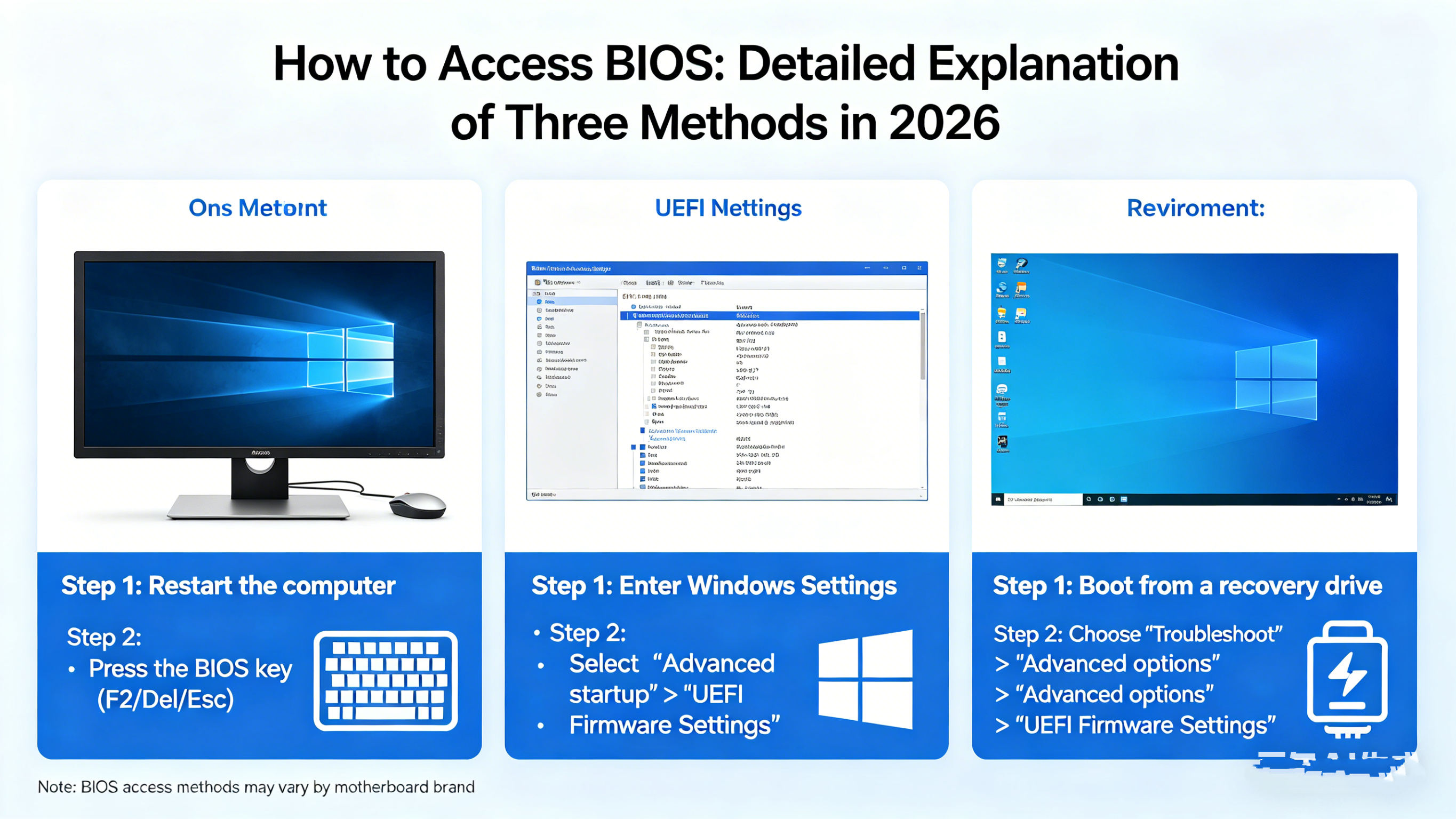
    Steps (Windows 12+):

    1. Open Settings → System → Recovery.
    2. Under Advanced startup, click Restart now.
    3. Once the system reboots, choose Troubleshoot → Advanced options → UEFI Firmware Settings → Restart.
    4. Your PC will automatically boot into BIOS/UEFI.

    Advantages:

    • Works on ultra-fast SSDs where the boot key method may be tricky.
    • Reduces guesswork in identifying the correct key.

    Method 3: Access BIOS Using Manufacturer-Specific Utilities

    Many motherboard and laptop manufacturers in 2026 offer software utilities that can directly reboot the system into BIOS without requiring key presses. These utilities are often bundled with your hardware drivers or available as standalone apps.

    Examples:

    • ASUS AI Suite → BIOS Update & Reboot
    • MSI Center → Restart to UEFI
    • Dell BIOSConnect → Enter Setup
    • Lenovo Vantage → UEFI Firmware Settings

    Steps:

    1. Install or open the manufacturer’s utility.
    2. Look for a menu like BIOS/UEFI Setup or Enter Setup.
    3. Click the option and allow the system to reboot into BIOS.

    Advantages:

    • Avoids timing issues during boot.
    • Ensures you are entering the correct firmware interface for your hardware.
    • Useful for remote management in enterprise systems.

    Additional Tips for 2026 Users

    • Secure Boot and Fast Boot: Many PCs now use UEFI with secure boot, which can make entering BIOS tricky. Temporarily disable Fast Boot in Windows if key presses fail.
    • Dual-Boot Systems: On multi-OS setups, always enter BIOS from the OS that controls boot order, usually the latest Windows version installed.
    • Firmware Updates: Keeping BIOS/UEFI firmware up to date can simplify access and add features. Check the manufacturer’s website for the latest version.

    Conclusion

    Accessing BIOS in 2026 is easier than ever thanks to advanced UEFI firmware, OS-integrated options, and manufacturer utilities. Whether you prefer the classic key press, the Windows advanced startup method, or brand-specific software tools, you can reliably enter BIOS to configure your system, troubleshoot hardware, or enable advanced features.

    Share. Facebook Twitter Pinterest LinkedIn Tumblr Email

    Related Posts

    BAT Expands Strategic Technology Partnership With ITC Infotech Across Poland, Romania and India

    The Rise of Gamification in Education: Making Learning Fun and Engaging

    How Can I Restore My Photos That Were Completely Deleted from iPhone?

    Leave A Reply Cancel Reply

    You must be logged in to post a comment.

    voopoopintch
    oxva nexlim 2
    sp2s sen x disposable vape
    • Popular
    • 3D Printer REVIEW
    • XIAOMI
    July 13, 2026

    OXVA Nexlim 2 Mini Pod Vape Hands on Review

    July 13, 2026

    OXVA Nexlim 2 Pod Vape Hands on Review

    June 21, 2026

    iPlay LUMO 8K Review – A Compact Prefilled Pod Kit with Big Flavor and Everyday Convenience

    June 21, 2026

    iPlay HOOLA 150K Review – A Cloud-Chasing Giant with Music, Modes & Massive Longevity

    December 26, 2025

    ACMER ASCARVA 4S: Precision CNC Power for Makers, DIYers & Small Workshops

    June 23, 2024

    ACMER P2 20W Laser Engraver Fixed Focus Engraving: Hands on Review

    May 30, 2024

    xTool F1 Ultra Review: World’s First 20W Fiber & 20W Diode Laser Engraver

    May 30, 2024

    Anycubic Kobra 3 Combo Review: The Multicolor Masterpiece?

    August 14, 2026

    Xiaomi 18 Rumored to Debut Snapdragon 8 Supreme Edition Gen 6, Starting Price Could Exceed 5,499 Yuan

    August 14, 2026

    Xiaomi HyperOS 4 Beta Rollout Begins: First Batch of Devices Now Receiving Update

    August 13, 2026

    Xiaomi MIX Fold 5 Teased in HyperOS 4 Beta Poster, Hinting at the Company’s Next Large-Screen Foldable

    August 12, 2026

    REDMI K100 Pro Review: A 185Hz Gaming Flagship That Fits a 6.59-Inch Body

    fc 26 coins
    New Arrivals
    • Pod Juice Tobacco Series E-juice Pod Juice Tobacco Series E-juice
    • Huawei Watch GT 7 Pro Huawei Watch GT 7 Pro
    • Huawei Watch GT 7 Huawei Watch GT 7
    • Vapetasia Better Salt Series E-juice Vapetasia Better Salt Series E-juice
    • JNR Mega Box Pro 50K Disposable Vape JNR Mega Box Pro 50K Disposable Vape
    • HQD SiSA 80K Hookah Disposable Vape HQD SiSA 80K Hookah Disposable Vape
    • VOZOL SWAP 70K Disposable Vape VOZOL SWAP 70K Disposable Vape
    • Oppo Reno16 F Oppo Reno16 F
    • Oppo Reno16c Oppo Reno16c
    About
  • Igeekphone.com provides the first global tech news and reviews about smartphone, vapes, e-cigar, smart home, 3D printers, e-bike,tablets, RC drones, VR headset, and other accessories. It's the best platform to improve your brand and product.
  • Contact us: info@igeekphone.com
  • Check Our Privacy Policy Here.
  • Note: *Right now we have US editor and EU editors for review, especially for Amazon US and EU.
  • *Shop and Compare Price Here*
  • Facebook
  • Youtube
  • OUR BEST VAPE PARTNERS
  • VAPE ONLINE STORE
  • VAPORESSO
  • VOOPOO
  • OXVA
  • NEXA
  • MASKKING
  • SP2S
  • IPLAY
  • TODOO
  • OTHER BEST PARTNERS
  • SVBONY
  • Chuwi
  • Blackview
  • Fossibot
  • Unihertz
  • Flsun
  • Anycubic
  • Xtool
  • Oukitel
  • Mukkpet Ebike
  • Ugreen
  • Copyright © 2026 igeekphone

    Type above and press Enter to search. Press Esc to cancel.