










BIOS (Basic Input/Output System) is the low-level software that initializes your computer’s hardware before your operating system takes over. Whether you need to adjust boot priorities, enable virtualization, or troubleshoot hardware issues, accessing the BIOS remains an essential skill for PC users in 2026. Here’s a comprehensive guide on three reliable methods to access the BIOS on modern computers.
Method 1: Access BIOS During Boot (Classic Key Press)
The most common way to enter BIOS is during the startup process. Despite advances in modern UEFI firmware and faster boot times in 2026 systems, this method remains universal.
Steps:
- Power on or restart your PC.
- Immediately press the BIOS access key repeatedly. Common keys include:
- Del or F2 for most desktops and laptops
- F10 for HP systems
- Esc for some Asus or Toshiba models
- F12 or F1 for certain Lenovo and Dell systems
- If done correctly, the BIOS (or UEFI) screen will appear.
Tips:
- Modern PCs with SSDs and instant-on features may boot too quickly. In 2026, some motherboards allow holding the key instead of repeated pressing.
- If you miss the window, simply restart and try again.
Method 2: Access BIOS via Windows 12/13/14 Advanced Startup
Many modern PCs allow BIOS access without relying on the boot key, using the operating system’s built-in tools. This method is particularly helpful for laptops with fast startup times or devices without clearly labeled BIOS keys.
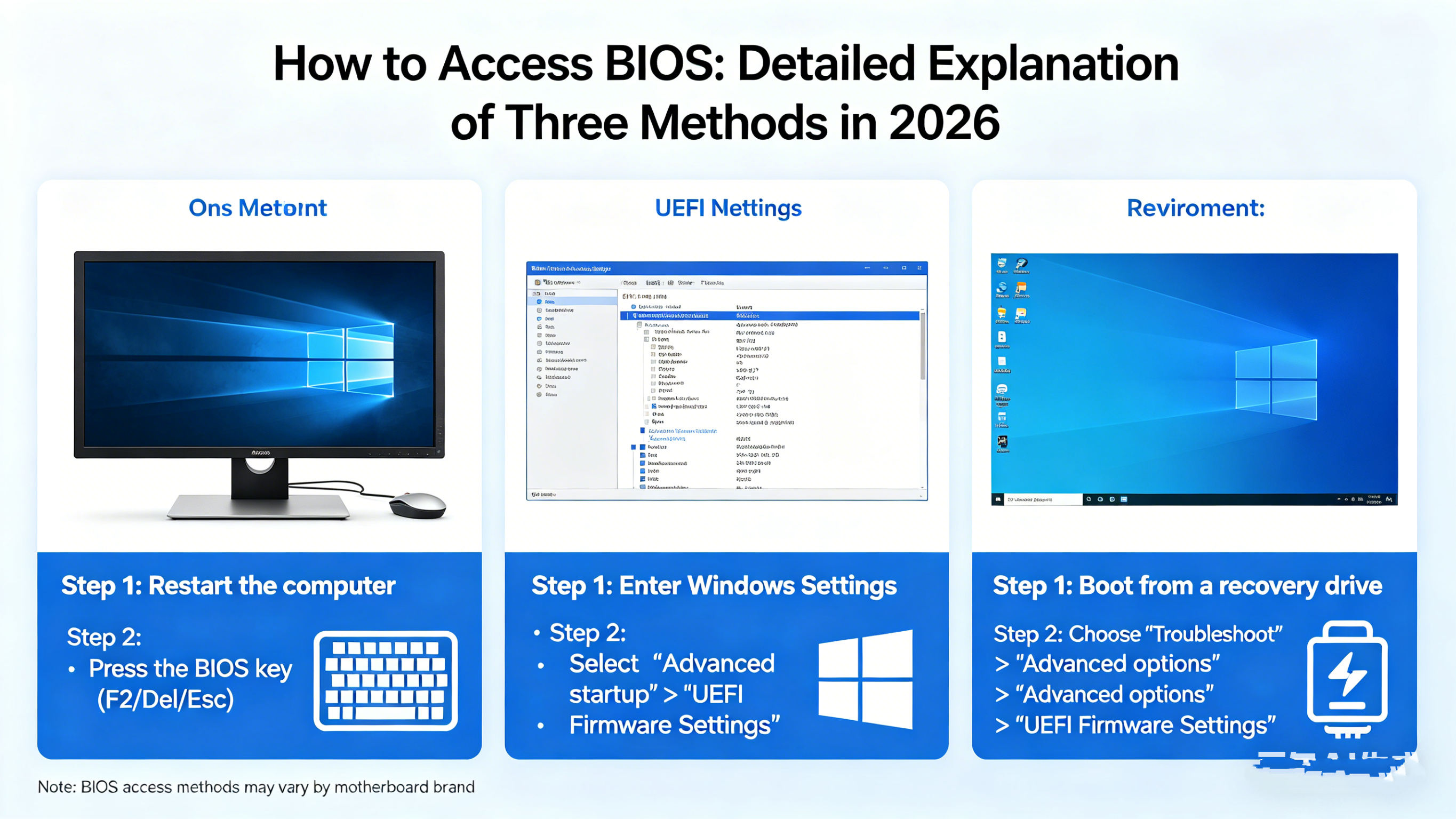
Steps (Windows 12+):
- Open Settings → System → Recovery.
- Under Advanced startup, click Restart now.
- Once the system reboots, choose Troubleshoot → Advanced options → UEFI Firmware Settings → Restart.
- Your PC will automatically boot into BIOS/UEFI.
Advantages:
- Works on ultra-fast SSDs where the boot key method may be tricky.
- Reduces guesswork in identifying the correct key.
Method 3: Access BIOS Using Manufacturer-Specific Utilities
Many motherboard and laptop manufacturers in 2026 offer software utilities that can directly reboot the system into BIOS without requiring key presses. These utilities are often bundled with your hardware drivers or available as standalone apps.
Examples:
- ASUS AI Suite → BIOS Update & Reboot
- MSI Center → Restart to UEFI
- Dell BIOSConnect → Enter Setup
- Lenovo Vantage → UEFI Firmware Settings
Steps:
- Install or open the manufacturer’s utility.
- Look for a menu like BIOS/UEFI Setup or Enter Setup.
- Click the option and allow the system to reboot into BIOS.
Advantages:
- Avoids timing issues during boot.
- Ensures you are entering the correct firmware interface for your hardware.
- Useful for remote management in enterprise systems.
Additional Tips for 2026 Users
- Secure Boot and Fast Boot: Many PCs now use UEFI with secure boot, which can make entering BIOS tricky. Temporarily disable Fast Boot in Windows if key presses fail.
- Dual-Boot Systems: On multi-OS setups, always enter BIOS from the OS that controls boot order, usually the latest Windows version installed.
- Firmware Updates: Keeping BIOS/UEFI firmware up to date can simplify access and add features. Check the manufacturer’s website for the latest version.
Conclusion
Accessing BIOS in 2026 is easier than ever thanks to advanced UEFI firmware, OS-integrated options, and manufacturer utilities. Whether you prefer the classic key press, the Windows advanced startup method, or brand-specific software tools, you can reliably enter BIOS to configure your system, troubleshoot hardware, or enable advanced features.