










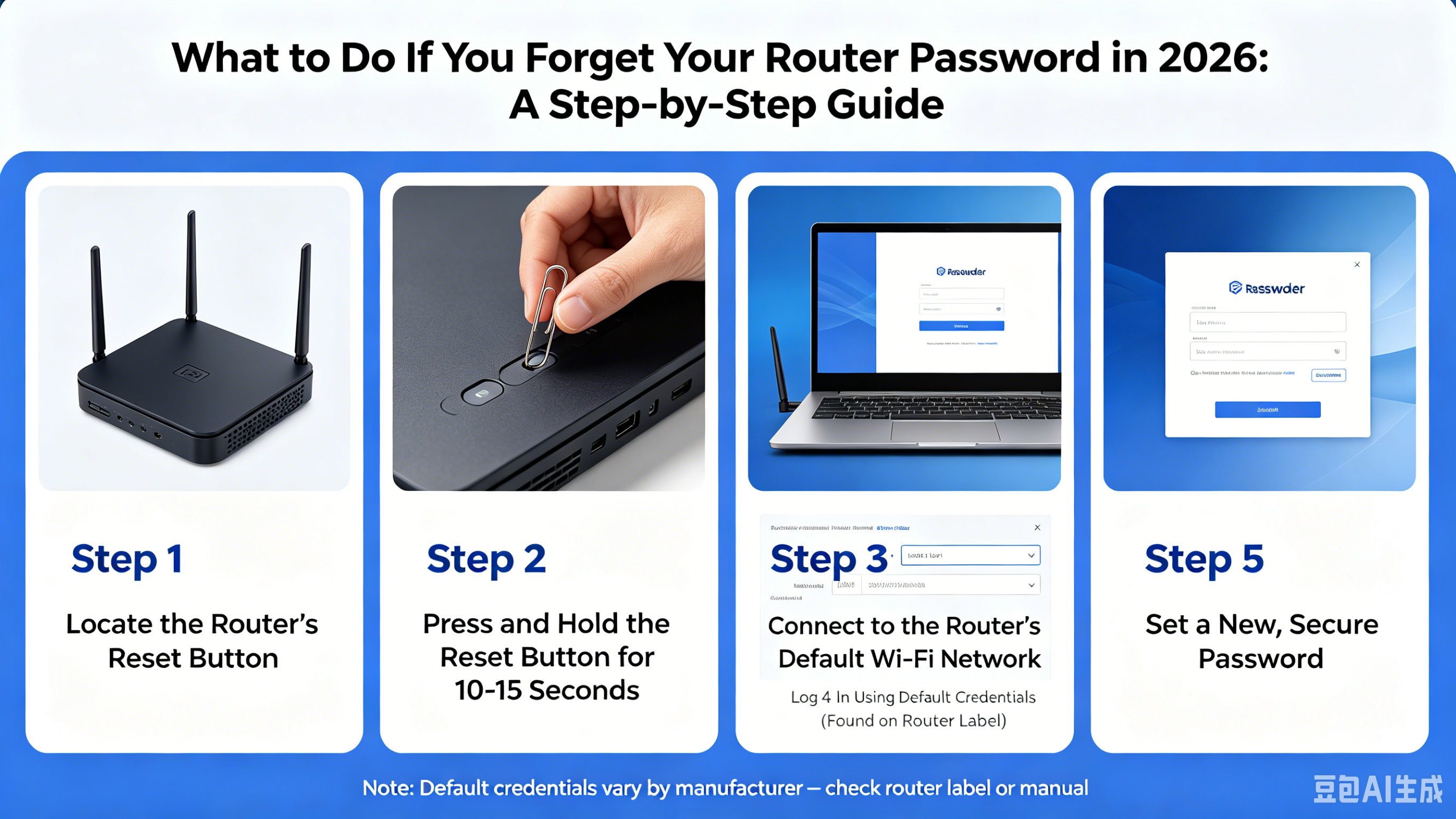
Forgetting your router password can be frustrating, especially in 2026 when routers are more sophisticated, often with advanced security features, Wi-Fi 6/7 support, and cloud management options. Fortunately, there are several ways to regain access without compromising your network. This guide walks you through modern solutions for recovering or resetting your router password safely and efficiently.
1. Check the Default Password
Most routers come with a default admin username and password, printed on a sticker on the device or in the manual. Even in 2026, this is often the fastest way to regain access if you haven’t changed it.
- Look for:
- Default admin username (commonly
admin) - Default password or PIN
- QR codes for mobile apps
- Default admin username (commonly
Tip: Some modern routers allow instant login via the official mobile app by scanning a QR code on the device.
2. Use Router’s Mobile App or Cloud Portal
Many routers now offer AI-assisted management apps or cloud portals. If your router supports this:
- Open the official router app on your smartphone.
- Log in with your cloud account credentials.
- Navigate to Settings → Admin Password or Device Access.
- Reset or view the password.
Advantage: This method works even if you don’t remember the local router password, as long as your device is linked to the cloud account.
3. Password Recovery Feature
Some 2026 routers include built-in password recovery or security questions. Look for:
- “Forgot password?” on the router login page
- Email verification options
- Two-factor authentication (2FA) codes sent to your registered mobile or email
Follow the on-screen instructions to reset the password securely.
4. Resetting the Router to Factory Settings
If all else fails, you can perform a factory reset. This wipes all custom settings, including Wi-Fi passwords, but restores access:
- Locate the reset button on the back of your router (usually a small pinhole).
- Press and hold the button for 10–30 seconds (check the manual for your model).
- Wait for the router to restart.
- Log in using the default credentials.
- Reconfigure your Wi-Fi and admin password.
Pro Tip: Make a note of your new password in a secure password manager to avoid future lockouts.
5. Check Saved Passwords on Your Devices
Modern devices often store router passwords automatically:
- Windows/macOS: Check saved Wi-Fi passwords in system settings or keychain.
- Smartphones/Tablets: Wi-Fi passwords may be saved in your device’s network settings.
- Browser: If you previously accessed the router through a web browser, your password may be saved in saved logins.
6. Contact Customer Support
If none of the above works, contact your router manufacturer’s support team. Many 2026 routers support remote assistance, where support can guide you through secure password recovery steps.
Best Practices for 2026 Router Security
- Use a strong, unique password combining letters, numbers, and symbols.
- Enable two-factor authentication (2FA) if supported.
- Keep a record in a password manager for easy retrieval.
- Regularly update router firmware to patch vulnerabilities.
- Avoid sharing your router password unnecessarily.
Conclusion
Forgetting your router password in 2026 doesn’t have to be a nightmare. With modern mobile apps, cloud portals, recovery features, and secure resets, you can quickly regain control of your network. Following best practices ensures you don’t face the same problem twice while keeping your home or office network safe.