










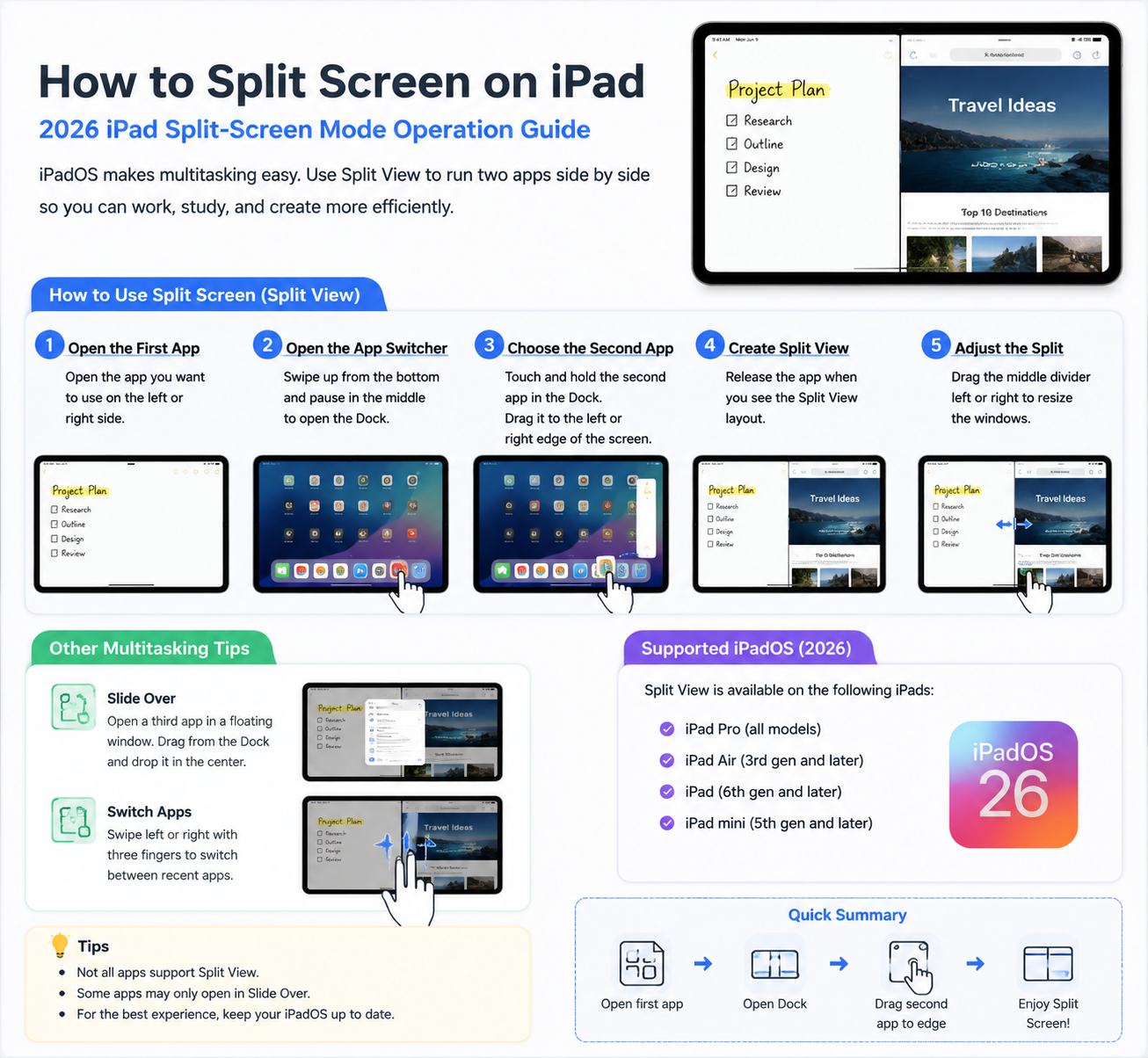
Apple’s iPad has long been praised for its versatility, and split-screen mode—officially called Split View—is one of its most powerful productivity features. Whether you’re multitasking between apps, taking notes while researching, or referencing a document during a video call, Split View makes it easier than ever to manage multiple apps simultaneously. Here’s a step-by-step guide for 2026 iPad models on how to use this feature effectively.
What You Need to Know About iPad Split-Screen Mode
Split View allows you to run two apps side by side. Not all apps support split-screen mode, but most Apple and third-party productivity apps do, including Safari, Notes, Mail, and Pages. Additionally, Slide Over lets you temporarily open a third app in a floating window that can be moved to either side of the screen, giving you even more multitasking flexibility.
Step 1: Open the First App
- Unlock your iPad and go to the Home Screen.
- Open the first app you want to use. This will be your primary app in Split View.
Step 2: Access the Dock
- Swipe up slightly from the bottom of the screen to reveal the Dock.
- The Dock shows your frequently used apps and recently opened apps.
Step 3: Open the Second App in Split View
- Touch and hold the second app you want to use from the Dock.
- Drag it to the left or right edge of the screen.
- Release the app when it appears as a split-screen window.
Tip: If the app hovers over the first app in a small floating window, it’s in Slide Over mode. Drag it all the way to the edge to switch it to Split View.
Step 4: Adjust the Split Screen
Once both apps are open side by side:
- You’ll see a black vertical divider between them.
- Drag the divider left or right to adjust how much screen each app occupies.
- For a 50/50 split, keep the divider in the middle. For a 70/30 split, drag it closer to the app you want to occupy more space.
Step 5: Switch Between Split View and Slide Over
- Slide Over: Drag the divider of one app over the other to temporarily hide it.
- Return to Split View: Swipe the hidden app from the right edge to bring it back.
- Close an App: Drag the divider all the way to the edge to close one of the apps.
Step 6: Using Multiple Desktops (Stage Manager, iPadOS 2026)
The 2026 iPadOS introduces Stage Manager, which allows you to manage multiple app windows in overlapping or grouped arrangements:
- Swipe up and tap the Stage Manager icon in Control Center.
- Drag additional apps into the workspace to create multi-window arrangements.
- Resize or move app windows for optimal multitasking.
Stage Manager enhances Split View by letting you work with more than two apps at once, turning your iPad into a mini desktop setup.
Tips for Better Multitasking on iPad
- Keyboard Shortcuts: If you use an external keyboard, press Cmd + Tab to switch apps quickly.
- Drag and Drop: You can drag text, images, or files between apps in Split View.
- App Compatibility: Some apps like YouTube or Netflix may not support full Split View but can work in Slide Over.
- iPad Models: All iPads with iPadOS 16 or newer support Split View, but Stage Manager requires M-series iPads for full functionality.
Conclusion
Mastering Split Screen on iPad in 2026 turns your device into a powerhouse for productivity, research, and multitasking. Whether you stick with the classic Split View or embrace the new Stage Manager workflow, your iPad can now rival many traditional laptops when it comes to efficiency. With just a few swipes and drags, you can manage apps side by side, adjust window sizes, and boost your workflow like a pro.