







Facebook Twitter Instagram
    Trending
    • Discover the Ultimate Vaping Experience with Geek Bar Pulse X
    • Finding Your Perfect Match in the World of Disposable Vapes
    • RELX Creator Pro 15K Disposable Vape Kit Review: High Puff Capacity Meets Smart Vaping Technology
    • OXVA Nexlim 2 Mini Pod System Kit Review: Compact Size, Powerful Flavor
    • Say Goodbye to Meeting Lag and Blind Spots! SVBONY SVN A1 360° Conference Camera Review – Efficient Collaboration Made Simple
    • Master the Art of Melting: A Complete Guide to Choosing the Best Wax Melter
    • You need to know most common mistakes rookies in gaming
    • What are some ways to enhance the amount of natural light in my home
    Facebook YouTube
    IGeeKphone China Phone, Tablet PC, VR, RC Drone News, Reviews
    • HOME
      • NEWS
        • DeepSeek
        • ChatGPT
        • Minecraft
    • Amazon
    • PHONE
      • Top Phones For Your First Choice
      • Phone Comparison
      • Xiaomi
      • Blackview
      • Doogee
      • Black Shark
      • Geekbuying
      • Banggood
      • TEMU
      • TikTok
      • Aliexpress
      • Walmart
      • MercadoLibre
      • Lazada
    • TOP VAPE Awards for 2026
    • VAPES
      • E-CIGAR Upcoming
      • Vape News
      • Vape Deals
      • Vape Comparison
      • Vape Guide
      • Giveaway
    • BEST VAPE
      • Best Vape Stores
      • Best Starter Vape Kits
      • Best Vapes for Beginners
      • Best Disposable Vapes
      • Best Pod Systems
      • Best Pod Mod Vapes
      • Best Mods
      • Best Nicotine Pouches
      • Best Clearomizers/Tanks
      • Best E-Liquid
      • Best EGO/Pens
      • Best Vapes for Nic Salt E-Juice
      • Best Vapes to Quit Smoking
      • RDA vs. RDTA vs. RTA
    • Best Vape Brand 2026
      • VAPORESSO
      • VOOPOO
      • OXVA
      • NEXA BAR
      • MASKKING VAPE
      • SP2S
      • IPLAY
      • TODOO
      • MRFOG
      • LOSTVAPE
      • VEIIK
    • REVIEW
      • E-cigar Review
      • Phones
      • Tablet PC
      • TV Box
      • RC Drone
      • Wearables
      • Camera
      • Accessories
      • VR Headset
    • MORE
      • TABLET
        • Chuwi
        • INNOCN
        • Teclast
        • Top Tablet for Your First Choice
        • Tablet/Laptop Comparison
      • RC DRONE
      • CAMERA
      • WEARABLES
        • OneOdio
        • BlitzWolf
        • Top Smartwatch for First Choice
      • 3D PRINTER
        • 3D Printer Review
        • Anycubic
        • FLSUN
        • Xtool
        • LONGER
        • Top 3D printer to Choose First
      • POWER STATION
        • Oukitel
        • FOSSIBOT
      • GAMING
        • Top Gaming Products
      • E-BIKE
        • Samebike
        • Happyrun
        • ENGWE
      • SMART HOME
      • TV BOX
      • ACCESSORIES
      • VR HEADSET
      • CLOTHES
      • AUTO CAR
    • DEAL
    • VAPE LAWS
    • Shop
    IGeeKphone China Phone, Tablet PC, VR, RC Drone News, Reviews
    You are at:Home»Guide»How to Split Screen on iPad: 2026 iPad Split-Screen Mode Operation Guide
    Guide

    How to Split Screen on iPad: 2026 iPad Split-Screen Mode Operation Guide

    Brady CottonBy Brady CottonMay 13, 2026
    Facebook Twitter Pinterest LinkedIn Tumblr Email

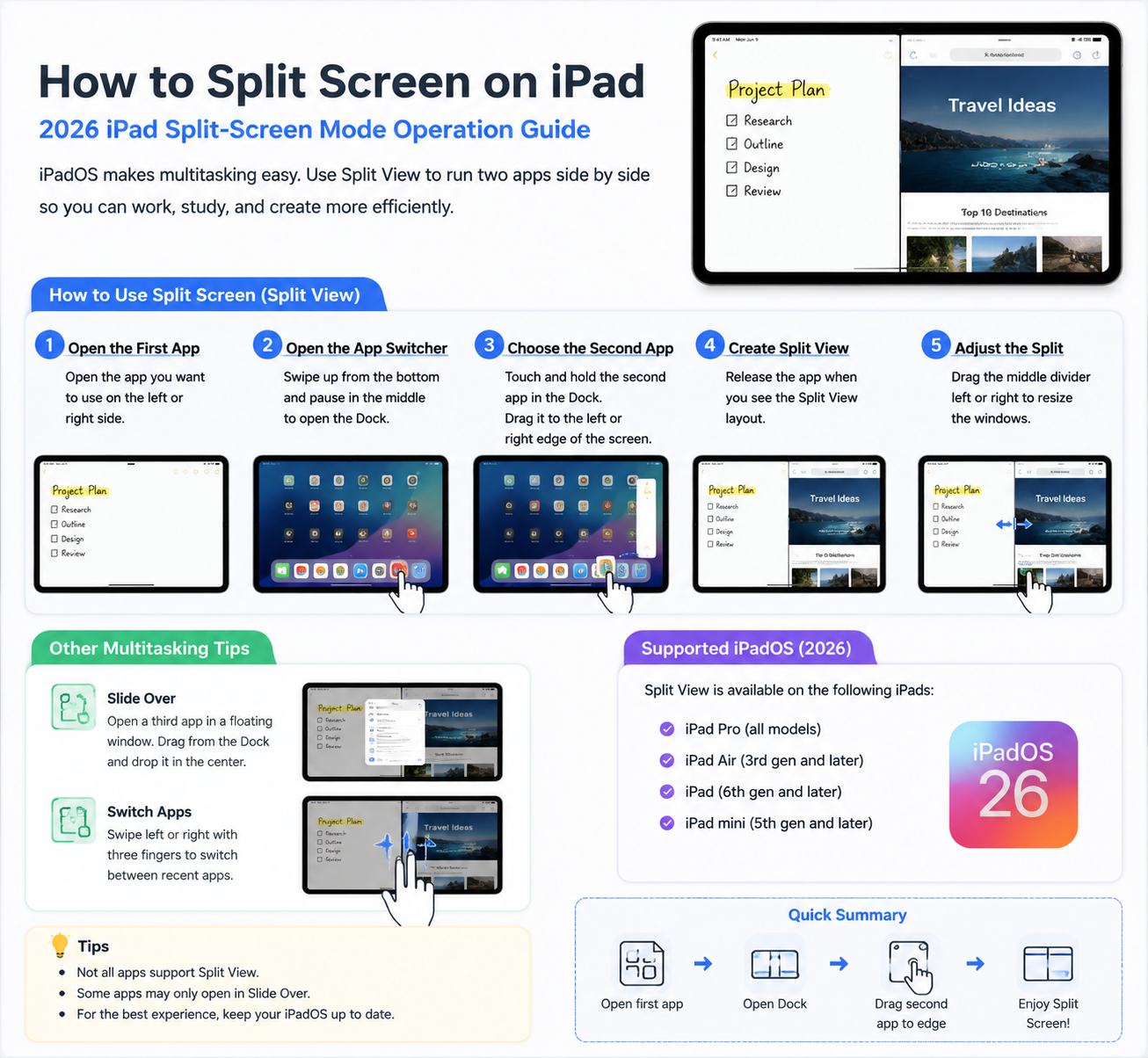
    Apple’s iPad has long been praised for its versatility, and split-screen mode—officially called Split View—is one of its most powerful productivity features. Whether you’re multitasking between apps, taking notes while researching, or referencing a document during a video call, Split View makes it easier than ever to manage multiple apps simultaneously. Here’s a step-by-step guide for 2026 iPad models on how to use this feature effectively.

    What You Need to Know About iPad Split-Screen Mode

    Split View allows you to run two apps side by side. Not all apps support split-screen mode, but most Apple and third-party productivity apps do, including Safari, Notes, Mail, and Pages. Additionally, Slide Over lets you temporarily open a third app in a floating window that can be moved to either side of the screen, giving you even more multitasking flexibility.

    Step 1: Open the First App

    1. Unlock your iPad and go to the Home Screen.
    2. Open the first app you want to use. This will be your primary app in Split View.

    Step 2: Access the Dock

    1. Swipe up slightly from the bottom of the screen to reveal the Dock.
    2. The Dock shows your frequently used apps and recently opened apps.

    Step 3: Open the Second App in Split View

    1. Touch and hold the second app you want to use from the Dock.
    2. Drag it to the left or right edge of the screen.
    3. Release the app when it appears as a split-screen window.

    Tip: If the app hovers over the first app in a small floating window, it’s in Slide Over mode. Drag it all the way to the edge to switch it to Split View.

    Step 4: Adjust the Split Screen

    Once both apps are open side by side:

    • You’ll see a black vertical divider between them.
    • Drag the divider left or right to adjust how much screen each app occupies.
    • For a 50/50 split, keep the divider in the middle. For a 70/30 split, drag it closer to the app you want to occupy more space.

    Step 5: Switch Between Split View and Slide Over

    • Slide Over: Drag the divider of one app over the other to temporarily hide it.
    • Return to Split View: Swipe the hidden app from the right edge to bring it back.
    • Close an App: Drag the divider all the way to the edge to close one of the apps.

    Step 6: Using Multiple Desktops (Stage Manager, iPadOS 2026)

    The 2026 iPadOS introduces Stage Manager, which allows you to manage multiple app windows in overlapping or grouped arrangements:

    1. Swipe up and tap the Stage Manager icon in Control Center.
    2. Drag additional apps into the workspace to create multi-window arrangements.
    3. Resize or move app windows for optimal multitasking.

    Stage Manager enhances Split View by letting you work with more than two apps at once, turning your iPad into a mini desktop setup.

    Tips for Better Multitasking on iPad

    • Keyboard Shortcuts: If you use an external keyboard, press Cmd + Tab to switch apps quickly.
    • Drag and Drop: You can drag text, images, or files between apps in Split View.
    • App Compatibility: Some apps like YouTube or Netflix may not support full Split View but can work in Slide Over.
    • iPad Models: All iPads with iPadOS 16 or newer support Split View, but Stage Manager requires M-series iPads for full functionality.

    Conclusion

    Mastering Split Screen on iPad in 2026 turns your device into a powerhouse for productivity, research, and multitasking. Whether you stick with the classic Split View or embrace the new Stage Manager workflow, your iPad can now rival many traditional laptops when it comes to efficiency. With just a few swipes and drags, you can manage apps side by side, adjust window sizes, and boost your workflow like a pro.

    Share. Facebook Twitter Pinterest LinkedIn Tumblr Email

    Related Posts

    Master the Art of Melting: A Complete Guide to Choosing the Best Wax Melter

    You need to know most common mistakes rookies in gaming

    Mastering the Art of Video Trimming on iPhone: A Comprehensive Guide

    Leave A Reply Cancel Reply

    You must be logged in to post a comment.

    voopoo G4 Mini
    oxva xlim 3 ultra
    sp2s sen x disposable vape
    • Popular
    • 3D Printer REVIEW
    • XIAOMI
    May 17, 2026

    iPlay Nova 45K Review – High Puff Performance with a Futuristic Twist

    May 17, 2026

    Vaporesso XROS 6 & XROS 6 Mini Review – The Evolution of Portable Vaping

    May 7, 2026

    OXVA Xlim Go Lite Review: Compact, Powerful, and Beginner-Friendly

    April 18, 2026

    VOOPOO DRAG 6 Hands on Review: Vape Beast with Smart Power & Premium Control

    December 26, 2025

    ACMER ASCARVA 4S: Precision CNC Power for Makers, DIYers & Small Workshops

    June 23, 2024

    ACMER P2 20W Laser Engraver Fixed Focus Engraving: Hands on Review

    May 30, 2024

    xTool F1 Ultra Review: World’s First 20W Fiber & 20W Diode Laser Engraver

    May 30, 2024

    Anycubic Kobra 3 Combo Review: The Multicolor Masterpiece?

    June 5, 2026

    Xiaomi 17T Pro smartphone has been officially announced to be equipped with the flagship chip Dimensity 9500

    June 5, 2026

    Xiaomi 17T Series is Equipped with a 7000mAh Jinshajiang Battery

    June 4, 2026

    The Imaging Specifications of Xiaomi 18 Pro Max have been Revealed

    June 2, 2026

    Xiaomi 17T Pro Smartphone has officially Announced Support for Cross-Platform Interoperability, and it is compatible with Apple’s AirDrop Feature

    fc 26 coins
    New Arrivals
    • RELX Creator Pro 15K Disposable Vape Kit RELX Creator Pro 15K Disposable Vape Kit
    • OXVA Nexlim 2 Mini Pod System Kit OXVA Nexlim 2 Mini Pod System Kit
    • OnePlus Nord CE7 OnePlus Nord CE7
    • Vivo S70 Vivo S70
    • Lenovo Idea Tab 2 Plus Lenovo Idea Tab 2 Plus
    • PARFFLO Hookah Blast 40K Nixodine Disposable Vape PARFFLO Hookah Blast 40K Nixodine Disposable Vape
    • OnePlus 16T OnePlus 16T
    • Xiaomi Poco M9 Xiaomi Poco M9
    • Motorola Moto X80 Air Motorola Moto X80 Air
    About
  • Igeekphone.com provides the first global tech news and reviews about smartphone, vapes, e-cigar, smart home, 3D printers, e-bike,tablets, RC drones, VR headset, and other accessories. It's the best platform to improve your brand and product.
  • Contact us: info@igeekphone.com
  • Check Our Privacy Policy Here.
  • Note: *Right now we have US editor and EU editors for review, especially for Amazon US and EU.
  • *Shop and Compare Price Here*
  • Facebook
  • Youtube
  • OUR BEST VAPE PARTNERS
  • VAPE ONLINE STORE
  • HAYATI PRO MAX PLUS
  • VAPORESSO
  • VOOPOO
  • OXVA
  • NEXA
  • MASKKING
  • SP2S
  • IPLAY
  • TODOO
  • OTHER BEST PARTNERS
  • SVBONY
  • Chuwi
  • Blackview
  • Fossibot
  • Unihertz
  • Flsun
  • Anycubic
  • Xtool
  • Oukitel
  • Mukkpet Ebike
  • Ugreen
  • Copyright © 2026 igeekphone

    Type above and press Enter to search. Press Esc to cancel.