










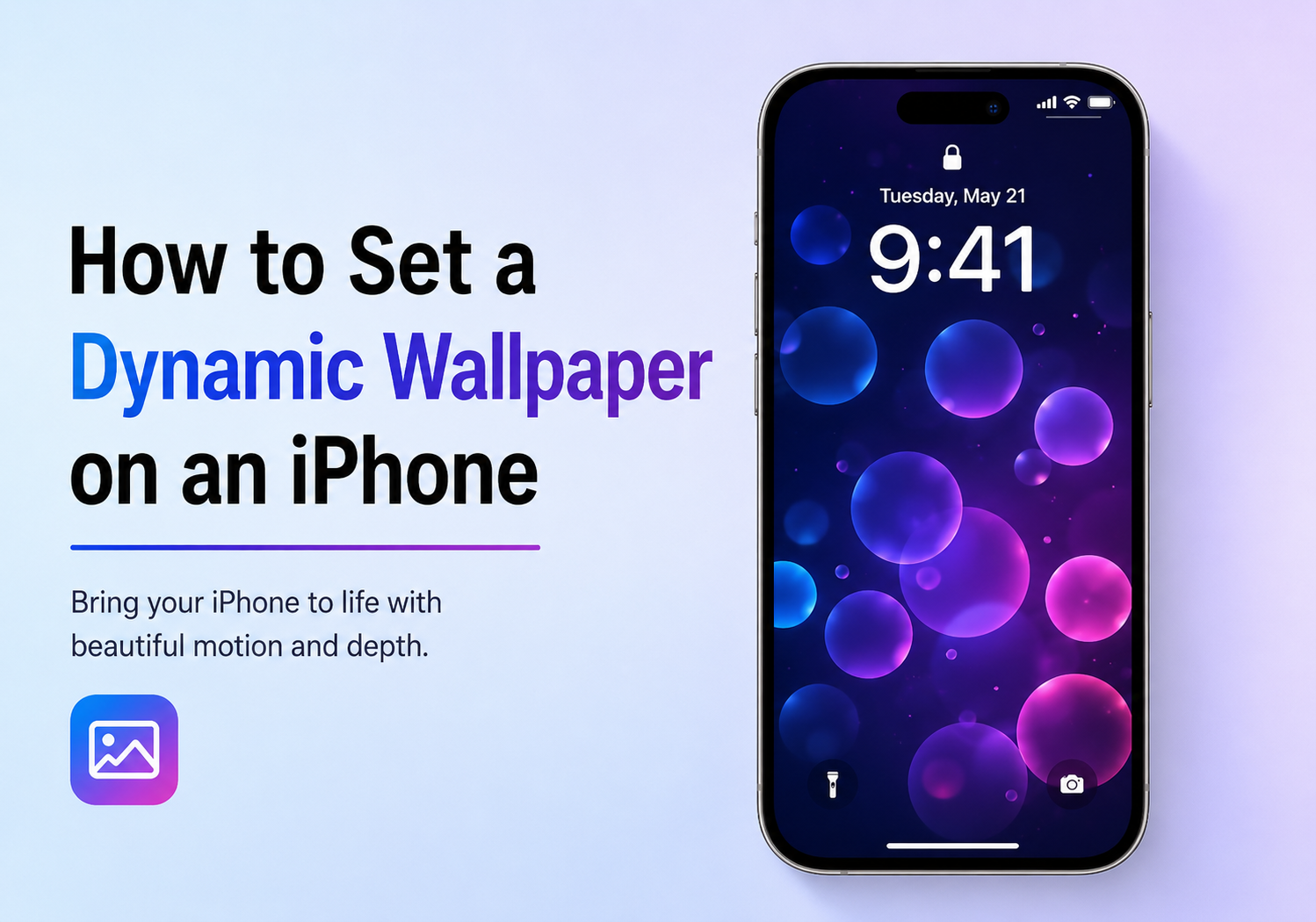
Customizing your iPhone wallpaper is one of the easiest ways to personalize your device. While static wallpapers look great, many users prefer dynamic wallpapers that add motion, depth, and a more interactive visual experience to the home screen and lock screen.
Apple offers several ways to use dynamic and animated wallpapers on iPhones, including built-in dynamic wallpapers, Live Photos, and third-party apps. Whether you want subtle moving bubbles, animated lock screens, or personalized live wallpapers, setting them up is quick and simple.
This guide explains how to set a dynamic wallpaper on an iPhone and explores the different wallpaper options available in iOS.
What Is a Dynamic Wallpaper on iPhone?
A dynamic wallpaper is an animated background that moves or reacts when you interact with your iPhone. Apple currently supports several wallpaper types:
- Static Wallpapers — Traditional still images
- Dynamic Wallpapers — Apple’s animated moving wallpapers
- Live Wallpapers — Animated wallpapers created from Live Photos
- Depth Effect Wallpapers — Wallpapers that interact with the lock screen clock and widgets
Dynamic wallpapers are built into iOS and feature subtle animated movement that continuously plays in the background.
How to Set Apple’s Built-In Dynamic Wallpaper
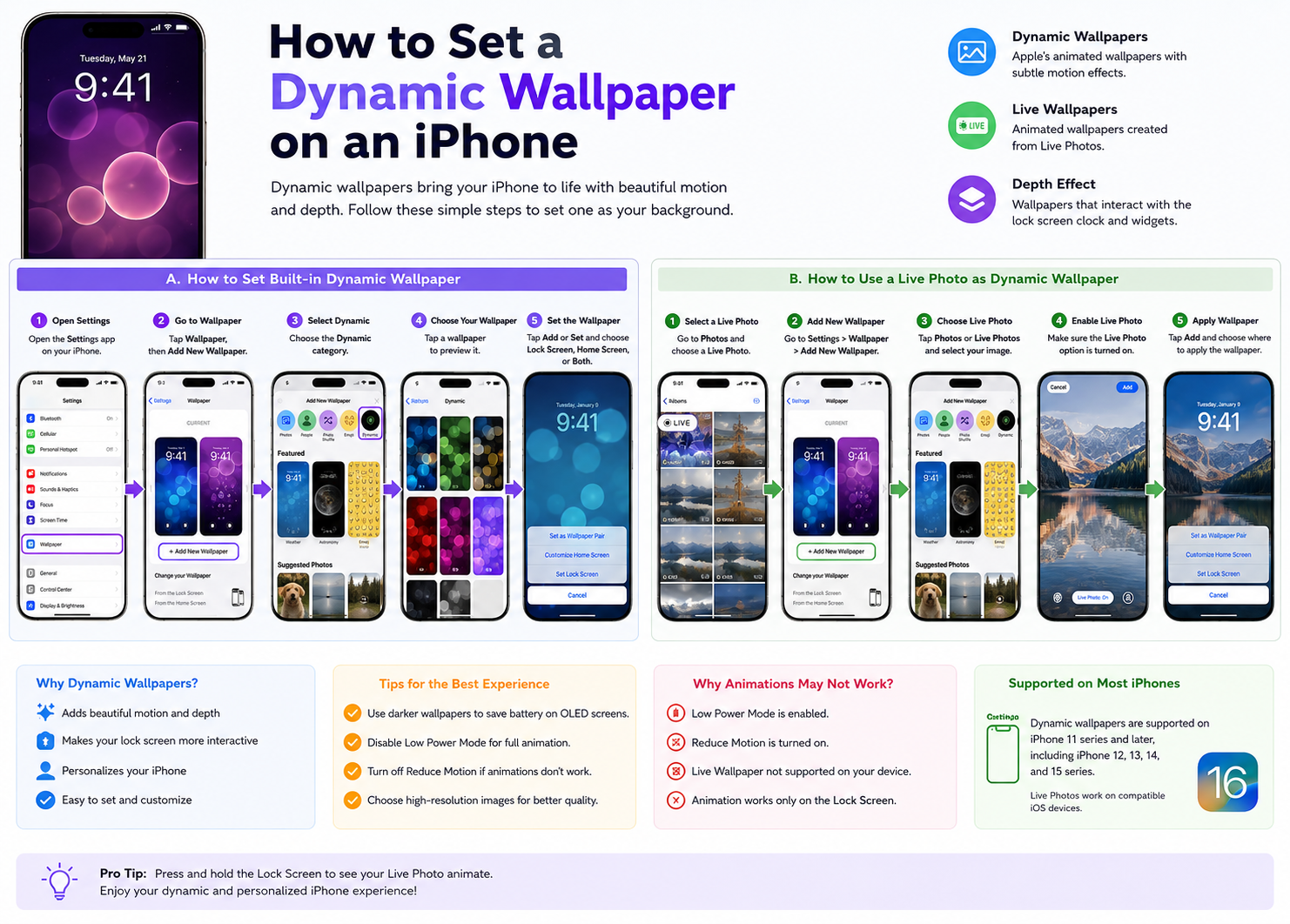
Setting a built-in dynamic wallpaper on an iPhone only takes a few steps.
Step 1: Open Settings
Unlock your iPhone and open the Settings app.
Step 2: Go to Wallpaper
Scroll down and tap:
Wallpaper → Add New Wallpaper
On older versions of iOS, tap:
Wallpaper → Choose a New Wallpaper
Step 3: Select Dynamic Wallpaper
Tap the Dynamic category from Apple’s wallpaper options.
You’ll see several animated wallpapers featuring moving bubbles and colorful motion effects.
Step 4: Preview the Wallpaper
Tap any wallpaper to preview how it will look on your screen.
You can pinch to zoom or reposition the wallpaper if needed.
Step 5: Set the Wallpaper
Tap Add or Set, then choose:
- Set as Lock Screen
- Set as Home Screen
- Set as Both
Your dynamic wallpaper will now animate automatically on supported screens.
How to Use a Live Photo as a Dynamic Wallpaper
Another popular option is using a Live Photo to create a personalized animated wallpaper.
Step 1: Take or Select a Live Photo
Make sure Live Photos are enabled when taking a picture:
- Open the Camera app
- Tap the Live Photo icon in the top corner
- Capture your photo
You can also use an existing Live Photo from your gallery.
Step 2: Open Wallpaper Settings
Go to:
Settings → Wallpaper → Add New Wallpaper
Step 3: Choose Live Photo
Select Photos or Live Photos, then choose your desired image.
Step 4: Enable Live Effect
Ensure the Live Photo option is enabled.
Step 5: Apply Wallpaper
Tap Add and choose where to apply the wallpaper.
On supported iPhones, pressing and holding the lock screen will trigger the Live Photo animation.
Which iPhones Support Dynamic Wallpapers?
Most modern iPhones support dynamic wallpapers, but Live Wallpaper functionality may vary depending on the iOS version and device model.
Dynamic wallpapers are supported on many devices including:
- iPhone 11 series
- iPhone 12 series
- iPhone 13 series
- iPhone 14 series
- iPhone 15 series
Older iPhones may support only limited wallpaper animation features.
Why Dynamic Wallpapers Sometimes Don’t Work
Some users notice that dynamic or live wallpapers stop animating. Several settings can affect wallpaper motion.
Low Power Mode
When Low Power Mode is enabled, some animations may be reduced or disabled to save battery life.
To check:
Settings → Battery → Low Power Mode
Reduce Motion Setting
The iPhone accessibility setting called Reduce Motion can disable wallpaper animations.
To disable it:
Settings → Accessibility → Motion → Reduce Motion
Unsupported Wallpaper Type
Certain wallpaper effects only work on the lock screen and not the home screen.
Live wallpapers also require compatible iPhone models and supported iOS versions.
Using Third-Party Dynamic Wallpaper Apps
Many users prefer animated wallpapers beyond Apple’s default options. Third-party apps provide thousands of live and dynamic wallpapers.
Popular wallpaper apps include:
- Zedge
- Wallpapers Central
- intoLive
- Live Wallpapers Forever
- Vellum
These apps allow users to:
- Create animated wallpapers
- Convert videos into Live Photos
- Download motion wallpapers
- Customize aesthetic themes
However, users should be aware that excessive animation can increase battery usage.
Does Dynamic Wallpaper Drain Battery?
Dynamic and animated wallpapers can use slightly more battery than static images because they require motion rendering and screen refresh activity.
The impact is usually small on modern iPhones, but battery consumption may increase if:
- Brightness is very high
- Always-On Display is enabled
- Multiple widgets are active
- Live wallpapers are used frequently
For most users, the battery difference is minimal during everyday use.
Tips for Choosing the Best Dynamic Wallpaper
To improve your wallpaper experience:
- Use darker wallpapers for better battery efficiency on OLED screens
- Avoid cluttered images that hide app icons
- Choose high-resolution wallpapers for sharper visuals
- Match wallpaper colors with widgets and app themes
- Use subtle animations for a cleaner appearance
A well-designed wallpaper can make your iPhone feel more modern and personalized.
Final Thoughts
Dynamic wallpapers are a simple but effective way to customize an iPhone and make the device feel more interactive. Whether you use Apple’s built-in moving wallpapers or create your own animated lock screen using Live Photos, iOS offers several easy ways to personalize your experience.
With just a few taps, users can transform their lock screen and home screen into something more visually engaging while still maintaining the clean and polished design Apple devices are known for.