










Capturing accurate colors is one of the keys to taking professional-looking photos and videos. Whether you’re photographing a sunset, recording content indoors, or shooting under artificial lighting, white balance plays a crucial role in how natural your images appear.
The iPhone 17 series features Apple’s advanced computational photography system, which automatically adjusts white balance in most situations. However, there are times when you may want greater control over color temperature to achieve a specific look or correct unwanted color casts.
This guide explains what white balance is, why it matters, and how to adjust it on an iPhone 17.
What Is White Balance?
White balance is a camera setting that ensures white objects appear truly white under different lighting conditions.
Different light sources produce different color temperatures:
- Candlelight produces a warm orange glow.
- Household incandescent bulbs appear yellow.
- Fluorescent lights often create a greenish tint.
- Daylight appears relatively neutral.
- Shade and cloudy conditions can create cooler blue tones.
The camera’s white balance system compensates for these lighting differences to produce natural-looking colors.
When white balance is incorrect, photos may appear:
- Too yellow or orange
- Too blue
- Too green
- Unnaturally warm or cool
Does iPhone 17 Allow Manual White Balance Control?
The native Camera app on the iPhone 17 automatically handles white balance using Apple’s image processing algorithms. For most users, the automatic system works exceptionally well and requires no adjustment.
However, if you want more control, there are several methods available:
- Adjust photographic styles
- Edit color temperature after shooting
- Use ProRAW photography
- Use third-party camera applications with manual controls
- Record video with professional camera apps
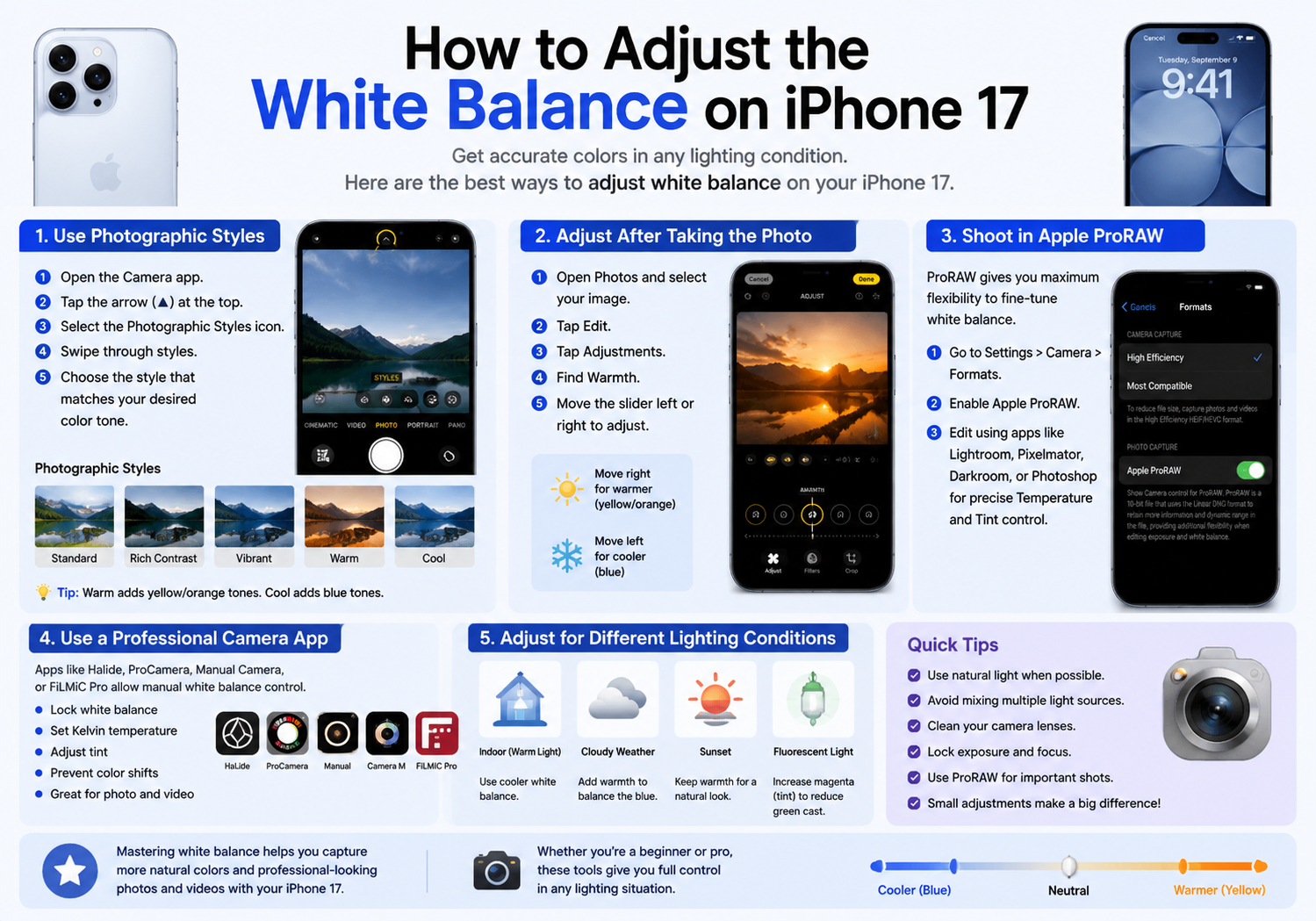
Method 1: Use Photographic Styles
One of the easiest ways to influence color rendering on the iPhone 17 is through Photographic Styles.
Steps:
- Open the Camera app.
- Tap the arrow at the top of the screen.
- Select the Photographic Styles icon.
- Swipe through available styles.
- Choose a style that best matches your desired color tone.
Available styles typically include:
- Standard
- Rich Contrast
- Vibrant
- Warm
- Cool
The Warm style increases yellow and orange tones, while Cool adds a slightly bluer appearance.
Although this isn’t true manual white balance control, it can help fine-tune color output.
Method 2: Adjust White Balance After Taking the Photo
If you’ve already captured an image, you can modify its color temperature using the Photos app.
Steps:
- Open the Photos app.
- Select the photo you want to edit.
- Tap Edit.
- Choose the Adjustments menu.
- Scroll to Warmth.
- Move the slider left or right.
Adjusting Warmth allows you to:
- Increase warmth for golden tones.
- Add cooler tones for a cleaner appearance.
- Correct unwanted yellow or blue color casts.
This method offers quick and effective white balance correction without needing additional software.
Method 3: Shoot in Apple ProRAW
For photographers who require maximum editing flexibility, Apple ProRAW is an excellent option.
ProRAW files preserve significantly more image data than standard JPEG photos, allowing greater control during post-processing.
To enable ProRAW:
- Open Settings.
- Select Camera.
- Tap Formats.
- Enable Apple ProRAW.
After capturing a ProRAW image, you can use editing applications such as:
- Adobe Lightroom
- Adobe Camera Raw
- Pixelmator Photo
- Darkroom
- Affinity Photo
These applications provide precise white balance controls, including:
- Temperature adjustment
- Tint adjustment
- Color calibration tools
Method 4: Use a Professional Camera App
If you need manual white balance controls before taking the photo, third-party camera apps are the best solution.
Popular options include:
- Halide
- ProCamera
- Manual Camera
- Camera M
- FiLMiC Pro
These apps often allow users to:
- Lock white balance
- Adjust Kelvin temperature values
- Fine-tune tint settings
- Prevent color shifts during shooting
This is particularly useful for:
- Product photography
- Portrait photography
- Indoor shooting
- Video production
- Content creation
Adjusting White Balance for Video
Video creators often need consistent color throughout a recording session.
When filming with the native Camera app, white balance is usually managed automatically. However, professional video apps can provide manual control.
To achieve consistent results:
- Lock white balance before recording.
- Match color temperature to your lighting.
- Avoid mixed lighting sources when possible.
- Use daylight-balanced lighting for natural skin tones.
Manual white balance helps eliminate distracting color changes during video recording.
Common White Balance Situations
Indoor Lighting
Artificial lights can create yellow or orange tones.
Recommended adjustment:
- Slightly cooler white balance.
Cloudy Weather
Cloudy conditions often produce blue tones.
Recommended adjustment:
- Add moderate warmth.
Sunset Photography
The natural warmth of sunsets is often desirable.
Recommended adjustment:
- Preserve some warm tones rather than fully correcting them.
Office Fluorescent Lighting
Fluorescent lights can introduce green color casts.
Recommended adjustment:
- Increase magenta tint slightly.
Tips for Better Color Accuracy
To achieve more natural colors on your iPhone 17:
- Use natural daylight whenever possible.
- Avoid mixing multiple light sources.
- Clean camera lenses regularly.
- Lock exposure and focus when shooting.
- Use ProRAW for important photos.
- Calibrate edits on a color-accurate display.
Small adjustments can dramatically improve the overall look of your photos and videos.
Final Thoughts
iPhone 17 delivers excellent automatic white balance performance thanks to Apple’s advanced image processing technology. For everyday photography, most users will rarely need manual adjustments.
However, photographers and content creators seeking more control can refine color temperature using Photographic Styles, post-processing tools, ProRAW editing, or professional camera apps. Understanding how white balance works allows you to create more accurate colors, improve skin tones, and achieve the visual style you want in every shot.
Whether you’re capturing family memories, producing social media content, or shooting professional-grade images, mastering white balance is one of the simplest ways to elevate your iPhone photography.