Facebook Twitter Instagram
    Trending
    • British American Tobacco raises growth expectations for smokeless products, Velo and Vuse driving business transformation
    • How to Adjust the White Balance on iPhone 17?
    • Huami has launched the Amazfit Balance 3 smartwatch overseas: made of stainless steel, featuring a 3000 nits AMOLED display, priced at $369.99.
    • iScooter U4 Folding Electric Bike Review: A Practical Urban Commuter with Impressive Range
    • HAYLOU Solar Lite 2 Smart Watch Review: Premium AMOLED Display Meets Everyday Affordability
    • HOTWAV R9 Plus Rugged Tablet Review: Massive 20,080mAh Battery Meets Industrial-Grade Durability
    • HAVIT H670BT ANC Headset Review: Premium Noise Cancellation, Hi-Res Audio, and 100-Hour Battery Life
    • Mountains, Forests, Tents: What Problems Does RETEVIS EZTALK 5 Solve in These Three Outdoor Scenarios?
    Facebook YouTube
    IGeeKphone China Phone, Tablet PC, VR, RC Drone News, Reviews
    • HOME
      • NEWS
        • DeepSeek
        • ChatGPT
        • Minecraft
    • Amazon
    • PHONE
      • Top Phones For Your First Choice
      • Phone Comparison
      • Xiaomi
      • Blackview
      • Doogee
      • Black Shark
      • Geekbuying
      • Banggood
      • TEMU
      • TikTok
      • Aliexpress
      • Walmart
      • MercadoLibre
      • Lazada
    • TOP VAPE Awards for 2026
    • VAPES
      • E-CIGAR Upcoming
      • Vape News
      • Vape Deals
      • Vape Comparison
      • Vape Guide
      • Giveaway
    • BEST VAPE
      • Best Vape Stores
      • Best Starter Vape Kits
      • Best Vapes for Beginners
      • Best Disposable Vapes
      • Best Pod Systems
      • Best Pod Mod Vapes
      • Best Mods
      • Best Nicotine Pouches
      • Best Clearomizers/Tanks
      • Best E-Liquid
      • Best EGO/Pens
      • Best Vapes for Nic Salt E-Juice
      • Best Vapes to Quit Smoking
      • RDA vs. RDTA vs. RTA
    • Best Vape Brand 2026
      • VAPORESSO
      • VOOPOO
      • OXVA
      • NEXA BAR
      • MASKKING VAPE
      • SP2S
      • IPLAY
      • TODOO
      • MRFOG
      • LOSTVAPE
      • VEIIK
    • REVIEW
      • E-cigar Review
      • Phones
      • Tablet PC
      • TV Box
      • RC Drone
      • Wearables
      • Camera
      • Accessories
      • VR Headset
    • MORE
      • TABLET
        • Chuwi
        • INNOCN
        • Teclast
        • Top Tablet for Your First Choice
        • Tablet/Laptop Comparison
      • RC DRONE
      • CAMERA
      • WEARABLES
        • OneOdio
        • BlitzWolf
        • Top Smartwatch for First Choice
      • 3D PRINTER
        • 3D Printer Review
        • Anycubic
        • FLSUN
        • Xtool
        • LONGER
        • Top 3D printer to Choose First
      • POWER STATION
        • Oukitel
        • FOSSIBOT
      • GAMING
        • Top Gaming Products
      • E-BIKE
        • Samebike
        • Happyrun
        • ENGWE
      • SMART HOME
      • TV BOX
      • ACCESSORIES
      • VR HEADSET
      • CLOTHES
      • AUTO CAR
    • DEAL
    • VAPE LAWS
    • Shop
    IGeeKphone China Phone, Tablet PC, VR, RC Drone News, Reviews
    You are at:Home»Apple»How to Adjust the White Balance on iPhone 17?
    Apple

    How to Adjust the White Balance on iPhone 17?

    Brady CottonBy Brady CottonJune 3, 2026
    Facebook Twitter Pinterest LinkedIn Tumblr Email

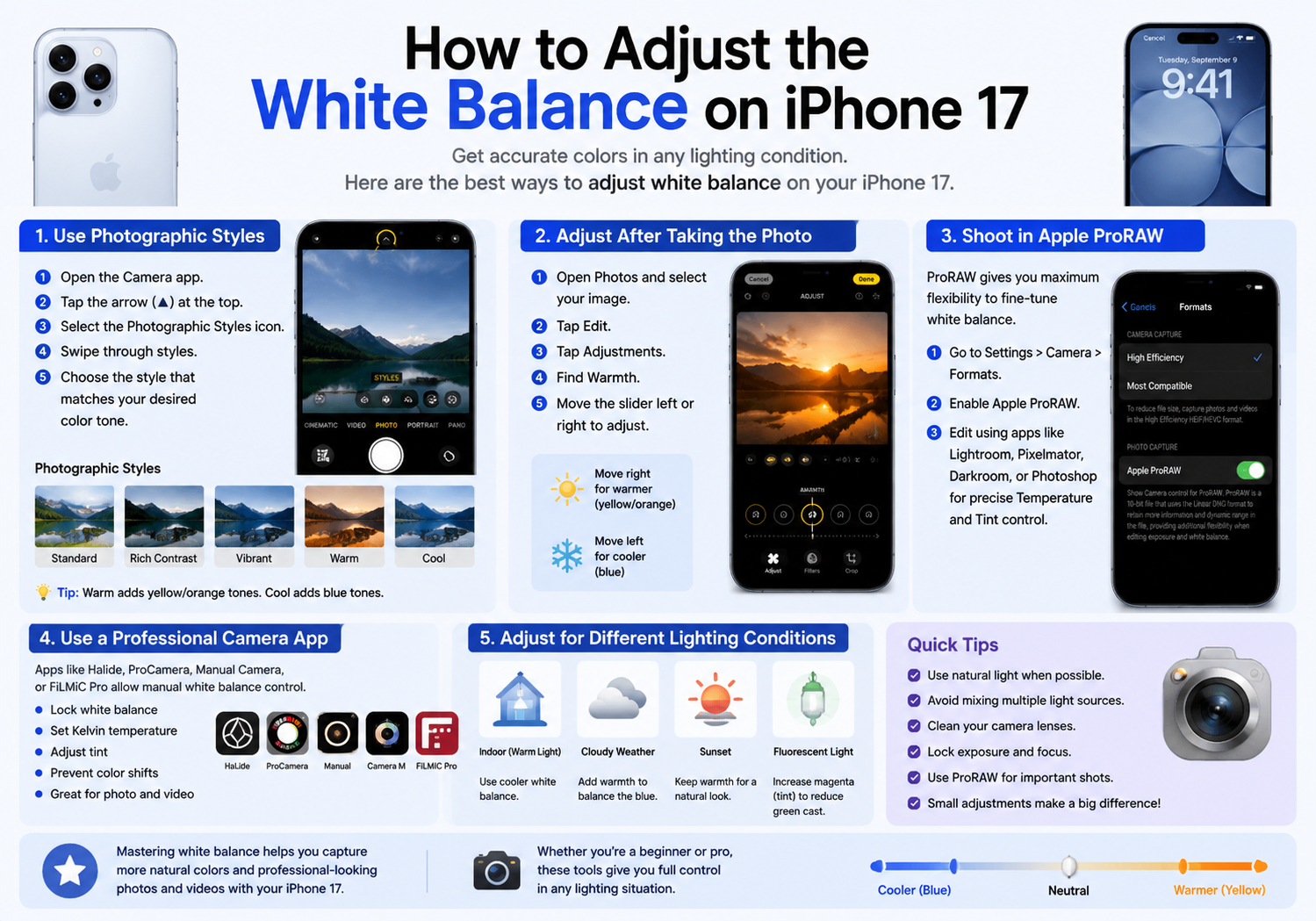
    Capturing accurate colors is one of the keys to taking professional-looking photos and videos. Whether you’re photographing a sunset, recording content indoors, or shooting under artificial lighting, white balance plays a crucial role in how natural your images appear.

    The iPhone 17 series features Apple’s advanced computational photography system, which automatically adjusts white balance in most situations. However, there are times when you may want greater control over color temperature to achieve a specific look or correct unwanted color casts.

    This guide explains what white balance is, why it matters, and how to adjust it on an iPhone 17.

    What Is White Balance?

    White balance is a camera setting that ensures white objects appear truly white under different lighting conditions.

    Different light sources produce different color temperatures:

    • Candlelight produces a warm orange glow.
    • Household incandescent bulbs appear yellow.
    • Fluorescent lights often create a greenish tint.
    • Daylight appears relatively neutral.
    • Shade and cloudy conditions can create cooler blue tones.

    The camera’s white balance system compensates for these lighting differences to produce natural-looking colors.

    When white balance is incorrect, photos may appear:

    • Too yellow or orange
    • Too blue
    • Too green
    • Unnaturally warm or cool

    Does iPhone 17 Allow Manual White Balance Control?

    The native Camera app on the iPhone 17 automatically handles white balance using Apple’s image processing algorithms. For most users, the automatic system works exceptionally well and requires no adjustment.

    However, if you want more control, there are several methods available:

    • Adjust photographic styles
    • Edit color temperature after shooting
    • Use ProRAW photography
    • Use third-party camera applications with manual controls
    • Record video with professional camera apps

    Method 1: Use Photographic Styles

    One of the easiest ways to influence color rendering on the iPhone 17 is through Photographic Styles.

    Steps:

    1. Open the Camera app.
    2. Tap the arrow at the top of the screen.
    3. Select the Photographic Styles icon.
    4. Swipe through available styles.
    5. Choose a style that best matches your desired color tone.

    Available styles typically include:

    • Standard
    • Rich Contrast
    • Vibrant
    • Warm
    • Cool

    The Warm style increases yellow and orange tones, while Cool adds a slightly bluer appearance.

    Although this isn’t true manual white balance control, it can help fine-tune color output.

    Method 2: Adjust White Balance After Taking the Photo

    If you’ve already captured an image, you can modify its color temperature using the Photos app.

    Steps:

    1. Open the Photos app.
    2. Select the photo you want to edit.
    3. Tap Edit.
    4. Choose the Adjustments menu.
    5. Scroll to Warmth.
    6. Move the slider left or right.

    Adjusting Warmth allows you to:

    • Increase warmth for golden tones.
    • Add cooler tones for a cleaner appearance.
    • Correct unwanted yellow or blue color casts.

    This method offers quick and effective white balance correction without needing additional software.

    Method 3: Shoot in Apple ProRAW

    For photographers who require maximum editing flexibility, Apple ProRAW is an excellent option.

    ProRAW files preserve significantly more image data than standard JPEG photos, allowing greater control during post-processing.

    To enable ProRAW:

    1. Open Settings.
    2. Select Camera.
    3. Tap Formats.
    4. Enable Apple ProRAW.

    After capturing a ProRAW image, you can use editing applications such as:

    • Adobe Lightroom
    • Adobe Camera Raw
    • Pixelmator Photo
    • Darkroom
    • Affinity Photo

    These applications provide precise white balance controls, including:

    • Temperature adjustment
    • Tint adjustment
    • Color calibration tools

    Method 4: Use a Professional Camera App

    If you need manual white balance controls before taking the photo, third-party camera apps are the best solution.

    Popular options include:

    • Halide
    • ProCamera
    • Manual Camera
    • Camera M
    • FiLMiC Pro

    These apps often allow users to:

    • Lock white balance
    • Adjust Kelvin temperature values
    • Fine-tune tint settings
    • Prevent color shifts during shooting

    This is particularly useful for:

    • Product photography
    • Portrait photography
    • Indoor shooting
    • Video production
    • Content creation

    Adjusting White Balance for Video

    Video creators often need consistent color throughout a recording session.

    When filming with the native Camera app, white balance is usually managed automatically. However, professional video apps can provide manual control.

    To achieve consistent results:

    • Lock white balance before recording.
    • Match color temperature to your lighting.
    • Avoid mixed lighting sources when possible.
    • Use daylight-balanced lighting for natural skin tones.

    Manual white balance helps eliminate distracting color changes during video recording.

    Common White Balance Situations

    Indoor Lighting

    Artificial lights can create yellow or orange tones.

    Recommended adjustment:

    • Slightly cooler white balance.

    Cloudy Weather

    Cloudy conditions often produce blue tones.

    Recommended adjustment:

    • Add moderate warmth.

    Sunset Photography

    The natural warmth of sunsets is often desirable.

    Recommended adjustment:

    • Preserve some warm tones rather than fully correcting them.

    Office Fluorescent Lighting

    Fluorescent lights can introduce green color casts.

    Recommended adjustment:

    • Increase magenta tint slightly.

    Tips for Better Color Accuracy

    To achieve more natural colors on your iPhone 17:

    • Use natural daylight whenever possible.
    • Avoid mixing multiple light sources.
    • Clean camera lenses regularly.
    • Lock exposure and focus when shooting.
    • Use ProRAW for important photos.
    • Calibrate edits on a color-accurate display.

    Small adjustments can dramatically improve the overall look of your photos and videos.

    Final Thoughts

    iPhone 17 delivers excellent automatic white balance performance thanks to Apple’s advanced image processing technology. For everyday photography, most users will rarely need manual adjustments.

    However, photographers and content creators seeking more control can refine color temperature using Photographic Styles, post-processing tools, ProRAW editing, or professional camera apps. Understanding how white balance works allows you to create more accurate colors, improve skin tones, and achieve the visual style you want in every shot.

    Whether you’re capturing family memories, producing social media content, or shooting professional-grade images, mastering white balance is one of the simplest ways to elevate your iPhone photography.

    Share. Facebook Twitter Pinterest LinkedIn Tumblr Email

    Related Posts

    Dynamic segmentation for app marketers 101

    How to Enable Quick Startup on Redmi Note 13 Pro Smartphone?

    The Allure and Challenges of Speed Dating

    Leave A Reply Cancel Reply

    You must be logged in to post a comment.

    voopoo G4 Mini
    oxva xlim 3 ultra
    sp2s sen x disposable vape
    • Popular
    • 3D Printer REVIEW
    • XIAOMI
    May 17, 2026

    iPlay Nova 45K Review – High Puff Performance with a Futuristic Twist

    May 17, 2026

    Vaporesso XROS 6 & XROS 6 Mini Review – The Evolution of Portable Vaping

    May 7, 2026

    OXVA Xlim Go Lite Review: Compact, Powerful, and Beginner-Friendly

    April 18, 2026

    VOOPOO DRAG 6 Hands on Review: Vape Beast with Smart Power & Premium Control

    December 26, 2025

    ACMER ASCARVA 4S: Precision CNC Power for Makers, DIYers & Small Workshops

    June 23, 2024

    ACMER P2 20W Laser Engraver Fixed Focus Engraving: Hands on Review

    May 30, 2024

    xTool F1 Ultra Review: World’s First 20W Fiber & 20W Diode Laser Engraver

    May 30, 2024

    Anycubic Kobra 3 Combo Review: The Multicolor Masterpiece?

    June 2, 2026

    Xiaomi 17T Pro Smartphone has officially Announced Support for Cross-Platform Interoperability, and it is compatible with Apple’s AirDrop Feature

    May 29, 2026

    Xiaomi 17T/Pro overseas launch: 7000mAh battery “the largest for international versions to date”, starting at 749 euros

    May 28, 2026

    Redmi K100 Specifications Leaked: The most powerful Redmi king has arrived – two swords, large and small, strike simultaneously

    May 28, 2026

    Xiaomi Bluetooth Speaker C is now available: 3D dazzling lights, multiple units can be connected for simultaneous playback

    fc 26 coins
    New Arrivals
    • Vivo X400 Ultra Vivo X400 Ultra
    • Motorola Moto Watch Motorola Moto Watch
    • Pyne Pod Click 80K Disposable Vape Kit Pyne Pod Click 80K Disposable Vape Kit
    • Vivo iQOO Z12 Turbo Vivo iQOO Z12 Turbo
    • Oppo Reno 16 Pro Mini Oppo Reno 16 Pro Mini
    • Redmagic 12 Pro Plus Redmagic 12 Pro Plus
    • Geekvape Sonder Q 3 Pod System Kit Geekvape Sonder Q 3 Pod System Kit
    • Geek Bar Pulse 2 25K Disposable Vape Geek Bar Pulse 2 25K Disposable Vape
    • Motorola Razr Fold 2 Motorola Razr Fold 2
    About
  • Igeekphone.com provides the first global tech news and reviews about smartphone, vapes, e-cigar, smart home, 3D printers, e-bike,tablets, RC drones, VR headset, and other accessories. It's the best platform to improve your brand and product.
  • Contact us: info@igeekphone.com
  • Check Our Privacy Policy Here.
  • Note: *Right now we have US editor and EU editors for review, especially for Amazon US and EU.
  • *Shop and Compare Price Here*
  • Facebook
  • Youtube
  • OUR BEST VAPE PARTNERS
  • VAPE ONLINE STORE
  • HAYATI PRO MAX PLUS
  • VAPORESSO
  • VOOPOO
  • OXVA
  • NEXA
  • MASKKING
  • SP2S
  • IPLAY
  • TODOO
  • OTHER BEST PARTNERS
  • SVBONY
  • Chuwi
  • Blackview
  • Fossibot
  • Unihertz
  • Flsun
  • Anycubic
  • Xtool
  • Oukitel
  • Mukkpet Ebike
  • Ugreen
  • Copyright © 2026 igeekphone

    Type above and press Enter to search. Press Esc to cancel.