







Facebook Twitter Instagram
    Trending
    • How to Use Quick Actions to Batch Rename Photos on iPhone 15 Pro?
    • Rated capacity 11374mAh: Samsung Galaxy Tab S12 Ultra tablet is expected to continue using the battery from the previous model.
    • How Personal Injury Claims Are Increasing Alongside Constant Screen Use, Digital Distractions, and Connected Technology
    • How Smartphone Records and Wearable Data Can Shape Personal Injury Claims After Everyday Accidents
    • On-Demand Florists: A Guide to Reliable Same Day Flower Delivery in London
    • Sildenafil tablets vs brand-name medication: Efficacy and cost comparison
    • Redmi K100 parameter summary: Snapdragon 8E5 + 200 million pixels
    • Apple’s iOS 27 Officially Released! Siri AI makes its debut. App launch speed has improved by 30%.
    Facebook YouTube
    IGeeKphone China Phone, Tablet PC, VR, RC Drone News, Reviews
    • HOME
      • NEWS
        • DeepSeek
        • ChatGPT
        • Minecraft
    • Amazon
    • PHONE
      • Top Phones For Your First Choice
      • Phone Comparison
      • Xiaomi
      • Blackview
      • Doogee
      • Black Shark
      • Geekbuying
      • Banggood
      • TEMU
      • TikTok
      • Aliexpress
      • Walmart
      • MercadoLibre
      • Lazada
    • TOP VAPE Awards for 2026
    • VAPES
      • E-CIGAR Upcoming
      • Vape News
      • Vape Deals
      • Vape Comparison
      • Vape Guide
      • Giveaway
    • BEST VAPE
      • Best Vape Stores
      • Best Starter Vape Kits
      • Best Vapes for Beginners
      • Best Disposable Vapes
      • Best Pod Systems
      • Best Pod Mod Vapes
      • Best Mods
      • Best Nicotine Pouches
      • Best Clearomizers/Tanks
      • Best E-Liquid
      • Best EGO/Pens
      • Best Vapes for Nic Salt E-Juice
      • Best Vapes to Quit Smoking
      • RDA vs. RDTA vs. RTA
    • Best Vape Brand 2026
      • VAPORESSO
      • VOOPOO
      • OXVA
      • NEXA BAR
      • MASKKING VAPE
      • SP2S
      • IPLAY
      • TODOO
      • MRFOG
      • LOSTVAPE
      • VEIIK
    • REVIEW
      • E-cigar Review
      • Phones
      • Tablet PC
      • TV Box
      • RC Drone
      • Wearables
      • Camera
      • Accessories
      • VR Headset
    • MORE
      • TABLET
        • Chuwi
        • INNOCN
        • Teclast
        • Top Tablet for Your First Choice
        • Tablet/Laptop Comparison
      • RC DRONE
      • CAMERA
      • WEARABLES
        • OneOdio
        • BlitzWolf
        • Top Smartwatch for First Choice
      • 3D PRINTER
        • 3D Printer Review
        • Anycubic
        • FLSUN
        • Xtool
        • LONGER
        • Top 3D printer to Choose First
      • POWER STATION
        • Oukitel
        • FOSSIBOT
      • GAMING
        • Top Gaming Products
      • E-BIKE
        • Samebike
        • Happyrun
        • ENGWE
      • SMART HOME
      • TV BOX
      • ACCESSORIES
      • VR HEADSET
      • CLOTHES
      • AUTO CAR
    • DEAL
    • VAPE LAWS
    • Shop
    IGeeKphone China Phone, Tablet PC, VR, RC Drone News, Reviews
    You are at:Home»Guide»How to Use Quick Actions to Batch Rename Photos on iPhone 15 Pro?
    Guide

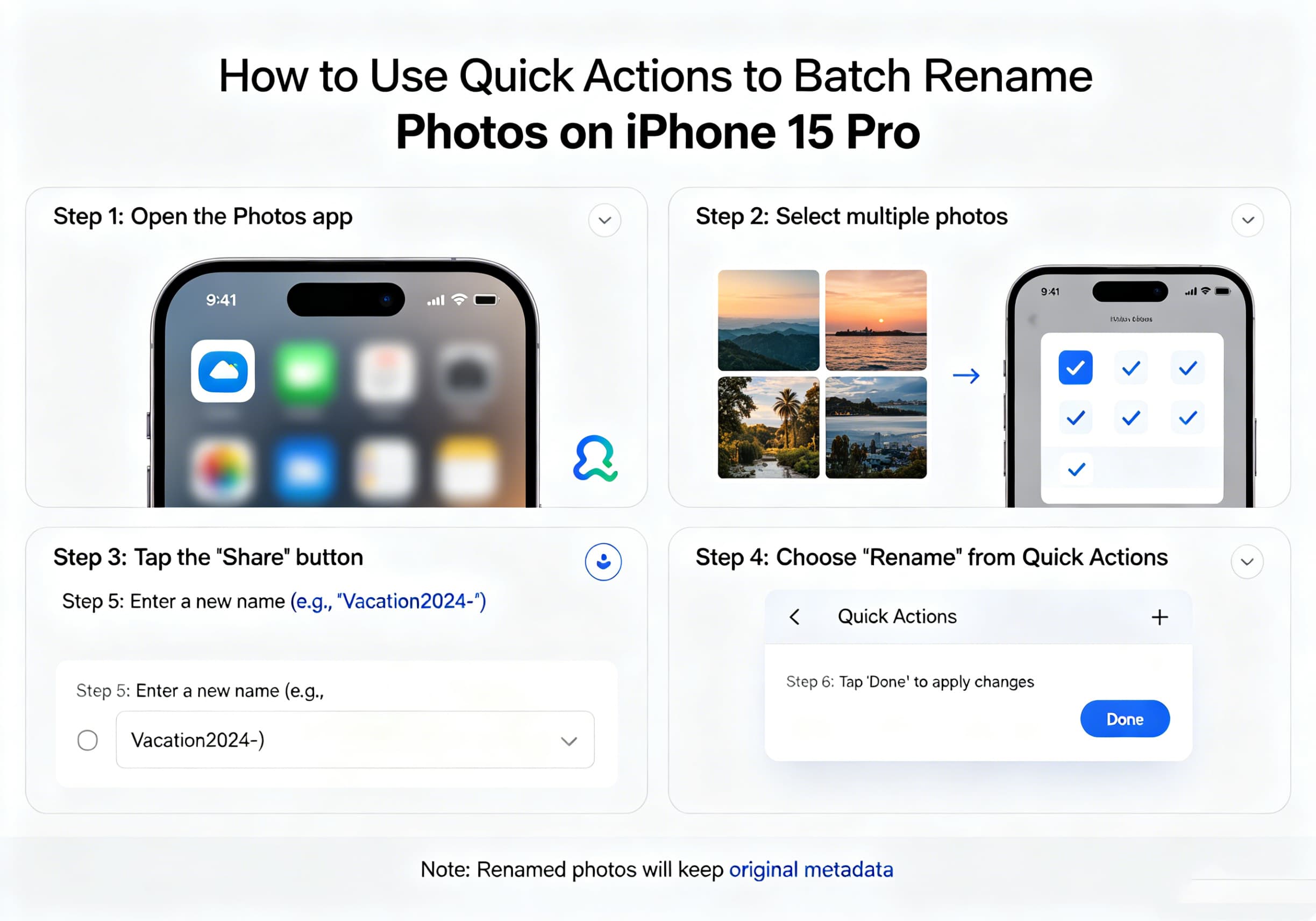
    How to Use Quick Actions to Batch Rename Photos on iPhone 15 Pro?

    Brady CottonBy Brady CottonJune 9, 2026
    Facebook Twitter Pinterest LinkedIn Tumblr Email

    Organize Your Photo Library Faster with Built-In iPhone Tools

    If you’re an iPhone 15 Pro user who frequently transfers photos to a computer, shares images with clients, or simply likes to keep files organized, manually renaming photos one by one can be frustrating and time-consuming. Fortunately, Apple’s Files app includes a powerful feature called Quick Actions that allows you to batch rename multiple photos in just a few taps.

    This hidden productivity tool can save significant time when managing large collections of images, making it easier to identify photos, sort projects, and maintain a clean digital workflow.

    In this guide, you’ll learn how to use Quick Actions to batch rename photos on your iPhone 15 Pro.

    Why Rename Photos in Bulk?

    By default, photos saved on an iPhone typically use generic filenames such as:

    • IMG_1234.HEIC
    • IMG_1235.HEIC
    • IMG_1236.HEIC

    While these filenames work for casual use, they become difficult to manage when:

    • Organizing travel photos
    • Managing work projects
    • Creating content for social media
    • Uploading images to websites
    • Sharing files with clients
    • Archiving important documents

    Batch renaming lets you quickly assign meaningful names to multiple files while automatically numbering them in sequence.
    For example:

    • Vacation_001
    • Vacation_002
    • Vacation_003

    or

    • ProductShoot_001
    • ProductShoot_002
    • ProductShoot_003

    Before You Start

    Quick Actions for batch renaming works inside the Files app rather than the Photos app.

    If your images are currently stored in Photos, you’ll first need to save them to a folder in Files.

    To Save Photos to Files:

    1. Open the Photos app.
    2. Select the images you want to rename.
    3. Tap the Share button.
    4. Choose Save to Files.
    5. Select a folder location.
    6. Tap Save.

    Once the photos are stored in Files, you’re ready to rename them.

    How to Batch Rename Photos Using Quick Actions

    Step 1: Open the Files App

    Launch the Files app on your iPhone 15 Pro.

    Navigate to the folder containing the photos you want to rename.

    Step 2: Select Multiple Photos

    Tap the three-dot menu in the upper-right corner.

    Choose Select.

    Tap each photo you want to rename, or use Select All if applicable.

    Step 3: Access Quick Actions

    After selecting your files:

    1. Tap the three-dot menu again.
    2. Scroll down and choose Quick Actions.
    3. Tap Rename.

    The Rename window will appear.

    Step 4: Enter a New Filename

    Type the base name you want to use.

    Examples:

    • SummerTrip
    • ProductImages
    • WeddingGallery
    • WorkProject

    The system will automatically add sequential numbering to each selected file.

    Step 5: Confirm the Rename

    Tap Rename.

    The Files app instantly updates all selected filenames using the new naming convention.

    For example:

    • SummerTrip 1
    • SummerTrip 2
    • SummerTrip 3
    • SummerTrip 4

    This process takes only seconds, even when renaming dozens of images.

    Tips for Better File Organization

    Use Descriptive Names

    Choose filenames that clearly identify the photo set.

    Good examples:

    • Hawaii2025
    • ClientPortfolio
    • FamilyReunion
    • ProductLaunch

    Avoid vague names such as:

    • Photos
    • Images
    • Stuff

    Create Project Folders

    Store renamed photos inside dedicated folders to improve organization.

    Examples:

    • Travel
    • Work
    • Social Media
    • Photography
    • Documents

    Rename Before Uploading

    Search engines and content management systems often benefit from descriptive filenames.

    For example:

    Instead of:

    IMG_4728.HEIC

    Use:

    iPhone15Pro-Camera-Test-01.HEIC

    This makes files easier to locate later.

    Alternative Method: Use the Shortcuts App

    Power users can take photo organization even further by creating custom automation in the Shortcuts app.

    With Shortcuts, you can:

    • Automatically rename imported photos
    • Add dates to filenames
    • Include location information
    • Sort files into folders automatically
    • Create one-tap workflows

    This is particularly useful for photographers, content creators, and business users who handle large numbers of images regularly.

    Benefits of Using Quick Actions

    Quick Actions offers several advantages:

    • No third-party apps required
    • Fast batch processing
    • Built directly into iOS
    • Easy for beginners
    • Saves significant time
    • Improves file organization
    • Works with multiple file types

    Because the feature is integrated into Apple’s ecosystem, it provides a simple and reliable way to manage files directly on your device.

    Final Thoughts

    The Quick Actions feature in the Files app is one of the most useful yet overlooked productivity tools on the iPhone 15 Pro. Instead of manually renaming photos one at a time, you can select dozens of images and rename them in seconds using a consistent naming format.

    Whether you’re organizing travel memories, managing professional photography projects, or preparing images for sharing online, batch renaming helps keep your files organized and easy to find. Once you start using Quick Actions regularly, you’ll wonder how you ever managed large photo collections without it.

    Share. Facebook Twitter Pinterest LinkedIn Tumblr Email

    Related Posts

    How Personal Injury Claims Are Increasing Alongside Constant Screen Use, Digital Distractions, and Connected Technology

    How Smartphone Records and Wearable Data Can Shape Personal Injury Claims After Everyday Accidents

    On-Demand Florists: A Guide to Reliable Same Day Flower Delivery in London

    Leave A Reply Cancel Reply

    You must be logged in to post a comment.

    voopoo G4 Mini
    oxva xlim go lite
    sp2s sen x disposable vape
    • Popular
    • 3D Printer REVIEW
    • XIAOMI
    June 6, 2026

    Vaporesso LUXE X3 & LUXE Q3 Review. Two Paths to Exceptional Flavor

    June 6, 2026

    VOOPOO ARGUS G4 & ARGUS G4 Mini Review – Smart Flavor Meets Everyday Simplicity

    June 6, 2026

    VOOPOO NAVI x CYPH Kit 80K Review. Is This The Future of Disposable Vaping?

    May 17, 2026

    iPlay Nova 45K Review – High Puff Performance with a Futuristic Twist

    December 26, 2025

    ACMER ASCARVA 4S: Precision CNC Power for Makers, DIYers & Small Workshops

    June 23, 2024

    ACMER P2 20W Laser Engraver Fixed Focus Engraving: Hands on Review

    May 30, 2024

    xTool F1 Ultra Review: World’s First 20W Fiber & 20W Diode Laser Engraver

    May 30, 2024

    Anycubic Kobra 3 Combo Review: The Multicolor Masterpiece?

    June 9, 2026

    Xiaomi has released MiMo-V2.5-Pro-UltraSpeed: The generation speed has been increased by 10 times! It can process over 1,000 tokens per second.

    June 8, 2026

    Xiaomi MIX Fold 5 will be the first to feature the Xuanji O3

    June 8, 2026

    Xiaomi 17T Series Mobile Phones are Released, Equipped with Dimensity 8500-Ultra / Dimensity 9500 chips,Starting from 2999 yuan

    June 8, 2026

    The Specifications of Xiaomi 17T Series Phones have been Revealed: Equipped with MediaTek 8500

    fc 26 coins
    New Arrivals
    • Umidigi Note 200A Umidigi Note 200A
    • Umidigi Note 200 4G Umidigi Note 200 4G
    • Apple iPhone Air 2 Apple iPhone Air 2
    • Oppo Pad Air6 Oppo Pad Air6
    • OnePlus Pad Go 3 OnePlus Pad Go 3
    • OnePlus Watch 4 Lite OnePlus Watch 4 Lite
    • Lost Mary MT35000 Turbo World Cup Edition Disposable Vape Lost Mary MT35000 Turbo World Cup Edition Disposable Vape
    • OnePlus 17T Smartphone OnePlus 17T Smartphone
    • OnePlus 17s OnePlus 17s
    About
  • Igeekphone.com provides the first global tech news and reviews about smartphone, vapes, e-cigar, smart home, 3D printers, e-bike,tablets, RC drones, VR headset, and other accessories. It's the best platform to improve your brand and product.
  • Contact us: info@igeekphone.com
  • Check Our Privacy Policy Here.
  • Note: *Right now we have US editor and EU editors for review, especially for Amazon US and EU.
  • *Shop and Compare Price Here*
  • Facebook
  • Youtube
  • OUR BEST VAPE PARTNERS
  • VAPE ONLINE STORE
  • HAYATI PRO MAX PLUS
  • VAPORESSO
  • VOOPOO
  • OXVA
  • NEXA
  • MASKKING
  • SP2S
  • IPLAY
  • TODOO
  • OTHER BEST PARTNERS
  • SVBONY
  • Chuwi
  • Blackview
  • Fossibot
  • Unihertz
  • Flsun
  • Anycubic
  • Xtool
  • Oukitel
  • Mukkpet Ebike
  • Ugreen
  • Copyright © 2026 igeekphone

    Type above and press Enter to search. Press Esc to cancel.