











A full storage warning on your Xiaomi phone can be more than just annoying—it can prevent your device from booting up entirely. When your phone cannot start because the internal storage is maxed out, it becomes critical to carefully troubleshoot the issue to avoid data loss. Here’s a comprehensive guide to getting your Xiaomi device back in working order.
1. Understand Why a Full Storage Can Prevent Booting
Xiaomi phones, like most Android devices, require a certain amount of free internal storage to operate. If storage is completely full:
- The system may fail to initialize apps and background services.
- Critical system files may not have enough space to load, causing boot loops or freezing.
- Updates and cache processes cannot complete, resulting in the device getting stuck at the startup logo.
Understanding this helps you approach the problem systematically rather than trying random fixes.
2. Try Booting Into Safe Mode
Safe Mode allows your Xiaomi phone to start with only essential system apps. This can free up storage temporarily if third-party apps are occupying space.
Steps to enter Safe Mode:
- Power off your Xiaomi device completely.
- Press and hold the Power button until the logo appears.
- Release the Power button and immediately press and hold the Volume Down button until the device boots.
- You should see “Safe Mode” on the screen.
Once in Safe Mode:
- Open Settings → Storage to check usage.
- Delete unnecessary files, photos, or apps to free up at least 1–2 GB of space.
3. Use Mi PC Suite or a Computer to Free Storage
If the phone won’t boot even in Safe Mode, connecting it to a PC can help recover storage:
- Download Mi PC Suite on your computer.
- Connect your Xiaomi phone via USB.
- Try accessing files, photos, or media.
- Delete large files or move them to your PC to free space.
Even if the system isn’t fully operational, some files may still be accessible in File Transfer mode.
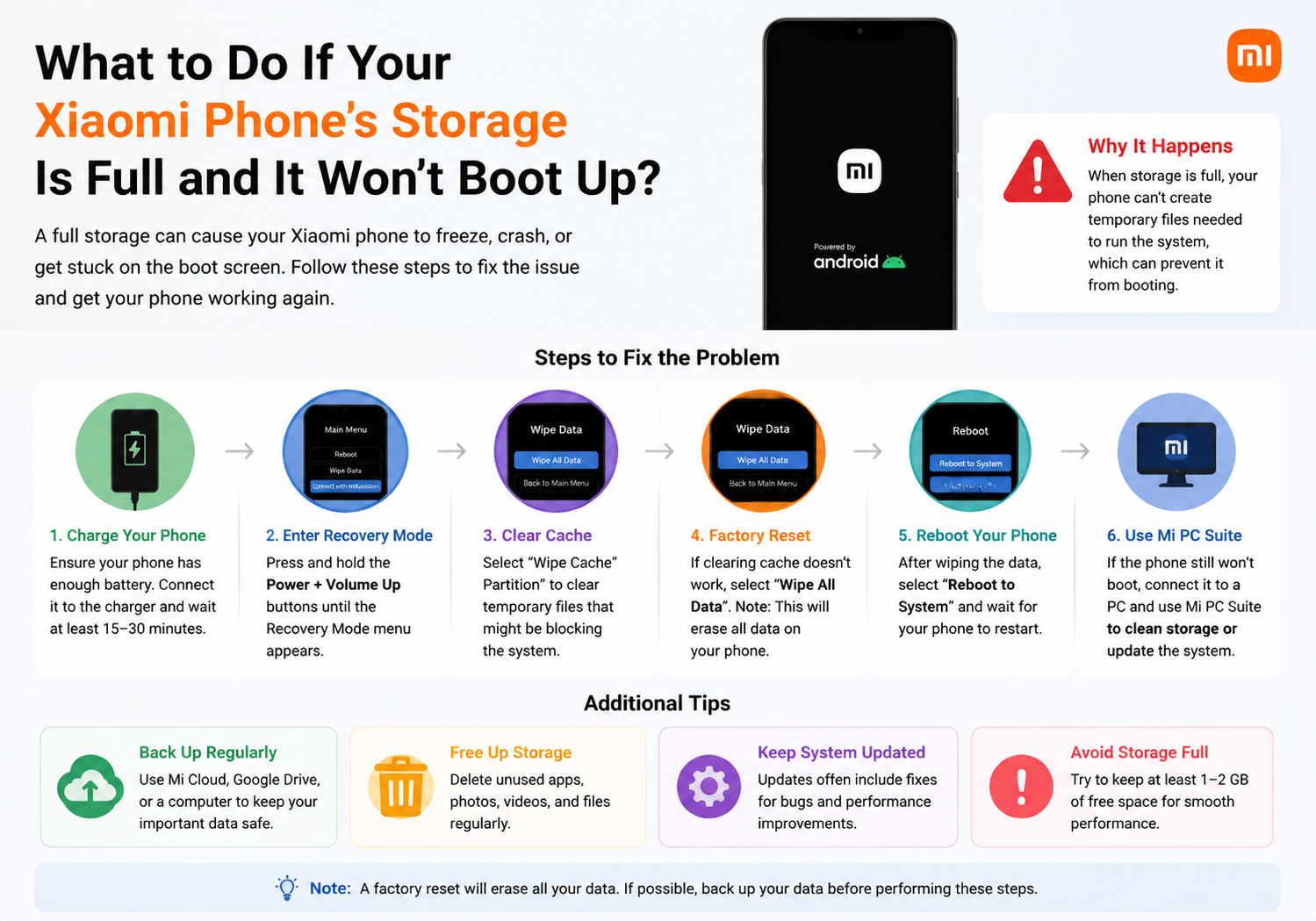
4. Boot into Recovery Mode and Clear Cache
Xiaomi devices come with a built-in Recovery Mode that allows system-level operations without fully booting:
Steps:
- Power off the phone.
- Press and hold Volume Up + Power simultaneously until the Mi logo appears.
- Use Volume buttons to navigate to Wipe Cache Partition (not “Wipe Data” yet).
- Confirm with the Power button.
- Once completed, reboot the phone.
Clearing the cache can free a surprising amount of space and often resolves boot issues caused by full storage.
5. Remove Unnecessary Apps or Files via ADB (Advanced Users)
If Recovery Mode isn’t enough and you’re familiar with ADB (Android Debug Bridge), you can delete files directly from your phone:
- Enable USB Debugging in Developer Options (if previously enabled).
- Connect the phone to a PC with ADB installed.
- Use the command:
adb shell
cd /storage/emulated/0/
rm -rf Download/*
⚠️ Warning: Be extremely careful. Deleting system files can make the problem worse. Only delete personal files, downloads, or media.
6. Factory Reset as a Last Resort
If none of the above methods work, performing a factory reset will restore your Xiaomi phone to its original state. This deletes all user data, so only do this if you’ve backed up your files or cannot recover the system any other way.
Steps:
- Boot into Recovery Mode (Volume Up + Power).
- Navigate to Wipe Data / Factory Reset.
- Confirm and wait for the process to finish.
- Reboot your device.
Once reset, your phone should boot normally with enough free storage.
7. Tips to Prevent Storage-Related Boot Issues in the Future
- Regularly delete unnecessary apps, photos, and videos.
- Use cloud storage (Mi Cloud, Google Photos, or OneDrive) for media files.
- Monitor storage usage via Settings → Storage.
- Move apps or data to an SD card if your Xiaomi device supports it.
- Clear app caches periodically to free space without deleting important files.
Final Thoughts
A Xiaomi phone that won’t boot due to full storage is a common, yet solvable problem. By carefully freeing space through Safe Mode, Recovery Mode, or a PC connection, you can often restore functionality without losing critical data. Only resort to a factory reset when all else fails.
Preventing this situation in the future is as simple as regularly monitoring storage and keeping at least 10–15% free at all times.