









An iPhone that becomes frozen or unresponsive can be frustrating, especially when you’re in the middle of an important task. Whether the screen won’t respond to touch, an app has crashed, or the device is stuck on the Apple logo, there are several troubleshooting methods you can try before seeking professional repair.
This guide explains the most common causes of a frozen iPhone and provides step-by-step solutions to help get your device working again.
Why Does an iPhone Freeze?
Several issues can cause an iPhone to become unresponsive, including:
- Software bugs after an iOS update
- Insufficient available storage
- Apps that crash or become unresponsive
- Overheating
- Corrupted system files
- Battery or hardware problems
- Failed jailbreak modifications
- Temporary system glitches
Identifying the cause can help you choose the most effective solution.
1. Wait a Few Minutes
If your iPhone suddenly freezes while opening an app or installing an update, don’t immediately force it to restart.
Sometimes the device is still processing tasks in the background. Wait for two to five minutes to see if it becomes responsive again.
2. Force Restart Your iPhone
A force restart is often the quickest solution for a frozen iPhone. It refreshes the system without erasing your personal data.
For iPhone 8 and Later
- Quickly press and release the Volume Up button.
- Quickly press and release the Volume Down button.
- Press and hold the Side button until the Apple logo appears.
For iPhone 7 and iPhone 7 Plus
- Press and hold the Volume Down button and the Power button together until the Apple logo appears.
For iPhone 6s, SE (1st generation), and Earlier
- Press and hold the Home button and the Power button simultaneously until the Apple logo appears.
A force restart solves many temporary software issues without affecting your photos, apps, or files.
3. Charge Your iPhone
Sometimes an iPhone appears frozen when the battery is completely depleted.
Try the following:
- Connect the phone to an original or certified charger.
- Leave it charging for at least 20–30 minutes.
- Try turning it on again.
If the battery icon appears but the phone won’t boot, continue charging for a longer period.
4. Close the Problematic App
If only one app has frozen while the rest of the phone still responds, force-close the app.
On Face ID models:
- Swipe up from the bottom of the screen and pause.
- Swipe the frozen app upward to close it.
On Touch ID models:
- Double-press the Home button.
- Swipe the app upward to remove it.
Then reopen the app to see whether the issue has been resolved.
5. Free Up Storage Space
A nearly full iPhone may become slow or unresponsive.
To check storage:
- Open Settings.
- Tap General.
- Select iPhone Storage.
If storage is almost full:
- Delete unused apps.
- Remove duplicate photos.
- Clear downloaded videos.
- Offload rarely used applications.
- Transfer photos to cloud storage or a computer.
Keeping several gigabytes of free storage helps iOS run more smoothly.
6. Update iOS
Software updates often fix bugs that cause freezing and performance issues.
To update:
- Open Settings.
- Tap General.
- Select Software Update.
- Download and install the latest available version.
Always back up your iPhone before performing a major software update.
7. Update Your Apps
Outdated applications can conflict with newer versions of iOS.
Open the App Store and install available updates for all your apps.
If one particular app freezes repeatedly, uninstall it and reinstall the latest version.
8. Check for Overheating
An overheating iPhone may temporarily stop responding to protect its internal components.
If your phone feels unusually hot:
- Remove the protective case.
- Move it to a cooler location.
- Avoid direct sunlight.
- Stop charging temporarily.
- Let the phone cool naturally.
Avoid placing the phone in a refrigerator or freezer, as rapid temperature changes can damage internal components.
9. Restore Using Recovery Mode
If your iPhone is stuck on the Apple logo or won’t start properly, Recovery Mode may help reinstall iOS.
You’ll need:
- A Mac or Windows PC
- A USB cable
- Finder (macOS Catalina or later) or Apple Devices/iTunes on Windows or older macOS versions
Enter Recovery Mode using the appropriate button combination for your iPhone model, then choose Update to reinstall iOS without erasing your data if possible. If updating doesn’t work, you may need to choose Restore, which erases the device.
10. Restore from a Backup
If software corruption is causing repeated freezes, restoring your iPhone from an iCloud or computer backup may resolve the issue.
After restoring, monitor the phone before reinstalling all your apps to ensure the problem has been fixed.
11. Check Battery Health
A worn battery can cause unexpected shutdowns and poor performance.
Go to:
Settings → Battery → Battery Health & Charging
If the battery’s maximum capacity is significantly reduced or iOS reports that service is recommended, replacing the battery may improve stability.
12. Look for Hardware Damage
If your iPhone was recently dropped or exposed to water, the freezing may be caused by damaged internal components.
Common signs include:
- Flickering display
- Random restarts
- Touchscreen not responding
- Charging issues
- Camera failures
- No sound
In these cases, professional diagnosis is recommended.
13. Reset All Settings
If system settings have become corrupted, you can reset them without deleting your personal data.
Go to:
Settings → General → Transfer or Reset iPhone → Reset → Reset All Settings
This resets Wi-Fi passwords, keyboard settings, and system preferences while leaving your photos and apps intact.
When Should You Contact Apple Support?
Consider contacting Apple Support or visiting an authorized service provider if:
- Your iPhone won’t turn on after troubleshooting.
- It remains stuck on the Apple logo.
- The screen stays black.
- The touchscreen no longer responds.
- It freezes multiple times every day.
- The battery drains unusually fast.
- The phone has physical or water damage.
Professional diagnostics can determine whether the issue is hardware- or software-related.
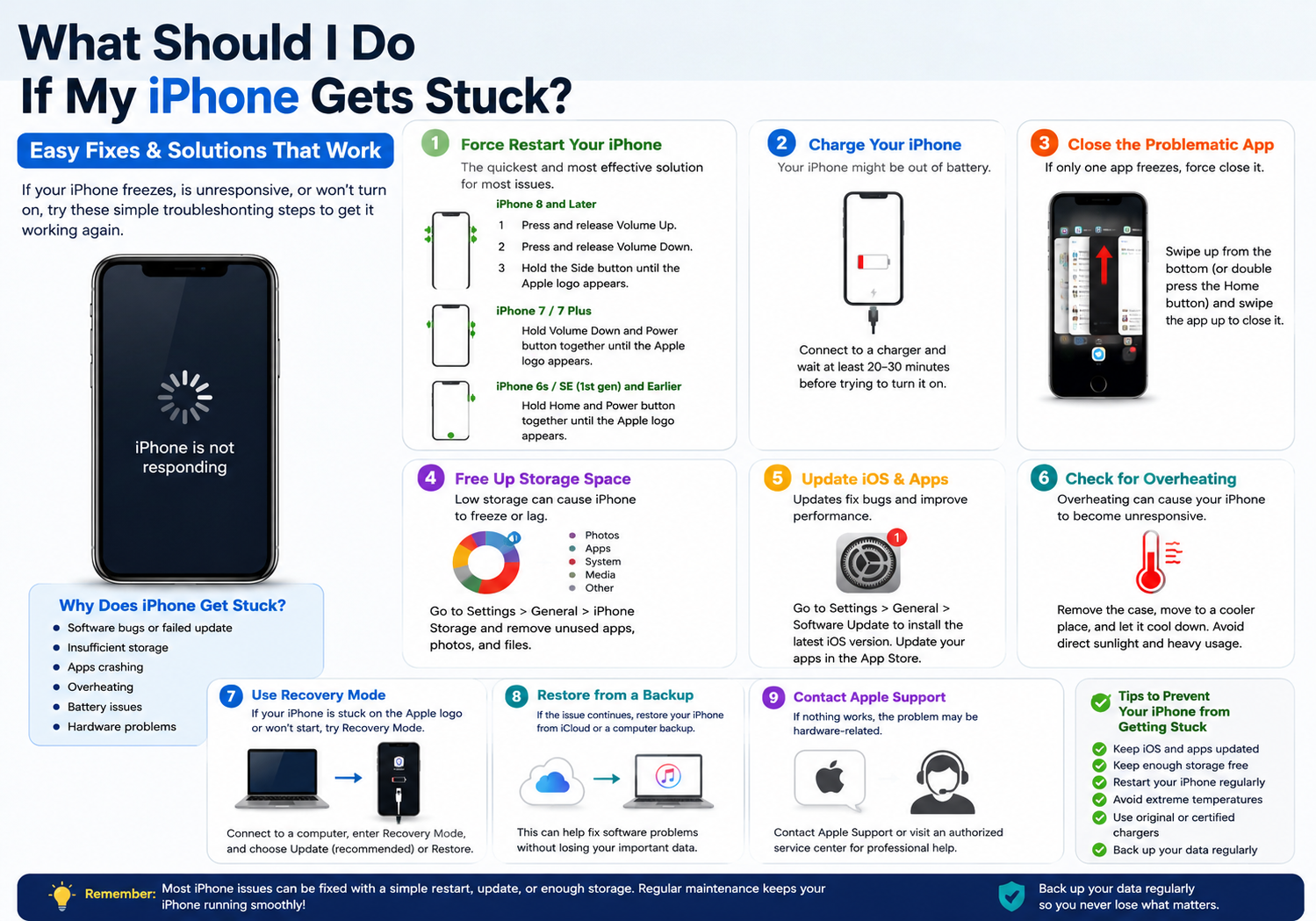
Tips to Prevent Your iPhone from Freezing
To reduce the chances of future problems:
- Keep iOS updated.
- Install app updates regularly.
- Avoid filling storage completely.
- Restart your iPhone occasionally.
- Use certified charging accessories.
- Avoid exposing the phone to extreme temperatures.
- Remove apps you no longer use.
- Back up your data regularly.
Following these habits can improve performance and extend the life of your device.
Frequently Asked Questions
Will a force restart delete my data?
No. A force restart simply reboots the device and does not erase your photos, apps, or personal files.
Why is my iPhone stuck on the Apple logo?
This can happen after a failed software update, corrupted system files, or hardware issues. Recovery Mode is often the best solution.
Can low storage cause freezing?
Yes. When available storage is extremely low, iOS may become slow or unresponsive because it has limited space for temporary system files.
Is overheating dangerous?
Occasional overheating usually causes the iPhone to temporarily limit performance for protection. However, repeated overheating may indicate a battery, charging, or hardware issue that should be investigated.
Final Thoughts
A frozen iPhone is often caused by temporary software glitches, insufficient storage, or problematic apps, and many issues can be resolved with a simple force restart or software update. If basic troubleshooting doesn’t solve the problem, more advanced options such as Recovery Mode or restoring from a backup can help recover normal operation.
By keeping your iPhone updated, maintaining sufficient free storage, and regularly backing up your data, you can minimize the chances of your device becoming unresponsive and ensure it continues to perform reliably.