










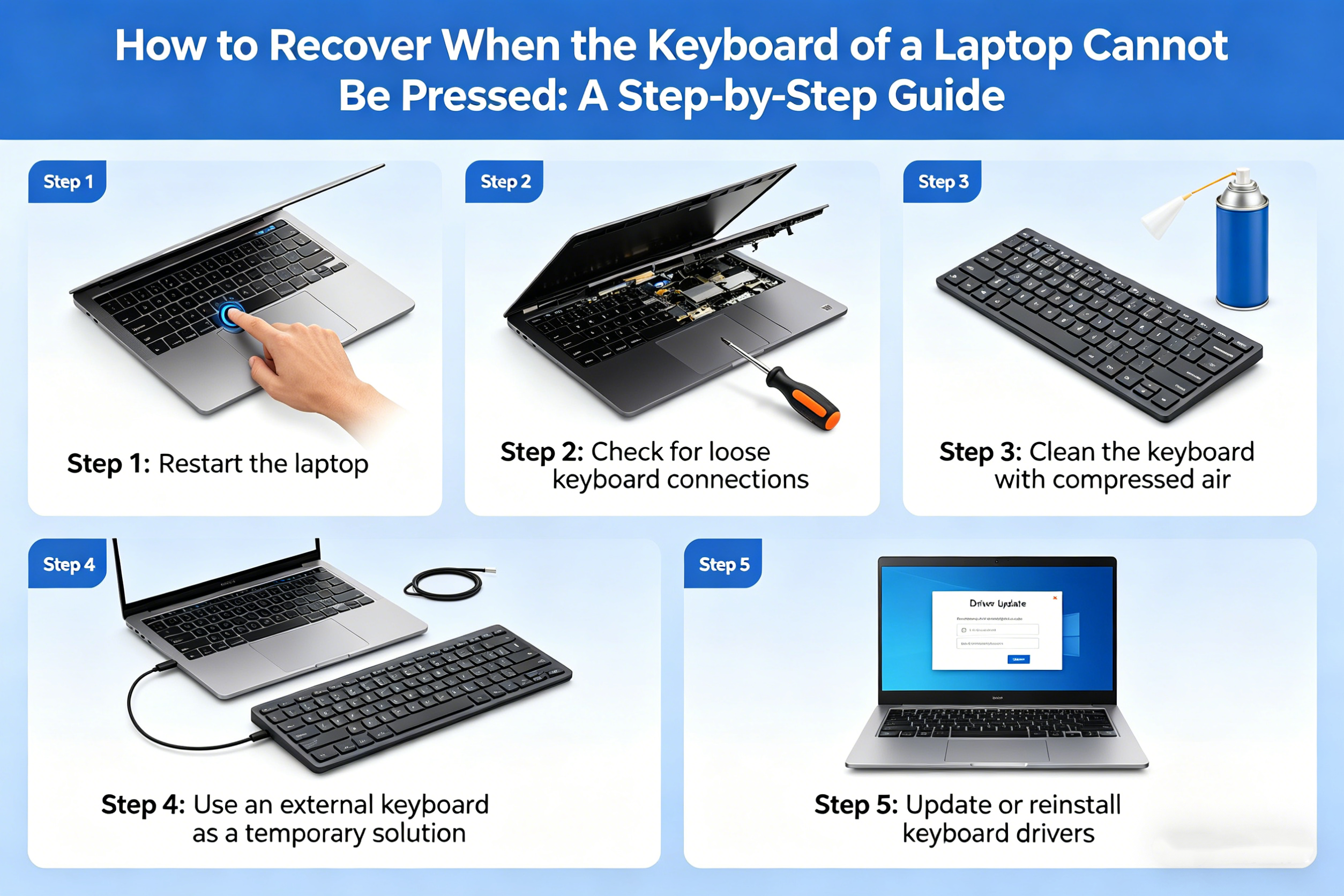
A laptop keyboard that suddenly stops responding can be incredibly frustrating, especially if you rely on it for work, study, or leisure. Whether it’s a physical issue, a software glitch, or a system malfunction, there are several methods you can try to restore full functionality to your laptop keyboard. Here’s a comprehensive guide to help you recover when your laptop keyboard cannot be pressed.
Step 1: Check for Physical Issues
Before diving into software-based fixes, it’s essential to first ensure there are no physical issues with your laptop keyboard.
- Clean the Keyboard: Dust, dirt, or debris can sometimes cause individual keys or even the entire keyboard to become unresponsive. Use a can of compressed air to blow out any dirt from between the keys. If necessary, you can lightly dampen a microfiber cloth with water or isopropyl alcohol and gently wipe the keyboard.
- Check for Sticky Keys or Obstructions: Sometimes, physical objects like food crumbs or liquid spills can cause a keyboard to stop working. Inspect your keyboard to see if any keys are stuck or jammed.
- External Keyboard: If you have an external USB or Bluetooth keyboard available, connect it to your laptop. If the external keyboard works, it could indicate a hardware issue with the built-in laptop keyboard, which may need repair or replacement.
Step 2: Restart the Laptop
If there’s no obvious physical problem, the issue might be related to software or system glitches. A simple restart can sometimes resolve these problems by refreshing the system and restarting any processes that could be causing the keyboard to malfunction.
- Shut down the laptop completely (not just hibernate or sleep mode).
- Wait for a few seconds, and then power it back on.
- Test the keyboard once the laptop restarts to see if it’s functioning properly again.
Step 3: Check the Keyboard Settings
Sometimes, the problem may be due to a setting or configuration that was inadvertently changed. Here are a few things to check:
-
Sticky Keys Feature: Windows and macOS both have accessibility features like “Sticky Keys” that can alter how the keyboard responds. Check if Sticky Keys or other accessibility features are turned on.
For Windows:
- Go to Settings > Ease of Access > Keyboard.
- Ensure that “Sticky Keys” and “Filter Keys” are turned off.
For macOS:
- Go to System Preferences > Accessibility > Keyboard.
- Make sure “Sticky Keys” is disabled.
-
Language and Input Settings: Sometimes, an incorrect keyboard layout or language setting can cause the keyboard to behave strangely. Make sure your system is set to the correct keyboard layout.
For Windows:
- Open Settings > Time & Language > Language.
- Ensure that the Preferred language and keyboard layout match your location or preference.
For macOS:
- Go to System Preferences > Keyboard > Input Sources.
- Ensure your desired input source is selected.
Step 4: Update or Reinstall Keyboard Drivers
Outdated or corrupted keyboard drivers are a common cause of unresponsive keyboards. Updating or reinstalling these drivers can often fix the problem.
- Windows:
- Right-click the Start Menu and select Device Manager.
- Expand the Keyboards section, right-click your keyboard device, and select Update Driver.
- Follow the on-screen instructions to update the driver. If no update is available, you can also try uninstalling and reinstalling the driver.
- To uninstall, right-click on the keyboard device, select Uninstall device, and then restart your laptop. Windows should automatically reinstall the driver upon restart.
- macOS:
macOS typically handles keyboard drivers automatically, but ensuring your system is up-to-date can help. Check for updates by:- Going to System Preferences > Software Update.
- Install any available updates, as they may include fixes for hardware-related issues.
Step 5: Perform a System Restore or Reset (Windows)
If the above methods don’t solve the problem and the keyboard is still unresponsive, performing a system restore may help. A System Restore can revert your system to a previous point when the keyboard was functioning correctly.
- Windows:
- Type System Restore into the Start Menu search bar and select Create a restore point.
- In the System Properties window, click on the System Restore button.
- Follow the prompts to restore your system to an earlier state.
If System Restore doesn’t work, you can try a Reset:
- Go to Settings > Update & Security > Recovery.
- Under Reset this PC, click Get started and follow the instructions.
- macOS:
macOS doesn’t have a “restore” function like Windows, but you can reset your system settings by restarting your Mac and holding down Command + R to enter macOS Recovery. From there, you can choose to reinstall macOS or use the Disk Utility to repair the system.

Step 6: Check for Hardware Issues
If all software fixes fail and the keyboard remains unresponsive, there could be a deeper hardware issue with your laptop. Some common hardware problems include:
- Loose or damaged keyboard connection: The ribbon cable connecting the keyboard to the motherboard might be loose or damaged.
- Faulty keyboard: The physical keyboard itself may have failed due to wear, liquid spills, or other issues.
At this point, it’s best to contact the manufacturer’s customer support or visit a professional repair service for further diagnosis. If your laptop is under warranty, you may be eligible for a free repair or replacement.
Step 7: Use an External Keyboard (Temporary Solution)
If you need immediate access to your laptop and cannot resolve the keyboard issue right away, you can use an external USB or Bluetooth keyboard. This will allow you to continue using your laptop until you can fix the built-in keyboard.
- USB Keyboard: Plug a USB keyboard into one of your laptop’s USB ports.
- Bluetooth Keyboard: If your laptop supports Bluetooth, pair it with a wireless Bluetooth keyboard to regain full functionality.
Conclusion
A laptop keyboard that stops responding can be a nuisance, but most issues can be resolved with the right troubleshooting steps. Start by checking for physical issues and cleaning the keyboard, then move on to software-based fixes such as restarting the laptop, adjusting keyboard settings, and updating drivers. If these methods don’t work, performing a system restore or resetting your system may help. For more serious hardware problems, it’s advisable to contact technical support or visit a repair service.
With these steps, you should be able to get your laptop keyboard working again in no time, or at least have a temporary solution to continue your work.