






Facebook Twitter Instagram
    Trending
    • Vape Batteries Explained: The Ultimate Guide to Safety, Performance, and Care
    • Vapsolo has launched the Sixer 180K, upgrading the design of its disposable e-cigarette products with a 6-in-1 architecture.
    • VEEV One Plus has been officially launched. PMI of Philip Morris International has upgraded the closed electronic cigarette design with a “double pod storage” feature
    • OLIVEBAR introduces RAZ PRO 85K, offering an upgraded single-use Vape experience with 85,000 puffs and a transparent oil tank
    • How to Delete old iCloud Backup Files on an iPhone?
    • DJI Mic Mini 2S Released: Supports 32-bit internal recording, supports one-to-four audio output.
    • See you in August! The Appearance of Redmi K100 series fully matches that of iPhone 18 Pro
    • Details of the battery for Apple iPhone 18 Pro Max have been revealed
    Facebook YouTube
    IGeeKphone China Phone, Tablet PC, VR, RC Drone News, Reviews
    • HOME
      • NEWS
        • DeepSeek
        • ChatGPT
        • Minecraft
    • Amazon
    • PHONE
      • Top Phones For Your First Choice
      • Phone Comparison
      • Xiaomi
      • Blackview
      • Doogee
      • Black Shark
      • Geekbuying
      • Banggood
      • TEMU
      • TikTok
      • Aliexpress
      • Walmart
      • MercadoLibre
      • Lazada
    • TOP VAPE Awards for 2026
    • VAPES
      • E-CIGAR Upcoming
      • Vape News
      • Vape Deals
      • Vape Comparison
      • Vape Guide
      • Giveaway
    • BEST VAPE
      • Best Vape Stores
      • Best Starter Vape Kits
      • Best Vapes for Beginners
      • Best Disposable Vapes
      • Best Pod Systems
      • Best Pod Mod Vapes
      • Best Mods
      • Best Nicotine Pouches
      • Best Clearomizers/Tanks
      • Best E-Liquid
      • Best EGO/Pens
      • Best Vapes for Nic Salt E-Juice
      • Best Vapes to Quit Smoking
      • RDA vs. RDTA vs. RTA
    • Best Vape Brand 2026
      • VAPORESSO
      • VOOPOO
      • OXVA
      • NEXA BAR
      • MASKKING VAPE
      • SP2S
      • IPLAY
      • TODOO
      • MRFOG
      • LOSTVAPE
      • VEIIK
    • REVIEW
      • E-cigar Review
      • Phones
      • Tablet PC
      • TV Box
      • RC Drone
      • Wearables
      • Camera
      • Accessories
      • VR Headset
    • MORE
      • TABLET
        • Chuwi
        • INNOCN
        • Teclast
        • Top Tablet for Your First Choice
        • Tablet/Laptop Comparison
      • RC DRONE
      • CAMERA
      • WEARABLES
        • OneOdio
        • BlitzWolf
        • Top Smartwatch for First Choice
      • 3D PRINTER
        • 3D Printer Review
        • Anycubic
        • FLSUN
        • Xtool
        • LONGER
        • Top 3D printer to Choose First
      • POWER STATION
        • Oukitel
        • FOSSIBOT
      • GAMING
        • Top Gaming Products
      • E-BIKE
        • Samebike
        • Happyrun
        • ENGWE
      • SMART HOME
      • TV BOX
      • ACCESSORIES
      • VR HEADSET
      • CLOTHES
      • AUTO CAR
    • DEAL
    • VAPE LAWS
    • Shop
    IGeeKphone China Phone, Tablet PC, VR, RC Drone News, Reviews
    You are at:Home»Guide»How to Delete old iCloud Backup Files on an iPhone?
    Guide

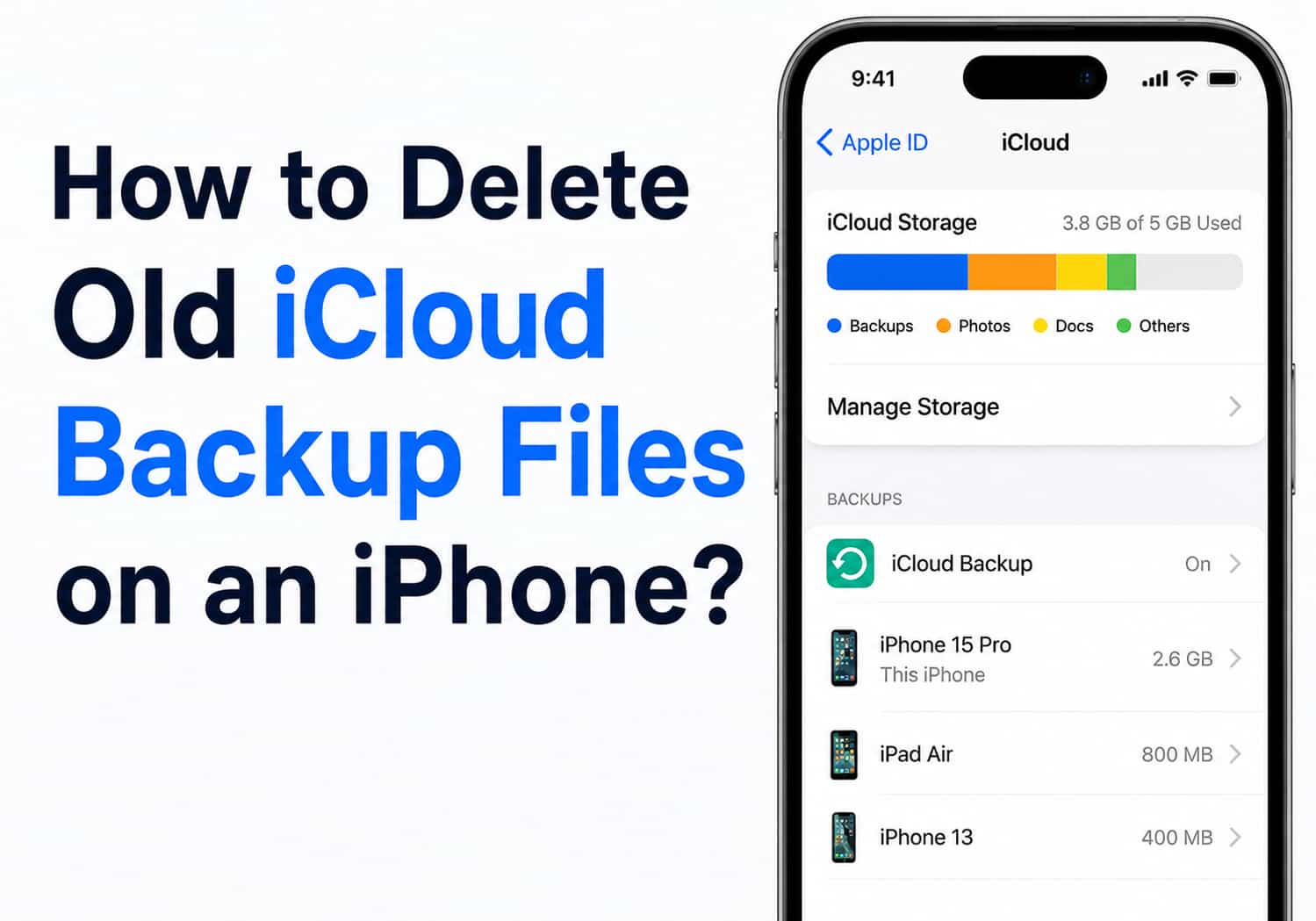
    How to Delete old iCloud Backup Files on an iPhone?

    Brady CottonBy Brady CottonJuly 3, 2026
    Facebook Twitter Pinterest LinkedIn Tumblr Email

    iCloud is a convenient way to back up your iPhone, ensuring that your photos, app data, settings, and important information are safe if your device is lost or replaced. However, over time, old backups from previous iPhones or unused devices can consume valuable iCloud storage.

    If you’re running out of storage or simply want to clean up your iCloud account, deleting old iCloud backup files is a quick and effective solution. In this guide, we’ll show you exactly how to delete old iCloud backups on your iPhone.

    Why Delete Old iCloud Backups?

    Old iCloud backups can take up several gigabytes of storage, especially if they include photos, videos, and app data. Removing backups you no longer need can help you:

    • Free up iCloud storage space
    • Avoid paying for additional iCloud storage
    • Keep your iCloud account organized
    • Remove backups from devices you no longer own
    • Make it easier to manage your current backups

    Before deleting a backup, make sure it’s not for a device you still use. Once deleted, the backup cannot be recovered.
    How to Delete an Old iCloud Backup on iPhone

    Follow these simple steps:

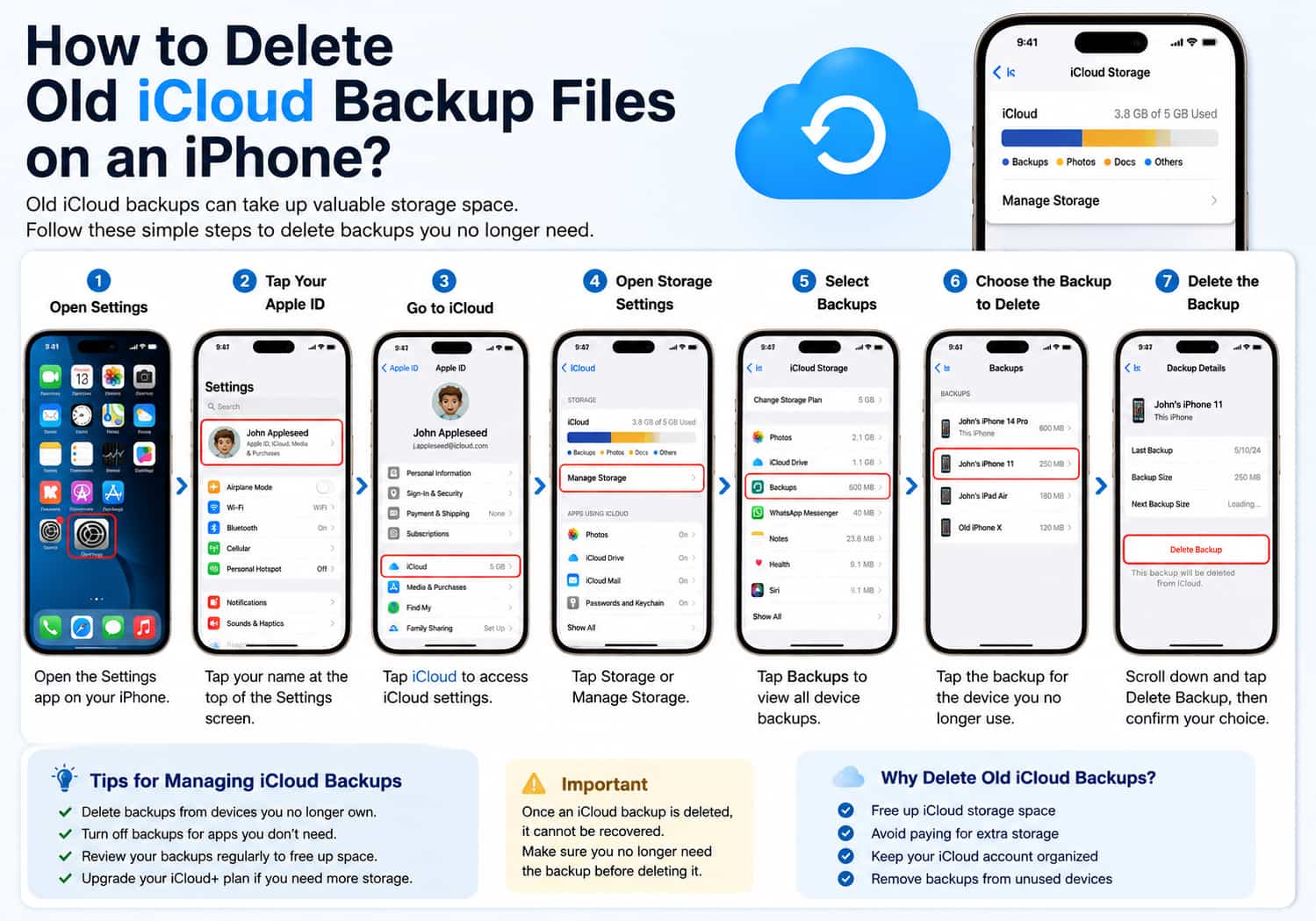
    Step 1: Open the Settings App

    Unlock your iPhone and tap the Settings app.

    Step 2: Tap Your Apple ID

    At the top of the Settings screen, tap your name to open your Apple Account settings.

    Step 3: Go to iCloud

    Tap iCloud to access your iCloud storage and backup options.

    Step 4: Open Storage Settings

    Tap Storage (or Manage Storage, depending on your version of iOS).

    You’ll see a breakdown of what’s using your iCloud storage.

    Step 5: Select Backups

    Tap Backups to view all device backups stored in your iCloud account.

    You’ll see:

    • Your current iPhone
    • Older iPhones
    • iPads
    • Other Apple devices linked to your Apple ID

    Step 6: Choose the Backup to Delete

    Tap the backup for the device you no longer use.

    Review the device name and backup size to make sure you’ve selected the correct one.

    Step 7: Delete the Backup

    Scroll to the bottom of the screen and tap Delete Backup.

    A confirmation message will appear.

    Tap Turn Off & Delete or Delete to confirm.

    The selected backup will be permanently removed from iCloud.

    How to Delete App Data from an iCloud Backup

    If you don’t want to delete the entire backup, you can reduce its size by excluding certain apps.

    1. Open Settings.
    2. Tap your Apple ID.
    3. Tap iCloud.
    4. Tap Storage or Manage Storage.
    5. Tap Backups.
    6. Select your current iPhone.
    7. Under Choose Data to Back Up, turn off apps you don’t need backed up.
    8. Confirm your selection when prompted.

    This helps reduce future backup sizes while keeping the backup itself.

    How Much iCloud Storage Do You Need?

    Apple provides 5GB of free iCloud storage, which may not be enough if you back up multiple devices or store lots of photos and videos.

    If you regularly run out of space, consider:

    • Deleting old backups
    • Removing unnecessary files
    • Managing large app backups
    • Upgrading to an iCloud+ storage plan if you need additional space

    Cleaning up old backups is often the fastest way to recover storage without paying for more.

    What Happens After You Delete a Backup?

    Deleting an old iCloud backup removes:

    • Device settings
    • App data
    • Messages stored in the backup
    • Home Screen layout
    • Health data (if included)
    • Other backup information

    It does not delete data currently stored on your active iPhone.

    Only the saved backup copy in iCloud is removed.

    Tips for Managing iCloud Backups

    To keep your iCloud storage organized:

    • Delete backups from devices you no longer own.
    • Review your backups every few months.
    • Turn off backups for apps that don’t contain important data.
    • Remove old devices from your Apple ID if you no longer use them.
    • Monitor your available iCloud storage regularly.

    These simple habits can help prevent storage issues and keep your backups efficient.

    Frequently Asked Questions

    Can I recover a deleted iCloud backup?

    No. Once an iCloud backup is deleted, it cannot be restored. Make sure you no longer need it before confirming deletion.

    Will deleting a backup erase my iPhone?

    No. Deleting an iCloud backup only removes the stored backup from Apple’s servers. It does not affect the data currently on your iPhone.

    Can I delete backups from old iPhones?

    Yes. If an old iPhone no longer belongs to you or is no longer in use, it’s safe to delete its backup to free up storage.

    Why is my iCloud storage still full after deleting a backup?

    Other data such as Photos, iCloud Drive files, Messages, Mail, or app data may still be using storage. Check Settings > Apple ID > iCloud > Storage to see what’s taking up space.

    Final Thoughts

    Deleting old iCloud backup files is one of the easiest ways to reclaim valuable iCloud storage. Whether you’ve upgraded to a new iPhone or simply want to keep your account organized, removing outdated backups only takes a few minutes and can free up several gigabytes of space.

    By reviewing your iCloud backups regularly and keeping only the ones you truly need, you’ll ensure your storage remains organized, your backups stay efficient, and your current iPhone continues to back up smoothly.

    Share. Facebook Twitter Pinterest LinkedIn Tumblr Email

    Related Posts

    Revolutionizing Home Cleaning: Exploring the Advanced Features of the Newest Robotic Vacuum Cleaner

    How to Troubleshoot iPhone Personal Hotspot Issues

    DIY Beaded Moms Birthday Gifts: Crafting Memories with Beaded Jewelry

    Leave A Reply Cancel Reply

    You must be logged in to post a comment.

    voopoopintch
    oxva nexlim 2
    sp2s sen x disposable vape
    • Popular
    • 3D Printer REVIEW
    • XIAOMI
    June 21, 2026

    iPlay LUMO 8K Review – A Compact Prefilled Pod Kit with Big Flavor and Everyday Convenience

    June 21, 2026

    iPlay HOOLA 150K Review – A Cloud-Chasing Giant with Music, Modes & Massive Longevity

    June 21, 2026

    Vaporesso VIBE SE 2 Review – Simple on the Outside, Surprisingly Smart on the Inside

    June 21, 2026

    VOOPOO DRAG H40 Pro Review – The Return of the Pocket Powerhouse

    December 26, 2025

    ACMER ASCARVA 4S: Precision CNC Power for Makers, DIYers & Small Workshops

    June 23, 2024

    ACMER P2 20W Laser Engraver Fixed Focus Engraving: Hands on Review

    May 30, 2024

    xTool F1 Ultra Review: World’s First 20W Fiber & 20W Diode Laser Engraver

    May 30, 2024

    Anycubic Kobra 3 Combo Review: The Multicolor Masterpiece?

    July 3, 2026

    See you in August! The Appearance of Redmi K100 series fully matches that of iPhone 18 Pro

    July 3, 2026

    Flash Sale Alert: Upgrade Your TV with the Xiaomi TV Box S 3rd Gen at $79.99– 4K Entertainment at an Unbeatable Price!

    July 2, 2026

    Xiaomi Wireless Mouse 4 Pro Released: First to Feature TOG Global Sensor, priced at 199 yuan

    July 2, 2026

    Redmi K100 series has obtained the network access license: The entire series is equipped with the Snapdragon 8E5 chip.

    fc 26 coins
    New Arrivals
    • OnePlus Pad Lite 2 OnePlus Pad Lite 2
    • OnePlus Ace 7 OnePlus Ace 7
    • JNR Lucky Vibe 77K Puffs Refillable Vape Kit JNR Lucky Vibe 77K Puffs Refillable Vape Kit
    • Smoant Flex Neo Smoant Flex Neo
    • Nevoks Livi Pod Kit Nevoks Livi Pod Kit
    • Keystone Keyplay Vape Keystone Keyplay Vape
    • Google Pixel 12 Pro XL Google Pixel 12 Pro XL
    • ZTE Nubia Fold 2 ZTE Nubia Fold 2
    • Redmi Note 16 Pro Global Redmi Note 16 Pro Global
    About
  • Igeekphone.com provides the first global tech news and reviews about smartphone, vapes, e-cigar, smart home, 3D printers, e-bike,tablets, RC drones, VR headset, and other accessories. It's the best platform to improve your brand and product.
  • Contact us: info@igeekphone.com
  • Check Our Privacy Policy Here.
  • Note: *Right now we have US editor and EU editors for review, especially for Amazon US and EU.
  • *Shop and Compare Price Here*
  • Facebook
  • Youtube
  • Mashable is a global, multi-platform media and entertainment company

    For more queries and news contact us on this

    Email: info@mashablepartners.com

  • OUR BEST VAPE PARTNERS
  • VAPE ONLINE STORE
  • HAYATI PRO MAX PLUS
  • VAPORESSO
  • VOOPOO
  • OXVA
  • NEXA
  • MASKKING
  • SP2S
  • IPLAY
  • TODOO
  • OTHER BEST PARTNERS
  • SVBONY
  • Chuwi
  • Blackview
  • Fossibot
  • Unihertz
  • Flsun
  • Anycubic
  • Xtool
  • Oukitel
  • Mukkpet Ebike
  • Ugreen
  • Copyright © 2026 igeekphone

    Type above and press Enter to search. Press Esc to cancel.