









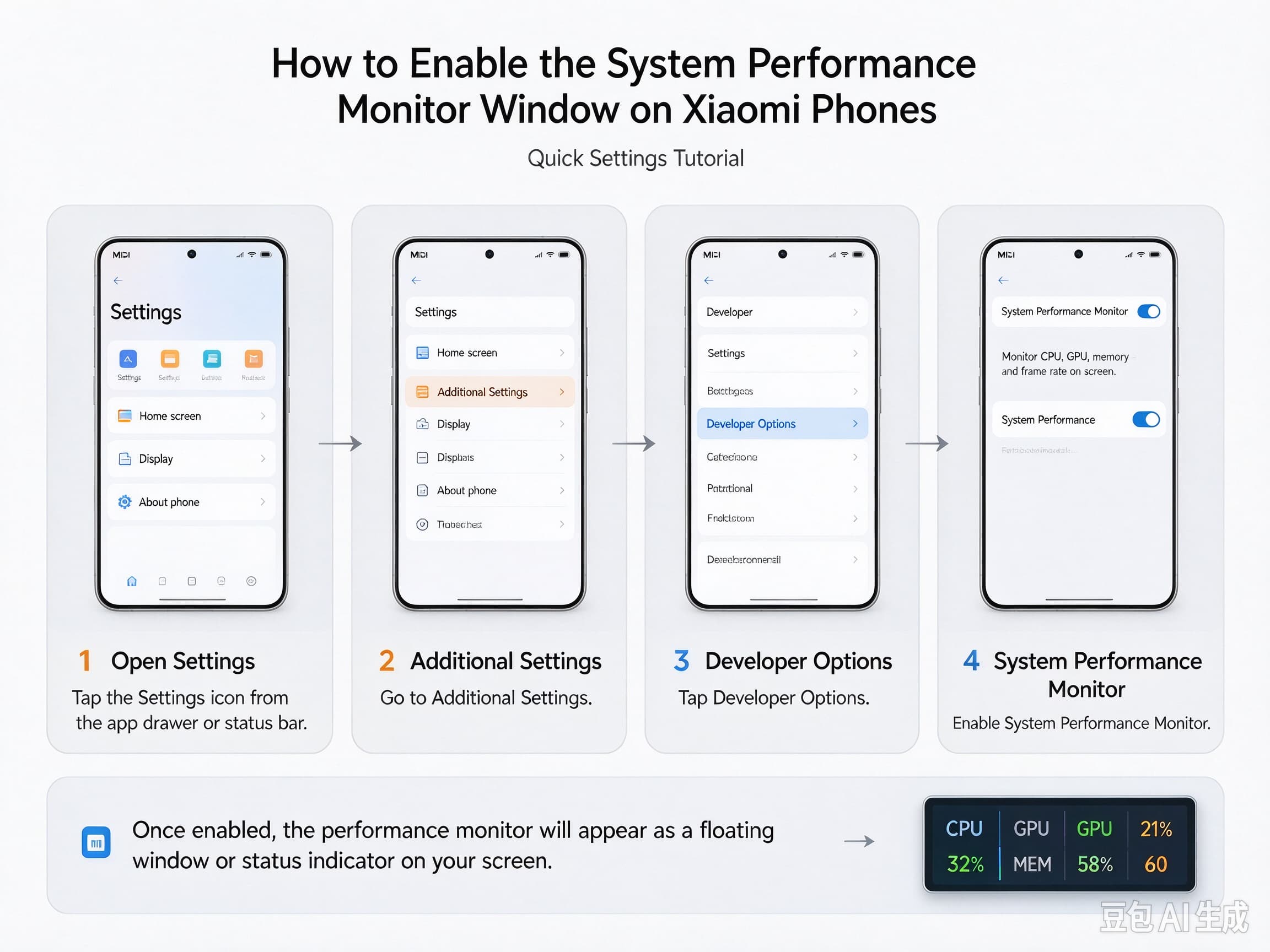
When testing a game, troubleshooting lag, or checking how demanding an app is on your Xiaomi phone, real-time performance information can help you understand what is happening behind the screen. A performance monitor may display CPU activity, frame-rate information, or other system statistics without requiring you to leave the app you are using.
However, Xiaomi phones do not all provide the same monitoring tools. The available options depend on the phone model, MIUI or HyperOS version, and whether you want a built-in system indicator or a movable third-party floating window.
This guide explains how to find the relevant settings, enable performance information, and adjust the window’s position when the monitoring tool supports it.
1. Check Which Performance Monitor Your Phone Supports
Before changing any settings, decide what information you want to see.
- CPU usage: Helps you identify when the processor is under heavy load.
- Frame rate (FPS): Useful for checking gaming smoothness and performance changes.
- Screen refresh rate: Shows the display’s refresh-rate setting or current refresh rate, depending on the feature.
- Memory and network activity: May require a separate monitoring application if your system does not provide these details in a built-in overlay.
These indicators measure different things. For example, a display running at 120Hz does not necessarily mean a game is rendering 120 frames per second.
2. Enable Developer Options on Your Xiaomi Phone
Some built-in performance and debugging indicators are available through Developer options. If you have not enabled this menu before, follow these steps.
- Open Settings on your Xiaomi phone.
- Tap About phone.
- Find the MIUI or OS version entry. Depending on your device, you may need to open Detailed info and specs or a similarly named page.
- Tap the version entry repeatedly until the phone confirms that developer mode has been enabled. On many Xiaomi devices, this requires seven taps.
- Return to Settings and open Additional settings or the corresponding system settings page.
- Select Developer options.
You may need to enter your screen-lock password or PIN to confirm certain actions.
The exact labels can differ between MIUI and HyperOS releases. If you cannot find the version entry or Developer options, use the Settings search bar to look for the relevant menu.
If you want to explore more hidden system settings, read our guide to Xiaomi phone settings and useful features to discover more ways to customize your device.
3. Look for the Built-In CPU Usage Indicator
If you only need a quick view of processor activity, check whether your phone provides a CPU usage indicator.
- Open Settings.
- Enter Additional settings and then Developer options, if available.
- Scroll through the available options.
- Look for Show CPU usage or a similarly named indicator.
- Turn it on if your phone offers the setting.
On Android versions that include this feature, enabling it can display CPU activity as a small on-screen overlay. It is useful when comparing how different apps affect processor load.
Keep in mind that this indicator is not a complete performance dashboard. It may not show memory usage, temperatures, battery health, or gaming FPS.
Important: The built-in CPU indicator may have a fixed position and may not support dragging or repositioning. If your goal is to move the monitoring window to another corner of the screen, check whether your particular system tool offers a position setting before assuming that the indicator can be moved.
4. Adjust the Position of a Floating Performance Window
If you are using a monitoring application that supports a movable floating window, you may be able to place it where it is easiest to read.
Allow the application to display over other apps
First, check the application’s permissions.
- Open Settings and go to Apps or App management.
- Select the monitoring application.
- Open its permissions or special permissions page.
- Look for Display over other apps, Show pop-up windows, or a similarly named option.
- Allow the permission if the application requires it and you trust the app.
Some Xiaomi system versions place this permission under a special permissions menu. The exact path varies, so searching Settings for “display over other apps” can be faster than navigating through every submenu.
Move the window to a suitable location
Once the floating window is enabled:
- Open the monitoring application and activate its overlay.
- Return to the screen where you want to monitor performance.
- Press and hold the floating panel or its designated drag handle.
- Move it to an area that does not cover important buttons, subtitles, or game controls.
- Release it and check whether the new position is retained.
Not every app uses the same gesture. Some require you to open a floating-window settings page and enable a movable-window option first. Others may only allow you to choose from preset positions.
If the panel does not move, consult the application’s own settings rather than repeatedly changing unrelated Android permissions.
5. What to Do If the Performance Monitor Does Not Appear
A missing or invisible monitoring window does not necessarily indicate a system fault. Check the following possibilities.
The feature is unavailable on your software version. Xiaomi changes settings and developer tools across devices and system releases. Search for terms such as “CPU usage,” “frame rate,” “performance,” or “monitor” in Settings.
The overlay permission is disabled. A third-party monitoring tool may run normally while being prevented from drawing over other apps. Check its special permissions.
The app’s monitoring service has stopped. Reopen the app and confirm that monitoring is enabled. If the application provides Start and Stop controls, verify that monitoring is actually running.
The window is hidden behind another interface. Return to the home screen or close full-screen menus to see whether the overlay becomes visible.
Battery restrictions are interrupting the app. If the window disappears after some time, check the application’s battery and background-running settings. Change restrictions only when necessary, because allowing persistent background activity may increase battery consumption.
The system uses a different feature name. A refresh-rate indicator, CPU usage display, gaming FPS tool, and third-party resource monitor are not interchangeable. Make sure you are looking for the correct feature.
If your Xiaomi phone feels slow or drains its battery while running background processes, our guide on how to fix excessive system battery consumption on the Redmi Note 13 can help you investigate system activity and identify possible causes.
6. Choose the Right Tool for Gaming or Troubleshooting
The best monitoring method depends on what you are trying to diagnose.
| Your goal | What to look for |
|---|---|
| Check processor load | Built-in CPU usage indicator, if available |
| Evaluate gaming smoothness | An FPS monitor or supported gaming overlay |
| See the display refresh rate | A refresh-rate indicator |
| Track memory or network activity | A monitoring tool that explicitly supports those metrics |
| Move the panel away from controls | A floating-window tool with drag or position settings |
For gaming tests, compare performance under similar conditions. Keep the game settings, graphics quality, and test scene consistent. A single CPU or FPS reading is less useful than observing how the numbers change during the same workload.
Avoid installing several monitoring applications at once. Multiple overlays can obscure the screen, consume additional resources, and make troubleshooting more complicated.
7. Does Enabling Performance Monitoring Affect Battery Life?
A simple system indicator usually has less overhead than a detailed monitoring app that continuously records several metrics. Nevertheless, the impact depends on how frequently the tool samples data and whether it draws graphs or runs background services.
If you only need to investigate a temporary slowdown, enable monitoring for the test and turn it off afterward. This keeps the display uncluttered and reduces unnecessary background activity.
Do not confuse a performance monitor with a performance mode. A monitor reports information; a performance mode changes how the phone manages resources. Turning on a monitoring overlay does not automatically make games run faster.
Frequently Asked Questions
Can I move the built-in Xiaomi CPU usage window?
Not necessarily. The built-in indicator may use a fixed position. If there is no drag gesture or position option, you may need a compatible monitoring application that supports movable overlays.
Do I need to root my Xiaomi phone?
Usually, no. Enabling Developer options and using a supported overlay generally do not require root access. Some advanced diagnostic features may have additional requirements, but rooting is not a sensible first step for simply displaying performance information.
Why can I see CPU usage but not FPS?
CPU usage and FPS are separate measurements. A CPU indicator does not automatically measure rendered frames. Look for a supported FPS-monitoring feature or a compatible gaming tool.
Will the same instructions work on MIUI and HyperOS?
The general approach is similar, but menu names and available options can vary. Follow the labels shown on your own device rather than relying on a menu path from another Xiaomi model.
Final Thoughts
Enabling a performance monitor on a Xiaomi phone starts with identifying the information you need. Developer options may provide a basic CPU indicator, while gaming tools or compatible third-party applications may offer FPS readings and movable floating windows.
If the monitoring window appears but cannot be repositioned, first confirm whether the feature supports dragging. The built-in CPU indicator and a third-party floating panel may look similar, but their controls and capabilities can be quite different.
For the most accurate instructions, identify your phone model and software version before changing advanced settings. This helps you find the right monitoring feature without installing unnecessary apps or altering unrelated system options.