









An iPhone photo library can grow surprisingly quickly. Screenshots, duplicate pictures, old downloads, blurry shots and videos you no longer need can gradually consume a significant amount of storage. Deleting these files individually is possible, but it becomes frustrating when hundreds of unwanted images have accumulated.
Fortunately, Apple’s Photos app includes a selection feature that allows you to remove multiple pictures and videos in one operation. You can also narrow down your library by date, album or media type before selecting files, making the cleanup process much faster.
This guide explains how to bulk delete photos on an iPhone, how to remove unwanted images more efficiently, and what happens to deleted pictures when iCloud Photos is enabled.
If you’re also following Apple’s latest smartphone developments, take a look at our coverage of the iPhone Air 2’s rumored camera upgrades.
1. How to Delete Multiple Photos at Once on iPhone
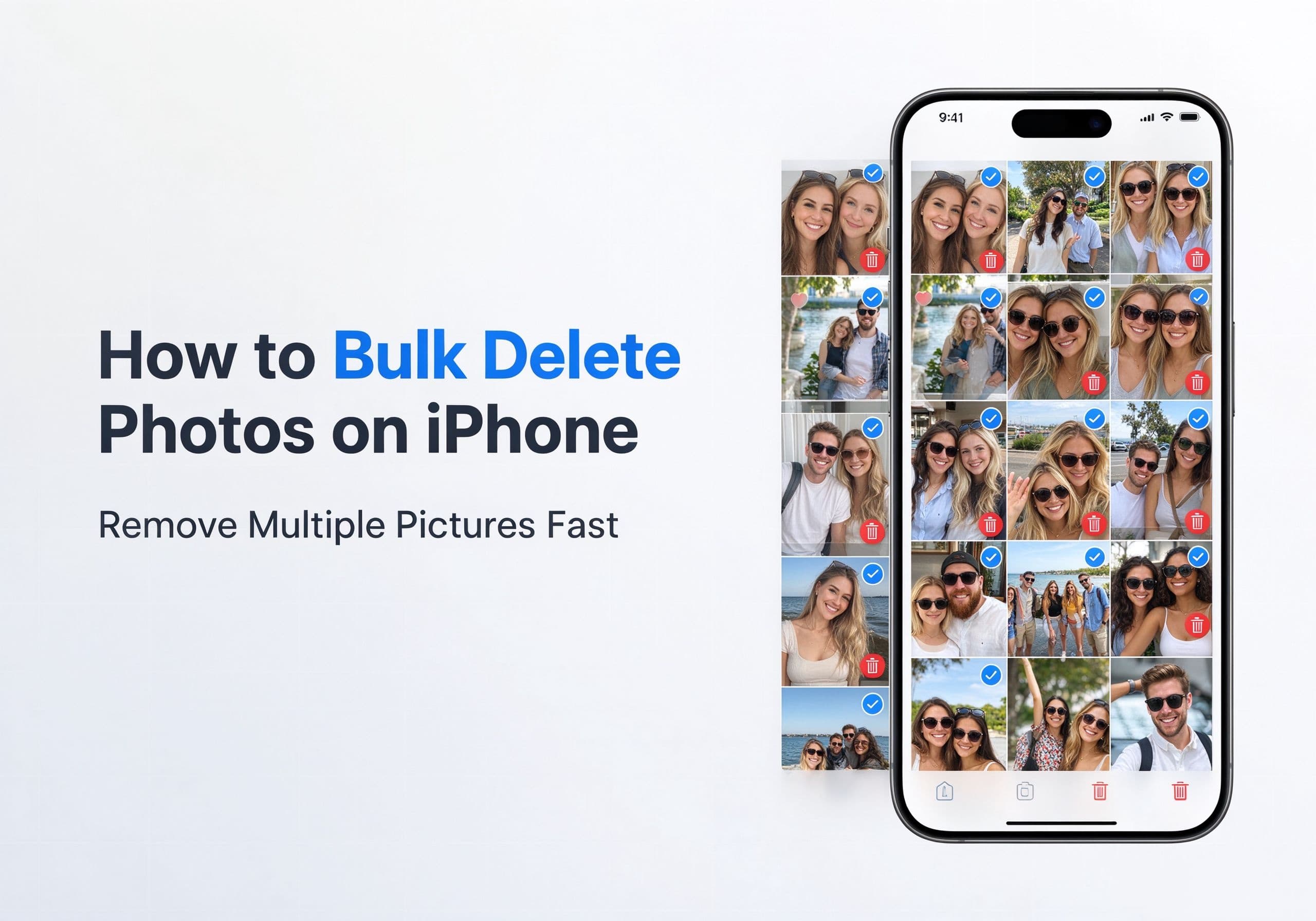
The easiest method is to use the built-in Select function in Apple’s Photos app. You do not need to install another application or change your iPhone settings.
Follow these steps:
- Open the Photos app on your iPhone.
- Go to your photo library or open the album containing the pictures you want to remove.
- Tap Select in the upper-right corner.
- Tap each unwanted photo or video to mark it.
- To select a continuous group more quickly, touch a photo and drag your finger across the other thumbnails.
- Check the selected images to make sure you have not included anything important.
- Tap the trash-can icon.
- Confirm by selecting Delete Photos or the corresponding deletion option displayed on your iPhone.
A useful time-saving tip: You do not always have to tap every thumbnail separately. After tapping Select, press and drag across a row of pictures. You can continue moving your finger through the grid to mark multiple images in sequence. This is particularly helpful when cleaning up a large collection of screenshots or similar photos.
2. Select Photos by Date to Clean Up Your Library Faster
If your photo library contains thousands of pictures, scrolling through the entire collection can take a long time. Organizing your selection by date makes the process easier.
In the Photos app, browse the library’s date-based views and locate the period you want to clean up. Depending on your iOS version, you can switch between views such as Years, Months and All Photos.
You can then:
- Find an older month containing pictures you no longer need.
- Tap Select to enter selection mode.
- Drag across the thumbnails to select several images.
- Review the selection before deleting.
This approach works particularly well for temporary pictures, such as old screenshots, event photos that have already been backed up, or images downloaded for one-time use.
Be careful when deleting an entire period. A month may contain important family pictures, travel memories or documents alongside unwanted images.
3. Delete Screenshots, Videos and Other Unwanted Media Separately
Not every photo takes up the same amount of storage. A short screenshot may occupy relatively little space, while a high-resolution video can consume hundreds of megabytes or more.
Instead of treating every file equally, start with media categories that are easier to identify.
Open Photos and navigate to the relevant media collections or albums. Depending on your iOS version, you may find categories such as:
- Screenshots: Old screen captures, receipts and temporary reference images.
- Screen Recordings: Videos captured while recording your iPhone display.
- Videos: Large recordings that may occupy more storage than ordinary photos.
- Selfies: Older portraits or repeated shots.
- Bursts: Multiple frames captured in quick succession.
Open a category, tap Select, mark the unwanted items and delete them together.
For users trying to reclaim storage quickly, reviewing large videos is often a more effective starting point than deleting hundreds of small screenshots.
4. How to Permanently Delete Multiple Photos on iPhone
Deleting photos from the main library does not necessarily remove them immediately from the device. iOS normally places deleted items in the Recently Deleted album, where they remain available for recovery for a limited period.
If you are certain that you no longer need the pictures, you can remove them permanently.
- Open the Photos app.
- Find Recently Deleted in the Utilities section.
- Unlock the album using Face ID, Touch ID or your device passcode if requested.
- Tap Select.
- Choose the photos and videos you want to erase permanently.
- Tap the deletion option and confirm.
You can also choose to delete all eligible items in Recently Deleted if you have reviewed the contents carefully.
Important: Permanently deleted photos generally cannot be restored through the Photos app. Check your selection carefully before confirming.
5. What Happens When You Delete Photos with iCloud Photos Enabled?
This is one of the most important details to understand before cleaning up an iPhone.
When iCloud Photos is enabled, your photo library is synchronized across devices using the same Apple Account. If you delete a photo from your iPhone, the deletion is normally synchronized to your other devices as well.
For example:
- You delete a picture from your iPhone.
- The same picture is removed from your synchronized iPad.
- It also disappears from the Photos library on your other devices using the same iCloud Photos library.
- The deleted item remains in Recently Deleted temporarily, where it can usually be recovered.
This means iCloud Photos is not simply a separate backup that protects every picture from deletion. It is a synchronization service.
If your goal is to free up iPhone storage without removing pictures from your iCloud Photos library, consider using Apple’s Optimize iPhone Storage feature instead.
To check it:
- Open Settings.
- Tap your Apple Account name.
- Select iCloud.
- Open Photos.
- Make sure Sync this iPhone is enabled if you use iCloud Photos.
- Select Optimize iPhone Storage.
This allows iOS to keep smaller, space-saving versions on your iPhone while retaining full-resolution originals in iCloud, subject to available cloud storage and synchronization status.
6. How to Free Up iPhone Storage Without Deleting Important Photos
Deleting pictures is not always the best way to solve a storage problem. If your library contains valuable memories, consider these alternatives before removing anything.
Use Optimize iPhone Storage
This is one of the simplest options for users who want to keep their full-resolution photo collection synchronized while reducing local storage use.
Transfer important photos to a computer
You can import pictures to a Mac or Windows PC before removing them from your iPhone. Check that the transferred files open correctly before deleting the originals.
Back up photos to another storage location
An external drive or a separate cloud-storage service can provide another copy of important images. Make sure the backup has completed and is accessible before cleaning up your original library.
Review large videos first
Videos can occupy much more space than individual photos. Removing unnecessary recordings may recover storage faster with fewer deletions.
7. Why Can’t I Delete Some Photos on My iPhone?
Sometimes the trash icon is unavailable, or certain pictures cannot be removed through the normal Photos interface.
Several situations can explain this:
Photos synchronized from a computer
Pictures synced to an iPhone through Finder or older iTunes workflows may not be individually deletable from the Photos app. You may need to change the synced albums or folders on the computer used to manage them.
iCloud synchronization is still processing
If your library is syncing, changes may take time to appear across devices. Check your Photos synchronization status and internet connection.
Shared albums and shared libraries
Photos in Shared Albums or an iCloud Shared Photo Library can have different deletion and ownership rules. Your permissions may determine which actions are available.
The Photos interface has changed
Apple regularly updates iOS. Button names, album locations and selection controls may look slightly different depending on your installed version.
If the deletion option is missing, first check where the picture came from and whether it belongs to a synchronized or shared collection.
8. Mistakes to Avoid When Deleting Photos in Bulk
Bulk deletion is convenient, but removing a large number of images in one operation also increases the chance of losing something important.
Keep these precautions in mind:
- Do not assume iCloud Photos is an independent backup. Deletions can synchronize across your devices.
- Review the selected thumbnails before confirming. A quick swipe can accidentally include pictures you intended to keep.
- Do not empty Recently Deleted immediately. Give yourself time to recover anything removed by mistake.
- Verify external backups. Make sure your computer or storage service actually contains the original files.
- Check shared and synchronized albums. Their deletion rules may differ from those of ordinary library pictures.
A little preparation can prevent an otherwise simple storage cleanup from becoming a data-recovery problem.
Final Thoughts
Bulk deleting photos on an iPhone is straightforward once you know how the Select feature works. You can mark multiple thumbnails, drag across a grid to select groups, or clean up specific categories such as screenshots and videos.
For larger libraries, organizing the process by date and media type makes it easier to identify unnecessary files. If your main objective is to reclaim storage rather than permanently remove memories, Optimize iPhone Storage may be a better solution.
The most important thing to remember is that iCloud Photos synchronizes deletions. Before removing hundreds of pictures, make sure your important images have another verified copy or that you genuinely no longer need them.
FAQ
Can I delete hundreds of photos at once on an iPhone?
Yes. Open Photos, tap Select and drag your finger across the thumbnails to mark multiple pictures. Review the selection and tap the trash icon to delete them together.
Can I select all photos on my iPhone at once?
The Photos app does not provide a universal one-tap Select All command for the entire main library in every iOS version. You can use the Select and drag gesture to select large groups, or work through individual albums and date ranges.
How do I delete photos permanently?
After deleting pictures from your library, open Recently Deleted, select the items and confirm permanent deletion. This action is generally irreversible through the Photos app.
Will deleting photos from my iPhone also delete them from iCloud?
If iCloud Photos is enabled, deleting an item from your synchronized library normally removes it from iCloud Photos and other synchronized devices. Use Optimize iPhone Storage if you want to reduce local storage consumption without deleting the cloud library.
What is the fastest way to free up photo storage?
Review large videos, screen recordings and unnecessary media first. These files can consume significantly more space than ordinary photographs.
Can I recover photos after deleting them?
Deleted photos usually remain in Recently Deleted for up to 30 days. You can restore them during that period unless they have already been permanently removed.