




Facebook Twitter Instagram
    Trending
    • XKJ K22 MAX RC Quadcopter Review: A Blend of Innovation and Fun
    • The Rise of Gamification in Education: Making Learning Fun and Engaging
    • The Healing Powers of CBD: A Holistic Ally for Emotional and Physical Wellness
    • Airis Neo P40K Disposable Vape Review: High-Capacity Performance with Smart Design
    • Maskking Extre 100K Disposable Vape Review: Ultra-Long-Lasting Performance with Premium Flavor
    • Huawei Pura X2’s Design Details Revealed: Exaggerated screen size on the front, 200 million pixels on the Rear
    • SMOK Volle Kit Review: The Compact and Convenient Pod System for Effortless Vaping
    • How to Take Panoramic Photos with iPhone Air?
    Facebook YouTube
    Login Register
    IGeeKphone China Phone, Tablet PC, VR, RC Drone News, Reviews
    • HOME
      • NEWS
        • DeepSeek
        • ChatGPT
        • Minecraft
    • Amazon
    • NEW YEAR
    • PHONE
      • Top Phones For Your First Choice
      • Phone Comparison
      • Xiaomi
      • Blackview
      • Doogee
      • Black Shark
      • Geekbuying
      • Banggood
      • TEMU
      • TikTok
      • Aliexpress
      • Walmart
      • MercadoLibre
      • Lazada
    • TOP VAPE Awards for 2026
    • VAPES
      • E-CIGAR Upcoming
      • Vape News
      • Vape Deals
      • Vape Comparison
      • Vape Guide
      • Giveaway
    • BEST VAPE
      • Best Vape Stores
      • Best Starter Vape Kits
      • Best Vapes for Beginners
      • Best Disposable Vapes
      • Best Pod Systems
      • Best Pod Mod Vapes
      • Best Mods
      • Best Nicotine Pouches
      • Best Clearomizers/Tanks
      • Best E-Liquid
      • Best EGO/Pens
      • Best Vapes for Nic Salt E-Juice
      • Best Vapes to Quit Smoking
      • RDA vs. RDTA vs. RTA
    • Best Vape Brand 2026
      • VAPORESSO
      • VOOPOO
      • OXVA
      • NEXA BAR
      • ORIONBARTECH
      • MASKKING VAPE
      • MEMERS
      • SP2S
      • JNR
      • TODOO
      • MRFOG
      • VEIIK
    • REVIEW
      • E-cigar Review
      • Phones
      • Tablet PC
      • TV Box
      • RC Drone
      • Wearables
      • Camera
      • Accessories
      • VR Headset
    • MORE
      • TABLET
        • Chuwi
        • INNOCN
        • Teclast
        • Top Tablet for Your First Choice
        • Tablet/Laptop Comparison
      • RC DRONE
      • CAMERA
      • WEARABLES
        • OneOdio
        • BlitzWolf
        • Top Smartwatch for First Choice
      • 3D PRINTER
        • 3D Printer Review
        • Anycubic
        • FLSUN
        • Xtool
        • LONGER
        • Top 3D printer to Choose First
      • POWER STATION
        • Oukitel
        • FOSSIBOT
      • GAMING
        • Top Gaming Products
      • E-BIKE
        • Samebike
        • Happyrun
        • ENGWE
      • SMART HOME
      • TV BOX
      • ACCESSORIES
      • VR HEADSET
      • CLOTHES
      • AUTO CAR
    • DEAL
    • Shop
    IGeeKphone China Phone, Tablet PC, VR, RC Drone News, Reviews
    You are at:Home»FAQ»How To Connect Ps4 To Monitor?
    FAQ

    How To Connect Ps4 To Monitor?

    Brady CottonBy Brady CottonJune 10, 2022
    Facebook Twitter Pinterest LinkedIn Tumblr Email

    Gaming can be a great way to relieve stress and unwind. It can also be a way to socialize with friends and family, as well as meet new people. If you’re a serious gamer, you might be interested in connecting your PS4 to a monitor so you can enjoy your games on a larger screen. Luckily, this is fairly easy to do. This article will tell you how to connect your PS4 to a monitor. 

    A monitor is an electronic device that displays information in visual form. It can be used to display a variety of things, including text, images, and video. Monitors are commonly used in computers, televisions, and other electronic devices. 

    There are a few different types of monitors, including CRT (cathode ray tube), LCD (liquid crystal display), and LED (light emitting diode) monitors. Each type has its own advantages and disadvantages. 

    PlayStation is a home video game console by Sony. The console was first released in 1994 and has sold over 140 million units worldwide. The PlayStation is the best-selling home video game console of all time. 

    The PlayStation 4, released in 2013, has sold over 40 million units worldwide as of June 2016. The console’s success has been attributed to its strong lineup of exclusive games such as Uncharted 4: A Thief’s End, The Last of Us Remastered, and Bloodborne. 

    Check out this amazing article – Best Monitors For Overwatch 

    Benefits Of Using A Computer Monitor As A Console Display? 

    There are many benefits of using a computer monitor as a console display. Perhaps the most obvious benefit is that you can use a much larger monitor than you could with a traditional console. This can give you a better gaming experience, as you’ll be able to see more of the action. 

    Another benefit is that you can use your computer monitor’s speakers for audio output, rather than having to invest in a separate audio system. This can save you money and desk space. Additionally, many computer monitors have built-in USB ports, which can be used to connect game controllers or other peripherals. 

    If you’re looking for the best possible gaming experience, though, it’s worth considering investing in a dedicated gaming monitor. These monitors are designed specifically for gaming, and often have features like higher refresh rates and lower input lag. However, they can be more expensive than regular computer monitors. 

    How To Connect A Ps4 To A Monitor?  

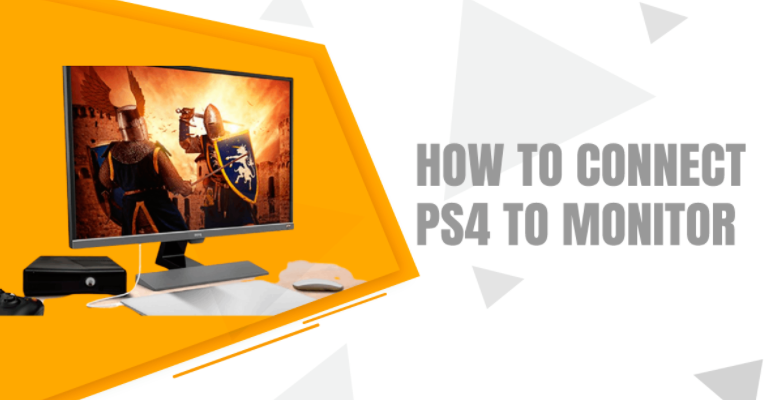
    There are a few different ways that you can connect a PS4 to a monitor. The most common way is to use an HDMI cable, which will connect the PS4 directly to the monitor. Alternatively, you can use a DVI-to-HDMI adapter to connect the PS4 to a monitor with a DVI input. Finally, you can use a DisplayPort-to-HDMI adapter to connect the PS4 to a monitor with a DisplayPort input. Whichever method you choose, make sure that your monitor supports HDMI input. 

    • Turn off your PS4 and monitor. 
    • Connect one end of the HDMI cable to the HDMI port on the back of your PS4. 
    • Connect the other end of the HDMI cable to the HDMI input on your monitor. 
    • Turn on your monitor and PS4. 
    • Press the power button on your PS4 controller to turn on your PS4. 

    Your PS4 should now be displayed on your monitor. If you have a wireless controller, you may need to sync it to your PS4 before it will work. To do this, press and hold the PlayStation button on your controller for a few seconds, then press and hold the Share button until the light on the back of your controller starts flashing. 

    Some More Methods To Connect Your PS4 To Monitor 

    You can also connect your PS4 to a monitor using a DVI-to-HDMI adapter. To do this, simply connect the DVI end of the adapter to the DVI port on the back of your PS4, and then connect the HDMI end of the adapter to the HDMI input on your monitor. 

    Alternatively, you can use a DisplayPort-to-HDMI adapter to connect your PS4 to a monitor with a DisplayPort input. Simply connect the DisplayPort end of the adapter to the DisplayPort port on the back of your PS4, and then connect the HDMI end of the adapter to the HDMI input on your monitor. 

    Once you’ve connected your PS4 to your monitor, you should see the PS4’s home screen displayed on your monitor. If you have a wireless controller, you may need to sync it to your PS4 before it works. To do this, press and hold the PlayStation button on your controller for a few seconds, then press and hold the Share button until the light on the back of your controller starts flashing. 

    To know more about monitor, PC, GPU, Motherboard, etc. Visit – ThunderBot.gg 

    Common Problems When Connecting Your PS4 To A Monitor 

    There are a few common problems that can occur when connecting your PS4 to a monitor. One problem is that the image on your monitor may appear stretched or distorted. This can usually be fixed by changing the aspect ratio settings in your PS4’s display settings menu. Another common problem is that the image on your monitor may appear blurred or fuzzy. This can usually be fixed by changing the display setting on your PS4 from “Standard” to “RGB.” Finally, if you’re using a DVI-to-HDMI adapter to connect your PS4 to your monitor, you may need to set your PS4’s HDMI output resolution to 720p or 1080i in order for the image to be displayed properly. 

    How To Connect PS4 To PC Monitor VGA? 

    If you want to connect your PS4 to a PC monitor, there are a few things that you’ll need to do. First, you’ll need to make sure that your monitor has a VGA input. If it doesn’t, you’ll need to purchase an adapter that will allow you to connect the two devices. 

    Once you have the proper adapter, you’ll need to connect the PS4’s HDMI output port to the adapter. Then, simply connect the adapter to the VGA input on your monitor. You should see a picture on your screen once everything is properly connected. Keep in mind that you won’t be able to use your monitor’s speakers when using this connection method. You’ll need to connect external speakers or headphones to the PS4 in order to hear audio. 

    Conclusion 

    As you can see, there are a few different ways that you can connect your PS4 to a monitor. Whether you want to use an HDMI cable, DVI-to-HDMI adapter, or DisplayPort-to-HDMI adapter, you should be able to get your PS4 connected to your monitor with relative ease. Just make sure that you have the proper cables or adapters before getting started. 

    We hope that this article has helped you. If you have any questions then let us know in the comment section. Thanks for reading. 

    Share. Facebook Twitter Pinterest LinkedIn Tumblr Email

    Related Posts

    The Healing Powers of CBD: A Holistic Ally for Emotional and Physical Wellness

    5 Casino Games Every Beginner Should Try

    Quantum Cryptography: Securing Data in the Age of Quantum Computing

    Leave A Reply Cancel Reply

    You must be logged in to post a comment.

    voopoo drag s3
    oxva xlim 3 ultra
    sp2s sen x disposable vape
    jnr 100k
    • Popular
    • 3D Printer REVIEW
    • XIAOMI
    January 21, 2026

    VOOPOO ARGUS P3 VS ARGUS P2: Which Square Pod Suits You?

    January 21, 2026

    VOOPOO Drag X3 vs VOOPOO Drag X2: Hands-On Comparison

    January 1, 2026

    VOOPOO ARGUS P3: The Touchscreen Pod That Feels Like a Mini Mod (Review)

    December 26, 2025

    Vaporesso XROS 5 Nano: Touchscreen Control Meets True Nano Portability (Review)

    December 26, 2025

    ACMER ASCARVA 4S: Precision CNC Power for Makers, DIYers & Small Workshops

    June 23, 2024

    ACMER P2 20W Laser Engraver Fixed Focus Engraving: Hands on Review

    May 30, 2024

    xTool F1 Ultra Review: World’s First 20W Fiber & 20W Diode Laser Engraver

    May 30, 2024

    Anycubic Kobra 3 Combo Review: The Multicolor Masterpiece?

    January 29, 2026

    Xiaomi Launches REDMI Monitor G25 with 200Hz High Refresh Rate for Just 609 Yuan

    January 29, 2026

    The Specifications of the Strongest Flagship Model of Redmi, Redmi K100 Pro Max, have been Released

    January 28, 2026

    Xiaomi’s First Outdoor 4G Camera is Released: Free data, no Speed Limit. One Unit is Equivalent to two at 379 yuan

    January 28, 2026

    Xiaomi Redmi Turbo 5 Smartphone has been officially Announced to be Equipped with MediaTek 8500-Ultra Processor

    fc 26 coins
    New Arrivals
    • Airis Neo P40K Disposable Vape Airis Neo P40K Disposable Vape
    • Maskking Extre 100K Disposable Vape Maskking Extre 100K Disposable Vape
    • SMOK Volle Pod System Kit SMOK Volle Pod System Kit
    • Lost Vape Astara Pod System Kit Lost Vape Astara Pod System Kit
    • SALT BAE 50 40K DISPOSABLE SALT BAE 50 40K DISPOSABLE
    • CRAVE X ULTRA SLIM 40K DISPOSABLE CRAVE X ULTRA SLIM 40K DISPOSABLE
    • AVOTX SPACE 3 40K DISPOSABLE AVOTX SPACE 3 40K DISPOSABLE
    • ARRO Infiniti 40K Nicotine Free Disposable Vape ARRO Infiniti 40K Nicotine Free Disposable Vape
    • GRANDFADDA 3000 DISPOSABLE E-CIGAR GRANDFADDA 3000 DISPOSABLE E-CIGAR
    About
  • Igeekphone.com provides the first global tech news and reviews about smartphone, vapes, e-cigar, smart home, 3D printers, e-bike,tablets, RC drones, VR headset, and other accessories. It's the best platform to improve your brand and product.
  • Contact us: info@igeekphone.com
  • Check Our Privacy Policy Here.
  • Note: *Right now we have US editor and EU editors for review, especially for Amazon US and EU.
  • *Shop and Compare Price Here*
  • Facebook
  • Youtube
  • OUR BEST VAPE PARTNERS
  • VAPE ONLINE STORE
  • HAYATI PRO MAX PLUS
  • VAPORESSO
  • VOOPOO
  • OXVA
  • NEXA
  • MASKKING
  • LOSTVAPE ORIONBAR
  • MEMERS
  • TODOO
  • SP2S
  • JNR
  • VEIIK
  • OTHER BEST PARTNERS
  • SVBONY
  • Chuwi
  • Blackview
  • Fossibot
  • Unihertz
  • Flsun
  • Anycubic
  • Xtool
  • Oukitel
  • Mukkpet Ebike
  • Ugreen
  • Copyright © 2026 igeekphone

    Type above and press Enter to search. Press Esc to cancel.