










Laptops are designed to be versatile and efficient machines, but like all technology, they can sometimes encounter performance issues. One frustrating problem that many users face is the sudden slowdown of their laptops after they’ve been idle for an extended period of time. If you’ve ever come back to your laptop after leaving it idle for a few hours or overnight, only to find it sluggish and unresponsive, you’re not alone. Fortunately, this issue can often be resolved with a few simple troubleshooting steps.
In this article, we’ll explore the common causes of this issue and offer practical solutions to get your laptop running smoothly again.
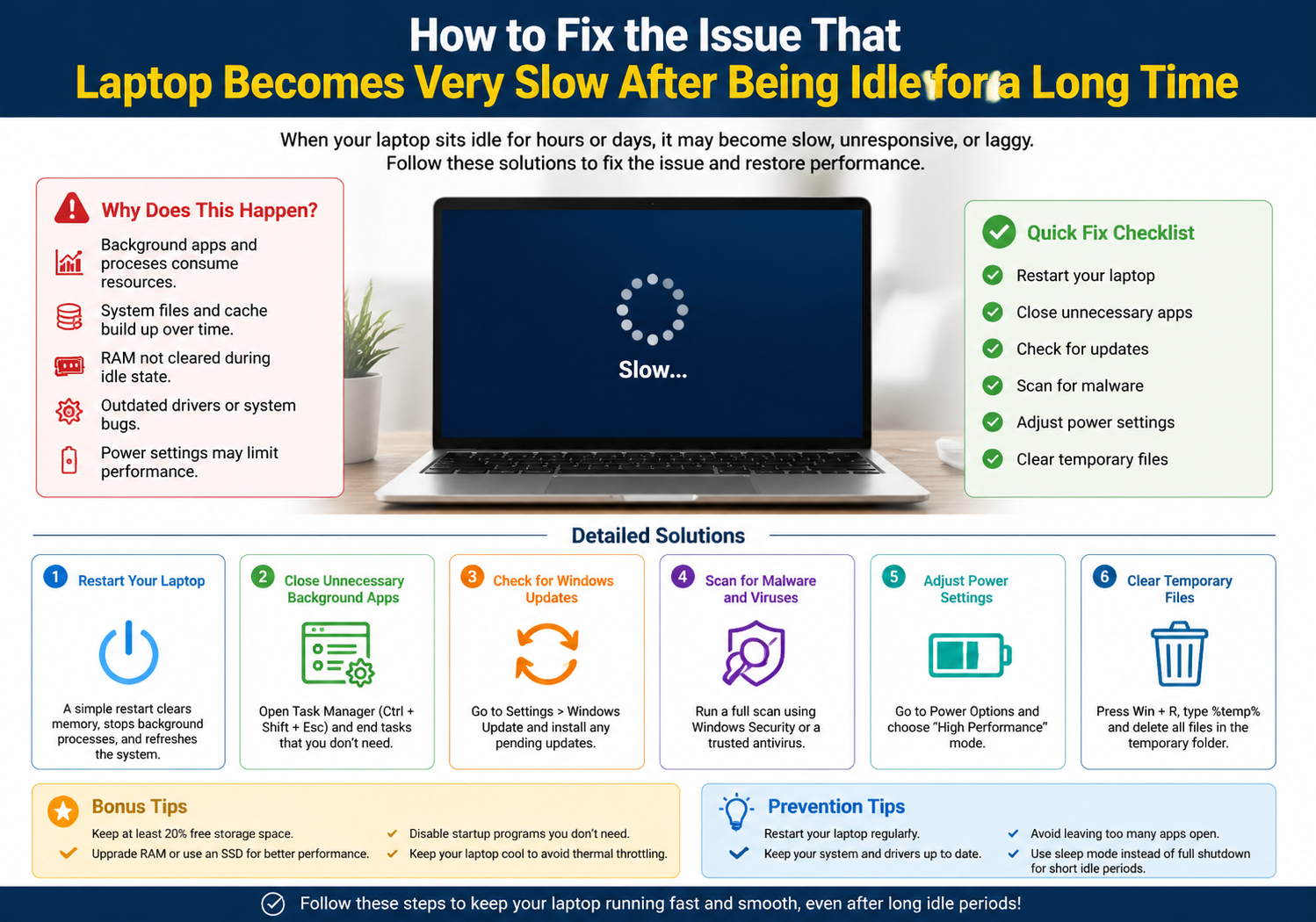
Why Does a Laptop Slow Down After Being Idle?
There are several reasons why your laptop may slow down after being idle for a long time. Understanding the underlying causes can help you pinpoint the right solution. Some common reasons include:
- Power Management Settings
- Many laptops use power-saving modes to preserve battery life when left idle. While this can help save energy, it can sometimes cause the laptop to lag when you resume activity, as processes may not be properly optimized.
- Background Processes and Updates
- When a laptop is idle, many background tasks (like system updates, antivirus scans, or application processes) may run. These processes can consume CPU and memory resources, leaving your laptop feeling sluggish when you return.
- Overheating
- If your laptop has been left on for an extended period, it may overheat. Overheating can cause the CPU to throttle its performance, making the laptop slower when you try to use it after being idle.
- RAM and Virtual Memory Issues
- If your laptop doesn’t have enough physical RAM, it may rely on virtual memory (hard drive space) to make up for it. When the laptop goes idle for a while, too much data may be stored in the virtual memory, causing it to slow down when you resume.
- Software Bugs or Glitches
- Sometimes, software bugs or memory leaks can cause your laptop to slow down after being idle. This is often the case with poorly optimized software or old applications that haven’t been updated in a while.
Steps to Fix a Slow Laptop After Being Idle
Here are the most effective solutions to fix the issue of a slow laptop after being idle for a long time:
1. Adjust Power Settings
Power management settings can sometimes cause your laptop to become sluggish after being idle. You can optimize these settings to ensure that your laptop remains responsive.
How to adjust power settings:
- For Windows:
- Go to Settings > System > Power & sleep.
- Under Sleep, select Never for both the battery and plugged-in options.
- Click on Additional power settings.
- Choose High performance or Balanced, and then click on Change plan settings. Ensure that your laptop isn’t entering sleep or hibernation too quickly.
- For macOS:
- Go to Apple Menu > System Preferences > Energy Saver.
- Set the sleep settings to a longer duration, or choose the option to prevent the system from going to sleep while plugged in.
2. Disable Unnecessary Background Processes
Background applications and tasks can use up valuable system resources, slowing your laptop down after it’s been idle. These tasks might include automatic updates, file indexing, or background apps.
How to disable unnecessary background processes:
- For Windows:
- Press Ctrl + Shift + Esc to open the Task Manager.
- Under the Processes tab, look for applications using high CPU or memory resources and end the tasks that are unnecessary.
- You can also go to the Startup tab and disable unnecessary startup programs that might be slowing down your system.
- For macOS:
- Go to Applications > Utilities > Activity Monitor.
- Identify any applications consuming too many resources and quit them.
- You can also go to System Preferences > Users & Groups > Login Items and remove any unnecessary startup programs.
3. Check for Software Updates
Outdated software, whether it’s the operating system or individual applications, can cause performance issues. Make sure your system and software are up-to-date.
How to check for updates:
- For Windows:
- Go to Settings > Update & Security.
- Click on Check for updates and install any available updates.
- For macOS:
- Go to the Apple Menu > System Preferences > Software Update.
- Click on Update Now to install any available updates.
4. Clean Up Hard Drive and Optimize Storage
A cluttered hard drive can lead to slower system performance, especially when your laptop has been idle and is trying to retrieve data. Cleaning up unnecessary files and optimizing your hard drive can help.
How to clean up and optimize storage:
- For Windows:
- Use the built-in Disk Cleanup tool to remove temporary files, system files, and other unnecessary data.
- Go to Settings > System > Storage, and click on Configure Storage Sense to automatically clean up files you no longer need.
- For macOS:
- Go to Apple Menu > About This Mac > Storage to see how much space is available.
- Use Finder to manually remove old files or large apps that you no longer need.
5. Reboot Your Laptop Regularly
Sometimes, simply restarting your laptop can resolve sluggishness. Rebooting helps clear out any system processes that might have been left open after being idle and can refresh the system.
6. Address Overheating Issues
Overheating can cause the CPU to throttle performance. Make sure your laptop is well-ventilated and isn’t being blocked by soft surfaces like a bed or couch, which can obstruct airflow.
How to prevent overheating:
- Use a cooling pad to help dissipate heat.
- Clean your laptop’s vents and fans to remove dust and dirt that might be causing overheating.
- Ensure your laptop is placed on a hard, flat surface to allow air to flow properly.
7. Check for Malware or Viruses
Malware or viruses can cause your laptop to slow down, even after being idle. Running a system scan with a trusted antivirus program can help identify and remove any malicious software.
Conclusion
A laptop slowing down after being idle can be caused by a variety of factors, but most of the time, it’s an issue that can be resolved with a few straightforward steps. By adjusting power settings, disabling unnecessary background processes, keeping your software updated, cleaning up your hard drive, and managing overheating, you can get your laptop running smoothly again.
Regular maintenance, such as clearing out old files, updating software, and keeping an eye on system performance, will help prevent these slowdowns from happening in the future, ensuring that your laptop continues to perform at its best.