









Upgrading your computer’s memory (RAM) is one of the simplest and most cost-effective ways to boost performance, especially if you’re running memory-intensive applications or gaming. Whether you’re looking to improve system responsiveness or multitask more efficiently, installing a new memory module can make a noticeable difference.
In 2026, with modern computers featuring faster memory speeds, larger capacities, and better overall performance, upgrading your RAM has become even more beneficial. However, before you get started, it’s important to ensure you have the right tools and knowledge to complete the installation without any hitches.
In this step-by-step guide, we’ll walk you through the process of installing a memory module, from selecting the right RAM to securely installing it in your computer.
Before You Begin: What You’ll Need
- New Memory Modules (RAM): Make sure to choose RAM that’s compatible with your computer. Check your motherboard specifications for supported memory types (e.g., DDR5, DDR4) and speeds (e.g., 4800 MHz, 6000 MHz). You can usually find this information on the manufacturer’s website or in the motherboard manual.
- Screwdriver: You’ll need a small screwdriver to open your computer case (usually a Phillips-head).
- Antistatic Wrist Strap (optional but recommended): To avoid damaging sensitive components with static electricity.
- Your Computer’s Manual (optional): A reference guide to help identify the specific slots on your motherboard.
- Clean Workspace: A clean, clutter-free surface to work on.
Step 1: Power Down and Unplug Your Computer
Before starting any hardware installation, power off your computer completely. Shut down the system, disconnect all cables, including the power cable, monitor, keyboard, and mouse. Ensure that the system is unplugged from the electrical outlet to avoid any risk of electrical shock or component damage.
Step 2: Open Your Computer Case
After ensuring your computer is powered off, you’ll need to open the case to access the motherboard.
- For Desktops: Most desktop PC cases are held together with screws at the back. Use your screwdriver to remove the screws, and then slide the side panel off to access the internal components.
- For Laptops: Opening a laptop can be a bit more tricky, as it requires removing the back panel or battery compartment. Refer to your laptop’s user manual or a guide specific to your laptop model for detailed instructions on how to safely access the RAM slot.
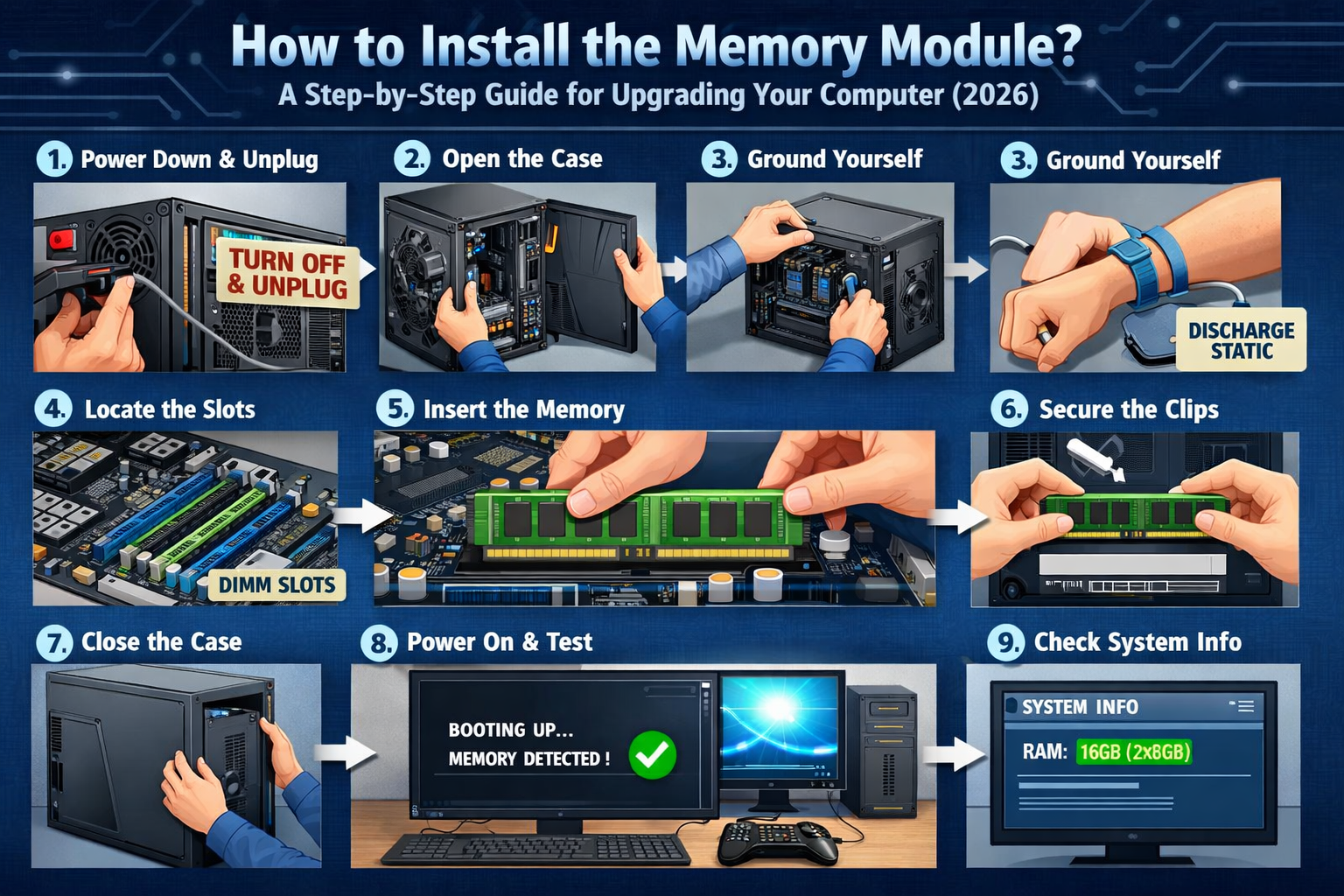
Step 3: Ground Yourself to Prevent Static Damage
Before you touch any internal components, it’s crucial to prevent static electricity from damaging your computer’s sensitive hardware. Use an antistatic wrist strap that grounds you to the metal part of the case. If you don’t have an antistatic wrist strap, regularly touch a grounded metal object (such as the metal frame of your computer case) to discharge any built-up static.
Step 4: Identify Your RAM Slots
Most modern motherboards come with two or four memory slots, and some will support dual-channel configurations, meaning you’ll need to install RAM modules in specific slots to maximize performance.
- Locate the RAM slots: RAM slots are long, horizontal slots usually located near the CPU on the motherboard. Each slot is typically secured by two small clips on either end.
- Check the existing memory configuration: If you’re adding more RAM, check if there are any empty slots. If you are replacing existing memory, gently release the clips that hold the current RAM in place (if applicable).
Step 5: Install the New Memory Module
Now, it’s time to install your new memory module. Here’s how you can do it correctly:
- Align the RAM Module: Take your new memory module and align it with the slot. RAM modules have a notch that ensures the module only fits in one direction. Make sure this notch is aligned with the corresponding ridge in the slot.
- Insert the RAM Module: Hold the memory module by its edges, avoiding touching the gold connectors. Line the module up with the slot and press down gently but firmly on both ends of the RAM. The module should snap into place with a slight click when the clips on the sides lock into the grooves of the module.
- Repeat for Additional Modules: If you’re installing multiple RAM modules, repeat the process for each one, ensuring you’re placing them in the correct slots. For optimal performance, install RAM in matching pairs (e.g., two 8GB modules in slots 1 and 3 for dual-channel operation).
Step 6: Double-Check the Installation
Once all RAM modules are seated properly in their slots, double-check that each one is securely inserted. The clips on both sides of the slots should be locked into place, and the module should not be loose or wobbly.
Step 7: Close the Case
With the memory modules successfully installed, it’s time to close the case:
- For Desktop PCs: Slide the side panel back onto the case and secure it with screws. Make sure everything is tightly closed.
- For Laptops: Replace the back panel or battery compartment and screw it back in place.
Step 8: Power On and Test the Installation
Now, it’s time to power on your computer to test the new memory installation:
- Reconnect everything: Plug your computer back into the electrical outlet, and reconnect the monitor, keyboard, and mouse.
- Power on your system: Press the power button and boot up your computer.
- Check System Recognition: Once the computer boots, you’ll want to confirm that the new RAM is recognized by your system. You can do this by:
- For Windows: Right-click on the “Start” button, select “Task Manager,” and then navigate to the “Performance” tab. Under “Memory,” you should see the total amount of RAM installed.
- For macOS: Click the Apple logo in the top-left corner, select “About This Mac,” and go to the “Memory” tab to see the installed RAM.
If everything is installed correctly, your system should display the updated amount of memory.
Step 9: Run a Memory Test (Optional)
To make sure your new memory is functioning properly, you can run a memory diagnostic test:
- For Windows: Open the Windows Memory Diagnostic tool (search for it in the Start menu) and select “Restart now and check for problems.”
- For macOS: Use the built-in Apple Diagnostics tool by holding the “D” key while restarting your Mac.
Conclusion: Enjoy Your Upgraded System
Congratulations, you’ve successfully installed your new memory module! Whether you’re upgrading for gaming, content creation, or general multitasking, adding more RAM to your computer can significantly improve your system’s performance.
Upgrading memory in 2026 is more accessible than ever, with faster RAM options and improved compatibility across devices. As long as you follow the steps carefully and ensure that everything is installed correctly, you’ll enjoy smoother performance and the ability to handle more demanding tasks with ease.
If you run into any issues, don’t hesitate to consult your motherboard or laptop manual for specific instructions, or check for firmware or BIOS updates that may be required for the new memory to function optimally.