






Facebook Twitter Instagram
    Trending
    • Which is better, a laptop or a desktop computer? Computer purchase guide
    • Geekbench score of Apple M5 Max chip has been Revealed: single-core performance exceeds that of the Ryzen 9 9950X 3D
    • Vivo X300 Ultra is the first to feature 3° optical image stabilization and a large sensor Long-Focus Lens
    • Apple iPhone 17e model is equipped with Ram 8GB, the same as the 16e model
    • ZLL SG110PRO RTR 1/10 Scale 4WD High-Speed Off-Road RC Car Review: Thrilling Performance and Durability
    • Emax, a Leading Load Bank Manufacturer in China
    • 20MP AOV 4 Lens Solar Security Camera Review: High-Definition, Eco-Friendly Outdoor Surveillance Solution
    • WHOOSH H1 H2 RTR 1/43 Scale Drift RC Car Review: Officially Licensed High-Speed Racing Fun
    Facebook YouTube
    Login Register
    IGeeKphone China Phone, Tablet PC, VR, RC Drone News, Reviews
    • HOME
      • NEWS
        • DeepSeek
        • ChatGPT
        • Minecraft
    • Amazon
    • PHONE
      • Top Phones For Your First Choice
      • Phone Comparison
      • Xiaomi
      • Blackview
      • Doogee
      • Black Shark
      • Geekbuying
      • Banggood
      • TEMU
      • TikTok
      • Aliexpress
      • Walmart
      • MercadoLibre
      • Lazada
    • TOP VAPE Awards for 2026
    • VAPES
      • E-CIGAR Upcoming
      • Vape News
      • Vape Deals
      • Vape Comparison
      • Vape Guide
      • Giveaway
    • BEST VAPE
      • Best Vape Stores
      • Best Starter Vape Kits
      • Best Vapes for Beginners
      • Best Disposable Vapes
      • Best Pod Systems
      • Best Pod Mod Vapes
      • Best Mods
      • Best Nicotine Pouches
      • Best Clearomizers/Tanks
      • Best E-Liquid
      • Best EGO/Pens
      • Best Vapes for Nic Salt E-Juice
      • Best Vapes to Quit Smoking
      • RDA vs. RDTA vs. RTA
    • Best Vape Brand 2026
      • VAPORESSO
      • VOOPOO
      • OXVA
      • NEXA BAR
      • ORIONBARTECH
      • MASKKING VAPE
      • MEMERS
      • SP2S
      • JNR
      • TODOO
      • MRFOG
      • VEIIK
    • REVIEW
      • E-cigar Review
      • Phones
      • Tablet PC
      • TV Box
      • RC Drone
      • Wearables
      • Camera
      • Accessories
      • VR Headset
    • MORE
      • TABLET
        • Chuwi
        • INNOCN
        • Teclast
        • Top Tablet for Your First Choice
        • Tablet/Laptop Comparison
      • RC DRONE
      • CAMERA
      • WEARABLES
        • OneOdio
        • BlitzWolf
        • Top Smartwatch for First Choice
      • 3D PRINTER
        • 3D Printer Review
        • Anycubic
        • FLSUN
        • Xtool
        • LONGER
        • Top 3D printer to Choose First
      • POWER STATION
        • Oukitel
        • FOSSIBOT
      • GAMING
        • Top Gaming Products
      • E-BIKE
        • Samebike
        • Happyrun
        • ENGWE
      • SMART HOME
      • TV BOX
      • ACCESSORIES
      • VR HEADSET
      • CLOTHES
      • AUTO CAR
    • DEAL
    • VAPE LAWS
    • Shop
    IGeeKphone China Phone, Tablet PC, VR, RC Drone News, Reviews
    You are at:Home»Guide»How to Reset a Samsung Phone to Factory Settings Without a Password
    Guide

    How to Reset a Samsung Phone to Factory Settings Without a Password

    HabibBy HabibJuly 29, 2024
    Facebook Twitter Pinterest LinkedIn Tumblr Email

    We’ve all encountered situations where we can’t remember t device, account, or password, making it challenging to log back in. In such cases, the “Forgot your password?” option comes to the rescue. However, if you find yourself locked out of your Samsung smartphone or tablet, there’s no direct option on the lock screen to reset the passcode. The only solution is to perform a factory reset on your Samsung to remove the passcode. Nevertheless, since accessing the How to Reset a Samsung Phone option in Settings is impossible, you might wonder, “How can I reset my Samsung phone without a passcode?” Don’t worry; this article provides comprehensive guidance on four effective methods to factory reset your Samsung without a passcode.

    Essential Points to Consider Before Resetting Your Samsung Device Without a Password
    Before proceeding with a password-less Samsung factory reset, keep the following points in mind:

    Data Loss: Performing a factory reset will erase all data on your phone or tablet unless it is backed up or stored on another device, like a computer. IYoucan restore your data after the factory reset. If you have automatic backup enabled

    Google Account Password: Ensure you remember your device’s Google Account password. Factory Reset Protection (FRP) might lock the device, and unlocking the Samsung FRP lock can be a separate challenge.

    Irreversible Action: A factory reset is irreversible, so think carefully before proceeding. If you’re sure about resetting your Samsung device, follow the four methods below.

    Method 1: Samsung One-Key Factory Reset Without Password
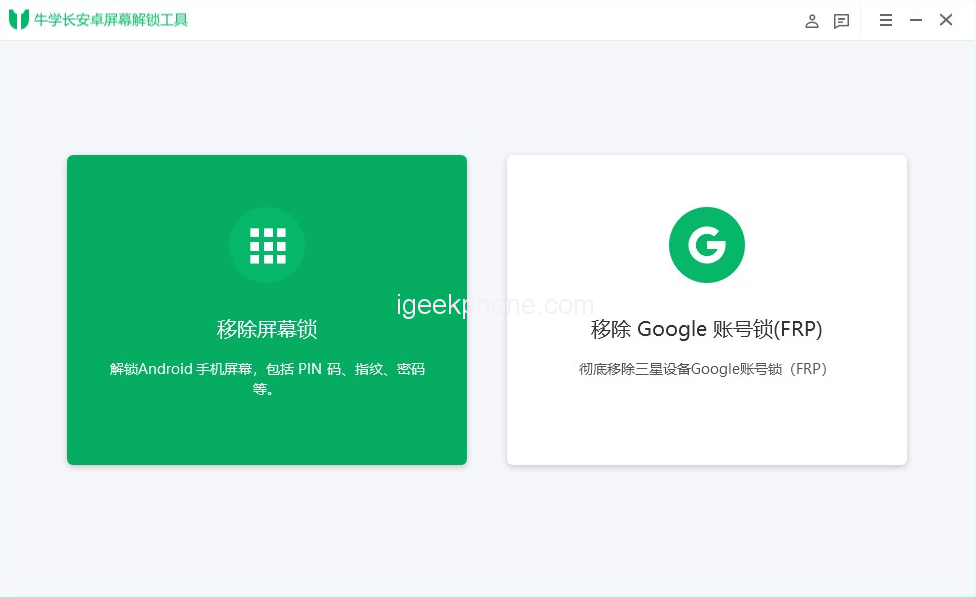
    To reset your Samsung phone/tablet without a password in the easiest way, Niu Xuechang Android Screen Unlock Tool is the ideal solution. It allows you to reset your device to factory settings within minutes, even if you have limited experience in such tasks. With this tool, you can remove any screen lock from your Samsung device and regain access. If you encounter Google verification after the reset, this tool can also help you bypass Samsung FRP in just a few clicks.
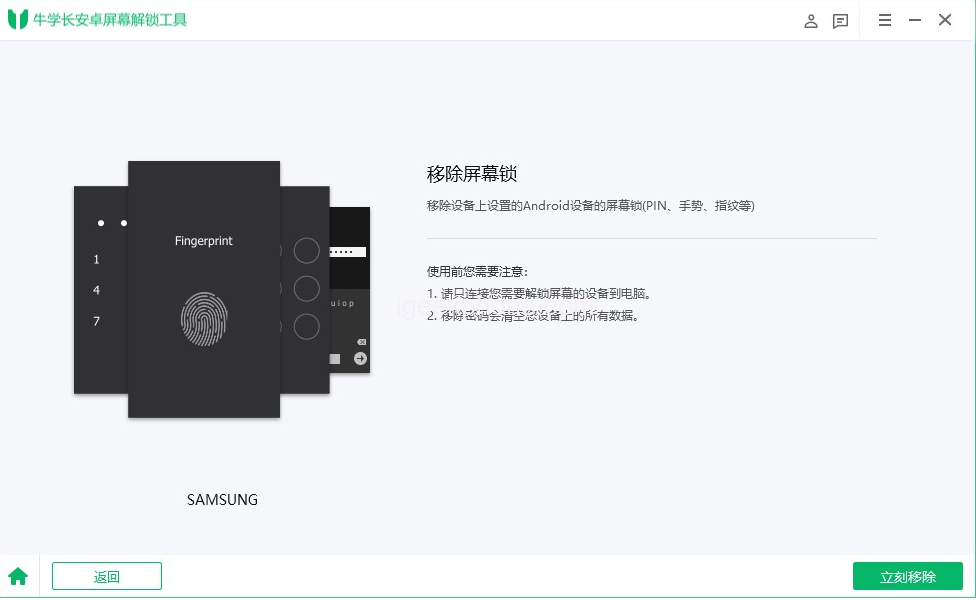
    The steps to reset Samsung to factory settings using Niu Xuechang Android Screen Unlock Tool are as follows:

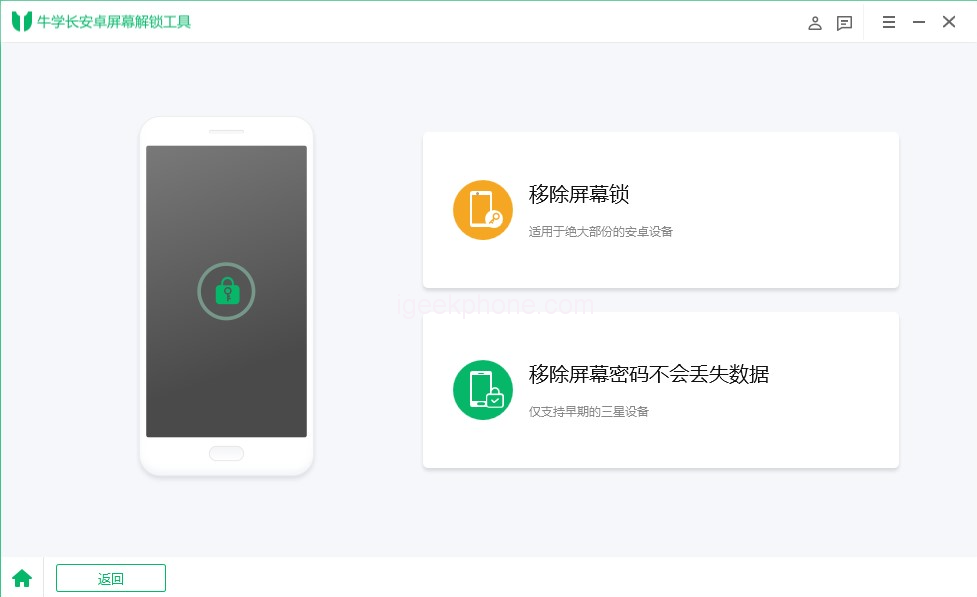
    • Download and install Niu Xuechang Android Screen Unlock Tool on your computer. Launch the app and select the “Remove Screen Lock” option.
    • Connect your phone or tablet to your computer via a data cable. The software will automatically detect your device and install the necessary drivers.
    • Once your device is recognized, choose the “Remove Screen Lock” option and click “Remove Now.”
    • Confirm the action by clicking “Yes” when prompted about data loss. Niu Xuechang Android Screen Unlock Tool will initiate the passcode removal process.
    • After the removal, the system will ask you to enter Recovery mode. Follow the on-screen instructions to proceed.
    • Finally, Niu Xuechang Android Unlock Tool will successfully remove the screen lock.

    Method 2: Use Buttons to Factory Reset your Samsung Phone/Tablet Without a Passcode
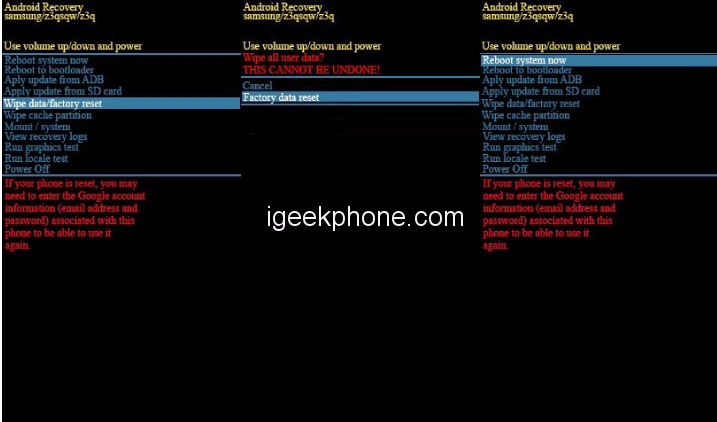
    If you don’t have access to a computer and want to reset your Samsung device without a password, you can utilize the device’s recovery mode, which includes the option to reset the device. Follow these steps for Samsung S21/Samsung Galaxy Tab S8:

    • Press and hold the power band volume up buttons simultaneously until the device vibrates and the Samsung Galaxy logo appears.
    • Note: If your Samsung tablet has a home button, press the home button, volume up button, and power button together until the Samsung logo appears, then release.
    • Once your Samsung device enters recovery mode, use the volume keys to navigate the menu and the power button to select “wipe data/factory reset.”
    • Select “Factory reset” and confirm the action using the power button.
    • After completion, choose “Reboot system now” and wait for the reset to finish.
    • Upon restart, your device will be restored to factory defaults, and you can proceed with the initial setup, including Google account login if required.

    Method 3: Reset Samsung Phone/Tablet Remotely Without Password
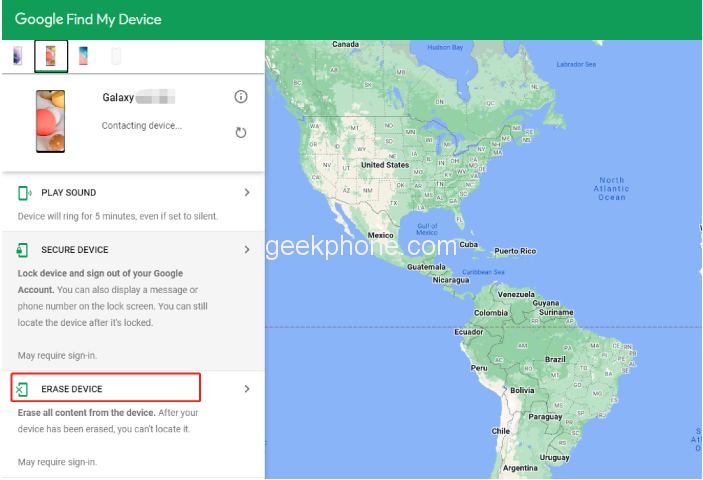
    A third method involves using Google’s Find My Device service to wipe and reset your Samsung device without a password remotely. This method requires your Google account credentials and an internet connection on your phone.

    Here’s how to factory reset a Samsung phone/tablet without a passcode via remote wipe:

    • Open Google Find My Device on your computer and sign in to the Google account associated with the locked device.
    • Select “Locked Devices” from the left sidebar menu.
    • Choose “Wipe Device” from the available options.
    • Confirm the action by tapping the green “Wipe Device” button. You may need to verify your Google Account.
    • Once the data wiping process is complete, your phone will be successfully reset.

    Method 4: Reset Samsung Factory Settings Without Password via Samsung Find My Phone
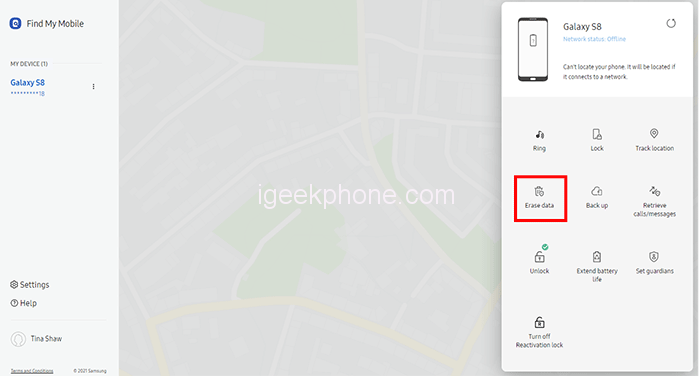
    Like Google, Samsung also offers a Find My Phone service to remotely reset your device without a passcode. However, you will need your Samsung account credentials for this method.

    Here’s how to perform a Samsung phone/tablet factory reset without a password using Samsung Find My Phone:
    • Open Samsung Find My Phone on your computer or another available device.
    • Sign in to your Samsung account and locate the device you want to reset. Click on the “Wipe Data” option in the right pane.
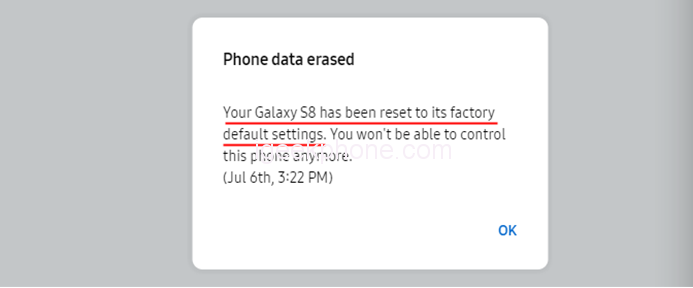
    • In the “Wipe Phone Data” window, click the “Wipe” button to start the reset process without a passcode.
    • Wait for the reset, and your Samsung device will be restored to factory defaults.
    • Allow a few minutes for your Samsung device to power on.

    By following these methods, you can restore the factory settings of your Samsung device without the need for a passcode in case you forget the lock screen password.

    Read Also: How to Fix iOS System Failure: A Step-by-Step Guide

    Do not forget to follow us on our Facebook group and page to keep you always aware of the latest advances, News, Updates, review, and giveaway on smartphones, tablets, gadgets, and more from the technology world of the future.

    Share. Facebook Twitter Pinterest LinkedIn Tumblr Email

    Related Posts

    Which is better, a laptop or a desktop computer? Computer purchase guide

    Vivo X300 Ultra is the first to feature 3° optical image stabilization and a large sensor Long-Focus Lens

    Apple iPhone 17e model is equipped with Ram 8GB, the same as the 16e model

    Leave A Reply Cancel Reply

    You must be logged in to post a comment.

    voopoo drag 6
    oxva xlim 3 ultra
    sp2s sen x disposable vape
    jnr 100k
    • Popular
    • 3D Printer REVIEW
    • XIAOMI
    March 5, 2026

    OXVA XLIM PRO 3 vs XLIM Pro 2 DNA: Hands-On Review

    March 5, 2026

    OXVA XLIM PRO 3 vs XLIM GO 2: Hands-On Review

    March 2, 2026

    OXVA XLIM PRO 3 vs XLIM 3 ULTRA: Hands-On Review

    February 23, 2026

    Voopoo DRAG S3 vs DRAG X3 Review – Which One Fits Your Vaping Lifestyle?

    December 26, 2025

    ACMER ASCARVA 4S: Precision CNC Power for Makers, DIYers & Small Workshops

    June 23, 2024

    ACMER P2 20W Laser Engraver Fixed Focus Engraving: Hands on Review

    May 30, 2024

    xTool F1 Ultra Review: World’s First 20W Fiber & 20W Diode Laser Engraver

    May 30, 2024

    Anycubic Kobra 3 Combo Review: The Multicolor Masterpiece?

    March 3, 2026

    Starting from 7,999 yuan, Leica Announces that Leica Version of Xiaomi 17 Ultra in Black and Silver will be Available on Official Channels

    March 3, 2026

    Xiaomi Releases the second phase recruitment announcement for the ‘Hyper OS 3 Beta’: ends at 0:00 on March 6th

    February 26, 2026

    Xiaomi 17 Ultra mobile phone has received the upgrade to Hyper OS 3.0.15.0

    February 24, 2026

    Xiaomi 17T Series Phones have been Registered: Equipped with MediaTek 8/9 Flagship Platform and Featuring Leica Imaging Technology

    fc 26 coins
    New Arrivals
    • YOVO JB50K Nixodine Disposable Vape Kit YOVO JB50K Nixodine Disposable Vape Kit
    • Kangvape Sommar Bar 50K Disposable Vape Kangvape Sommar Bar 50K Disposable Vape
    • Lost Mary MT35000 Turbo Nixodine Edition Lost Mary MT35000 Turbo Nixodine Edition
    • Luffbar Cue 60K Disposable Vape Luffbar Cue 60K Disposable Vape
    • Upends UP9 50K Disposable Pod Upends UP9 50K Disposable Pod
    • Gold Bar Max 50K Nixodine Disposable Vape Gold Bar Max 50K Nixodine Disposable Vape
    • Geek Bar Clio X 50K Disposable Vape Kit Geek Bar Clio X 50K Disposable Vape Kit
    • Navabar Zero Nicotine 55K Disposable Vape Navabar Zero Nicotine 55K Disposable Vape
    • Vaporesso Luxe Q3 Pod System Kit Vaporesso Luxe Q3 Pod System Kit
    About
  • Igeekphone.com provides the first global tech news and reviews about smartphone, vapes, e-cigar, smart home, 3D printers, e-bike,tablets, RC drones, VR headset, and other accessories. It's the best platform to improve your brand and product.
  • Contact us: info@igeekphone.com
  • Check Our Privacy Policy Here.
  • Note: *Right now we have US editor and EU editors for review, especially for Amazon US and EU.
  • *Shop and Compare Price Here*
  • Facebook
  • Youtube
  • OUR BEST VAPE PARTNERS
  • VAPE ONLINE STORE
  • HAYATI PRO MAX PLUS
  • VAPORESSO
  • VOOPOO
  • OXVA
  • NEXA
  • MASKKING
  • LOSTVAPE ORIONBAR
  • MEMERS
  • TODOO
  • SP2S
  • JNR
  • VEIIK
  • OTHER BEST PARTNERS
  • SVBONY
  • Chuwi
  • Blackview
  • Fossibot
  • Unihertz
  • Flsun
  • Anycubic
  • Xtool
  • Oukitel
  • Mukkpet Ebike
  • Ugreen
  • Copyright © 2026 igeekphone

    Type above and press Enter to search. Press Esc to cancel.