









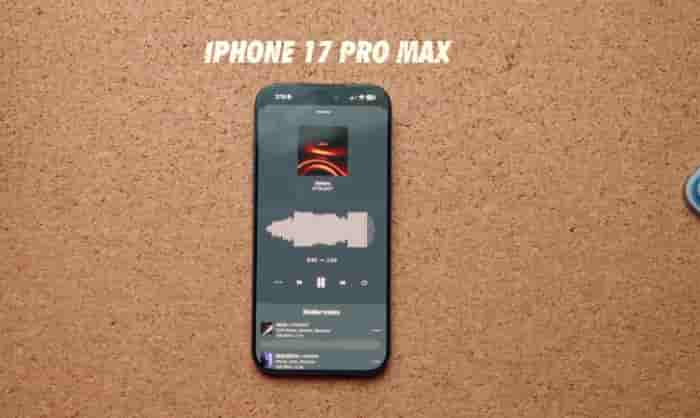
When the iPhone 17 Pro Max experiences system lag, application crashes, or a poor upgrade experience, reverting to the original system version is a common solution. Depending on the device’s condition and requirements, system restoration can be achieved through the following three methods. Before proceeding, make sure to back up important data to avoid data loss.
1. Normal Recovery: Reset the device via the one-click reset function in the settings.
If the device can start normally and the touch is sensitive, you can directly complete the restoration through the built-in functions of the system. First, enter “Settings” → click on the top “Apple ID” → select “iCloud” → turn on “iCloud Backup” and click “Immediately Backup”, or use a data cable to connect the computer, in iTunes (for Windows) or Finder (for Mac), select “Back Up This Mac” and encrypt to save health data. Then, in “Settings”, click sequentially on “General” → “Transfer or Restore iPhone” → “Erase All Contents and Settings”, enter the lock screen password and Apple ID password, and the device will automatically restart and clear the data. After restarting, follow the prompts to select the language, connect Wi-Fi, and you can choose to manually configure as a new device or restore data from the backup. This method is suitable for solving daily system problems or data cleanup before transferring the device.
II. Deep Recovery: Perform a forced reinstallation via iTunes/Finder
When the device displays a white apple, black screen or fails to enter the system, recovery needs to be completed using a computer. First, enter the recovery mode: quickly press the volume up button and release it → quickly press the volume down button and release it → hold the side button for 10 seconds until the screen shows the “Data Cable Points to Computer” icon. After connecting the computer, iTunes or Finder will automatically recognize and pop up a repair prompt. On the software interface, hold down the Shift (Windows) or Option (Mac) key, click “Restore iPhone”, select the official firmware package (IPSW file), and wait for the system to automatically install, which takes approximately 15-30 minutes. This method can solve serious system failures, but it is necessary to ensure that the device battery is ≥ 50% and the computer network is stable.
III. Version Rollback: Downgrade to the designated old system
If you need to downgrade from the new version to the old one, you need to check the verification status of the target version on the ipsw.me website. Versions with a green label can be downgraded, while those with a red label have their downgrade channels closed. After downloading the corresponding firmware, follow the restore mode operation to enter the iTunes/Finder interface, select the firmware package to complete the downgrade. After the downgrade, some applications may not be able to run due to compatibility issues. You need to manually adjust the application settings or download historical versions from the App Store. This method is suitable for solving problems such as reduced battery life and abnormal overheating in the new system, but be aware that Apple usually closes the signature verification for old versions within 1-2 weeks after the new system is released. Please act promptly.
Notes and Risk Warnings
Before restoring the system, make sure to disable the “Find My iPhone” function to avoid interrupting the activation lock; restoring the factory settings on a jailbroken device may cause system abnormalities. It is recommended to upgrade to the official version first before proceeding with the operation; for non-official disassembled or jailbroken devices, restoring may affect the warranty; it is necessary to confirm the device status in advance. If the operation is interrupted and the device fails to start, you can try entering DFU mode (after connecting to the computer, quickly press the volume up button → quickly press the volume down button → hold the side button for 15 seconds), and then use iTunes or third-party tools for flashing.