










In today’s digital age, securing your computer is more important than ever. Whether you’re using your computer for work, personal tasks, or gaming, it’s essential to ensure that no one else has unauthorized access to your files and sensitive information. Setting a password for computer startup is a simple yet effective way to keep your device secure. This article will guide you through the process of setting a password for your computer’s startup, whether you’re using Windows or Mac.
Why Set a Password for Computer Startup?
Before diving into the step-by-step guide, let’s first understand why setting a password for your computer startup is crucial:
-
Prevent Unauthorized Access: A password protects your computer from unauthorized users who may attempt to access your personal data or modify system settings.
-
Secure Sensitive Information: If you store confidential files on your computer—whether it’s work documents, personal finances, or private communications—a password can keep this information safe from prying eyes.
-
Enhanced Privacy: A password provides peace of mind, knowing that only authorized users can access your computer, especially if it is left unattended in public or shared spaces.
-
Add an Extra Layer of Security: A startup password is one of the most basic yet effective ways to prevent theft or tampering with your computer.
Now, let’s get into the how-to for setting up a startup password on both Windows and Mac computers.
How to Set a Password for Computer Startup on Windows
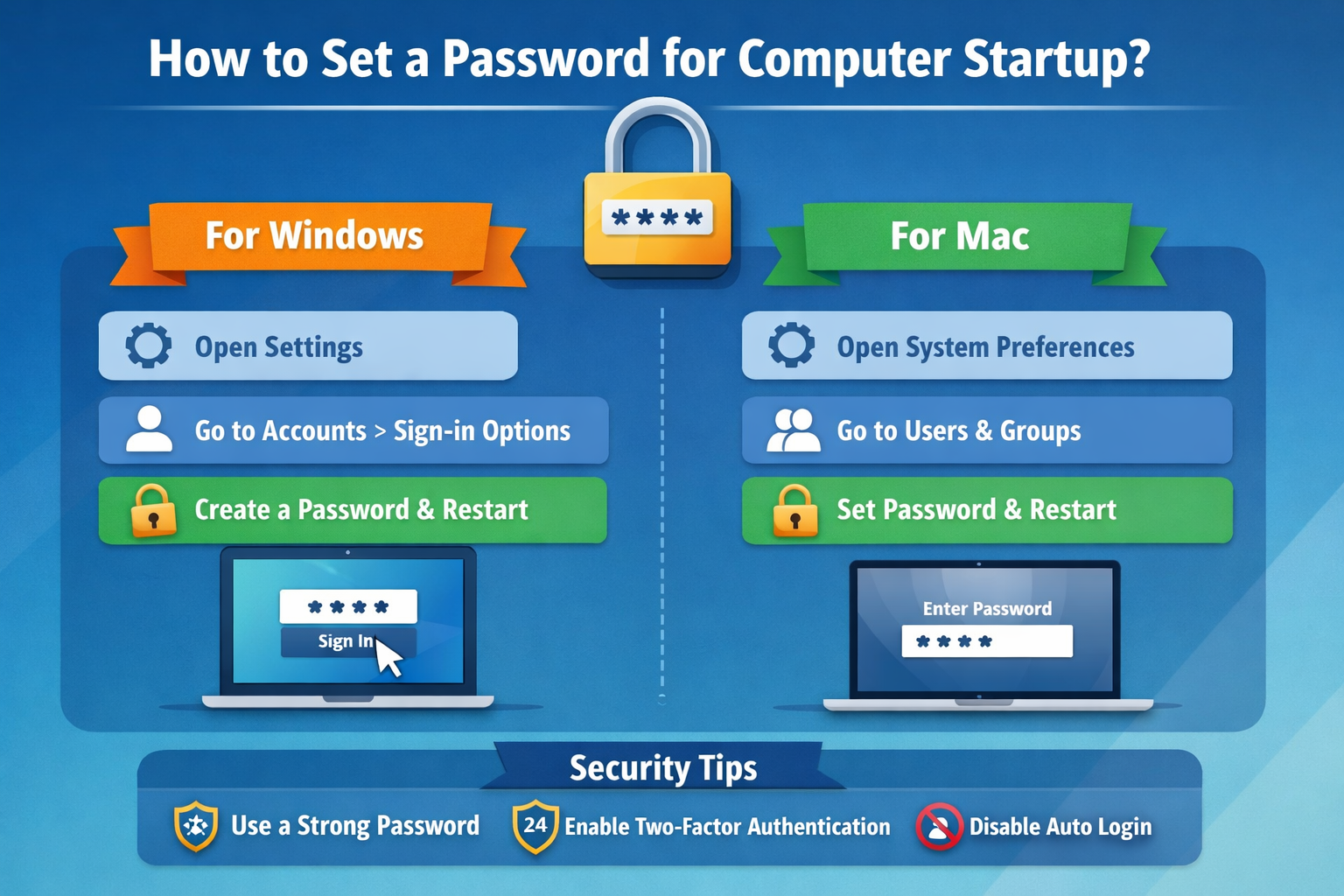
Setting a password for startup on a Windows PC is a straightforward process. Here’s how you can do it:
Method 1: Using a Local Account Password
-
Open Settings:
-
Click the Start Menu and select Settings (the gear icon).
-
-
Go to Accounts:
-
In the Settings menu, click on Accounts.
-
-
Set up Sign-in Options:
-
Under Accounts, select Sign-in options.
-
-
Choose Password:
-
Under the Password section, click Add (if you don’t already have a password set up) or Change (if you want to update your existing password).
-
-
Enter Password Details:
-
Enter a strong password (preferably a combination of letters, numbers, and special characters).
-
Confirm the password, and then click Next to finish the setup.
-
-
Restart Your Computer:
-
Restart your computer, and you will be prompted to enter the password before accessing your desktop.
-
Method 2: Using a Microsoft Account Password (for Syncing Across Devices)
If you’re using a Microsoft account to sign in to your computer, follow these steps:
-
Open Settings:
-
Click on the Start Menu and select Settings.
-
-
Go to Accounts:
-
Select Accounts, and then choose Your Info.
-
-
Switch to a Microsoft Account:
-
If you’re not already signed in with a Microsoft account, click on Sign in with a Microsoft account instead.
-
-
Enter Password:
-
Follow the instructions to enter a strong password for your Microsoft account.
-
-
Set Up Two-Factor Authentication (Optional):
-
For added security, enable two-factor authentication for your Microsoft account.
-
-
Restart Your Computer:
-
After the setup is complete, restart your computer, and your Microsoft account password will be required at startup.
-
Method 3: Setting BIOS/UEFI Password for Startup (For Additional Security)
If you want to add an extra layer of protection by requiring a password before Windows even boots up, you can set a BIOS/UEFI password. Here’s how:
-
Restart Your Computer and Enter BIOS/UEFI:
-
On startup, press the key (usually F2, Del, or Esc) to enter the BIOS/UEFI settings.
-
-
Navigate to Security Tab:
-
In the BIOS menu, look for the Security tab or section.
-
-
Set a Supervisor Password:
-
Look for the option to set a Supervisor or Power-On Password.
-
-
Enter the Password:
-
Create a strong password and save the changes.
-
-
Exit BIOS/UEFI:
-
Exit the BIOS and restart your computer. You will now be prompted to enter the password before Windows loads.
-
How to Set a Password for Computer Startup on Mac
For Mac users, setting a password for startup is also a relatively simple process. Follow these steps to secure your Mac:
Method 1: Setting a Password for Your Mac User Account
-
Open System Preferences:
-
Click on the Apple logo in the top-left corner of the screen and select System Preferences.
-
-
Go to Users & Groups:
-
In the System Preferences window, select Users & Groups.
-
-
Set Password:
-
If you don’t already have a password set up, click on the Change Password button.
-
Create a strong password and make sure you remember it.
-
-
Enable Password at Login:
-
After setting the password, make sure the option Require password immediately after sleep or screen saver begins is checked.
-
-
Restart Your Mac:
-
Restart your Mac to ensure the password is prompted before login.
-
Method 2: Enabling FileVault for Full Disk Encryption (Optional)
To take security to the next level, consider enabling FileVault. This encrypts your entire disk and requires your login password to decrypt it when starting up.
-
Open System Preferences:
-
Click on the Apple logo and select System Preferences.
-
-
Go to Security & Privacy:
-
Click on Security & Privacy and select the FileVault tab.
-
-
Enable FileVault:
-
Click on the Turn On FileVault button, then follow the on-screen instructions.
-
-
Restart Your Mac:
-
After enabling FileVault, restart your Mac. You’ll need your password to unlock your computer during startup.
-
Additional Tips for Securing Your Computer Startup:
-
Use Strong Passwords: Always create a strong, unique password that is difficult for others to guess. A combination of uppercase and lowercase letters, numbers, and special characters is ideal.
-
Enable Two-Factor Authentication: If your computer supports it, consider setting up two-factor authentication (2FA) for extra security.
-
Avoid Autologin: Ensure that automatic login is disabled to prevent the computer from bypassing the login screen and starting up directly into your desktop.
Conclusion
Setting a password for computer startup is a quick and effective way to protect your data from unauthorized access. Whether you’re using Windows or Mac, securing your computer with a password enhances privacy and security. By following the easy steps outlined in this guide, you can safeguard your system, sensitive files, and personal information. Start by setting up a password for your user account or going a step further with BIOS/UEFI passwords or FileVault encryption for additional protection.
Don’t wait for an incident to occur—secure your computer today with a strong password and enjoy peace of mind knowing your device is well-protected.