





Facebook Twitter Instagram
    Trending
    • JNR Falcon-X⁺ 28K: The Christmas Countdown Deal: Precision, Power & Pure Convenience
    • How to Keep Your Rummy Skills Sharp
    • Uwell Caliburn G5 Lite SE Pod System Kit Review: Premium Simplicity Refined
    • Uwell Caliburn G5 Lite KOKO Pod System Kit Review: Compact Power, Uncompromised Flavor
    • Uwell Caliburn G5 Lite Pod System Kit Review: Refined Simplicity, Unmatched Flavor
    • Quantum AI App, Useful or Not?
    • How to Troubleshoot and Fix a Vape That Won’t Charge?
    • How to Troubleshoot iPhone Personal Hotspot Issues
    Facebook YouTube
    Login Register
    IGeeKphone China Phone, Tablet PC, VR, RC Drone News, Reviews
    • HOME
      • NEWS
        • DeepSeek
        • ChatGPT
        • Minecraft
    • Amazon
    • CHRISTMAS
    • PHONE
      • Top Phones For Your First Choice
      • Phone Comparison
      • Xiaomi
      • Blackview
      • Unihertz
      • Doogee
      • Black Shark
      • Geekbuying
      • Banggood
      • TEMU
      • TikTok
      • Aliexpress
      • Walmart
      • Newegg
      • MercadoLibre
      • Lazada
    • TOP VAPE Awards for 2025
    • VAPES
      • E-CIGAR Upcoming
      • Vape News
      • Vape Market Trend
      • Vape Deals
      • Expo News
      • Vape Comparison
      • Vape Guide
        • Guide For Beginners
        • Guide for Best Users
      • Giveaway
    • BEST VAPE
      • Best Vape Stores
      • Best Starter Vape Kits
      • Best Vapes for Beginners
      • Best Disposable Vapes
      • Best Pod Systems
      • Best Pod Mod Vapes
      • Best Mods
      • Best Nicotine Pouches
      • Best Clearomizers/Tanks
      • Best E-Liquid
      • Best EGO/Pens
      • Best Vapes for Nic Salt E-Juice
      • Best Vapes to Quit Smoking
      • RDA vs. RDTA vs. RTA
    • Best Vape Brand 2025
      • VAPORESSO
      • VOOPOO
      • OXVA
      • NEXA BAR
      • ORIONBARTECH
      • MASKKING VAPE
      • VEIIK
      • MEMERS
      • SP2S
      • JNR
      • TODOO
      • MRFOG
    • REVIEW
      • E-cigar Review
      • Phones
      • Tablet PC
      • TV Box
      • RC Drone
      • Wearables
      • Camera
      • Accessories
      • VR Headset
    • MORE
      • 3D PRINTER
        • 3D Printer Review
        • Anycubic
        • FLSUN
        • Xtool
        • LONGER
        • Top 3D printer to Choose First
      • TREND
      • CLOTHES
      • AUTO CAR
      • POWER STATION
        • Oukitel
        • FOSSIBOT
      • GAMING
        • Top Gaming Products
      • E-BIKE
        • Samebike
        • Happyrun
        • ENGWE
      • TABLET
        • Chuwi
        • INNOCN
        • Teclast
        • Top Tablet for Your First Choice
        • Tablet/Laptop Comparison
      • WEARABLES
        • OneOdio
        • BlitzWolf
        • Top Smartwatch for First Choice
      • SMART HOME
      • TV BOX
        • Chuwi mini pc
        • Beelink
        • GMKTEC
        • MOREFINE
      • RC DRONE
        • DJI
        • MJX
        • JJRC
        • Hubsan
        • Top RC Drone
      • CAMERA
        • Gopro
        • Insta360
        • Andoer
      • ACCESSORIES
      • VR HEADSET
      • ROM
        • SAMSUNG
        • XIAOMI
        • ASUS
        • MEIZU
        • LENOVO
        • HUAWEI
        • ONEPLUS
        • ZTE
        • UMIDIGI
        • DOOGEE
        • HOMTOM
        • ELEPHONE
        • ULEFONE
        • BLACKVIEW
        • VERNEE
        • LEAGOO
        • CHUWI
        • TECLAST
        • PIPO
        • TV BOX ROM
    • DEAL
    • Shop
    IGeeKphone China Phone, Tablet PC, VR, RC Drone News, Reviews
    You are at:Home»Guide»Mastering the Art of Video Trimming on iPhone: A Comprehensive Guide
    Guide

    Mastering the Art of Video Trimming on iPhone: A Comprehensive Guide

    Brady CottonBy Brady CottonNovember 3, 2025
    Facebook Twitter Pinterest LinkedIn Tumblr Email

    In the era of social media and digital storytelling, the ability to trim videos on your iPhone has become an essential skill. Whether you want to share a memorable moment, create engaging content, or simply save storage space, knowing how to trim a video can make your iPhone experience even more versatile and enjoyable.

    Why Do You Need to Trim a Video on iPhone?

    Before delving into the how-to, let’s explore the reasons why trimming videos on your iPhone can be beneficial. First and foremost, video trimming allows you to remove unnecessary content, focusing on the essence of your footage. This not only helps convey your message more efficiently but also saves storage space on your device. Additionally, social media platforms often have specific duration limits for videos, making trimming an essential step before sharing your content with the world. Of course, even if, for some reason, you trimmed your video, you can still use the tools to merge the clips. There are many solutions for how to combine videos on iPhone.

    How to Trim A Video on iPhone Via Settings

    Fortunately, Apple provides a built-in solution for trimming videos on your iPhone through the Settings app. Here’s a step-by-step guide.

    Step 1. Open the Photos app

    Locate and open the Photos app on your iPhone.

    Step 2. Select the video

    Find the video you want to trim in your Camera Roll or Albums.

    Step 3. Tap Edit

    Once you’ve selected the video, tap the Edit button in the top-right corner.

    Step 4. Adjust the handles

    You’ll see handles at the beginning and end of the video timeline. Drag these handles to set the desired start and end points.

    Step 5. Preview and save

    Preview your trimmed video by tapping Play and make additional adjustments if needed. Once satisfied, tap Done to save your changes.

    How to Trim A Video on iPhone Via Third-Party Apps

    For more advanced video editing capabilities, third-party apps offer a range of features beyond the native settings. In the next section, we will introduce you to a few quite useful video editing tools and give you a brief introduction to them. You can read on and choose a tool that really suits your needs. They are trusted by people all over the world and are quite simple to use.

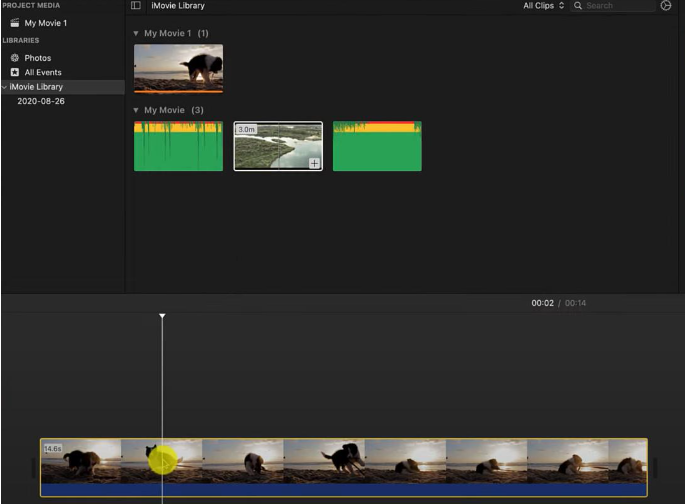
    • iMovie

    iMovie is a powerful video editing app developed by Apple. This tool provides a user-friendly interface along with a variety of editing features, including video trimming. It always comes with many Apple devices, and if not, it can be downloaded for free from the App Store.
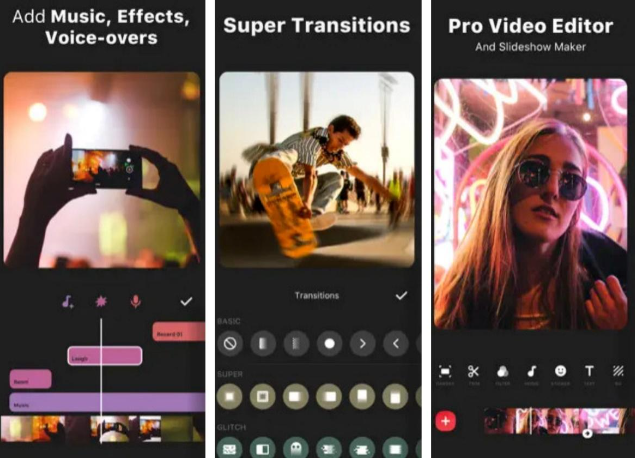
    • InShot

    InShot is a popular video editing app that includes features like trimming, cutting, and merging videos. It also offers filters, effects, and the ability to add music. InShot is available for free with in-app purchases.
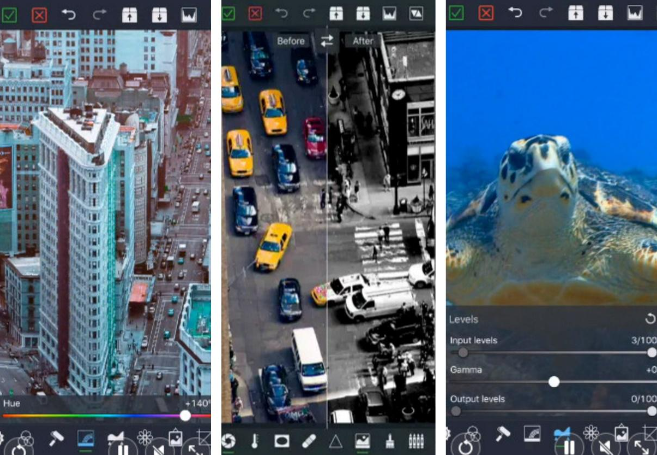
    • VideoGrade

    While VideoGrade is primarily known for its color-grading capabilities, it also provides basic video editing functions, including trimming. It’s a useful app for users who want to enhance the colors of their videos while also making simple edits. It may not be as feature-rich as some other video editors, but it’s user-friendly.
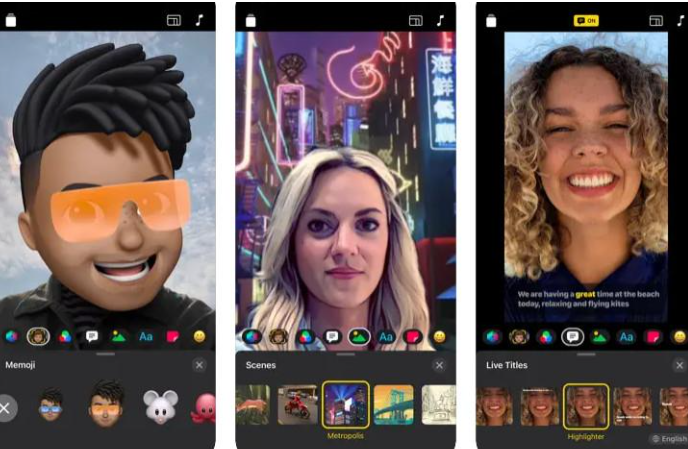
    • Clips

    Clips is another app developed by Apple that focuses on quick and fun video creation. It allows you to trim and edit your videos easily, and it also includes features like adding animated captions and stickers. Clips are available for free on the App Store.
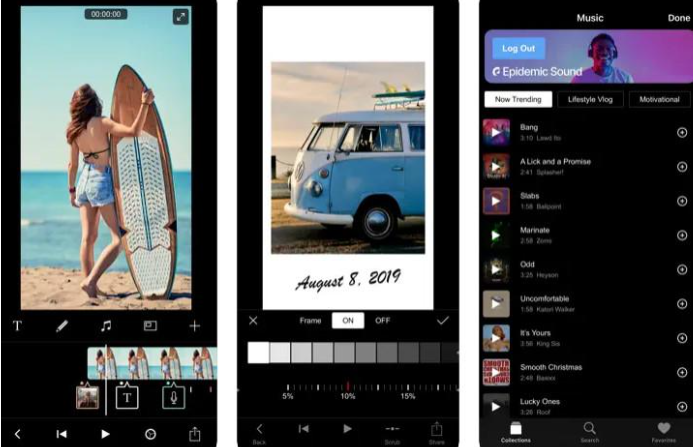
    • Filmmaker Pro

    Filmmaker Pro is a comprehensive video editing app that includes advanced features along with basic trimming and cutting. It provides tools for adding transitions, effects, and text to your videos. The app is 100% free to download, with in-app purchases for additional features.
    Tips: How to Use iMovie

    One popular app for this purpose is iMovie. Here’s a brief guide. Follow our detailed step-by-step guide, and we are sure you can complete the process without any problems.

    Step 1. Download iMovie

    If you don’t have iMovie installed, download it from the App Store.

    Step 2. Open iMovie

    Open the iMovie program on your device and create a new project.

    Step 3. Import your video

    Tap the + icon to import the video you want to trim.

    Step 4. Trim the video

    In the timeline, drag the edges of your video clip so that you can set the start and end points.

    Step 5. Preview and export

    Preview your edited video, make any necessary adjustments, and then tap Done. Finally, export the trimmed video to your Camera Roll.

    Conclusion

    Whether you choose to use the native settings or explore third-party apps, trimming videos on your iPhone opens up a world of possibilities for creativity and efficiency. As you become adept at this skill, you’ll find yourself effortlessly crafting and sharing compelling stories with your audience. So, go ahead, trim away, and let your videos shine in the digital realm.

    Share. Facebook Twitter Pinterest LinkedIn Tumblr Email

    Related Posts

    Quantum AI App, Useful or Not?

    How to Troubleshoot iPhone Personal Hotspot Issues

    How to Browse Securely On Public Wi-Fi with VPN in 2024

    Leave A Reply Cancel Reply

    You must be logged in to post a comment.

    voopoo drag s3
    oxva xlim go 2
    sp2s sen x disposable vape
    jnr 100k
    • Popular
    • 3D Printer REVIEW
    • XIAOMI
    November 23, 2025

    VOOPOO DRAG X3 – Big Battery, Smart Tech, Pod-Mod Powerhouse (Review)

    November 23, 2025

    VOOPOO VINCI S: Pocket-Power Pod with a 2,000 mAh Heart — Big Battery, Simple Use (Review)

    November 19, 2025

    OXVA XLIM PRO 3 Pod Vape Quick Hands-on Review (Video Test Included)

    November 19, 2025

    OXVA XLIM 3 Ultra Pod Vape: Hands-on Review (Video Test Included)

    June 23, 2024

    ACMER P2 20W Laser Engraver Fixed Focus Engraving: Hands on Review

    May 30, 2024

    xTool F1 Ultra Review: World’s First 20W Fiber & 20W Diode Laser Engraver

    May 30, 2024

    Anycubic Kobra 3 Combo Review: The Multicolor Masterpiece?

    May 15, 2024

    SCULPFUN SF-A9 40W Laser Engraver Cutting Machine: Hands On Review

    December 2, 2025

    Xiaomi REDMI Turbo5 Pro phone will be launched before the Spring Festival, equipped with the only flagship chip in its class

    December 2, 2025

    Xiaomi has Released REDMI TV X55/65/75 2026: Mini LED starts at only 2,499 yuan

    November 28, 2025

    The Exclusive Camera Handle of Xiaomi 17 Ultra has passed the 3C certification and can be used as a power bank

    November 27, 2025

    Code name “Nezha” : Xiaomi 17 Ultra phone exposed, with a triple rear camera setup

    fc 26 coins
    New Arrivals
    • Uwell Caliburn G5 Lite SE Pod System Kit Uwell Caliburn G5 Lite SE Pod System Kit
    • Uwell Caliburn G5 Lite KOKO Pod System Kit Uwell Caliburn G5 Lite KOKO Pod System Kit
    • Uwell Caliburn G5 Lite Pod System Kit Uwell Caliburn G5 Lite Pod System Kit
    • Freeton Trimax 60k Disposable Vape Freeton Trimax 60k Disposable Vape
    • Smoant Pasito 3 Vape Smoant Pasito 3 Vape
    • Yocan Flat 2.0 series Yocan Flat 2.0 series
    • Snowplus Swift Pod Vape Snowplus Swift Pod Vape
    • Innokin EZ LEVA PCC Pod Kit Innokin EZ LEVA PCC Pod Kit
    • VANMO VM60000 DISPOSABLE VANMO VM60000 DISPOSABLE
    About
  • Igeekphone.com provides the first global tech news and reviews about smartphone, vapes, e-cigar, smart home, 3D printers, e-bike,tablets, RC drones, VR headset, and other accessories. It's the best platform to improve your brand and product.
  • Contact us: info@igeekphone.com
  • Check Our Privacy Policy Here.
  • Note: *Right now we have US editor and EU editors for review, especially for Amazon US and EU.
  • *Shop and Compare Price Here*
  • Facebook
  • Youtube
  • OUR BEST VAPE PARTNERS
  • VAPE ONLINE STORE
  • HAYATI PRO MAX PLUS
  • VAPORESSO
  • VOOPOO
  • OXVA
  • NEXA
  • MASKKING
  • LOSTVAPE ORIONBAR
  • VEIIK
  • MEMERS
  • TODOO
  • SP2S
  • JNR
  • OTHER BEST PARTNERS
  • SVBONY
  • Chuwi
  • Blackview
  • Fossibot
  • Unihertz
  • Flsun
  • Anycubic
  • Xtool
  • Oukitel
  • Mukkpet Ebike
  • Ugreen
  • Copyright © 2025 igeekphone

    Type above and press Enter to search. Press Esc to cancel.