





Facebook Twitter Instagram
    Trending
    • JNR Falcon-X⁺ Review: Precision, Power & Pure Convenience
    • How to Keep Your Rummy Skills Sharp
    • Uwell Caliburn G5 Lite SE Pod System Kit Review: Premium Simplicity Refined
    • Uwell Caliburn G5 Lite KOKO Pod System Kit Review: Compact Power, Uncompromised Flavor
    • Uwell Caliburn G5 Lite Pod System Kit Review: Refined Simplicity, Unmatched Flavor
    • Quantum AI App, Useful or Not?
    • How to Troubleshoot and Fix a Vape That Won’t Charge?
    • How to Troubleshoot iPhone Personal Hotspot Issues
    Facebook YouTube
    Login Register
    IGeeKphone China Phone, Tablet PC, VR, RC Drone News, Reviews
    • HOME
      • NEWS
        • DeepSeek
        • ChatGPT
        • Minecraft
    • Amazon
    • CHRISTMAS
    • PHONE
      • Top Phones For Your First Choice
      • Phone Comparison
      • Xiaomi
      • Blackview
      • Unihertz
      • Doogee
      • Black Shark
      • Geekbuying
      • Banggood
      • TEMU
      • TikTok
      • Aliexpress
      • Walmart
      • Newegg
      • MercadoLibre
      • Lazada
    • TOP VAPE Awards for 2025
    • VAPES
      • E-CIGAR Upcoming
      • Vape News
      • Vape Market Trend
      • Vape Deals
      • Expo News
      • Vape Comparison
      • Vape Guide
        • Guide For Beginners
        • Guide for Best Users
      • Giveaway
    • BEST VAPE
      • Best Vape Stores
      • Best Starter Vape Kits
      • Best Vapes for Beginners
      • Best Disposable Vapes
      • Best Pod Systems
      • Best Pod Mod Vapes
      • Best Mods
      • Best Nicotine Pouches
      • Best Clearomizers/Tanks
      • Best E-Liquid
      • Best EGO/Pens
      • Best Vapes for Nic Salt E-Juice
      • Best Vapes to Quit Smoking
      • RDA vs. RDTA vs. RTA
    • Best Vape Brand 2025
      • VAPORESSO
      • VOOPOO
      • OXVA
      • NEXA BAR
      • ORIONBARTECH
      • MASKKING VAPE
      • VEIIK
      • MEMERS
      • SP2S
      • JNR
      • TODOO
      • MRFOG
    • REVIEW
      • E-cigar Review
      • Phones
      • Tablet PC
      • TV Box
      • RC Drone
      • Wearables
      • Camera
      • Accessories
      • VR Headset
    • MORE
      • 3D PRINTER
        • 3D Printer Review
        • Anycubic
        • FLSUN
        • Xtool
        • LONGER
        • Top 3D printer to Choose First
      • TREND
      • CLOTHES
      • AUTO CAR
      • POWER STATION
        • Oukitel
        • FOSSIBOT
      • GAMING
        • Top Gaming Products
      • E-BIKE
        • Samebike
        • Happyrun
        • ENGWE
      • TABLET
        • Chuwi
        • INNOCN
        • Teclast
        • Top Tablet for Your First Choice
        • Tablet/Laptop Comparison
      • WEARABLES
        • OneOdio
        • BlitzWolf
        • Top Smartwatch for First Choice
      • SMART HOME
      • TV BOX
        • Chuwi mini pc
        • Beelink
        • GMKTEC
        • MOREFINE
      • RC DRONE
        • DJI
        • MJX
        • JJRC
        • Hubsan
        • Top RC Drone
      • CAMERA
        • Gopro
        • Insta360
        • Andoer
      • ACCESSORIES
      • VR HEADSET
      • ROM
        • SAMSUNG
        • XIAOMI
        • ASUS
        • MEIZU
        • LENOVO
        • HUAWEI
        • ONEPLUS
        • ZTE
        • UMIDIGI
        • DOOGEE
        • HOMTOM
        • ELEPHONE
        • ULEFONE
        • BLACKVIEW
        • VERNEE
        • LEAGOO
        • CHUWI
        • TECLAST
        • PIPO
        • TV BOX ROM
    • DEAL
    • Shop
    IGeeKphone China Phone, Tablet PC, VR, RC Drone News, Reviews
    You are at:Home»Guide»Unlock your iPhone in 3 Different Ways
    Guide

    Unlock your iPhone in 3 Different Ways

    Brady CottonBy Brady CottonDecember 3, 2025
    Facebook Twitter Pinterest LinkedIn Tumblr Email

    The iPhone screen is locked to safeguard your device and personal data. This security measure can result from various authentication methods, such as a passcode, Touch ID, or Face ID. However, if you happen to forget your password, PIN code, or pattern lock, experience a broken iPhone with a cracked screen, or make multiple incorrect password attempts, accessing your phone and its files becomes impossible.

    This article outlines three distinct methods to assist you in unlocking your iPhone when you forget your phone password.
    Part 1: Reset iPhone with Backup

    Finding out you have been locked out of your iPhone can be incredibly frustrating. In these situations, there are ways available; however, all of them result in data loss. So, if you got an iCloud backup, you could use that to restore your iPhone after resetting the device with iCloud.

    However, there are some conditions for this procedure to work, and the most important one is having Find My enabled on your iPhone. Apart from that, you also need your Apple ID credentials, and the iPhone should be connected to the internet. If you meet all these requirements, use these steps for iPhone 14 Pro unlocked:

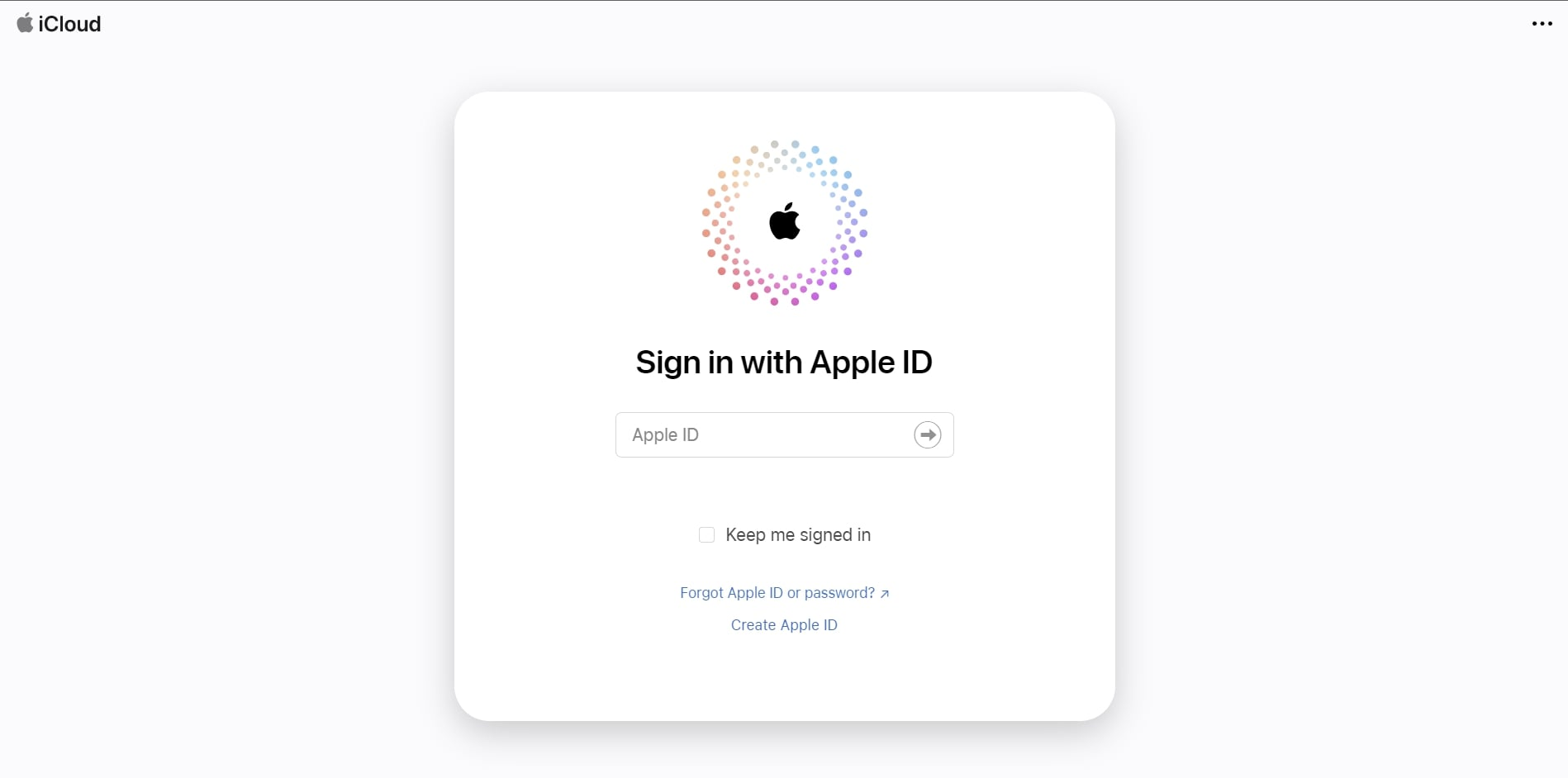
    Step 1: Open a web browser on the second device and go to the iCloud website. Sign in to iCloud using your Apple ID and password. Make sure to use the same Apple ID that is associated with the iPhone you want to reset.
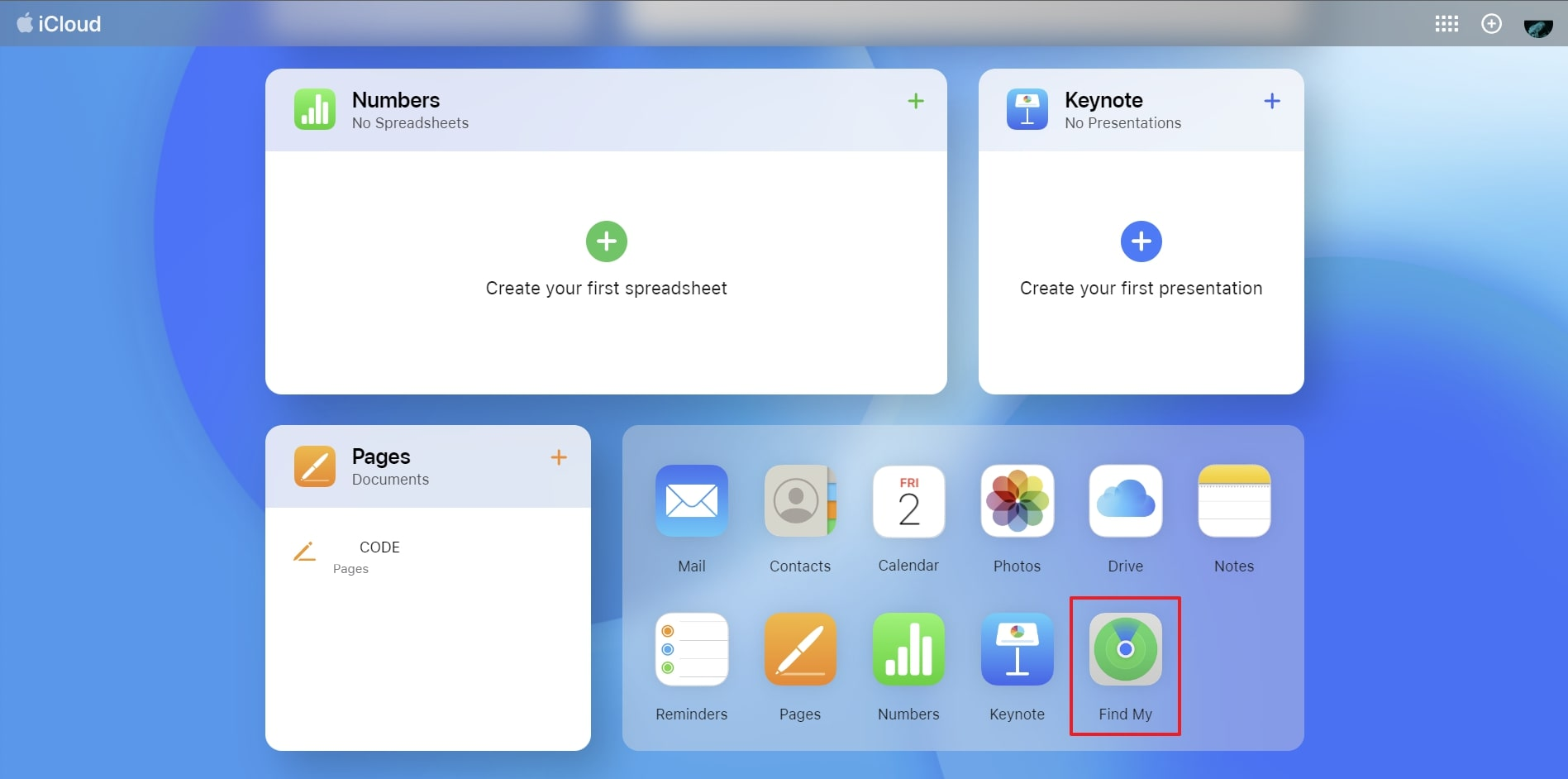
    Step 2: Once you’re logged in, you’ll see various iCloud services. Click on “Find My,” and it will take you to a map screen showing where all the devices associated with your Apple ID are located.
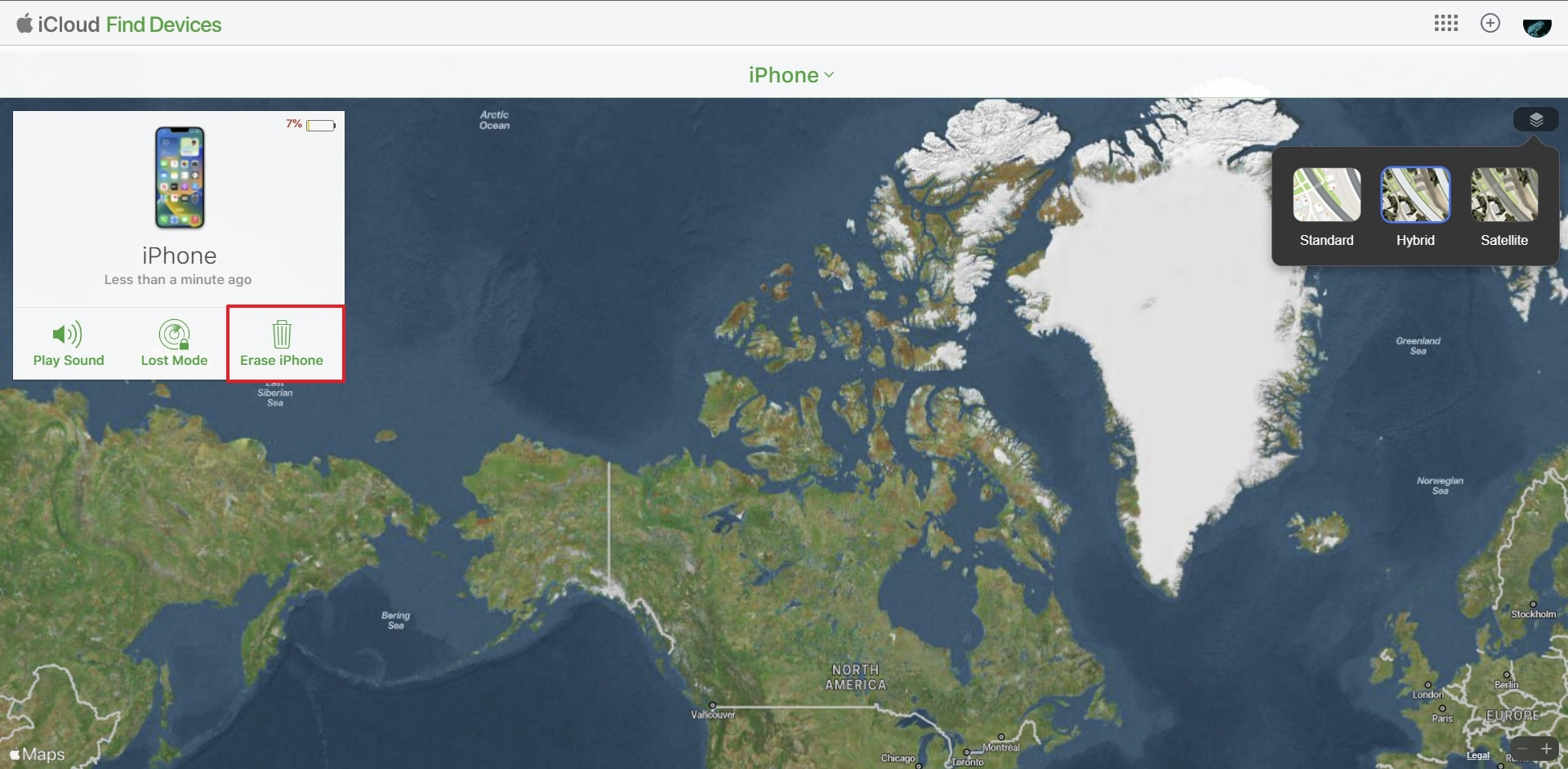
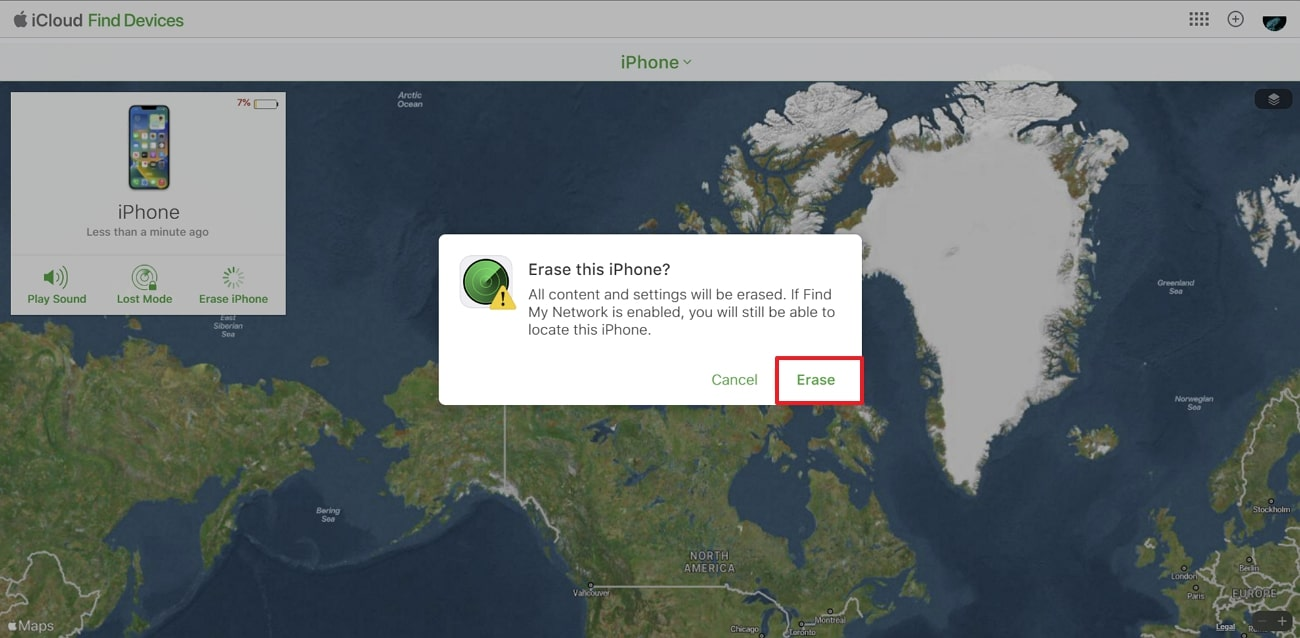
    Step 3: Choose your targeted iPhone from “All Devices,” and in the device information window, you’ll find a few options such as ‘Play Sound,’ ‘Lost Mode,’ and ‘Erase iPhone.’ We want to erase the iPhone, so go ahead and click on ‘Erase iPhone.’
    Step 4: A confirmation message will pop up, letting you know that erasing your iPhone will delete all its data. Before proceeding, ensure you have a recent backup of your important information. If you’re ready to proceed, click on ‘Erase. Once it is done, set up the iPhone and restore using the most recent iCloud backup.
    Part 2: Unlock iPhone via Computer

    If you don’t have Find My enabled on your device, you can also try iTunes. It is the official iOS device manager that can perform many functions. One of these functions is restoring your iPhone to an earlier stage after it has been locked.

    To use this procedure, you need to have an MFi-Certified USB cable and the latest version of iTunes installed on your computer. Here is how you can unlock iPhone 14 via computer:

    Step 1: Ensure that you have the latest version of iTunes installed on your computer. Connect your iPhone to your computer using a USB cable and put your iPhone into Recovery Mode.

    Step 2: To enter Recovery Mode on your iPhone, press and quickly release the “Volume Up” button, then press and quickly release the “Volume Down” button. Finally, press and hold the “Side” or “Top” button until the Recovery Mode screen appears.
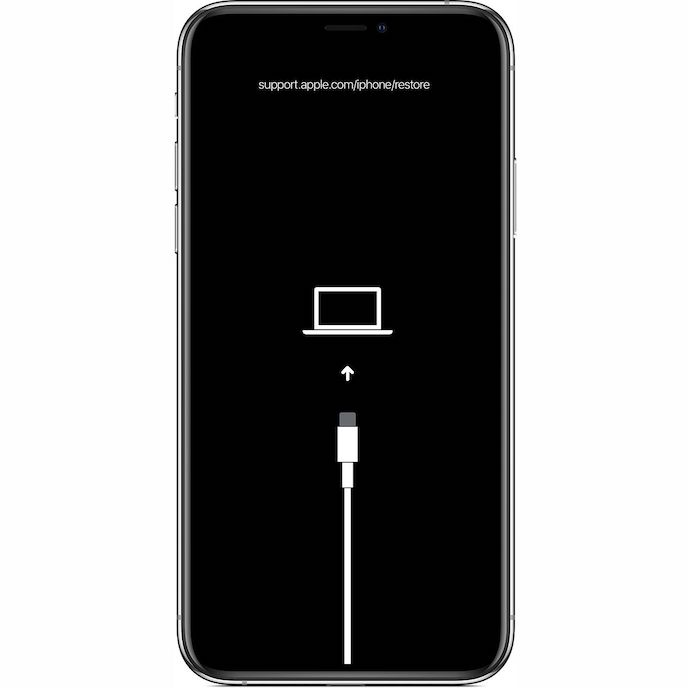
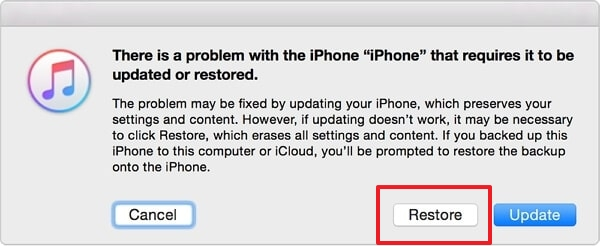
    Step 3: On your computer, iTunes should detect that your iPhone is in Recovery Mode. A message will appear in iTunes, indicating that there is a problem with your iPhone and it needs to be restored. In iTunes, you will see two options: “Update” or “Restore.”

    Step 4: If you want to reset your iPhone to its factory settings, click on the “Restore” option. iTunes will now proceed to download the necessary firmware for your iPhone. This process may take some time, depending on your internet speed.
    Part 3: Use Screen Unlock

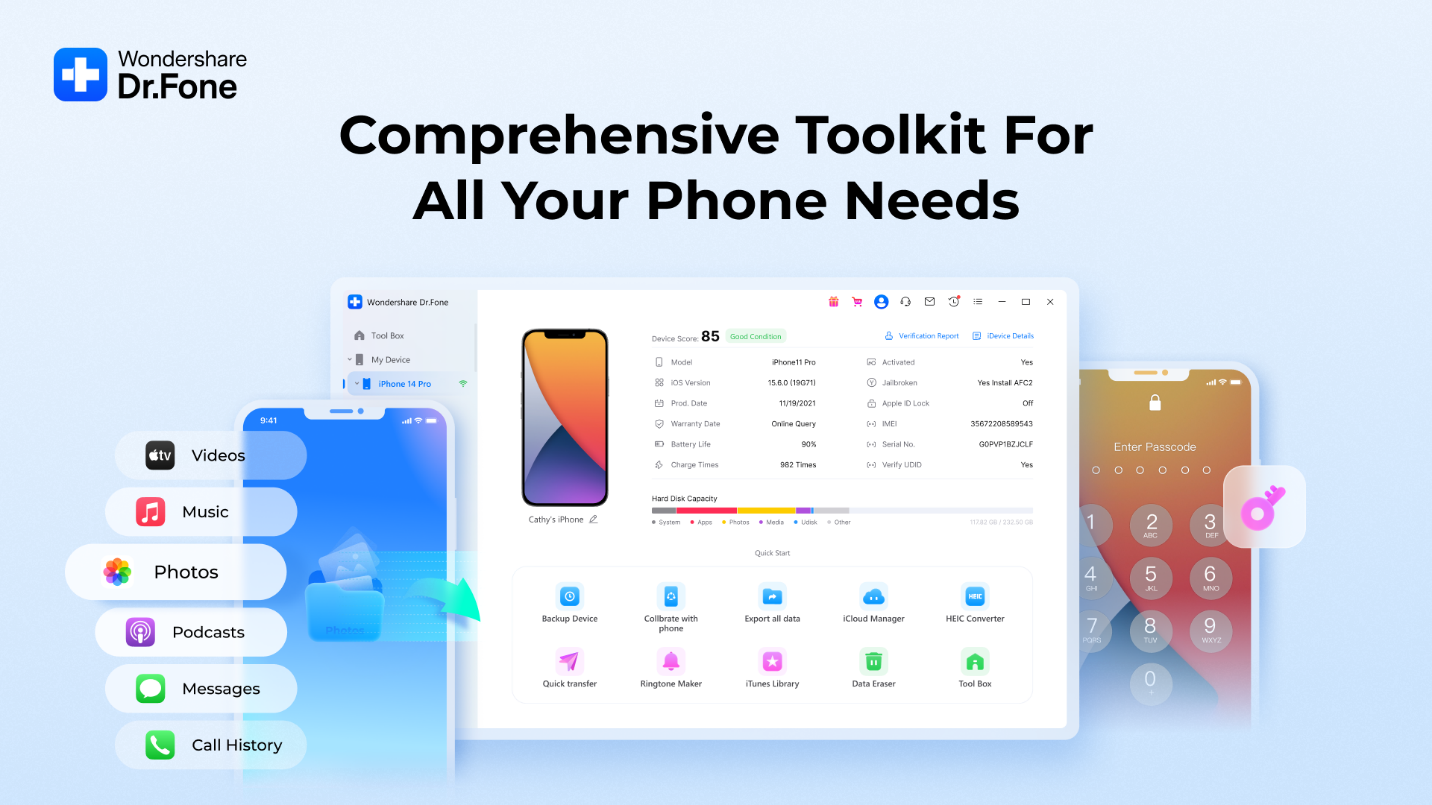
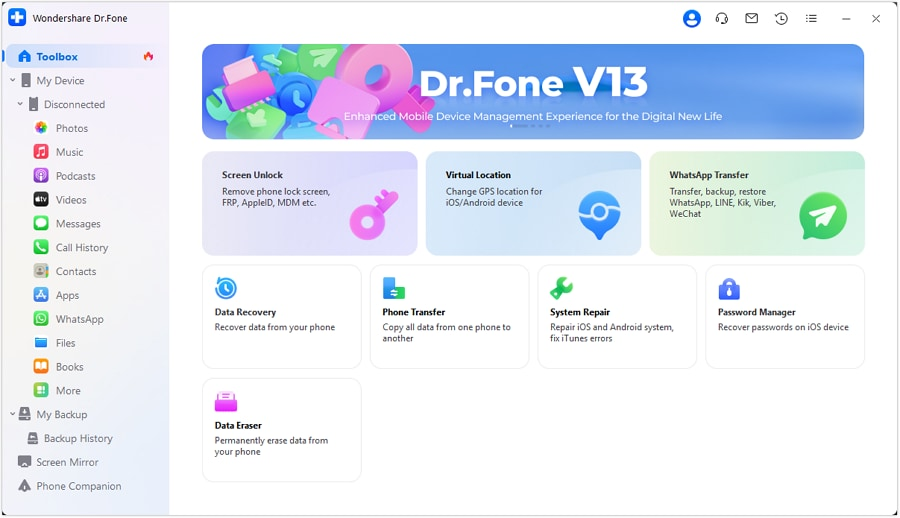
    Do you want to know the best tool for a locked iPhone 14 Pro? The most reliable tool that can unlock your locked iPhone 14 Series for you is Wondershare Dr.Fone. It is a comprehensive screen unlock tool that can unlock all types of screen locks ranging from 4-digit passcode to Face ID. Along with the screen locks, this tool is also able to unlock Apple ID and screen time passcode.

    Wondershare Dr.Fone also offers one of the simplest processes to unlock your iPhone 14 after you forget your phone password. Let’s go through the easy procedure needed to unlock your iPhone 14 via Dr.Fone:

    Step 1: Launch Wondershare Dr.Fone on your computer and choose “Screen Unlock” from the available options in “Toolbox.” On the next screen, choose “iOS” and follow that by clicking “Unlock iOS Screen.”
    Step 2: Now connect your iPhone to the computer, and once it is detected by Dr.Fone, press “Start.” Afterward, put your device into Recovery Mode following the on-screen guidelines. Once the iPhone is in Recovery Mode, Dr.Fone will detect the model and iOS version.
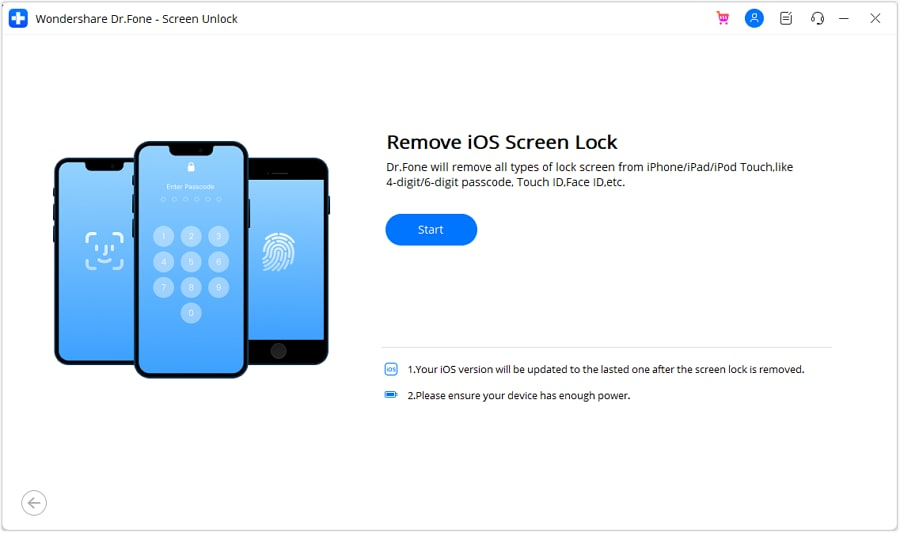
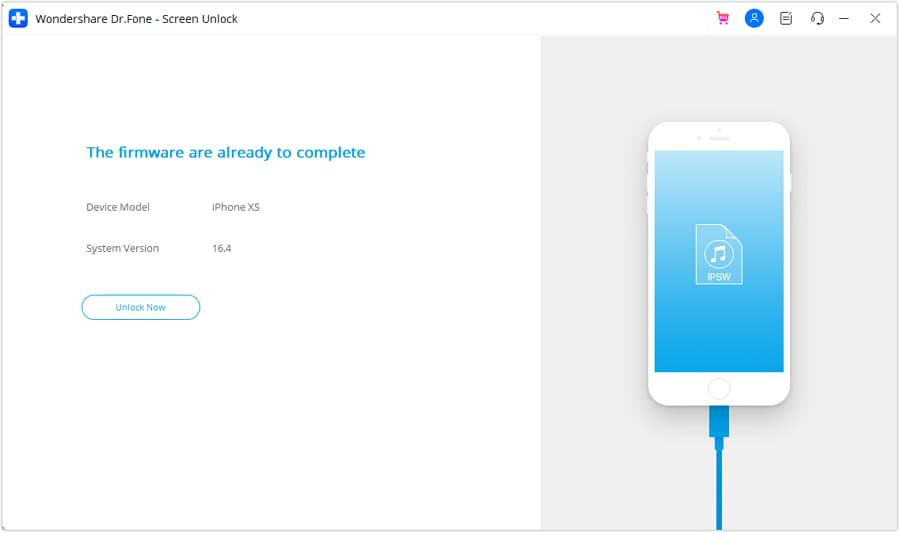
    Step 3: If the detected details are correct, click “Start” and begin the firmware downloading process. After the firmware is downloaded, click “Unlock Now.” A prompt window will appear asking for confirmation, which you can do by inserting the “000000” code. Now the firmware will be installed, which will unlock your device.
    Conclusion

    In conclusion, securing your iPhone with methods like passcodes, Touch ID, or Face ID is crucial, but instances of forgetting passwords or encountering device issues may lead to frustration. This article has provided solutions for unlocking your iPhone 14 in three different ways, recognizing the importance of data loss considerations. Choose the method that aligns with your preferences and circumstances, ensuring a secure and efficient unlocking process for your iPhone 14.

    Share. Facebook Twitter Pinterest LinkedIn Tumblr Email

    Related Posts

    Quantum AI App, Useful or Not?

    How to Troubleshoot iPhone Personal Hotspot Issues

    The Battery Capacity of Samsung Galaxy Buds4/Pro Headphones has been Exposed: 42mAh and 57mAh

    Leave A Reply Cancel Reply

    You must be logged in to post a comment.

    voopoo drag s3
    oxva xlim go 2
    sp2s sen x disposable vape
    jnr 100k
    • Popular
    • 3D Printer REVIEW
    • XIAOMI
    November 23, 2025

    VOOPOO DRAG X3 – Big Battery, Smart Tech, Pod-Mod Powerhouse (Review)

    November 23, 2025

    VOOPOO VINCI S: Pocket-Power Pod with a 2,000 mAh Heart — Big Battery, Simple Use (Review)

    November 19, 2025

    OXVA XLIM PRO 3 Pod Vape Quick Hands-on Review (Video Test Included)

    November 19, 2025

    OXVA XLIM 3 Ultra Pod Vape: Hands-on Review (Video Test Included)

    June 23, 2024

    ACMER P2 20W Laser Engraver Fixed Focus Engraving: Hands on Review

    May 30, 2024

    xTool F1 Ultra Review: World’s First 20W Fiber & 20W Diode Laser Engraver

    May 30, 2024

    Anycubic Kobra 3 Combo Review: The Multicolor Masterpiece?

    May 15, 2024

    SCULPFUN SF-A9 40W Laser Engraver Cutting Machine: Hands On Review

    December 2, 2025

    Xiaomi REDMI Turbo5 Pro phone will be launched before the Spring Festival, equipped with the only flagship chip in its class

    December 2, 2025

    Xiaomi has Released REDMI TV X55/65/75 2026: Mini LED starts at only 2,499 yuan

    November 28, 2025

    The Exclusive Camera Handle of Xiaomi 17 Ultra has passed the 3C certification and can be used as a power bank

    November 27, 2025

    Code name “Nezha” : Xiaomi 17 Ultra phone exposed, with a triple rear camera setup

    fc 26 coins
    New Arrivals
    • Uwell Caliburn G5 Lite SE Pod System Kit Uwell Caliburn G5 Lite SE Pod System Kit
    • Uwell Caliburn G5 Lite KOKO Pod System Kit Uwell Caliburn G5 Lite KOKO Pod System Kit
    • Uwell Caliburn G5 Lite Pod System Kit Uwell Caliburn G5 Lite Pod System Kit
    • Freeton Trimax 60k Disposable Vape Freeton Trimax 60k Disposable Vape
    • Smoant Pasito 3 Vape Smoant Pasito 3 Vape
    • Yocan Flat 2.0 series Yocan Flat 2.0 series
    • Snowplus Swift Pod Vape Snowplus Swift Pod Vape
    • Innokin EZ LEVA PCC Pod Kit Innokin EZ LEVA PCC Pod Kit
    • VANMO VM60000 DISPOSABLE VANMO VM60000 DISPOSABLE
    About
  • Igeekphone.com provides the first global tech news and reviews about smartphone, vapes, e-cigar, smart home, 3D printers, e-bike,tablets, RC drones, VR headset, and other accessories. It's the best platform to improve your brand and product.
  • Contact us: info@igeekphone.com
  • Check Our Privacy Policy Here.
  • Note: *Right now we have US editor and EU editors for review, especially for Amazon US and EU.
  • *Shop and Compare Price Here*
  • Facebook
  • Youtube
  • OUR BEST VAPE PARTNERS
  • VAPE ONLINE STORE
  • HAYATI PRO MAX PLUS
  • VAPORESSO
  • VOOPOO
  • OXVA
  • NEXA
  • MASKKING
  • LOSTVAPE ORIONBAR
  • VEIIK
  • MEMERS
  • TODOO
  • SP2S
  • JNR
  • OTHER BEST PARTNERS
  • SVBONY
  • Chuwi
  • Blackview
  • Fossibot
  • Unihertz
  • Flsun
  • Anycubic
  • Xtool
  • Oukitel
  • Mukkpet Ebike
  • Ugreen
  • Copyright © 2025 igeekphone

    Type above and press Enter to search. Press Esc to cancel.