










If your iPhone won’t power on, it can feel like a serious hardware failure—but in many cases, the issue is actually caused by battery drain, software crash, or charging problems rather than permanent damage. The white casing doesn’t affect functionality, but it can make it harder to notice subtle damage like dirt buildup around ports or buttons.
Here’s a clear step-by-step guide to help you diagnose and fix the problem.
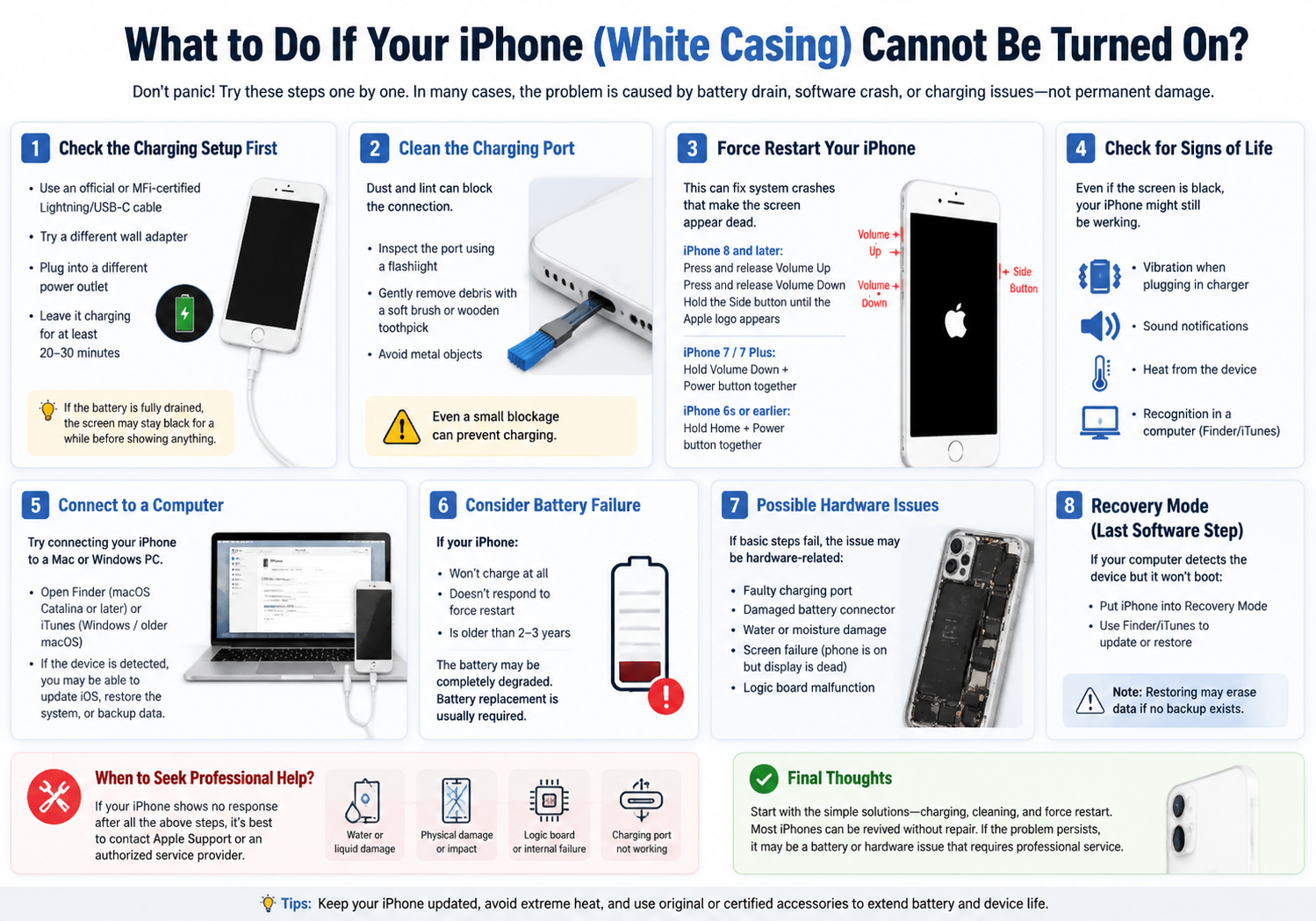
1. Check the Charging Setup First
The most common reason an iPhone won’t turn on is simply no power.
Try the following:
- Use an official or MFi-certified Lightning/USB-C cable
- Try a different wall adapter
- Plug into a different power outlet
- Leave it charging for at least 20–30 minutes
If the battery was fully drained, the screen may stay black for a while before showing anything.
2. Clean the Charging Port (Important for White Phones Too)
Dust and lint often accumulate in the charging port, especially if the phone is carried in pockets or bags.
- Inspect the Lightning/USB-C port using a flashlight
- Gently remove debris using a soft brush or wooden toothpick
- Avoid metal objects (they can damage connectors)
Even a small blockage can prevent charging entirely.
3. Force Restart Your iPhone
If the screen is black but the phone is actually on, a force restart can fix it.
For iPhone 8 and later:
- Press and release Volume Up
- Press and release Volume Down
- Hold the Side button until Apple logo appears
For iPhone 7 / 7 Plus:
- Hold Volume Down + Power button together
For iPhone 6s or earlier:
- Hold Home + Power button together
This can resolve system crashes that make the screen appear dead.
4. Check for Signs of Life
Even if the screen is black, your iPhone might still be working.
Look for:
- Vibration when plugging in charger
- Sound notifications
- Heat from the device
- Recognition in a computer (Finder/iTunes)
If any of these happen, the issue is likely display-related, not power-related.
5. Connect to a Computer
Try connecting your iPhone to a Mac or Windows PC:
- Open Finder (macOS Catalina or later)
- Or iTunes (Windows / older macOS)
If the device is detected, you may be able to:
- Update iOS
- Restore system software
- Backup data
This is especially useful if the phone is stuck in a boot loop or frozen state.
6. Consider Battery Failure
If your iPhone:
- Won’t charge at all
- Doesn’t respond to force restart
- Is older than 2–3 years
The battery may be completely degraded.
In this case, replacement is usually required. Lithium batteries naturally lose capacity over time.
7. Possible Hardware Issues
If basic steps fail, the issue may be hardware-related:
- Faulty charging port
- Damaged battery connector
- Water or moisture damage
- Screen failure (phone is on but display is dead)
- Logic board malfunction
White-colored iPhones can sometimes show discoloration or micro-cracks more visibly, which may indicate prior impact damage.
8. Recovery Mode (Last Software Step)
If your computer detects the device but it won’t boot:
- Put iPhone into Recovery Mode
- Use Finder/iTunes to update or restore
Note: Restoring may erase data if no backup exists.
Final Thoughts
If your iPhone with a white casing won’t turn on, start with the basics: charging, port cleaning, and force restart. Most of the time, the issue is temporary and fixable without repair.
However, if the device shows no response at all after multiple attempts, it’s likely a battery or hardware failure, and professional repair will be needed.