









If you’ve ever seen the message “iCloud Storage Full” on your iPhone, iPad, or Mac, you’re not alone. Apple’s free 5GB of iCloud storage can fill up surprisingly quickly, especially when you’re backing up photos, videos, messages, and app data. Once your storage is full, iCloud backups may stop, photos may no longer sync, and important files might fail to upload.
Fortunately, there are several quick and effective ways to free up iCloud space without losing valuable data. Here’s how to reclaim storage and get your iCloud account working smoothly again.
Why Does iCloud Storage Fill Up So Quickly?
Many users assume photos are the only culprit, but several types of data can consume significant iCloud storage:
- Photos and videos
- Device backups
- Messages and attachments
- iCloud Drive files
- Email attachments
- App data
- Voice memos
- Shared albums
To see exactly what’s using your storage:
- Open Settings
- Tap your Apple ID
- Select iCloud
- Tap Manage Storage or Storage
You’ll see a detailed breakdown of what’s occupying your iCloud space.
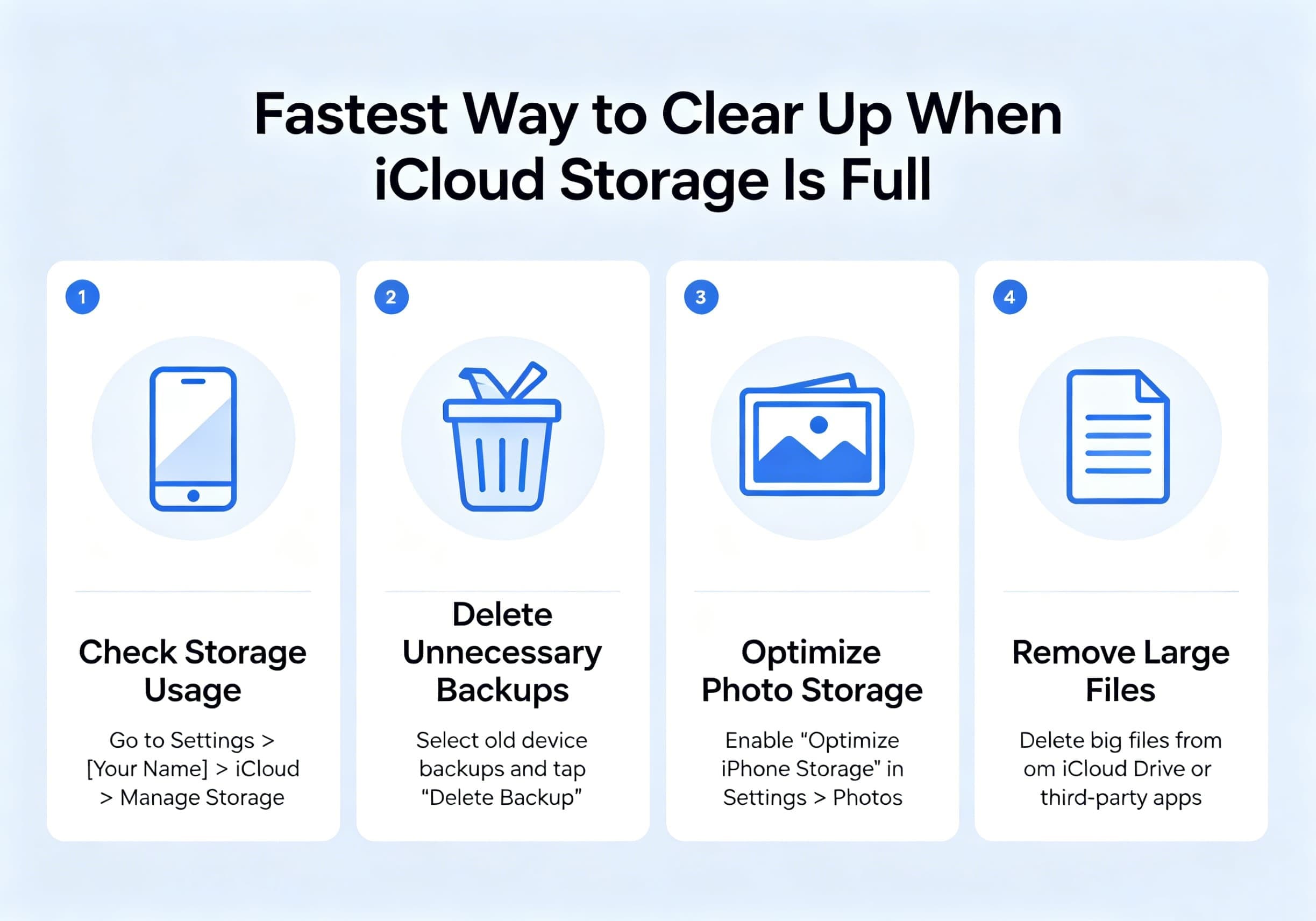
Fastest Method #1: Delete Large iPhone Backups
Old device backups often consume several gigabytes of storage.
To remove unnecessary backups:
- Open Settings
- Tap Apple ID
- Select iCloud
- Tap Manage Storage
- Choose Backups
- Select an old or unused device
- Tap Delete Backup
If you’ve upgraded to a newer iPhone, deleting backups from old devices can instantly free up a significant amount of storage.
Fastest Method #2: Remove Large Photos and Videos
Photos and videos are usually the largest storage consumers.
To quickly identify and remove large files:
- Open the Photos app
- Go to Albums
- Open Videos, Screenshots, or Screen Recordings
- Delete unwanted content
Don’t forget to empty the Recently Deleted album afterward, as deleted media continues to occupy storage for up to 30 days.
To permanently remove deleted items:
- Open Photos
- Go to Albums
- Select Recently Deleted
- Tap Delete All
This often frees up several gigabytes immediately.
Fastest Method #3: Delete Large Message Attachments
Messages containing photos, videos, GIFs, and documents can quietly consume large amounts of storage.
To remove them:
- Open Settings
- Tap General
- Select iPhone Storage
- Choose Messages
- Review large attachments
- Delete unnecessary files
You can also configure automatic message deletion:
- Go to Settings
- Select Messages
- Tap Keep Messages
- Choose 30 Days or 1 Year
This prevents old conversations from accumulating indefinitely.
Fastest Method #4: Clean Up iCloud Drive
Files stored in iCloud Drive can consume storage even if you no longer use them.
To manage iCloud Drive:
- Open the Files app
- Tap Browse
- Select iCloud Drive
- Review folders and documents
- Delete unnecessary files
Large downloads, PDFs, ZIP archives, and old project files are common storage hogs.
Remember to empty the Recently Deleted folder afterward.
Fastest Method #5: Remove App Data You No Longer Need
Many apps store information in iCloud, including games, productivity tools, and note-taking apps.
To review app storage:
- Open Settings
- Tap Apple ID
- Select iCloud
- Tap Manage Storage
- Review individual apps
If an app is using excessive space, you can delete its stored data directly from iCloud.
Be sure you no longer need the information before removing it.
Fastest Method #6: Disable Unnecessary iCloud Syncing
Not every app needs to sync with iCloud.
To disable syncing:
- Open Settings
- Tap Apple ID
- Select iCloud
- Under Apps Using iCloud, turn off services you don’t need
Common examples include:
- Notes
- Voice Memos
- Third-party apps
- Certain games
- Unused productivity apps
This prevents future storage buildup.
Fastest Method #7: Optimize Your Photo Library
If you want to keep all your photos while reducing storage usage, enable Optimize iPhone Storage.
To enable:
- Open Settings
- Tap Photos
- Select Optimize iPhone Storage
Your full-resolution photos remain in iCloud while smaller versions stay on your device, helping manage local storage more efficiently.
Should You Upgrade Your iCloud Storage Plan?
Sometimes cleaning up storage isn’t enough, especially if you regularly capture photos and videos.
Apple currently offers several paid iCloud+ plans that provide substantially more storage than the free 5GB option.
Upgrading may be worthwhile if you:
- Back up multiple Apple devices
- Use iCloud Photos extensively
- Store large files in iCloud Drive
- Share storage with family members
For many users, the monthly cost is lower than the time spent constantly managing storage.
Tips to Prevent iCloud Storage from Filling Up Again
Once you’ve reclaimed space, these habits can help keep iCloud organized:
- Delete unwanted photos regularly
- Empty the Recently Deleted folder
- Remove old device backups
- Review message attachments monthly
- Clean up iCloud Drive periodically
- Disable syncing for unused apps
- Back up large media files elsewhere
A few minutes of maintenance each month can prevent storage issues from returning.
Final Thoughts
When iCloud storage becomes full, the quickest solutions are usually deleting old backups, removing large photos and videos, clearing message attachments, and cleaning up iCloud Drive. These methods can often recover several gigabytes within minutes.
By understanding what’s consuming your storage and adopting a few simple cleanup habits, you can keep your iCloud account running smoothly, ensure backups continue working, and avoid the frustration of constant storage warnings.