









A black screen can be one of the most frustrating issues for computer users. Whether you’re trying to power up your device or it suddenly goes blank during use, a black screen can prevent you from accessing your files and applications. In this article, we’ll explore the common reasons behind a black screen and provide 5 effective solutions to fix it.
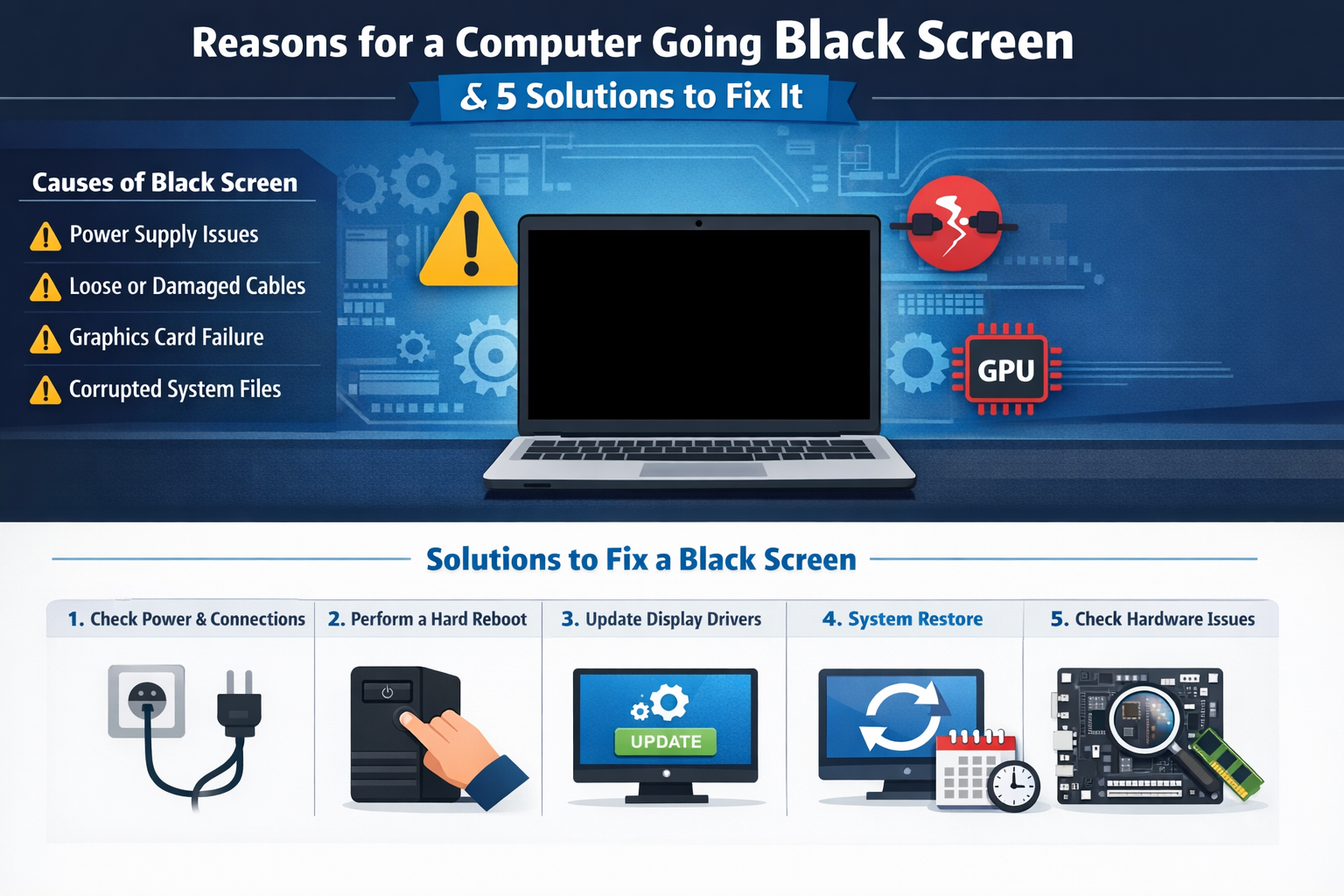
Common Causes of a Black Screen on Your Computer
Before diving into solutions, it’s important to understand why your computer screen might turn black. Here are the most common causes of a black screen:
1. Power Supply Issues
One of the primary reasons for a computer to experience a black screen is power failure. If the computer is not receiving sufficient power, the screen will remain black.
2. Loose or Damaged Cables
Loose or disconnected cables, especially between your computer and monitor, are a frequent culprit. A cable issue may result in the display not receiving any signal.
3. Graphics Card Failure
A malfunctioning or improperly seated graphics card (GPU) can cause your computer to display a black screen. This is more likely to occur when your computer is running graphics-intensive programs or games.
4. Corrupted Operating System Files
Corrupted system files can prevent your operating system from booting properly, resulting in a black screen. This may occur after an incomplete OS update or an issue with system recovery.
5. Faulty Display Drivers
Outdated or corrupted display drivers can cause issues with screen rendering, which may lead to a black screen on startup or during use.
6. Hardware Malfunctions
A malfunctioning motherboard, RAM, or hard drive could also cause a black screen. These hardware failures typically require professional repair.
5 Solutions to Fix a Black Screen on Your Computer
If you’ve encountered a black screen, don’t panic. Here are 5 effective solutions to help you fix the issue and get your computer up and running again.
Solution 1: Check the Power Source and Connections
Before assuming a deeper issue, make sure your power cables are plugged in correctly and your device is receiving power.
- For laptops: Make sure the battery is charged or the charger is connected properly.
- For desktops: Ensure that all cables are tightly connected between your computer and monitor, including the power cable, HDMI, or VGA cables.
Once everything is plugged in properly, restart your computer to see if the screen comes back on.
Solution 2: Perform a Hard Reboot
Sometimes, a simple hard reboot can resolve a black screen issue. Here’s how to do it:
- Hold down the power button for about 10-15 seconds until the computer completely shuts down.
- After the system powers off, release the power button.
- Press the power button again to restart your computer.
This will clear temporary glitches or minor software conflicts that may be causing the black screen.
Solution 3: Update or Reinstall Display Drivers
If your screen remains black after the system boots, outdated or corrupt display drivers might be the issue. You can try booting into Safe Mode and updating or reinstalling your drivers.
- Boot into Safe Mode: Restart your computer and press F8 (or Shift + F8 on some systems) before the operating system loads to access Advanced Boot Options.
- Once in Safe Mode, open Device Manager and navigate to Display Adapters.
- Right-click on your display adapter and select Update Driver. If no updates are available, you can also Uninstall the Driver and restart your computer to allow Windows to reinstall it automatically.
Solution 4: Perform a System Restore
If the issue appeared after a recent update or installation, System Restore can help. It allows you to revert your computer’s settings back to a time when it was functioning correctly.
- Restart your computer and press F8 (or Shift + F8) to access Advanced Boot Options.
- Select Repair Your Computer and choose System Restore from the options.
- Select a restore point from before the issue began and follow the on-screen instructions to restore your system.
Note: Make sure to back up any important files if possible, as system restores can undo recent changes and affect new files.
Solution 5: Check for Hardware Failures
If none of the above solutions work, there may be a deeper issue with your computer’s hardware. Common hardware issues causing black screens include:
- Loose graphics card or a failing GPU.
- Faulty RAM or other components like the motherboard or hard drive.
- Damaged monitor or display cable.
Try the following:
- Test the monitor: Connect your computer to a different monitor to check if the issue is with the screen itself.
- Reseat the GPU: If you have a desktop computer, turn off the system and reseat your graphics card. Make sure it’s properly inserted into the PCIe slot.
- Test the RAM: Swap out or reseat your RAM modules to check if they are functioning correctly.
If these steps don’t resolve the issue, you may need to consult a professional technician to diagnose and fix the hardware problem.
Conclusion: Preventing Black Screen Issues
Experiencing a black screen on your computer can be alarming, but understanding the causes and solutions can help you quickly get back to work. By checking power connections, updating drivers, and performing system restores, you can usually resolve the issue on your own.
For ongoing maintenance, make sure to:
- Keep your operating system and drivers up to date.
- Regularly back up your files to avoid data loss in case of hardware failure.
- Use reliable surge protectors to prevent power-related issues.
By following these steps, you’ll reduce the likelihood of encountering black screen issues and ensure your computer runs smoothly.