









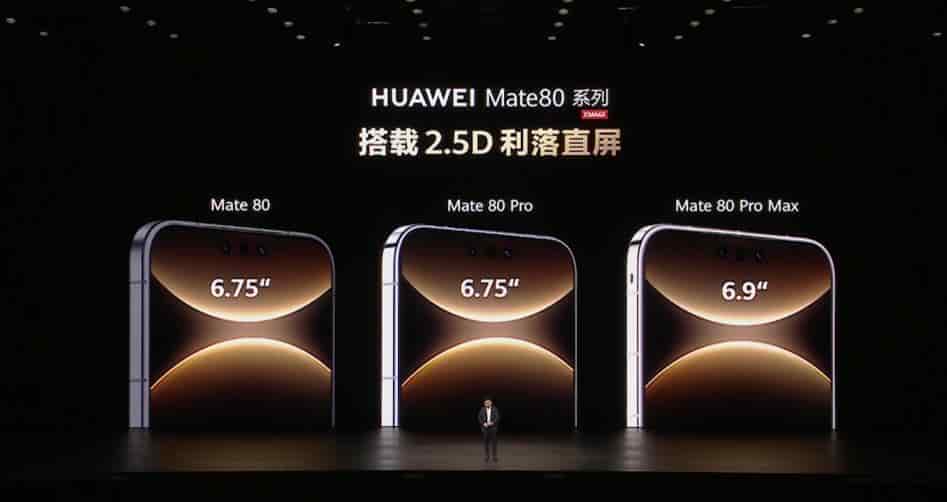
Huawei Mate 80 series, as a high-end imaging flagship, integrates a variety of preset modes and parameter adjustment functions in its camera system. However, during long-term use, users may need to delete or reset some presets due to accidental operations or personalized needs. This article will elaborate on the methods for deleting preset modes in the Huawei Mate 80 camera from three aspects: mode management, parameter reset, and data cleaning.
I. Deletion and Adjustment of Preset Camera Modes
The camera modes of Huawei Mate 80 are divided into two categories: “Main Interface Mode” and “More Modes”. If you want to delete the shooting modes that the user has customized (such as slow motion, panorama, etc.), you can follow the steps below:
Enter the mode editing interface: Open the camera application, scroll to the “More” tab, and click the editing icon in the upper right corner (usually in the form of a pencil or gear).
2. Long press and drag for deletion: In the editing interface, long press the icon of the mode you want to delete (such as “Panorama” or “Slow Motion”), wait until the icon shows a shaking effect, then drag it to the “Delete Area” at the top of the screen or directly out of the interface. Some models will display a trash can icon, and clicking on it will complete the deletion.
3. Restore deleted mode: If you accidentally delete a commonly used mode, you can click “Add Mode” on the “More” interface and then re-select the options you wish to restore from the list.
Notes: The basic mode (such as photo taking, video recording, portrait) usually cannot be deleted and only supports position adjustment. The deletion mode only affects the local interface display and will not clear the captured photos or videos.
II. Method for Resetting Preset Shooting Parameters
If the user has adjusted parameters such as ISO, white balance, exposure compensation, etc., resulting in abnormal shooting results, the following methods can be used to reset them:
One-click reset within the camera: Open the camera, go to the “Settings” interface, scroll to the bottom to find the “Restore Default Values” or “Reset Camera Parameters” option, click confirm, and all parameters will be restored to the factory settings. Some models support long-pressing the “Settings” icon in the preview interface to directly pop up the reset option.
2. Clear application data: If there is an abnormality with the camera application (such as being unable to modify parameters), you can go to the system settings, select “Apps & Services” > “App Management”, find the “Camera” application, click “Storage”, then choose “Delete Data”. This operation will reset all settings, but it will not delete the captured files. When opening the camera for the first time, you need to re-authorize permissions such as storage and location.
Applicable scenarios: Problems such as overexposure of photos due to parameter confusion, or situations where it is necessary to quickly switch to the standard shooting style.
III. Cleanup of Library Settings and Editing History
Some users might mistakenly take the photo gallery editing parameters as the camera presets, and thus they need to be handled differently:
1. Revert image editing: Open the edited photo in the gallery, then click “Edit” > “Revert”, which will undo all adjustments (such as brightness, contrast, sharpening, etc.).
2. Clear editing history: Go to the gallery settings, disable the “Save Editing History” option to prevent the system from automatically recording adjustment parameters.
3. Reset album sorting: If the albums are displayed in a disorderly manner, you can long-press the album name in the gallery and select “Restore Default Sorting” to reset the system’s automatic classification logic.
Advanced Technique: For the grayish appearance issue caused by algorithm aging in older models, you can manually adjust the parameters (brightness -1, contrast +2, sharpening +2, saturation +2) in the image library editing to temporarily improve the imaging effect. However, for long-term use, it is still recommended to completely reset using the first two methods.
Four. Concealment Instead of Deletion: An Alternative to Simplifying the Interface
For functions that are not frequently used but still need to be retained (such as the professional mode and AR filters), the interface can be streamlined by hiding them:
Hide application icons: On the desktop, use the two-finger pinch gesture to enter the editing mode, then click “Hide Applications”, and select the relevant icons of the “Camera” function for hiding.
2. Disable system camera: Go to “Settings” > “App Management” > “Camera”, and select “Disable” to completely turn off the system camera (make sure there is no alternative shooting tool available; otherwise, it may affect daily use). This method is suitable for scenarios where a third-party camera must be used forcibly, but it may be automatically restored after restarting the device.
By using the above methods, users can flexibly manage the camera presets of Huawei Mate 80. Whether it is in the streamlined mode, resetting parameters, or hiding applications, it can improve operational efficiency without sacrificing functionality. It is recommended to regularly check the camera settings to avoid affecting the shooting experience due to accumulated presets.