






Facebook Twitter Instagram
    Trending
    • OXVA Nexlim 2 Mini Pod Vape Hands on Review
    • OXVA Nexlim 2 Mini Pod Vape Unboxing Review
    • OXVA Nexlim 2 Pod Vape Hands on Review
    • OXVA Nexlim 2 Pod Vape Unboxing Review
    • iPhone 20 Embodies Truly Comprehensive Screen: The Most Upgraded Apple Phone
    • Which Vaping Products Will Remain Available Following the Ban on Disposable Vapes?
    • What Your Smartphone Knows About Your Slip and Fall Accident and Why It Matters
    • How Personal Injury Claims Work When Everyday Activities Lead to Serious Physical Harm and Legal Consequences
    Facebook YouTube
    IGeeKphone China Phone, Tablet PC, VR, RC Drone News, Reviews
    • HOME
    • BREAKING NEWS
      • AI NEWS
    • Amazon
    • PHONE
      • Top Phones For Your First Choice
      • Phone Comparison
      • Xiaomi
      • Blackview
      • Doogee
      • Black Shark
      • Geekbuying
      • Banggood
      • TEMU
      • TikTok
      • Aliexpress
      • Walmart
      • MercadoLibre
      • Lazada
    • TOP VAPE Awards for 2026
    • VAPES
      • E-CIGAR Upcoming
      • Vape News
      • Vape Deals
      • Vape Comparison
      • Vape Guide
      • VAPE LAWS
      • Giveaway
    • BEST VAPE
      • Best Vape Stores
      • Best Starter Vape Kits
      • Best Vapes for Beginners
      • Best Disposable Vapes
      • Best Pod Systems
      • Best Pod Mod Vapes
      • Best Mods
      • Best Nicotine Pouches
      • Best Clearomizers/Tanks
      • Best E-Liquid
      • Best EGO/Pens
      • Best Vapes for Nic Salt E-Juice
      • Best Vapes to Quit Smoking
      • RDA vs. RDTA vs. RTA
    • Best Vape Brand 2026
      • VAPORESSO
      • VOOPOO
      • OXVA
      • NEXA BAR
      • MASKKING VAPE
      • SP2S
      • IPLAY
      • TODOO
      • MRFOG
      • LOSTVAPE
      • VEIIK
    • REVIEW
      • E-cigar Review
      • Phones
      • Tablet PC
      • TV Box
      • RC Drone
      • Wearables
      • Camera
      • Accessories
      • VR Headset
    • MORE
      • TABLET
        • Chuwi
        • INNOCN
        • Teclast
        • Top Tablet for Your First Choice
        • Tablet/Laptop Comparison
      • RC DRONE
      • CAMERA
      • WEARABLES
        • OneOdio
        • BlitzWolf
        • Top Smartwatch for First Choice
      • 3D PRINTER
        • 3D Printer Review
        • Anycubic
        • FLSUN
        • Xtool
        • LONGER
        • Top 3D printer to Choose First
      • POWER STATION
        • Oukitel
        • FOSSIBOT
      • GAMING
        • Top Gaming Products
      • E-BIKE
        • Samebike
        • Happyrun
        • ENGWE
      • SMART HOME
      • TV BOX
      • ACCESSORIES
      • VR HEADSET
      • CLOTHES
      • AUTO CAR
    • DEAL
    • Shop
    IGeeKphone China Phone, Tablet PC, VR, RC Drone News, Reviews
    You are at:Home»Guide»How to Delete the Default Camera Settings on Huawei Mate 80?
    Guide

    How to Delete the Default Camera Settings on Huawei Mate 80?

    Brady CottonBy Brady CottonMarch 11, 2026
    Facebook Twitter Pinterest LinkedIn Tumblr Email

    Huawei Mate 80 series, as a high-end imaging flagship, integrates a variety of preset modes and parameter adjustment functions in its camera system. However, during long-term use, users may need to delete or reset some presets due to accidental operations or personalized needs. This article will elaborate on the methods for deleting preset modes in the Huawei Mate 80 camera from three aspects: mode management, parameter reset, and data cleaning.

    I. Deletion and Adjustment of Preset Camera Modes

    The camera modes of Huawei Mate 80 are divided into two categories: “Main Interface Mode” and “More Modes”. If you want to delete the shooting modes that the user has customized (such as slow motion, panorama, etc.), you can follow the steps below:
    Enter the mode editing interface: Open the camera application, scroll to the “More” tab, and click the editing icon in the upper right corner (usually in the form of a pencil or gear).

    2. Long press and drag for deletion: In the editing interface, long press the icon of the mode you want to delete (such as “Panorama” or “Slow Motion”), wait until the icon shows a shaking effect, then drag it to the “Delete Area” at the top of the screen or directly out of the interface. Some models will display a trash can icon, and clicking on it will complete the deletion.

    3. Restore deleted mode: If you accidentally delete a commonly used mode, you can click “Add Mode” on the “More” interface and then re-select the options you wish to restore from the list.
    Notes: The basic mode (such as photo taking, video recording, portrait) usually cannot be deleted and only supports position adjustment. The deletion mode only affects the local interface display and will not clear the captured photos or videos.

    II. Method for Resetting Preset Shooting Parameters

    If the user has adjusted parameters such as ISO, white balance, exposure compensation, etc., resulting in abnormal shooting results, the following methods can be used to reset them:
    One-click reset within the camera: Open the camera, go to the “Settings” interface, scroll to the bottom to find the “Restore Default Values” or “Reset Camera Parameters” option, click confirm, and all parameters will be restored to the factory settings. Some models support long-pressing the “Settings” icon in the preview interface to directly pop up the reset option.

    2. Clear application data: If there is an abnormality with the camera application (such as being unable to modify parameters), you can go to the system settings, select “Apps & Services” > “App Management”, find the “Camera” application, click “Storage”, then choose “Delete Data”. This operation will reset all settings, but it will not delete the captured files. When opening the camera for the first time, you need to re-authorize permissions such as storage and location.
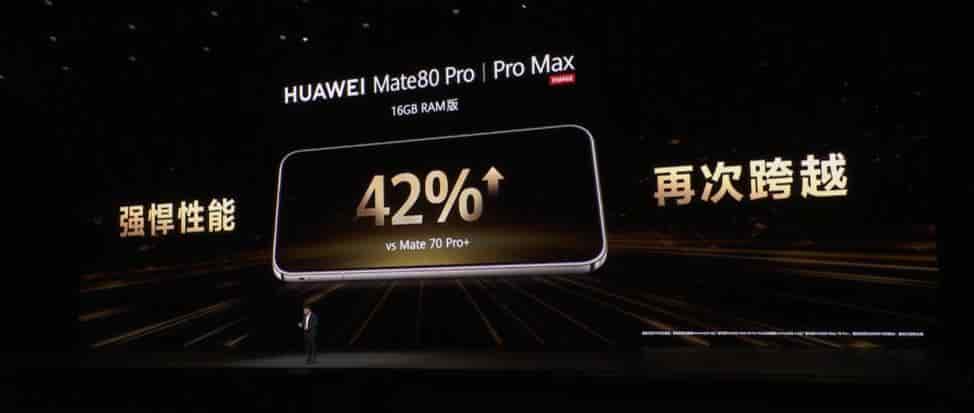
    Applicable scenarios: Problems such as overexposure of photos due to parameter confusion, or situations where it is necessary to quickly switch to the standard shooting style.

    III. Cleanup of Library Settings and Editing History

    Some users might mistakenly take the photo gallery editing parameters as the camera presets, and thus they need to be handled differently:
    1. Revert image editing: Open the edited photo in the gallery, then click “Edit” > “Revert”, which will undo all adjustments (such as brightness, contrast, sharpening, etc.).
    2. Clear editing history: Go to the gallery settings, disable the “Save Editing History” option to prevent the system from automatically recording adjustment parameters.
    3. Reset album sorting: If the albums are displayed in a disorderly manner, you can long-press the album name in the gallery and select “Restore Default Sorting” to reset the system’s automatic classification logic.

    Advanced Technique: For the grayish appearance issue caused by algorithm aging in older models, you can manually adjust the parameters (brightness -1, contrast +2, sharpening +2, saturation +2) in the image library editing to temporarily improve the imaging effect. However, for long-term use, it is still recommended to completely reset using the first two methods.

    Four. Concealment Instead of Deletion: An Alternative to Simplifying the Interface
    For functions that are not frequently used but still need to be retained (such as the professional mode and AR filters), the interface can be streamlined by hiding them:
    Hide application icons: On the desktop, use the two-finger pinch gesture to enter the editing mode, then click “Hide Applications”, and select the relevant icons of the “Camera” function for hiding.

    2. Disable system camera: Go to “Settings” > “App Management” > “Camera”, and select “Disable” to completely turn off the system camera (make sure there is no alternative shooting tool available; otherwise, it may affect daily use). This method is suitable for scenarios where a third-party camera must be used forcibly, but it may be automatically restored after restarting the device.
    By using the above methods, users can flexibly manage the camera presets of Huawei Mate 80. Whether it is in the streamlined mode, resetting parameters, or hiding applications, it can improve operational efficiency without sacrificing functionality. It is recommended to regularly check the camera settings to avoid affecting the shooting experience due to accumulated presets.

    Share. Facebook Twitter Pinterest LinkedIn Tumblr Email

    Related Posts

    What Your Smartphone Knows About Your Slip and Fall Accident and Why It Matters

    How Personal Injury Claims Work When Everyday Activities Lead to Serious Physical Harm and Legal Consequences

    From Conception to Continuity: Navigating Subscription Business Success

    Leave A Reply Cancel Reply

    You must be logged in to post a comment.

    voopoopintch
    oxva nexlim 2
    sp2s sen x disposable vape
    • Popular
    • 3D Printer REVIEW
    • XIAOMI
    June 21, 2026

    iPlay LUMO 8K Review – A Compact Prefilled Pod Kit with Big Flavor and Everyday Convenience

    June 21, 2026

    iPlay HOOLA 150K Review – A Cloud-Chasing Giant with Music, Modes & Massive Longevity

    June 21, 2026

    Vaporesso VIBE SE 2 Review – Simple on the Outside, Surprisingly Smart on the Inside

    June 21, 2026

    VOOPOO DRAG H40 Pro Review – The Return of the Pocket Powerhouse

    December 26, 2025

    ACMER ASCARVA 4S: Precision CNC Power for Makers, DIYers & Small Workshops

    June 23, 2024

    ACMER P2 20W Laser Engraver Fixed Focus Engraving: Hands on Review

    May 30, 2024

    xTool F1 Ultra Review: World’s First 20W Fiber & 20W Diode Laser Engraver

    May 30, 2024

    Anycubic Kobra 3 Combo Review: The Multicolor Masterpiece?

    July 13, 2026

    Xiaomi Mijia Display Wall Lamp 2 has been launched on the crowdfunding page at 259 yuan

    July 12, 2026

    The Core Specifications of Redmi Note 17 series have been Announced

    July 11, 2026

    Xiaomi Redmi Note 17 Series Specifications Leak Ahead of July 14 Launch: Snapdragon 4 Gen 4, Up to 9,000mAh Battery

    July 10, 2026

    Xiaomi Band 11 Series Certified Ahead of Launch, Retains 233mAh Battery Capacity

    fc 26 coins
    New Arrivals
    • Geek Bar Spark Prefilled Pod Kit Geek Bar Spark Prefilled Pod Kit
    • Vozol Switch Lite 10K Prefilled Pod Kit Vozol Switch Lite 10K Prefilled Pod Kit
    • SOFI Surge X 50K Zero Nicotine Disposable Vape SOFI Surge X 50K Zero Nicotine Disposable Vape
    • Smoant Racer Flex Pod System Kit Smoant Racer Flex Pod System Kit
    • Honor Magic 9 Honor Magic 9
    • Redmi K100 Pro Max Redmi K100 Pro Max
    • Motorola Edge 80 Motorola Edge 80
    • Nothing Phone 4a Lite Nothing Phone 4a Lite
    • Veev One Plus Pod System Kit Veev One Plus Pod System Kit
    About
  • Igeekphone.com provides the first global tech news and reviews about smartphone, vapes, e-cigar, smart home, 3D printers, e-bike,tablets, RC drones, VR headset, and other accessories. It's the best platform to improve your brand and product.
  • Contact us: info@igeekphone.com
  • Check Our Privacy Policy Here.
  • Note: *Right now we have US editor and EU editors for review, especially for Amazon US and EU.
  • *Shop and Compare Price Here*
  • Facebook
  • Youtube
  • OUR BEST VAPE PARTNERS
  • VAPE ONLINE STORE
  • HAYATI PRO MAX PLUS
  • VAPORESSO
  • VOOPOO
  • OXVA
  • NEXA
  • MASKKING
  • SP2S
  • IPLAY
  • TODOO
  • OTHER BEST PARTNERS
  • SVBONY
  • Chuwi
  • Blackview
  • Fossibot
  • Unihertz
  • Flsun
  • Anycubic
  • Xtool
  • Oukitel
  • Mukkpet Ebike
  • Ugreen
  • Copyright © 2026 igeekphone

    Type above and press Enter to search. Press Esc to cancel.