







Facebook Twitter Instagram
    Trending
    • IPLAY NOVA 45k Disposable Pod Review-Long Lasting Power Meets Premium Performance
    • Lost Vape Kata Pod System Kit Review-A Balanced All‑Day Vaper
    • PJC RG808 PRO RC Drone Review at $123.99: A Feature-Packed 5G WiFi FPV Quadcopter for Aerial Enthusiasts
    • Vaporesso LUXE Q VS LUXE Q2 Quick Comparison Review
    • VOOPOO Argus G4 Mini Pod System Kit Review-What You Need to Know
    • SCY 10101 1/10 2.4G 4WD Brushed RC Car Review: A Monster on the Tracks
    • TRONXY VEHO 600 PRO V3 Review: A Giant Leap in 3D Printing Technology
    • HPI Maverick ATOM 150500 Review: A Powerful 1/18 4WD RC Monster Truck for Enthusiasts
    Facebook YouTube
    IGeeKphone China Phone, Tablet PC, VR, RC Drone News, Reviews
    • HOME
      • NEWS
        • DeepSeek
        • ChatGPT
        • Minecraft
    • Amazon
    • PHONE
      • Top Phones For Your First Choice
      • Phone Comparison
      • Xiaomi
      • Blackview
      • Doogee
      • Black Shark
      • Geekbuying
      • Banggood
      • TEMU
      • TikTok
      • Aliexpress
      • Walmart
      • MercadoLibre
      • Lazada
    • TOP VAPE Awards for 2026
    • VAPES
      • E-CIGAR Upcoming
      • Vape News
      • Vape Deals
      • Vape Comparison
      • Vape Guide
      • Giveaway
    • BEST VAPE
      • Best Vape Stores
      • Best Starter Vape Kits
      • Best Vapes for Beginners
      • Best Disposable Vapes
      • Best Pod Systems
      • Best Pod Mod Vapes
      • Best Mods
      • Best Nicotine Pouches
      • Best Clearomizers/Tanks
      • Best E-Liquid
      • Best EGO/Pens
      • Best Vapes for Nic Salt E-Juice
      • Best Vapes to Quit Smoking
      • RDA vs. RDTA vs. RTA
    • Best Vape Brand 2026
      • VAPORESSO
      • VOOPOO
      • OXVA
      • NEXA BAR
      • ORIONBARTECH
      • MASKKING VAPE
      • MEMERS
      • SP2S
      • TODOO
      • MRFOG
      • VEIIK
    • REVIEW
      • E-cigar Review
      • Phones
      • Tablet PC
      • TV Box
      • RC Drone
      • Wearables
      • Camera
      • Accessories
      • VR Headset
    • MORE
      • TABLET
        • Chuwi
        • INNOCN
        • Teclast
        • Top Tablet for Your First Choice
        • Tablet/Laptop Comparison
      • RC DRONE
      • CAMERA
      • WEARABLES
        • OneOdio
        • BlitzWolf
        • Top Smartwatch for First Choice
      • 3D PRINTER
        • 3D Printer Review
        • Anycubic
        • FLSUN
        • Xtool
        • LONGER
        • Top 3D printer to Choose First
      • POWER STATION
        • Oukitel
        • FOSSIBOT
      • GAMING
        • Top Gaming Products
      • E-BIKE
        • Samebike
        • Happyrun
        • ENGWE
      • SMART HOME
      • TV BOX
      • ACCESSORIES
      • VR HEADSET
      • CLOTHES
      • AUTO CAR
    • DEAL
    • VAPE LAWS
    • Shop
    IGeeKphone China Phone, Tablet PC, VR, RC Drone News, Reviews
    You are at:Home»Guide»How to Set a Password for Computer Startup: A Step-by-Step Guide to Enhance Security
    Guide

    How to Set a Password for Computer Startup: A Step-by-Step Guide to Enhance Security

    Brady CottonBy Brady CottonMarch 12, 2026
    Facebook Twitter Pinterest LinkedIn Tumblr Email

    In today’s digital age, securing your computer is more important than ever. Whether you’re using your computer for work, personal tasks, or gaming, it’s essential to ensure that no one else has unauthorized access to your files and sensitive information. Setting a password for computer startup is a simple yet effective way to keep your device secure. This article will guide you through the process of setting a password for your computer’s startup, whether you’re using Windows or Mac.

    Why Set a Password for Computer Startup?

    Before diving into the step-by-step guide, let’s first understand why setting a password for your computer startup is crucial:

    1. Prevent Unauthorized Access: A password protects your computer from unauthorized users who may attempt to access your personal data or modify system settings.

    2. Secure Sensitive Information: If you store confidential files on your computer—whether it’s work documents, personal finances, or private communications—a password can keep this information safe from prying eyes.

    3. Enhanced Privacy: A password provides peace of mind, knowing that only authorized users can access your computer, especially if it is left unattended in public or shared spaces.

    4. Add an Extra Layer of Security: A startup password is one of the most basic yet effective ways to prevent theft or tampering with your computer.

    Now, let’s get into the how-to for setting up a startup password on both Windows and Mac computers.

    How to Set a Password for Computer Startup on Windows

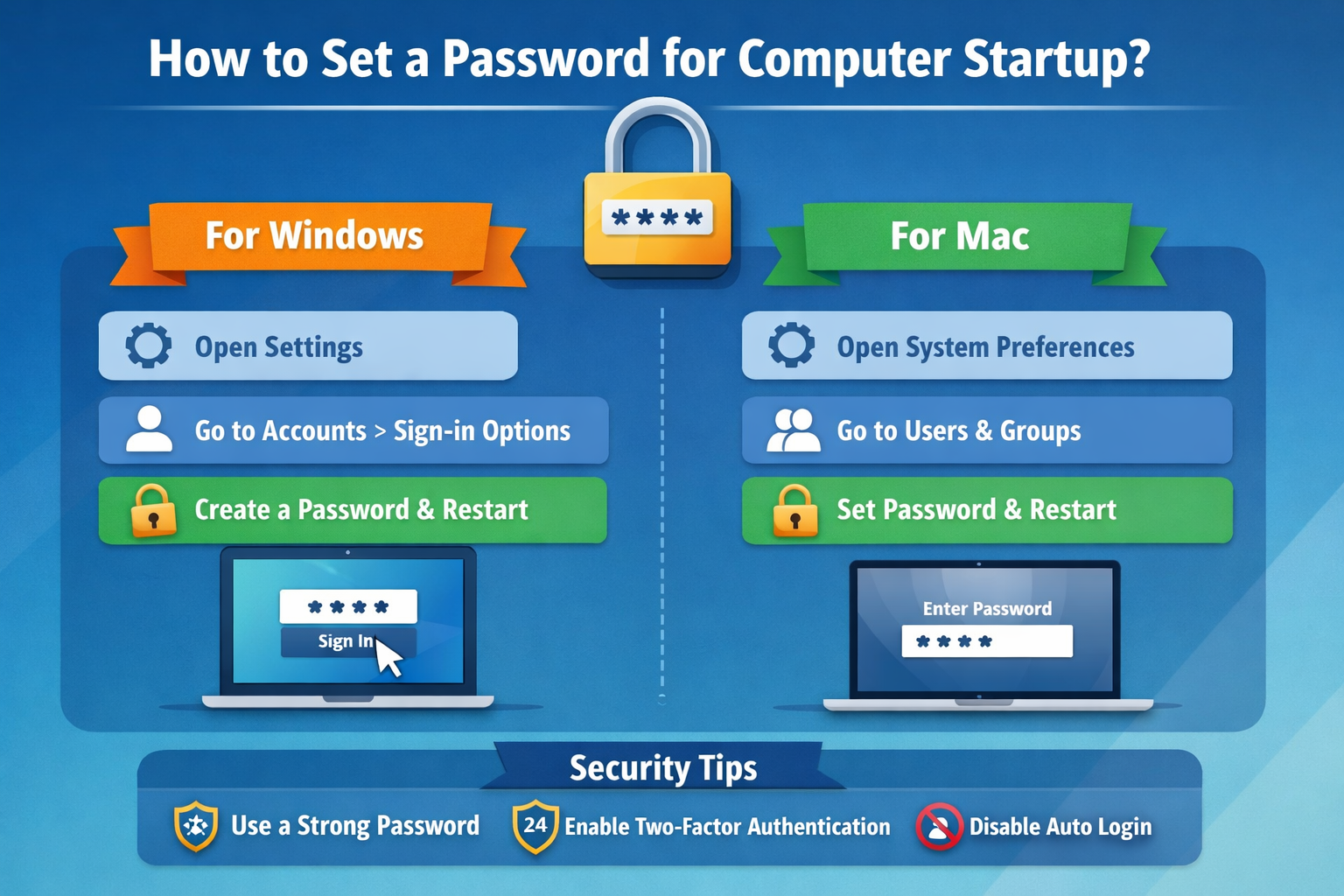
    Setting a password for startup on a Windows PC is a straightforward process. Here’s how you can do it:

    Method 1: Using a Local Account Password

    1. Open Settings:

      • Click the Start Menu and select Settings (the gear icon).

    2. Go to Accounts:

      • In the Settings menu, click on Accounts.

    3. Set up Sign-in Options:

      • Under Accounts, select Sign-in options.

    4. Choose Password:

      • Under the Password section, click Add (if you don’t already have a password set up) or Change (if you want to update your existing password).

    5. Enter Password Details:

      • Enter a strong password (preferably a combination of letters, numbers, and special characters).

      • Confirm the password, and then click Next to finish the setup.

    6. Restart Your Computer:

      • Restart your computer, and you will be prompted to enter the password before accessing your desktop.
    Method 2: Using a Microsoft Account Password (for Syncing Across Devices)

    If you’re using a Microsoft account to sign in to your computer, follow these steps:

    1. Open Settings:

      • Click on the Start Menu and select Settings.

    2. Go to Accounts:

      • Select Accounts, and then choose Your Info.

    3. Switch to a Microsoft Account:

      • If you’re not already signed in with a Microsoft account, click on Sign in with a Microsoft account instead.

    4. Enter Password:

      • Follow the instructions to enter a strong password for your Microsoft account.

    5. Set Up Two-Factor Authentication (Optional):

      • For added security, enable two-factor authentication for your Microsoft account.

    6. Restart Your Computer:

      • After the setup is complete, restart your computer, and your Microsoft account password will be required at startup.

    Method 3: Setting BIOS/UEFI Password for Startup (For Additional Security)

    If you want to add an extra layer of protection by requiring a password before Windows even boots up, you can set a BIOS/UEFI password. Here’s how:

    1. Restart Your Computer and Enter BIOS/UEFI:

      • On startup, press the key (usually F2, Del, or Esc) to enter the BIOS/UEFI settings.

    2. Navigate to Security Tab:

      • In the BIOS menu, look for the Security tab or section.

    3. Set a Supervisor Password:

      • Look for the option to set a Supervisor or Power-On Password.

    4. Enter the Password:

      • Create a strong password and save the changes.

    5. Exit BIOS/UEFI:

      • Exit the BIOS and restart your computer. You will now be prompted to enter the password before Windows loads.

    How to Set a Password for Computer Startup on Mac

    For Mac users, setting a password for startup is also a relatively simple process. Follow these steps to secure your Mac:

    Method 1: Setting a Password for Your Mac User Account

    1. Open System Preferences:

      • Click on the Apple logo in the top-left corner of the screen and select System Preferences.

    2. Go to Users & Groups:

      • In the System Preferences window, select Users & Groups.

    3. Set Password:

      • If you don’t already have a password set up, click on the Change Password button.

      • Create a strong password and make sure you remember it.

    4. Enable Password at Login:

      • After setting the password, make sure the option Require password immediately after sleep or screen saver begins is checked.

    5. Restart Your Mac:

      • Restart your Mac to ensure the password is prompted before login.

    Method 2: Enabling FileVault for Full Disk Encryption (Optional)

    To take security to the next level, consider enabling FileVault. This encrypts your entire disk and requires your login password to decrypt it when starting up.

    1. Open System Preferences:

      • Click on the Apple logo and select System Preferences.

    2. Go to Security & Privacy:

      • Click on Security & Privacy and select the FileVault tab.

    3. Enable FileVault:

      • Click on the Turn On FileVault button, then follow the on-screen instructions.

    4. Restart Your Mac:

      • After enabling FileVault, restart your Mac. You’ll need your password to unlock your computer during startup.

    Additional Tips for Securing Your Computer Startup:

    • Use Strong Passwords: Always create a strong, unique password that is difficult for others to guess. A combination of uppercase and lowercase letters, numbers, and special characters is ideal.

    • Enable Two-Factor Authentication: If your computer supports it, consider setting up two-factor authentication (2FA) for extra security.

    • Avoid Autologin: Ensure that automatic login is disabled to prevent the computer from bypassing the login screen and starting up directly into your desktop.

    Conclusion

    Setting a password for computer startup is a quick and effective way to protect your data from unauthorized access. Whether you’re using Windows or Mac, securing your computer with a password enhances privacy and security. By following the easy steps outlined in this guide, you can safeguard your system, sensitive files, and personal information. Start by setting up a password for your user account or going a step further with BIOS/UEFI passwords or FileVault encryption for additional protection.

    Don’t wait for an incident to occur—secure your computer today with a strong password and enjoy peace of mind knowing your device is well-protected.

    Share. Facebook Twitter Pinterest LinkedIn Tumblr Email

    Related Posts

    How To Look At When Choosing a Restaurant for Your Meal

    How to perform wireless charging on Oppo Find X9?

    How to Troubleshoot iPhone Personal Hotspot Issues

    Leave A Reply Cancel Reply

    You must be logged in to post a comment.

    voopoo drag 6
    oxva xlim 3 ultra
    sp2s sen x disposable vape
    • Popular
    • 3D Printer REVIEW
    • XIAOMI
    April 18, 2026

    VOOPOO DRAG 6 Hands on Review: Vape Beast with Smart Power & Premium Control

    April 8, 2026

    OXVA NeXLIM vs XLIM Pro 2 Pod Hands-On Review (2026)

    March 16, 2026

    OXVA Slimstick VS OXVA Slimstick X Vape Hands-on Review

    March 5, 2026

    OXVA XLIM PRO 3 vs XLIM GO 2: Hands-On Review

    December 26, 2025

    ACMER ASCARVA 4S: Precision CNC Power for Makers, DIYers & Small Workshops

    June 23, 2024

    ACMER P2 20W Laser Engraver Fixed Focus Engraving: Hands on Review

    May 30, 2024

    xTool F1 Ultra Review: World’s First 20W Fiber & 20W Diode Laser Engraver

    May 30, 2024

    Anycubic Kobra 3 Combo Review: The Multicolor Masterpiece?

    April 25, 2026

    Xiaomi’s large foldable MIX Fold 5 makes a triumphant return: Equipped with its self-developed SoC Xuanji O3

    April 23, 2026

    The largest battery-powered Xiaomi flagship of all time is here! Xiaomi 17 Max will be unveiled in May: A versatile large-screen flagship.

    April 22, 2026

    Starting from 3399 yuan! Redmi K Pad 2 Released: 8.8-inch + Dimensity 950

    April 22, 2026

    Redmi Buds 8 Released: 50dB deep noise reduction, supports location tracking and loss prevention

    fc 26 coins
    New Arrivals
    • FOG X Connect 30K Disposable Kit FOG X Connect 30K Disposable Kit
    • Tomoro D15 35K Disposable Vape Tomoro D15 35K Disposable Vape
    • Ploox Mini Hookah 25K Disposable Vape Kit Ploox Mini Hookah 25K Disposable Vape Kit
    • Lost Vape Thelema Solo 100 Pro Vape Mod Kit Lost Vape Thelema Solo 100 Pro Vape Mod Kit
    • SMOK Vaporock X1 Pod System Kit SMOK Vaporock X1 Pod System Kit
    • WASPE 4-in-1 100K Disposable Vape WASPE 4-in-1 100K Disposable Vape
    • SMOK Alpha Mix Pod System Kit SMOK Alpha Mix Pod System Kit
    • VOOPOO Argus G4 Mini Pod System Kit VOOPOO Argus G4 Mini Pod System Kit
    • IPLAY NEXUS 45k Disposable Pod IPLAY NEXUS 45k Disposable Pod
    About
  • Igeekphone.com provides the first global tech news and reviews about smartphone, vapes, e-cigar, smart home, 3D printers, e-bike,tablets, RC drones, VR headset, and other accessories. It's the best platform to improve your brand and product.
  • Contact us: info@igeekphone.com
  • Check Our Privacy Policy Here.
  • Note: *Right now we have US editor and EU editors for review, especially for Amazon US and EU.
  • *Shop and Compare Price Here*
  • Facebook
  • Youtube
  • OUR BEST VAPE PARTNERS
  • VAPE ONLINE STORE
  • HAYATI PRO MAX PLUS
  • VAPORESSO
  • VOOPOO
  • OXVA
  • NEXA
  • MASKKING
  • TODOO
  • SP2S
  • VEIIK
  • OTHER BEST PARTNERS
  • SVBONY
  • Chuwi
  • Blackview
  • Fossibot
  • Unihertz
  • Flsun
  • Anycubic
  • Xtool
  • Oukitel
  • Mukkpet Ebike
  • Ugreen
  • Copyright © 2026 igeekphone

    Type above and press Enter to search. Press Esc to cancel.