







Facebook Twitter Instagram
    Trending
    • Why OXVA Unione is Your Ultimate Vape Choice in 2026!
    • JNR JPuff 47K Refillable Vape Kit Review: High-Capacity Performance in a Compact Design
    • KEKO Durra Nicotine Pouches Review: Long-Lasting Tobacco-Free Nicotine Satisfaction
    • Remit Slim Air 50K Disposable Vape Review: Ultra-Slim Design Meets Long-Lasting Performance
    • OliveBar Raz Pro 85K Disposable Vape Review: Massive Puff Capacity Meets Smart Vaping Technology
    • What is the impact of mobile technology on the gaming platform landscape?
    • How to Choose the Best Radiodetection Locator for Underground Utility Projects
    • Innovative Glassware: Exploring the Art and Function of Our Premium Collections
    Facebook YouTube
    IGeeKphone China Phone, Tablet PC, VR, RC Drone News, Reviews
    • HOME
      • NEWS
        • DeepSeek
        • ChatGPT
        • Minecraft
    • Amazon
    • PHONE
      • Top Phones For Your First Choice
      • Phone Comparison
      • Xiaomi
      • Blackview
      • Doogee
      • Black Shark
      • Geekbuying
      • Banggood
      • TEMU
      • TikTok
      • Aliexpress
      • Walmart
      • MercadoLibre
      • Lazada
    • TOP VAPE Awards for 2026
    • VAPES
      • E-CIGAR Upcoming
      • Vape News
      • Vape Deals
      • Vape Comparison
      • Vape Guide
      • Giveaway
    • BEST VAPE
      • Best Vape Stores
      • Best Starter Vape Kits
      • Best Vapes for Beginners
      • Best Disposable Vapes
      • Best Pod Systems
      • Best Pod Mod Vapes
      • Best Mods
      • Best Nicotine Pouches
      • Best Clearomizers/Tanks
      • Best E-Liquid
      • Best EGO/Pens
      • Best Vapes for Nic Salt E-Juice
      • Best Vapes to Quit Smoking
      • RDA vs. RDTA vs. RTA
    • Best Vape Brand 2026
      • VAPORESSO
      • VOOPOO
      • OXVA
      • NEXA BAR
      • MASKKING VAPE
      • SP2S
      • IPLAY
      • TODOO
      • MRFOG
      • LOSTVAPE
      • VEIIK
    • REVIEW
      • E-cigar Review
      • Phones
      • Tablet PC
      • TV Box
      • RC Drone
      • Wearables
      • Camera
      • Accessories
      • VR Headset
    • MORE
      • TABLET
        • Chuwi
        • INNOCN
        • Teclast
        • Top Tablet for Your First Choice
        • Tablet/Laptop Comparison
      • RC DRONE
      • CAMERA
      • WEARABLES
        • OneOdio
        • BlitzWolf
        • Top Smartwatch for First Choice
      • 3D PRINTER
        • 3D Printer Review
        • Anycubic
        • FLSUN
        • Xtool
        • LONGER
        • Top 3D printer to Choose First
      • POWER STATION
        • Oukitel
        • FOSSIBOT
      • GAMING
        • Top Gaming Products
      • E-BIKE
        • Samebike
        • Happyrun
        • ENGWE
      • SMART HOME
      • TV BOX
      • ACCESSORIES
      • VR HEADSET
      • CLOTHES
      • AUTO CAR
    • DEAL
    • VAPE LAWS
    • Shop
    IGeeKphone China Phone, Tablet PC, VR, RC Drone News, Reviews
    You are at:Home»Guide»How to Select the BIOS Option for Starting Up Your Laptop in 2026: A Step-by-Step Guide
    Guide

    How to Select the BIOS Option for Starting Up Your Laptop in 2026: A Step-by-Step Guide

    Brady CottonBy Brady CottonMay 27, 2026
    Facebook Twitter Pinterest LinkedIn Tumblr Email

    In 2026, laptops continue to be essential tools for both work and personal use. One key aspect of maintaining and troubleshooting your laptop is knowing how to access and select the BIOS (Basic Input/Output System) or UEFI (Unified Extensible Firmware Interface) options. These firmware systems control the startup process and can be crucial when installing a new operating system, changing hardware settings, or troubleshooting booting issues.

    If you’re new to BIOS or just need a refresher on how to select BIOS options for starting up your laptop in 2026, this step-by-step guide will walk you through the process.

    What is BIOS and UEFI?

    Before diving into how to select BIOS options, let’s understand what BIOS and UEFI are:

    • BIOS: BIOS is the older firmware system responsible for initializing hardware and starting the boot process on your laptop. BIOS is typically found on older devices, and its interface is often text-based.
    • UEFI: UEFI is the modern version of BIOS and offers a more advanced, user-friendly interface. It supports larger storage devices, faster boot times, and better security features. UEFI is now the standard for most laptops in 2026.

    Why Do You Need to Select BIOS/UEFI Options?

    Selecting BIOS or UEFI options during startup is essential in several situations:

    • Changing Boot Order: If you want to boot from a USB device, DVD drive, or external hard drive (for OS installation, recovery, or diagnostics), you need to change the boot order.
    • Troubleshooting Booting Problems: If your laptop isn’t starting properly, accessing BIOS/UEFI allows you to check hardware configurations or reset settings to default.
    • Overclocking and Hardware Configurations: Advanced users may use BIOS/UEFI to fine-tune system settings, like adjusting CPU performance, memory timings, or enabling/disabling specific hardware components.
    • System Recovery: Some recovery tools or system updates require access to BIOS/UEFI to initiate or recover your system.

    How to Select BIOS Options on Your Laptop in 2026: A Step-by-Step Guide

    Here’s how you can access and select BIOS or UEFI options for starting up your laptop in 2026:

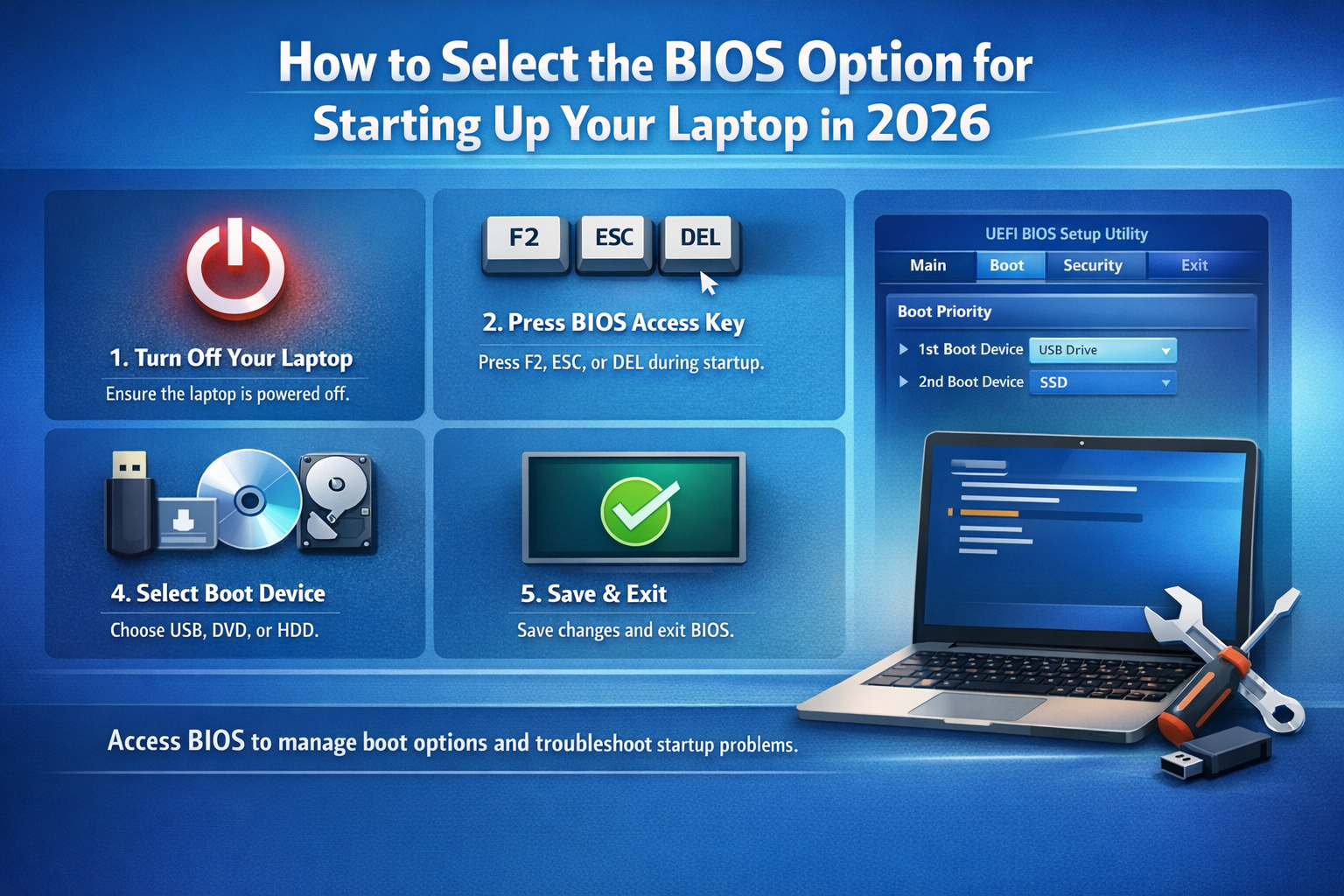
    1. Turn Off Your Laptop

    Before you begin, ensure your laptop is completely powered off. If your laptop is running, shut it down properly.

    2. Turn On the Laptop and Press the BIOS Access Key

    When you power on your laptop, you need to press a specific key to access the BIOS/UEFI settings. This key is usually displayed briefly during the boot process and may vary based on your laptop’s manufacturer. Common keys for entering BIOS are:

    • F2: Common for many laptops (e.g., Dell, Acer, Lenovo)
    • Esc: Common for HP laptops
    • F10: Often used by HP and other manufacturers
    • Del (Delete): Found on desktops and some laptops (especially gaming laptops)

    As soon as you power on your laptop, start pressing the appropriate key (or hold it down) repeatedly to access the BIOS/UEFI menu. If you miss the window, simply restart and try again.
    3. Navigating BIOS/UEFI Settings

    Once inside the BIOS/UEFI settings, you’ll see a menu of options. Here are a few key sections you’ll typically encounter:

    • Boot Menu: This option allows you to select the boot device (USB, CD/DVD, hard drive, etc.). You can change the boot priority order to boot from a specific device.
    • Security Settings: In this section, you can enable/disable features like Secure Boot, which helps protect your system from unauthorized software.
    • System Configuration: This section allows you to configure hardware-related options, like fan speed, RAM frequency, CPU settings, etc.
    • Exit Options: After making changes, you’ll need to save and exit. Make sure to choose the “Save and Exit” option to apply your changes.

    4. Select the Boot Device

    To select the boot device for starting up your laptop, follow these steps:

    1. Navigate to the Boot Menu: Once in the BIOS/UEFI settings, use the arrow keys (or mouse if in UEFI mode) to select the Boot or Boot Order menu.
    2. Select Boot Device: Here, you can select from a list of available devices like your hard drive, USB, CD/DVD, or external drives. Move the selected boot device to the top of the list if you want it to take priority.
    3. Save and Exit: After selecting the boot device, follow the on-screen instructions to save your changes. Typically, pressing F10 will save and exit, but this may vary by manufacturer.

    5. Advanced Boot Options (Optional)

    In some cases, you may need to access advanced boot options, such as safe mode or the recovery environment:

    • Windows: If you have Windows installed, you can usually access these options by holding the Shift key while selecting Restart from the Windows Start menu.
    • Linux: For Linux-based systems, pressing specific keys (like Esc or Shift) during boot may show you boot options.

    6. Troubleshooting Boot Issues

    If your laptop is not booting correctly, here’s what you can try:

    • Check Boot Order: Ensure that the primary boot device is set correctly. If you’re booting from a USB drive or external media, ensure it’s selected at the top of the boot order.
    • Enable Secure Boot: If you’re trying to boot from a new OS or third-party software, try disabling Secure Boot in the BIOS/UEFI settings.
    • Reset BIOS to Default: In cases of misconfigurations, resetting BIOS settings to their default values can often resolve booting issues.

    What’s New in BIOS/UEFI in 2026?

    In 2026, BIOS/UEFI has evolved to offer better security features and a more user-friendly interface. Some of the improvements you may encounter include:

    • Graphical UEFI Interfaces: Many modern laptops now come with a graphical interface in the UEFI system, making navigation easier.
    • Advanced Security Options: Features like TPM 2.0 (Trusted Platform Module) for enhanced security and Secure Boot are now commonly available to protect against malware and unauthorized access.
    • Faster Boot Times: UEFI allows for quicker boot times compared to the traditional BIOS, ensuring a faster startup experience.
    • Support for Newer Hardware: UEFI supports larger storage devices and the latest hardware innovations, making it more adaptable to modern computing needs.

    Conclusion

    Selecting the BIOS or UEFI options to start up your laptop in 2026 is a straightforward process that can be done with just a few steps. Whether you’re changing the boot order, troubleshooting, or configuring hardware settings, understanding how to navigate BIOS/UEFI is essential for maintaining and customizing your system.

    Remember that BIOS access keys may vary by manufacturer, so be sure to check your laptop’s manual for specific instructions. By following these steps, you’ll be well-equipped to manage your laptop’s startup settings, fix issues, and make the most of your device’s capabilities in 2026.

    Share. Facebook Twitter Pinterest LinkedIn Tumblr Email

    Related Posts

    How to Choose the Best Radiodetection Locator for Underground Utility Projects

    Innovative Glassware: Exploring the Art and Function of Our Premium Collections

    What to Know About Rollers.io and Its Operators?

    Leave A Reply Cancel Reply

    You must be logged in to post a comment.

    voopoopintch
    oxva nexlim 2
    sp2s sen x disposable vape
    • Popular
    • 3D Printer REVIEW
    • XIAOMI
    June 21, 2026

    iPlay LUMO 8K Review – A Compact Prefilled Pod Kit with Big Flavor and Everyday Convenience

    June 21, 2026

    iPlay HOOLA 150K Review – A Cloud-Chasing Giant with Music, Modes & Massive Longevity

    June 21, 2026

    Vaporesso VIBE SE 2 Review – Simple on the Outside, Surprisingly Smart on the Inside

    June 21, 2026

    VOOPOO DRAG H40 Pro Review – The Return of the Pocket Powerhouse

    December 26, 2025

    ACMER ASCARVA 4S: Precision CNC Power for Makers, DIYers & Small Workshops

    June 23, 2024

    ACMER P2 20W Laser Engraver Fixed Focus Engraving: Hands on Review

    May 30, 2024

    xTool F1 Ultra Review: World’s First 20W Fiber & 20W Diode Laser Engraver

    May 30, 2024

    Anycubic Kobra 3 Combo Review: The Multicolor Masterpiece?

    June 24, 2026

    Not only the Original Xuanji O3! Key Information about Xiaomi MIX Fold 5 is Revealed in Advance

    June 24, 2026

    The Battery Upgrade Service for Xiaomi 14 series has been officially Announced: It is expected to be launched in the fourth quarter.

    June 23, 2026

    Xiaomi Redmi 17C mobile phone is available for purchase: 6.88-inch 120Hz large screen, 5160mAh battery, starting from 799 yuan.

    June 23, 2026

    Xiaomi Mijia 1S 4K Cinema UST Projector Review: A Giant Home Theater in Minimal Space

    fc 26 coins
    New Arrivals
    • KEKO Durra Nicotine Pouches KEKO Durra Nicotine Pouches
    • Remit Slim Air 50K Disposable Vape Remit Slim Air 50K Disposable Vape
    • OliveBar Raz Pro 85K Disposable Vape OliveBar Raz Pro 85K Disposable Vape
    • Realme 17T Realme 17T
    • Realme 17 Lite Realme 17 Lite
    • OXVA Nexlim 2 Pod System Kit OXVA Nexlim 2 Pod System Kit
    • Geek Bar Meloso Max 2 Disposable Vape Geek Bar Meloso Max 2 Disposable Vape
    • OXBAR GSMART 50K Disposable Vape OXBAR GSMART 50K Disposable Vape
    • Innokin GOZEE NEX Pod Mod Kit Innokin GOZEE NEX Pod Mod Kit
    About
  • Igeekphone.com provides the first global tech news and reviews about smartphone, vapes, e-cigar, smart home, 3D printers, e-bike,tablets, RC drones, VR headset, and other accessories. It's the best platform to improve your brand and product.
  • Contact us: info@igeekphone.com
  • Check Our Privacy Policy Here.
  • Note: *Right now we have US editor and EU editors for review, especially for Amazon US and EU.
  • *Shop and Compare Price Here*
  • Facebook
  • Youtube
  • Mashable is a global, multi-platform media and entertainment company

    For more queries and news contact us on this

    Email: info@mashablepartners.com

  • OUR BEST VAPE PARTNERS
  • VAPE ONLINE STORE
  • HAYATI PRO MAX PLUS
  • VAPORESSO
  • VOOPOO
  • OXVA
  • NEXA
  • MASKKING
  • SP2S
  • IPLAY
  • TODOO
  • OTHER BEST PARTNERS
  • SVBONY
  • Chuwi
  • Blackview
  • Fossibot
  • Unihertz
  • Flsun
  • Anycubic
  • Xtool
  • Oukitel
  • Mukkpet Ebike
  • Ugreen
  • Copyright © 2026 igeekphone

    Type above and press Enter to search. Press Esc to cancel.