







Facebook Twitter Instagram
    Trending
    • Pachamama 75K Disposable Vape Review: Long‑Lasting Performance Meets Premium Flavor
    • Pillow Talk 50K Patriotic Edition Disposable Vape Review: Long‑Lasting Performance with Flavorful Variety
    • How to Set Up a Wireless Router: A Step-by-Step Tutorial for Beginners in 2026
    • Value-Focused | More Than Just Small! The SVGOM3 Thumb Camera Redefines Everyday Photography
    • Comparison | No More Decision Fatigue! Thumb Camera vs. Regular Cameras/Smartphones – Why Choose It?
    • Educational | What is a Thumb Camera? A Must-Read Guide for Beginners on the “Mini Photography Gadget”
    • Open Pod Systems vs. Closed Pod Systems: How to Choose the Best Vape for You
    • Austria Implements New Regulations on Nicotine Products from April. Nicotine Pouches are restricted to being Sold in Tobacco Specialty Stores.
    Facebook YouTube
    IGeeKphone China Phone, Tablet PC, VR, RC Drone News, Reviews
    • HOME
      • NEWS
        • DeepSeek
        • ChatGPT
        • Minecraft
    • Amazon
    • PHONE
      • Top Phones For Your First Choice
      • Phone Comparison
      • Xiaomi
      • Blackview
      • Doogee
      • Black Shark
      • Geekbuying
      • Banggood
      • TEMU
      • TikTok
      • Aliexpress
      • Walmart
      • MercadoLibre
      • Lazada
    • TOP VAPE Awards for 2026
    • VAPES
      • E-CIGAR Upcoming
      • Vape News
      • Vape Deals
      • Vape Comparison
      • Vape Guide
      • Giveaway
    • BEST VAPE
      • Best Vape Stores
      • Best Starter Vape Kits
      • Best Vapes for Beginners
      • Best Disposable Vapes
      • Best Pod Systems
      • Best Pod Mod Vapes
      • Best Mods
      • Best Nicotine Pouches
      • Best Clearomizers/Tanks
      • Best E-Liquid
      • Best EGO/Pens
      • Best Vapes for Nic Salt E-Juice
      • Best Vapes to Quit Smoking
      • RDA vs. RDTA vs. RTA
    • Best Vape Brand 2026
      • VAPORESSO
      • VOOPOO
      • OXVA
      • NEXA BAR
      • ORIONBARTECH
      • MASKKING VAPE
      • MEMERS
      • SP2S
      • TODOO
      • MRFOG
      • VEIIK
    • REVIEW
      • E-cigar Review
      • Phones
      • Tablet PC
      • TV Box
      • RC Drone
      • Wearables
      • Camera
      • Accessories
      • VR Headset
    • MORE
      • TABLET
        • Chuwi
        • INNOCN
        • Teclast
        • Top Tablet for Your First Choice
        • Tablet/Laptop Comparison
      • RC DRONE
      • CAMERA
      • WEARABLES
        • OneOdio
        • BlitzWolf
        • Top Smartwatch for First Choice
      • 3D PRINTER
        • 3D Printer Review
        • Anycubic
        • FLSUN
        • Xtool
        • LONGER
        • Top 3D printer to Choose First
      • POWER STATION
        • Oukitel
        • FOSSIBOT
      • GAMING
        • Top Gaming Products
      • E-BIKE
        • Samebike
        • Happyrun
        • ENGWE
      • SMART HOME
      • TV BOX
      • ACCESSORIES
      • VR HEADSET
      • CLOTHES
      • AUTO CAR
    • DEAL
    • VAPE LAWS
    • Shop
    IGeeKphone China Phone, Tablet PC, VR, RC Drone News, Reviews
    You are at:Home»Guide»How to Set Up a Wireless Router: A Step-by-Step Tutorial for Beginners in 2026
    Guide

    How to Set Up a Wireless Router: A Step-by-Step Tutorial for Beginners in 2026

    Brady CottonBy Brady CottonMarch 30, 2026
    Facebook Twitter Pinterest LinkedIn Tumblr Email

    Setting up a wireless router in 2026 may seem like a daunting task for beginners, but with the right guidance, it’s a straightforward process that will give you fast and reliable internet throughout your home or office. Whether you’re setting up your router for the first time or replacing an old one, this step-by-step guide will walk you through everything you need to know to get your Wi-Fi network up and running.
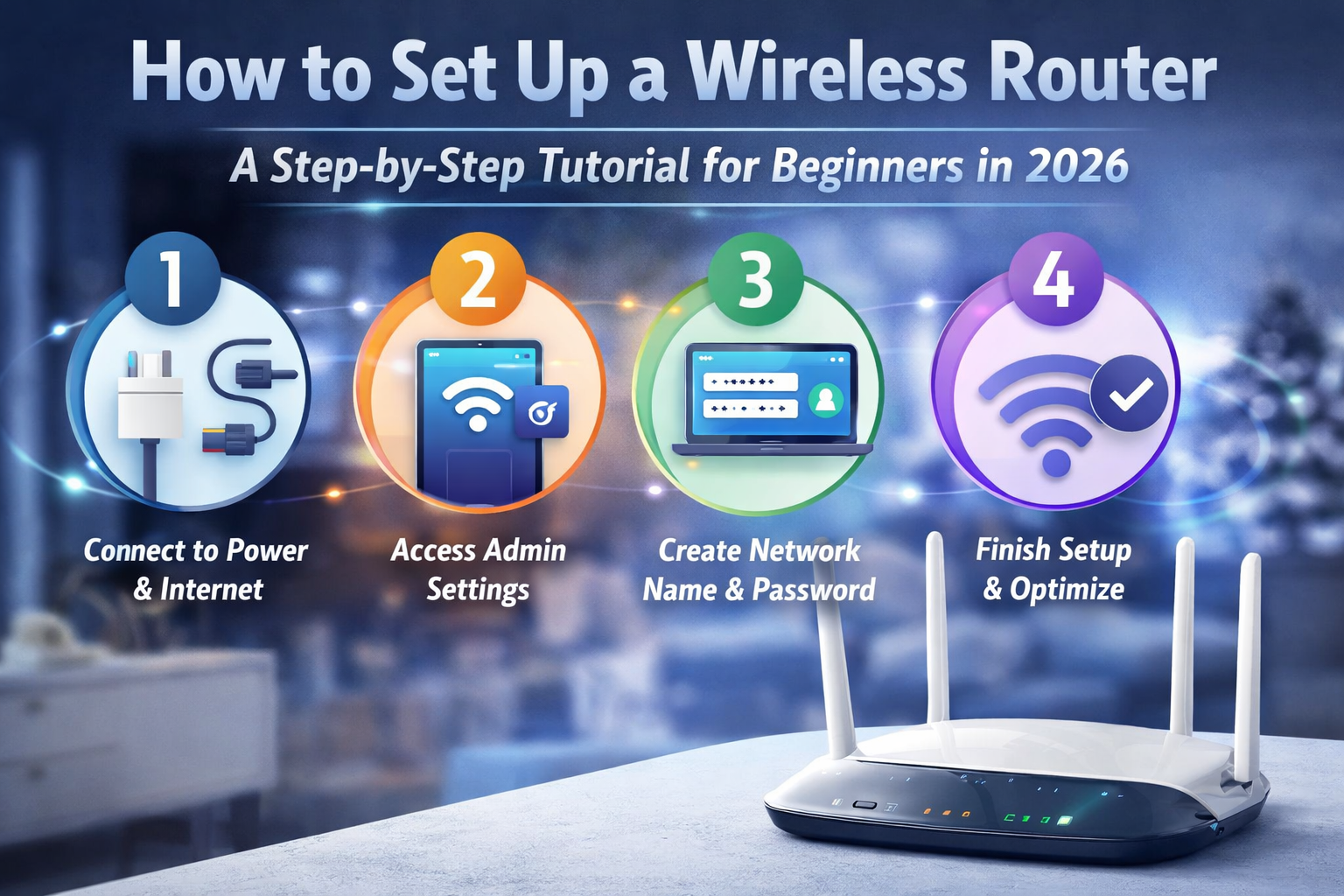
    In this tutorial, we’ll explain how to connect the hardware, access your router settings, configure Wi-Fi preferences, and secure your network. Let’s dive in!

    Step 1: Unbox and Prepare the Router

    Before you begin, ensure you have everything you need:

    • Router (new or replacement)
    • Power Adapter
    • Ethernet Cable (typically provided)
    • Internet Service (usually a modem)
    • A Computer or Mobile Device for configuration

    Unboxing your router will reveal several ports and cables. Take a look at the following key components:

    • Power Port: For plugging in the power adapter.
    • WAN (Wide Area Network) Port: Typically used to connect your router to the modem.
    • LAN (Local Area Network) Ports: These are for connecting wired devices (like desktop PCs).
    • Reset Button: Used if you need to reset the router to its factory settings.
    • Wi-Fi antennas (for routers with external antennas).

    Step 2: Connect the Router to the Modem

    To start, connect your router to the modem using the Ethernet cable. The modem is typically provided by your internet service provider (ISP) and connects to the internet. Here’s how to connect everything:

    1. Plug the Ethernet cable into the WAN port of the router.
    2. Insert the other end of the cable into the Ethernet port of the modem.
    3. Plug the power adapter into the router and plug it into an electrical outlet.

    At this point, your router should be receiving power, and the internet connection should be established via the modem. The WAN port light on the router should be blinking or solid, indicating a successful connection.

    Step 3: Power Up and Connect to the Router

    1. Turn on your router by pressing the power button if it has one. Wait a couple of minutes for the router to initialize.
    2. On your computer, smartphone, or tablet, search for the Wi-Fi network broadcasted by your router. Look for a name (SSID) provided on the router’s packaging or label (often something like “HomeNetwork” or “Router-XYZ”).
    3. Connect to the Wi-Fi network by selecting it and entering the default password (which should also be on the router label or included in the manual). The default Wi-Fi credentials are typically something like:
      • SSID (Network Name)
      • Password/Key

    Step 4: Access the Router Settings

    Now, you need to log in to the router’s administrative settings to customize your Wi-Fi network. Here’s how to do it:

    1. Open a web browser (like Chrome, Firefox, or Safari) and enter the router’s IP address into the address bar. Common router IP addresses are:

      • 192.168.1.1
      • 192.168.0.1
      • 192.168.100.1

      You can find the exact IP address in the router’s manual or on the label. Hit Enter.

    2. A login page will appear. Enter the username and password. By default, these are often:

      • Username: admin
      • Password: admin or password

      If the default credentials don’t work, check the router’s label or manual for the correct details.

    Step 5: Configure Your Wi-Fi Settings

    Once logged into the router settings, follow these steps to personalize your Wi-Fi network:

    1. Change the Wi-Fi Name (SSID): This is the name of your network. It’s a good idea to change it to something unique but easily recognizable (e.g., “John’s Network” or “Home Wi-Fi”).
      • Look for the section labeled Wi-Fi Settings or Wireless Settings.
      • Enter a new SSID (network name).
    2. Set a Strong Wi-Fi Password: Change the default Wi-Fi password to something secure. Aim for at least 12 characters, using a mix of uppercase letters, lowercase letters, numbers, and special characters. You’ll find this option in the Wi-Fi or Security settings section.
    3. Select the Wi-Fi Band (2.4GHz or 5GHz):
      • 2.4GHz: This band provides greater coverage but is slower and more crowded (lots of devices use this band).
      • 5GHz: This band offers faster speeds but covers a smaller range and may be affected by obstacles like walls.
    4. Enable WPA3 Security: In the security settings section, choose WPA3 if your router supports it. This is the latest and most secure encryption method for wireless networks. If WPA3 isn’t available, select WPA2.

    Step 6: Set Up Additional Features (Optional)

    Many modern routers offer additional features that can enhance your network experience:

    1. Guest Network: If you want to allow guests to connect to the internet without giving them access to your private network, enable a Guest Network. You can create a separate SSID and password for them.
    2. Parental Controls: If you have children, consider setting up parental controls to limit access to certain websites or set screen time limits.
    3. Quality of Service (QoS): Some routers allow you to prioritize certain devices or services (like streaming or gaming) for a better experience.

    Step 7: Save and Restart the Router

    Once you’ve made your changes, save the settings, and then restart the router to ensure everything applies correctly. You may be prompted to log out and reconnect to the Wi-Fi network with your new settings.

    Step 8: Test Your Connection

    After restarting, test your internet connection by browsing the web or running a speed test. If everything is working as expected, you’re good to go!

    Troubleshooting Tips

    If you’re having trouble, try these steps:

    • Check the cables: Ensure the Ethernet cable between the modem and router is securely connected.
    • Restart the modem and router: Unplug both devices for 30 seconds and then plug them back in.
    • Factory reset the router: If you’re unable to access the router settings, locate the reset button on the router, press it for about 10 seconds, and start over with the default credentials.

    Conclusion

    Setting up your wireless router doesn’t have to be complicated. By following these simple steps, you can have your Wi-Fi network up and running in no time. Whether you’re looking to connect a few devices or support a smart home, configuring your router properly is the first step to enjoying fast, secure, and reliable internet.

    Share. Facebook Twitter Pinterest LinkedIn Tumblr Email

    Related Posts

    Speed Matters: How Quick Email Turnaround Impacts Productivity

    Do Cigarette Filters Reduce the Risk of Lung Cancer?

    The Tale of the Canceled Check: What It Means for You

    Leave A Reply Cancel Reply

    You must be logged in to post a comment.

    voopoo drag 6
    oxva xlim 3 ultra
    sp2s sen x disposable vape
    • Popular
    • 3D Printer REVIEW
    • XIAOMI
    March 16, 2026

    OXVA Slimstick VS OXVA Slimstick X Vape Hands-on Review

    March 5, 2026

    OXVA XLIM PRO 3 vs XLIM Pro 2 DNA: Hands-On Review

    March 5, 2026

    OXVA XLIM PRO 3 vs XLIM GO 2: Hands-On Review

    March 2, 2026

    OXVA XLIM PRO 3 vs XLIM 3 ULTRA: Hands-On Review

    December 26, 2025

    ACMER ASCARVA 4S: Precision CNC Power for Makers, DIYers & Small Workshops

    June 23, 2024

    ACMER P2 20W Laser Engraver Fixed Focus Engraving: Hands on Review

    May 30, 2024

    xTool F1 Ultra Review: World’s First 20W Fiber & 20W Diode Laser Engraver

    May 30, 2024

    Anycubic Kobra 3 Combo Review: The Multicolor Masterpiece?

    March 29, 2026

    Xiaomi Watch S5 Review: 316L Stainless Steel, Ultra-Long Battery Life

    March 26, 2026

    The Telephoto Lens of Xiaomi 18 Ultra has Undergone a Comprehensive Upgrade: with an Ultra-Large Sensor, LOFIC Technology

    March 26, 2026

    Xiaomi Redmi Pad 2 Pro 5G Edition is available for purchase: Supports 5G all-network and China Unicom eSIM, 8G + 256G priced at 2599 yuan.

    March 26, 2026

    Xiaomi MIUI has officially ceased updates: The last two devices have stopped receiving support. This article reviews the 12-year 14-version history.

    fc 26 coins
    New Arrivals
    • Pachamama 75K Disposable Vape Pachamama 75K Disposable Vape
    • Pillow Talk 50K Patriotic Edition Disposable Vape Pillow Talk 50K Patriotic Edition Disposable Vape
    • Realme P5 5G Realme P5 5G
    • Realme P5 Power Realme P5 Power
    • Umidigi G100 Pro Smartphone Umidigi G100 Pro Smartphone
    • Oppo K14 Oppo K14
    • Geekvape Kloud Refillable Disposable Vape Kit Geekvape Kloud Refillable Disposable Vape Kit
    • Redmi Turbo 5 Redmi Turbo 5
    • Apple iPad Air 13 (2026) Apple iPad Air 13 (2026)
    About
  • Igeekphone.com provides the first global tech news and reviews about smartphone, vapes, e-cigar, smart home, 3D printers, e-bike,tablets, RC drones, VR headset, and other accessories. It's the best platform to improve your brand and product.
  • Contact us: info@igeekphone.com
  • Check Our Privacy Policy Here.
  • Note: *Right now we have US editor and EU editors for review, especially for Amazon US and EU.
  • *Shop and Compare Price Here*
  • Facebook
  • Youtube
  • OUR BEST VAPE PARTNERS
  • VAPE ONLINE STORE
  • HAYATI PRO MAX PLUS
  • VAPORESSO
  • VOOPOO
  • OXVA
  • NEXA
  • MASKKING
  • TODOO
  • SP2S
  • VEIIK
  • OTHER BEST PARTNERS
  • SVBONY
  • Chuwi
  • Blackview
  • Fossibot
  • Unihertz
  • Flsun
  • Anycubic
  • Xtool
  • Oukitel
  • Mukkpet Ebike
  • Ugreen
  • Copyright © 2026 igeekphone

    Type above and press Enter to search. Press Esc to cancel.