







Facebook Twitter Instagram
    Trending
    • Why Choose the Maskking GTS Mini as the Best and Most Affordable Disposable Vape?
    • How to Take Stunning Night Photos with iPhone 16 Pro?
    • LENOVO EA340 Open-Ear Earhooks Earphones Review: Comfortable Open-Ear Audio for Sports and Everyday Use
    • Why Stadia Ultimately Failed to Entice Online Gamers
    • Aotorobo Smart Carplay-Aero Now Started Funding at Kickstarter
    • OSRS: Top Bosses for Gold Earning
    • JNR Meteorite 100K VS Maskking Camo 100K: Comparison Review
    • Leveling Up: How Artificial Intelligence is Transforming Game Development
    Facebook YouTube
    IGeeKphone China Phone, Tablet PC, VR, RC Drone News, Reviews
    • HOME
    • BREAKING NEWS
      • AI NEWS
    • Amazon
    • PHONE
      • Top Phones For Your First Choice
      • Phone Comparison
      • Xiaomi
      • Blackview
      • Doogee
      • Black Shark
      • Geekbuying
      • Banggood
      • TEMU
      • TikTok
      • Aliexpress
      • Walmart
      • MercadoLibre
      • Lazada
    • TOP VAPE Awards for 2026
    • VAPES
      • E-CIGAR Upcoming
      • Vape News
      • Vape Deals
      • Vape Comparison
      • Vape Guide
      • VAPE LAWS
      • Giveaway
    • BEST VAPE
      • Best Vape Stores
      • Best Starter Vape Kits
      • Best Vapes for Beginners
      • Best Disposable Vapes
      • Best Pod Systems
      • Best Pod Mod Vapes
      • Best Mods
      • Best Nicotine Pouches
      • Best Clearomizers/Tanks
      • Best E-Liquid
      • Best EGO/Pens
      • Best Vapes for Nic Salt E-Juice
      • Best Vapes to Quit Smoking
      • RDA vs. RDTA vs. RTA
    • Best Vape Brand 2026
      • VAPORESSO
      • VOOPOO
      • OXVA
      • NEXA BAR
      • MASKKING VAPE
      • SP2S
      • IPLAY
      • TODOO
      • MRFOG
      • LOSTVAPE
      • VEIIK
    • REVIEW
      • E-cigar Review
      • Phones
      • Tablet PC
      • TV Box
      • RC Drone
      • Wearables
      • Camera
      • Accessories
      • VR Headset
    • MORE
      • TABLET
        • Chuwi
        • INNOCN
        • Teclast
        • Top Tablet for Your First Choice
        • Tablet/Laptop Comparison
      • RC DRONE
      • CAMERA
      • WEARABLES
        • OneOdio
        • BlitzWolf
        • Top Smartwatch for First Choice
      • 3D PRINTER
        • 3D Printer Review
        • Anycubic
        • FLSUN
        • Xtool
        • LONGER
        • Top 3D printer to Choose First
      • POWER STATION
        • Oukitel
        • FOSSIBOT
      • GAMING
        • Top Gaming Products
      • E-BIKE
        • Samebike
        • Happyrun
        • ENGWE
      • SMART HOME
      • TV BOX
      • ACCESSORIES
      • VR HEADSET
      • CLOTHES
      • AUTO CAR
    • DEAL
    • Shop
    IGeeKphone China Phone, Tablet PC, VR, RC Drone News, Reviews
    You are at:Home»Guide»How to Set Up a Wireless Router: A Step-by-Step Tutorial for Beginners in 2026
    Guide

    How to Set Up a Wireless Router: A Step-by-Step Tutorial for Beginners in 2026

    Brady CottonBy Brady CottonJune 4, 2026
    Facebook Twitter Pinterest LinkedIn Tumblr Email

    Setting up a wireless router in 2026 may seem like a daunting task for beginners, but with the right guidance, it’s a straightforward process that will give you fast and reliable internet throughout your home or office. Whether you’re setting up your router for the first time or replacing an old one, this step-by-step guide will walk you through everything you need to know to get your Wi-Fi network up and running.
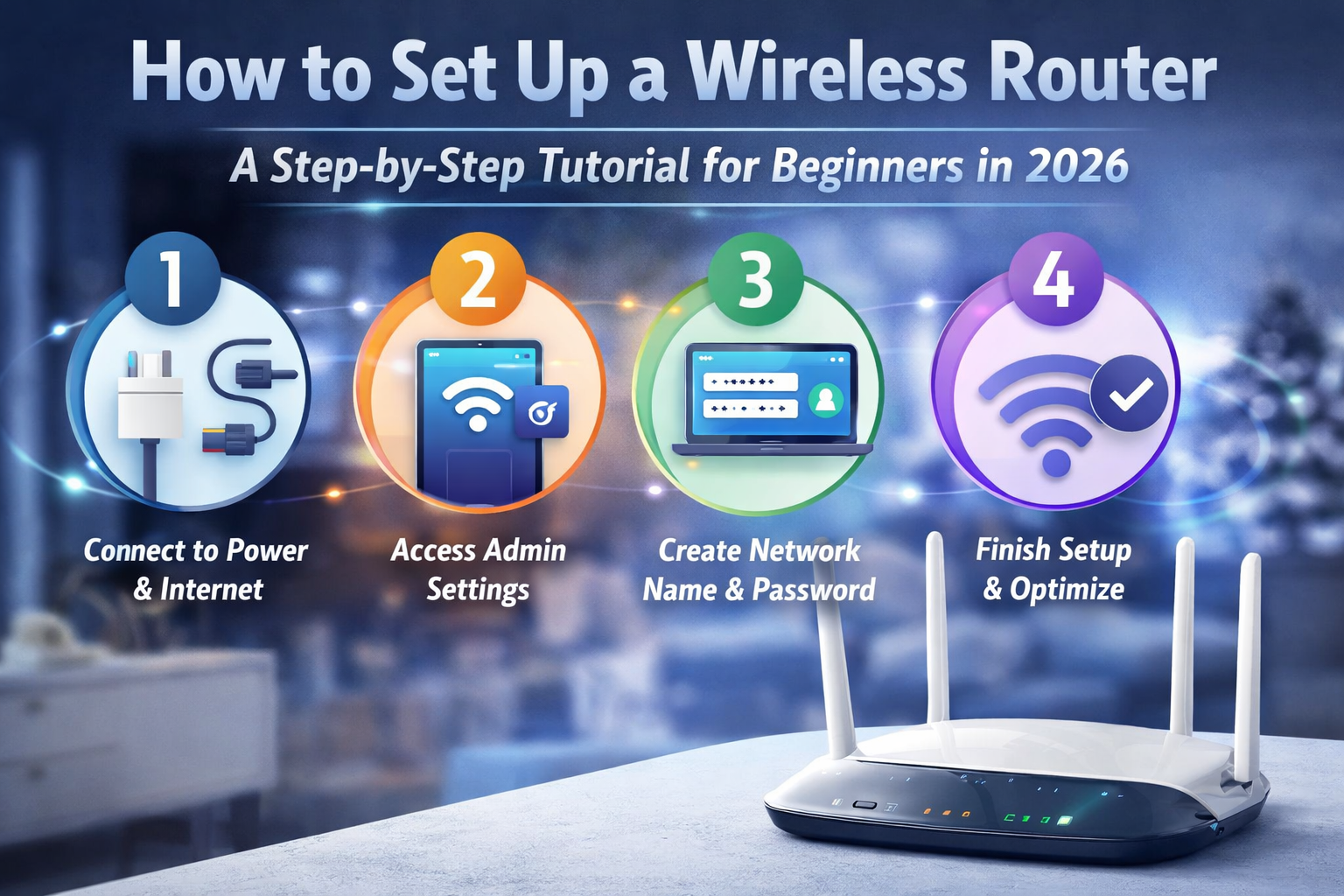
    In this tutorial, we’ll explain how to connect the hardware, access your router settings, configure Wi-Fi preferences, and secure your network. Let’s dive in!

    Step 1: Unbox and Prepare the Router

    Before you begin, ensure you have everything you need:

    • Router (new or replacement)
    • Power Adapter
    • Ethernet Cable (typically provided)
    • Internet Service (usually a modem)
    • A Computer or Mobile Device for configuration

    Unboxing your router will reveal several ports and cables. Take a look at the following key components:

    • Power Port: For plugging in the power adapter.
    • WAN (Wide Area Network) Port: Typically used to connect your router to the modem.
    • LAN (Local Area Network) Ports: These are for connecting wired devices (like desktop PCs).
    • Reset Button: Used if you need to reset the router to its factory settings.
    • Wi-Fi antennas (for routers with external antennas).

    Step 2: Connect the Router to the Modem

    To start, connect your router to the modem using the Ethernet cable. The modem is typically provided by your internet service provider (ISP) and connects to the internet. Here’s how to connect everything:

    1. Plug the Ethernet cable into the WAN port of the router.
    2. Insert the other end of the cable into the Ethernet port of the modem.
    3. Plug the power adapter into the router and plug it into an electrical outlet.

    At this point, your router should be receiving power, and the internet connection should be established via the modem. The WAN port light on the router should be blinking or solid, indicating a successful connection.

    Step 3: Power Up and Connect to the Router

    1. Turn on your router by pressing the power button if it has one. Wait a couple of minutes for the router to initialize.
    2. On your computer, smartphone, or tablet, search for the Wi-Fi network broadcasted by your router. Look for a name (SSID) provided on the router’s packaging or label (often something like “HomeNetwork” or “Router-XYZ”).
    3. Connect to the Wi-Fi network by selecting it and entering the default password (which should also be on the router label or included in the manual). The default Wi-Fi credentials are typically something like:
      • SSID (Network Name)
      • Password/Key

    Step 4: Access the Router Settings

    Now, you need to log in to the router’s administrative settings to customize your Wi-Fi network. Here’s how to do it:

    1. Open a web browser (like Chrome, Firefox, or Safari) and enter the router’s IP address into the address bar. Common router IP addresses are:

      • 192.168.1.1
      • 192.168.0.1
      • 192.168.100.1

      You can find the exact IP address in the router’s manual or on the label. Hit Enter.

    2. A login page will appear. Enter the username and password. By default, these are often:

      • Username: admin
      • Password: admin or password

      If the default credentials don’t work, check the router’s label or manual for the correct details.

    Step 5: Configure Your Wi-Fi Settings

    Once logged into the router settings, follow these steps to personalize your Wi-Fi network:

    1. Change the Wi-Fi Name (SSID): This is the name of your network. It’s a good idea to change it to something unique but easily recognizable (e.g., “John’s Network” or “Home Wi-Fi”).
      • Look for the section labeled Wi-Fi Settings or Wireless Settings.
      • Enter a new SSID (network name).
    2. Set a Strong Wi-Fi Password: Change the default Wi-Fi password to something secure. Aim for at least 12 characters, using a mix of uppercase letters, lowercase letters, numbers, and special characters. You’ll find this option in the Wi-Fi or Security settings section.
    3. Select the Wi-Fi Band (2.4GHz or 5GHz):
      • 2.4GHz: This band provides greater coverage but is slower and more crowded (lots of devices use this band).
      • 5GHz: This band offers faster speeds but covers a smaller range and may be affected by obstacles like walls.
    4. Enable WPA3 Security: In the security settings section, choose WPA3 if your router supports it. This is the latest and most secure encryption method for wireless networks. If WPA3 isn’t available, select WPA2.

    Step 6: Set Up Additional Features (Optional)

    Many modern routers offer additional features that can enhance your network experience:

    1. Guest Network: If you want to allow guests to connect to the internet without giving them access to your private network, enable a Guest Network. You can create a separate SSID and password for them.
    2. Parental Controls: If you have children, consider setting up parental controls to limit access to certain websites or set screen time limits.
    3. Quality of Service (QoS): Some routers allow you to prioritize certain devices or services (like streaming or gaming) for a better experience.

    Step 7: Save and Restart the Router

    Once you’ve made your changes, save the settings, and then restart the router to ensure everything applies correctly. You may be prompted to log out and reconnect to the Wi-Fi network with your new settings.

    Step 8: Test Your Connection

    After restarting, test your internet connection by browsing the web or running a speed test. If everything is working as expected, you’re good to go!

    Troubleshooting Tips

    If you’re having trouble, try these steps:

    • Check the cables: Ensure the Ethernet cable between the modem and router is securely connected.
    • Restart the modem and router: Unplug both devices for 30 seconds and then plug them back in.
    • Factory reset the router: If you’re unable to access the router settings, locate the reset button on the router, press it for about 10 seconds, and start over with the default credentials.

    Conclusion

    Setting up your wireless router doesn’t have to be complicated. By following these simple steps, you can have your Wi-Fi network up and running in no time. Whether you’re looking to connect a few devices or support a smart home, configuring your router properly is the first step to enjoying fast, secure, and reliable internet.

    Share. Facebook Twitter Pinterest LinkedIn Tumblr Email

    Related Posts

    How to Take Stunning Night Photos with iPhone 16 Pro?

    OSRS: Top Bosses for Gold Earning

    Leveling Up: How Artificial Intelligence is Transforming Game Development

    Leave A Reply Cancel Reply

    You must be logged in to post a comment.

    voopoopintch
    oxva nexlim 2
    sp2s sen x disposable vape
    • Popular
    • 3D Printer REVIEW
    • XIAOMI
    July 13, 2026

    OXVA Nexlim 2 Mini Pod Vape Hands on Review

    July 13, 2026

    OXVA Nexlim 2 Pod Vape Hands on Review

    June 21, 2026

    iPlay LUMO 8K Review – A Compact Prefilled Pod Kit with Big Flavor and Everyday Convenience

    June 21, 2026

    iPlay HOOLA 150K Review – A Cloud-Chasing Giant with Music, Modes & Massive Longevity

    December 26, 2025

    ACMER ASCARVA 4S: Precision CNC Power for Makers, DIYers & Small Workshops

    June 23, 2024

    ACMER P2 20W Laser Engraver Fixed Focus Engraving: Hands on Review

    May 30, 2024

    xTool F1 Ultra Review: World’s First 20W Fiber & 20W Diode Laser Engraver

    May 30, 2024

    Anycubic Kobra 3 Combo Review: The Multicolor Masterpiece?

    July 25, 2026

    Xiaomi’s Next Flagship Clears Certification: In-House Chip, HyperOS 4, and AI Models Expected to Debut Together

    July 25, 2026

    Xiaomi 18 Pro Series Global Variant Certified: Dual-Screen Flagship Reportedly Set for International Launch

    July 25, 2026

    International version of Xiaomi 18 Pro smartphone Unveiled: Not launching in the Indian market

    July 24, 2026

    Redmi K100 Series International Version Certified: K100 Pro and K100 Pro Max Launching Globally with Snapdragon 8E5 Chip

    fc 26 coins
    New Arrivals
    • Alp Nicotine Pouches Alp Nicotine Pouches
    • American Standard 50K Disposable Kit American Standard 50K Disposable Kit
    • Evol Arc 70K Disposable Kit Evol Arc 70K Disposable Kit
    • Elfbar Elfa Master Luxe Edition Pod System Elfbar Elfa Master Luxe Edition Pod System
    • Bang Legend 5-in-1 120K Disposable Vape Bang Legend 5-in-1 120K Disposable Vape
    • Zumo Ultra Slim 50K Disposable Vape Zumo Ultra Slim 50K Disposable Vape
    • Oppo Reno 17 Pro Oppo Reno 17 Pro
    • Oppo Reno 17 Oppo Reno 17
    • Motorola Moto G Play 2027 Motorola Moto G Play 2027
    About
  • Igeekphone.com provides the first global tech news and reviews about smartphone, vapes, e-cigar, smart home, 3D printers, e-bike,tablets, RC drones, VR headset, and other accessories. It's the best platform to improve your brand and product.
  • Contact us: info@igeekphone.com
  • Check Our Privacy Policy Here.
  • Note: *Right now we have US editor and EU editors for review, especially for Amazon US and EU.
  • *Shop and Compare Price Here*
  • Facebook
  • Youtube
  • *Yahoo Finance is a platform that provides financial news, press releases, market data, and useful tools to help users make informed investment decisions.*

    For inquiries, please contact:
    financeyahoocompany@gmail.com

    OUR BEST VAPE PARTNERS
  • VAPE ONLINE STORE
  • HAYATI PRO MAX PLUS
  • VAPORESSO
  • VOOPOO
  • OXVA
  • NEXA
  • MASKKING
  • SP2S
  • IPLAY
  • TODOO
  • OTHER BEST PARTNERS
  • SVBONY
  • Chuwi
  • Blackview
  • Fossibot
  • Unihertz
  • Flsun
  • Anycubic
  • Xtool
  • Oukitel
  • Mukkpet Ebike
  • Ugreen
  • Copyright © 2026 igeekphone

    Type above and press Enter to search. Press Esc to cancel.