







Facebook Twitter Instagram
    Trending
    • JNR Meteorite 100K VS Maskking Camo 100K: Comparison Review
    • JNR Lila Kiss⁺ vs. IPLAY NOVA: High-Capacity Showdown
    • Spark Your Life: Join the VOOPOO Pitch Challenge and Win Big!
    • Upgrade Your Audio Setup with HiFiGo’s Summer Flash Sale
    • JNR Meteorite 100K Refillable Vape Kit Review: A Revolutionary Powerbank-Style Vaping System
    • Yocan Black Pocket Concentrate Vaporizer Review: Precision Dabbing in a Pocket-Sized Device
    • YiHi SXmini MQ Class Box Mod 60W Review: Features, Design & Technology
    • MJX H18P RTR 1/18 RC Car Review – Compact Brushless Crawler with Big Capability
    Facebook YouTube
    IGeeKphone China Phone, Tablet PC, VR, RC Drone News, Reviews
    • HOME
      • NEWS
        • DeepSeek
        • ChatGPT
        • Minecraft
    • Amazon
    • PHONE
      • Top Phones For Your First Choice
      • Phone Comparison
      • Xiaomi
      • Blackview
      • Doogee
      • Black Shark
      • Geekbuying
      • Banggood
      • TEMU
      • TikTok
      • Aliexpress
      • Walmart
      • MercadoLibre
      • Lazada
    • TOP VAPE Awards for 2026
    • VAPES
      • E-CIGAR Upcoming
      • Vape News
      • Vape Deals
      • Vape Comparison
      • Vape Guide
      • Giveaway
    • BEST VAPE
      • Best Vape Stores
      • Best Starter Vape Kits
      • Best Vapes for Beginners
      • Best Disposable Vapes
      • Best Pod Systems
      • Best Pod Mod Vapes
      • Best Mods
      • Best Nicotine Pouches
      • Best Clearomizers/Tanks
      • Best E-Liquid
      • Best EGO/Pens
      • Best Vapes for Nic Salt E-Juice
      • Best Vapes to Quit Smoking
      • RDA vs. RDTA vs. RTA
    • Best Vape Brand 2026
      • VAPORESSO
      • VOOPOO
      • OXVA
      • NEXA BAR
      • MASKKING VAPE
      • SP2S
      • IPLAY
      • TODOO
      • MRFOG
      • LOSTVAPE
      • VEIIK
    • REVIEW
      • E-cigar Review
      • Phones
      • Tablet PC
      • TV Box
      • RC Drone
      • Wearables
      • Camera
      • Accessories
      • VR Headset
    • MORE
      • TABLET
        • Chuwi
        • INNOCN
        • Teclast
        • Top Tablet for Your First Choice
        • Tablet/Laptop Comparison
      • RC DRONE
      • CAMERA
      • WEARABLES
        • OneOdio
        • BlitzWolf
        • Top Smartwatch for First Choice
      • 3D PRINTER
        • 3D Printer Review
        • Anycubic
        • FLSUN
        • Xtool
        • LONGER
        • Top 3D printer to Choose First
      • POWER STATION
        • Oukitel
        • FOSSIBOT
      • GAMING
        • Top Gaming Products
      • E-BIKE
        • Samebike
        • Happyrun
        • ENGWE
      • SMART HOME
      • TV BOX
      • ACCESSORIES
      • VR HEADSET
      • CLOTHES
      • AUTO CAR
    • DEAL
    • VAPE LAWS
    • Shop
    IGeeKphone China Phone, Tablet PC, VR, RC Drone News, Reviews
    You are at:Home»Guide»How to Change Your Router Password in 2026: A Step-by-Step Guide
    Guide

    How to Change Your Router Password in 2026: A Step-by-Step Guide

    Brady CottonBy Brady CottonApril 20, 2026
    Facebook Twitter Pinterest LinkedIn Tumblr Email

    In 2026, securing your Wi-Fi network is more important than ever, especially with the increasing number of devices connected to the internet and the growing risks of cyber threats. Changing your router password regularly is a smart way to ensure your network stays safe from unauthorized access. If you’re looking to change your router’s password and enhance your home network’s security, here’s a simple, updated guide for doing so in 2026.

    Why Change Your Router Password?

    Changing your router password regularly helps protect your home network from potential hackers and unauthorized users. Here are some reasons why you should change your router password:

    • Prevent Unauthorized Access: Over time, neighbors or others might figure out or guess your Wi-Fi password, compromising your network security.
    • Protect Personal Data: Your router is connected to all the devices in your home, including smartphones, laptops, and smart home devices. A compromised router can expose your personal information.
    • Avoid Slow Speeds: If someone is using your Wi-Fi without your permission, it could slow down your internet speeds.

    How to Change Your Router Password in 2026: A Simple Guide

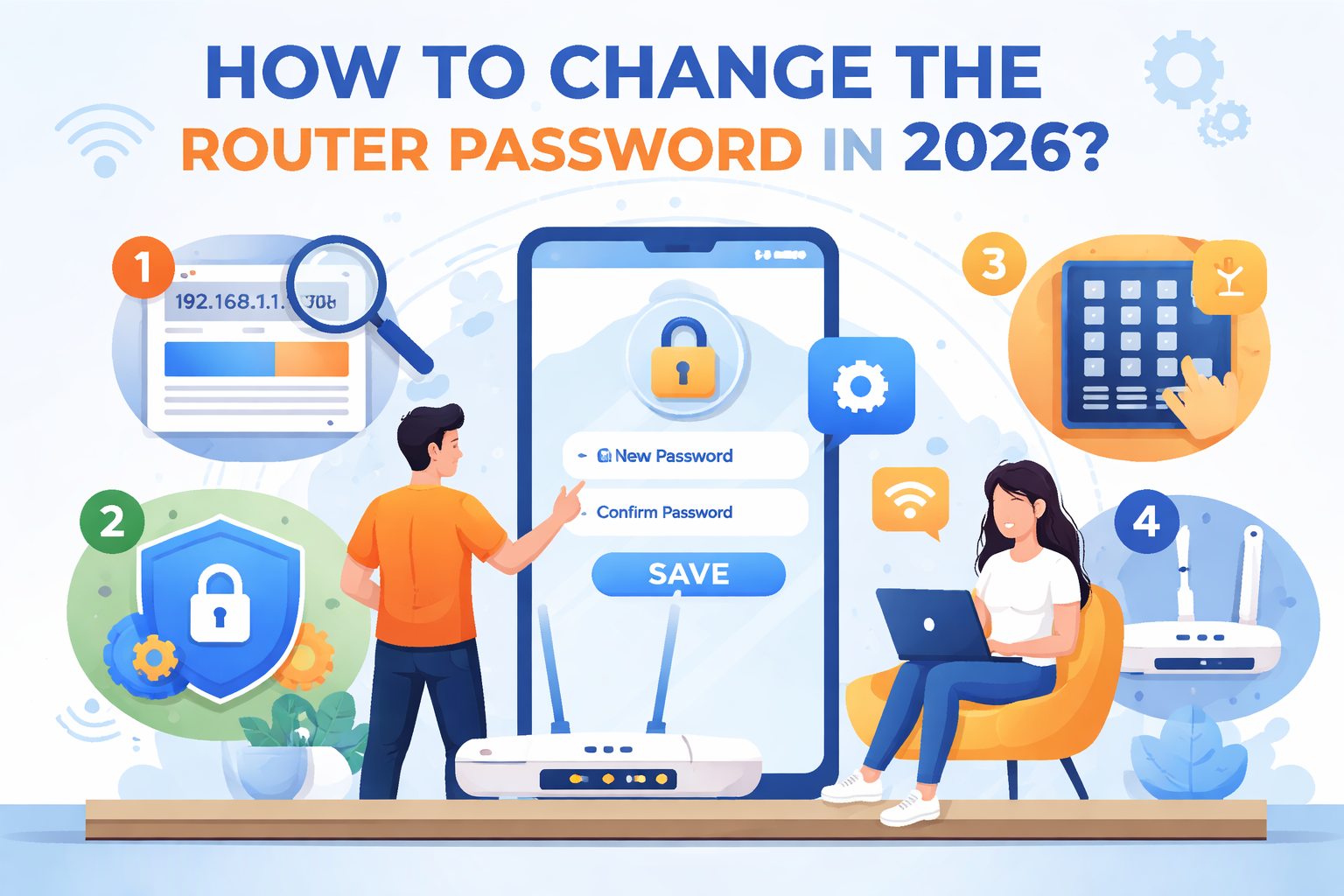
    Step 1: Connect to Your Router

    Before you can change your router password, you’ll need to connect to your router’s interface. You can do this via:

    1. Wi-Fi Connection: If you’re already connected to the router’s Wi-Fi network, you can access the router settings from your device.
    2. Ethernet Cable: For a more stable connection, plug your computer directly into the router using an Ethernet cable.

    Step 2: Open Your Web Browser and Access the Router’s Admin Page

    • Open your preferred web browser (Chrome, Safari, Firefox, etc.).
    • Type the router’s IP address into the browser’s address bar. This is typically something like:
      • 192.168.1.1
      • 192.168.0.1
      • 10.0.0.1

    If you’re not sure what the IP address is, you can usually find it on a sticker on the router itself or in the manual.

    Step 3: Log into Your Router

    Once you enter the router’s IP address, a login screen will appear. Here’s how you log in:

    • Username and Password: Enter the admin username and password. The default login credentials are often something like:
      • Username: admin
      • Password: admin or password

    If you’ve already changed these from the default, enter your custom credentials. If you forgot them, most routers offer a password reset button (usually on the back of the device), or you can perform a factory reset (more on that later).

    Step 4: Locate the Wi-Fi Settings

    Once logged in, navigate to the Wi-Fi settings or wireless settings section. The exact location of these options may vary depending on the router brand (Netgear, TP-Link, Asus, etc.), but you can usually find it in the main menu or under “Advanced Settings.”

    Here, you’ll have the option to modify various network parameters, including:

    • Wi-Fi Network Name (SSID)
    • Wi-Fi Password
    • Security Type (WPA2, WPA3, etc.)

    Step 5: Change the Wi-Fi Password

    Now, let’s change the Wi-Fi password. Look for a field labeled Wi-Fi Password, Network Key, or Pre-Shared Key. Follow these steps:

    1. Select a Strong Password: Choose a new, strong password that’s hard to guess. Avoid common phrases, personal information, or easy-to-guess combinations. Use a mix of uppercase and lowercase letters, numbers, and special characters (e.g., !@#Bc9fX$).
    2. Select Security Type: If you haven’t already, ensure that your router is using WPA3 encryption (the latest and most secure). If WPA3 is not available, WPA2 is still a secure option.
    3. Save the Changes: After entering the new password, save or apply the changes. The router will automatically update and disconnect all devices connected to the Wi-Fi network.

    Step 6: Reconnect Your Devices

    After the router restarts, all devices previously connected to the Wi-Fi network will be disconnected. To reconnect, you will need to:

    1. Go to the Wi-Fi settings on each of your devices (smartphones, tablets, laptops, smart home devices).
    2. Select your Wi-Fi network.
    3. Enter the new password you just set.

    Step 7: Update Your Router Admin Password (Optional)

    For extra security, consider changing the admin password for your router interface as well. This will prevent unauthorized users from accessing your router settings. The process is similar to changing the Wi-Fi password, and you can usually find the admin password option under the “System” or “Admin” settings.

    Bonus Tips for Improving Your Router’s Security in 2026

    1. Enable WPA3 Encryption: If your router supports it, ensure you’re using WPA3 encryption for the best security.
    2. Create a Guest Network: If you have visitors who need to use your Wi-Fi, create a guest network with a separate password. This keeps your main network secure.
    3. Update Router Firmware: Check for any firmware updates for your router to ensure it has the latest security patches.
    4. Disable WPS: Wi-Fi Protected Setup (WPS) can be a security vulnerability, so consider disabling it in your router settings.
    5. Use a VPN: For an added layer of protection, consider using a VPN (Virtual Private Network) for your router, which can help protect your entire network from outside threats.

    What to Do if You Forgot Your Router Admin Password?

    If you’ve forgotten your router’s admin password, don’t worry! You can reset it by pressing and holding the reset button on the back of your router (typically for 10-15 seconds). This will restore the router to its factory default settings, allowing you to log in with the default username and password (usually found on the router label).

    After performing a reset, you will need to set up your router again, including changing the Wi-Fi password, admin password, and reconfiguring any custom settings.

    Conclusion

    Changing your router password in 2026 is a straightforward process that helps secure your home network from unauthorized access. By following the steps outlined above, you can quickly update your Wi-Fi password and ensure your internet connection stays safe. Remember to choose a strong password, enable the latest encryption, and regularly check your router for updates to stay protected against emerging threats. Regularly updating your router password is a simple yet effective way to safeguard your personal information and improve your network security.

    Share. Facebook Twitter Pinterest LinkedIn Tumblr Email

    Related Posts

    Beyond The Ordinary Grill: The Magic of Kamado Cookers

    Smart Homes, Safe Seniors: Leveraging Electronics to Combat Nursing Home Abuse

    Space Survival and Strategy: ‘Where Wolf’ Unleashes NFT and GameFi Elements

    Leave A Reply Cancel Reply

    You must be logged in to post a comment.

    voopoopintch
    oxva xlim go lite
    sp2s sen x disposable vape
    • Popular
    • 3D Printer REVIEW
    • XIAOMI
    June 17, 2026

    Nexa Ultra II vs Nexa Ultra 50K Disposable Vape Hands on Review

    June 17, 2026

    OXVA XLIM GO LITE VS OXVA XLIM GO 2 Vape Hands on Review

    June 13, 2026

    Vaporesso LUXE X3 & LUXE Q3 Review. Two Paths to Exceptional Flavor

    June 6, 2026

    VOOPOO ARGUS G4 & ARGUS G4 Mini Review – Smart Flavor Meets Everyday Simplicity

    December 26, 2025

    ACMER ASCARVA 4S: Precision CNC Power for Makers, DIYers & Small Workshops

    June 23, 2024

    ACMER P2 20W Laser Engraver Fixed Focus Engraving: Hands on Review

    May 30, 2024

    xTool F1 Ultra Review: World’s First 20W Fiber & 20W Diode Laser Engraver

    May 30, 2024

    Anycubic Kobra 3 Combo Review: The Multicolor Masterpiece?

    June 18, 2026

    Xiaomi’s first large-screen foldable flagship device, MIX Fold 5, has been Approved for Network Use

    June 17, 2026

    Xiaomi’s first large-screen foldable flagship device, MIX Fold 5, has been approved for network use: The first version features the self-developed chip by Xianji O3.

    June 12, 2026

    When will Redmi K40 be Released?

    June 10, 2026

    Xiaomi Hyper OS 3 Second Batch Beta Version Begins Recruitment: Covering Five Models Including Redmi K80 and Xiaomi MIX Flip2

    fc 26 coins
    New Arrivals
    • Olit Hookalit Nex 120K Disposable Vape Kit Olit Hookalit Nex 120K Disposable Vape Kit
    • Xiaomi 19 Xiaomi 19
    • Xiaomi 19 Pro Xiaomi 19 Pro
    • JNR Zpluse 42K+ Puffs Top-Fill Replaceable and Refillable Vape Kit JNR Zpluse 42K+ Puffs Top-Fill Replaceable and Refillable Vape Kit
    • Lost Vape Ursa Nano S 3 Pod System Kit Lost Vape Ursa Nano S 3 Pod System Kit
    • Honor Power 3 Honor Power 3
    • Redmi Note 17 Pro Plus Global Redmi Note 17 Pro Plus Global
    • Yocan Black Pocket Concentrate Vaporizer Yocan Black Pocket Concentrate Vaporizer
    • Loon Air Plus 6000 Disposable Loon Air Plus 6000 Disposable
    About
  • Igeekphone.com provides the first global tech news and reviews about smartphone, vapes, e-cigar, smart home, 3D printers, e-bike,tablets, RC drones, VR headset, and other accessories. It's the best platform to improve your brand and product.
  • Contact us: info@igeekphone.com
  • Check Our Privacy Policy Here.
  • Note: *Right now we have US editor and EU editors for review, especially for Amazon US and EU.
  • *Shop and Compare Price Here*
  • Facebook
  • Youtube
  • Mashable is a global, multi-platform media and entertainment company

    For more queries and news contact us on this

    Email: info@mashablepartners.com

  • OUR BEST VAPE PARTNERS
  • VAPE ONLINE STORE
  • HAYATI PRO MAX PLUS
  • VAPORESSO
  • VOOPOO
  • OXVA
  • NEXA
  • MASKKING
  • SP2S
  • IPLAY
  • TODOO
  • OTHER BEST PARTNERS
  • SVBONY
  • Chuwi
  • Blackview
  • Fossibot
  • Unihertz
  • Flsun
  • Anycubic
  • Xtool
  • Oukitel
  • Mukkpet Ebike
  • Ugreen
  • Copyright © 2026 igeekphone

    Type above and press Enter to search. Press Esc to cancel.