










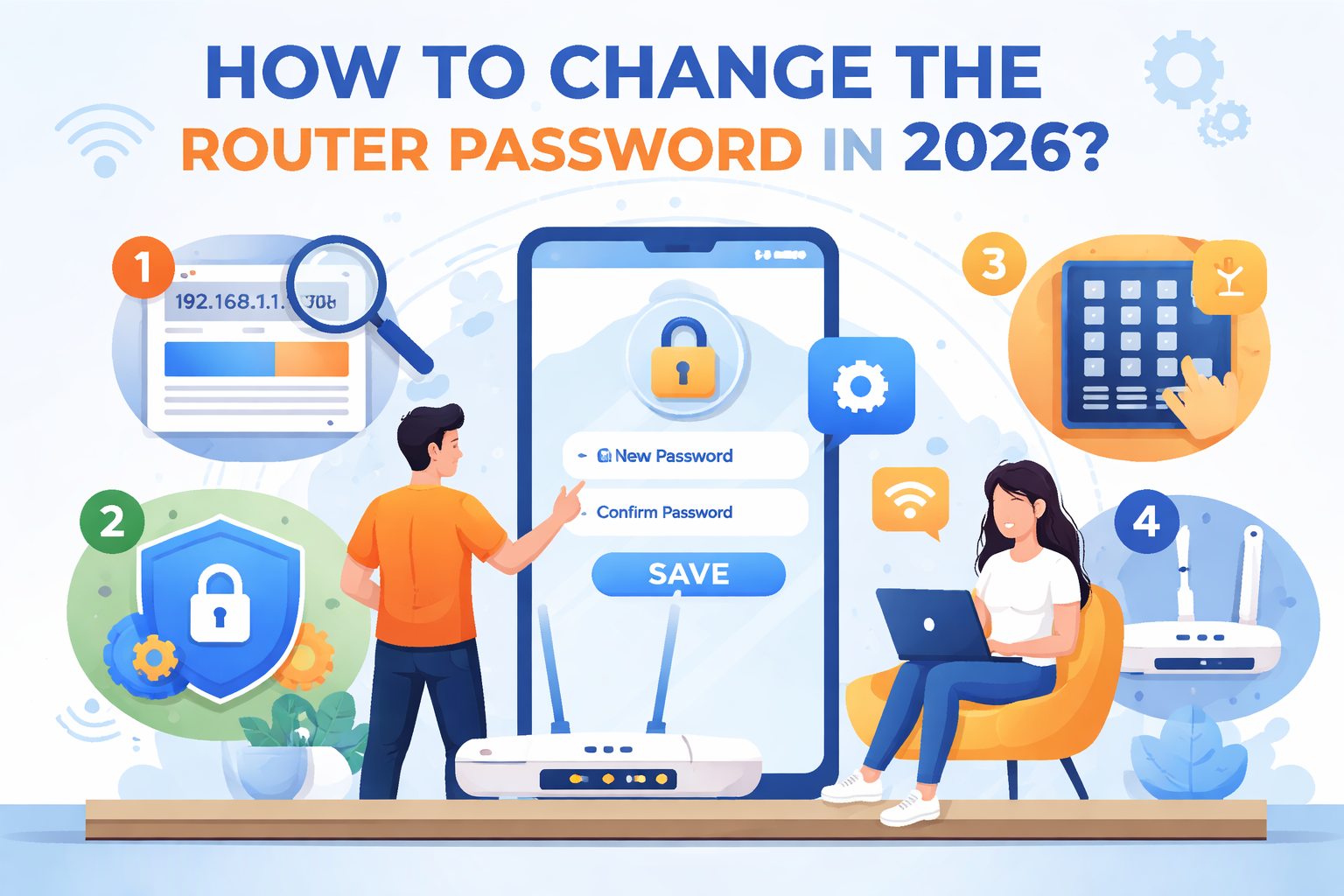
In 2026, securing your Wi-Fi network is more important than ever, especially with the increasing number of devices connected to the internet and the growing risks of cyber threats. Changing your router password regularly is a smart way to ensure your network stays safe from unauthorized access. If you’re looking to change your router’s password and enhance your home network’s security, here’s a simple, updated guide for doing so in 2026.
Why Change Your Router Password?
Changing your router password regularly helps protect your home network from potential hackers and unauthorized users. Here are some reasons why you should change your router password:
- Prevent Unauthorized Access: Over time, neighbors or others might figure out or guess your Wi-Fi password, compromising your network security.
- Protect Personal Data: Your router is connected to all the devices in your home, including smartphones, laptops, and smart home devices. A compromised router can expose your personal information.
- Avoid Slow Speeds: If someone is using your Wi-Fi without your permission, it could slow down your internet speeds.
How to Change Your Router Password in 2026: A Simple Guide
Step 1: Connect to Your Router
Before you can change your router password, you’ll need to connect to your router’s interface. You can do this via:
- Wi-Fi Connection: If you’re already connected to the router’s Wi-Fi network, you can access the router settings from your device.
- Ethernet Cable: For a more stable connection, plug your computer directly into the router using an Ethernet cable.
Step 2: Open Your Web Browser and Access the Router’s Admin Page
- Open your preferred web browser (Chrome, Safari, Firefox, etc.).
- Type the router’s IP address into the browser’s address bar. This is typically something like:
192.168.1.1192.168.0.110.0.0.1
If you’re not sure what the IP address is, you can usually find it on a sticker on the router itself or in the manual.
Step 3: Log into Your Router
Once you enter the router’s IP address, a login screen will appear. Here’s how you log in:
- Username and Password: Enter the admin username and password. The default login credentials are often something like:
- Username:
admin - Password:
adminorpassword
- Username:
If you’ve already changed these from the default, enter your custom credentials. If you forgot them, most routers offer a password reset button (usually on the back of the device), or you can perform a factory reset (more on that later).
Step 4: Locate the Wi-Fi Settings
Once logged in, navigate to the Wi-Fi settings or wireless settings section. The exact location of these options may vary depending on the router brand (Netgear, TP-Link, Asus, etc.), but you can usually find it in the main menu or under “Advanced Settings.”
Here, you’ll have the option to modify various network parameters, including:
- Wi-Fi Network Name (SSID)
- Wi-Fi Password
- Security Type (WPA2, WPA3, etc.)
Step 5: Change the Wi-Fi Password
Now, let’s change the Wi-Fi password. Look for a field labeled Wi-Fi Password, Network Key, or Pre-Shared Key. Follow these steps:
- Select a Strong Password: Choose a new, strong password that’s hard to guess. Avoid common phrases, personal information, or easy-to-guess combinations. Use a mix of uppercase and lowercase letters, numbers, and special characters (e.g.,
!@#Bc9fX$). - Select Security Type: If you haven’t already, ensure that your router is using WPA3 encryption (the latest and most secure). If WPA3 is not available, WPA2 is still a secure option.
- Save the Changes: After entering the new password, save or apply the changes. The router will automatically update and disconnect all devices connected to the Wi-Fi network.
Step 6: Reconnect Your Devices
After the router restarts, all devices previously connected to the Wi-Fi network will be disconnected. To reconnect, you will need to:
- Go to the Wi-Fi settings on each of your devices (smartphones, tablets, laptops, smart home devices).
- Select your Wi-Fi network.
- Enter the new password you just set.
Step 7: Update Your Router Admin Password (Optional)
For extra security, consider changing the admin password for your router interface as well. This will prevent unauthorized users from accessing your router settings. The process is similar to changing the Wi-Fi password, and you can usually find the admin password option under the “System” or “Admin” settings.
Bonus Tips for Improving Your Router’s Security in 2026
- Enable WPA3 Encryption: If your router supports it, ensure you’re using WPA3 encryption for the best security.
- Create a Guest Network: If you have visitors who need to use your Wi-Fi, create a guest network with a separate password. This keeps your main network secure.
- Update Router Firmware: Check for any firmware updates for your router to ensure it has the latest security patches.
- Disable WPS: Wi-Fi Protected Setup (WPS) can be a security vulnerability, so consider disabling it in your router settings.
- Use a VPN: For an added layer of protection, consider using a VPN (Virtual Private Network) for your router, which can help protect your entire network from outside threats.
What to Do if You Forgot Your Router Admin Password?
If you’ve forgotten your router’s admin password, don’t worry! You can reset it by pressing and holding the reset button on the back of your router (typically for 10-15 seconds). This will restore the router to its factory default settings, allowing you to log in with the default username and password (usually found on the router label).
After performing a reset, you will need to set up your router again, including changing the Wi-Fi password, admin password, and reconfiguring any custom settings.
Conclusion
Changing your router password in 2026 is a straightforward process that helps secure your home network from unauthorized access. By following the steps outlined above, you can quickly update your Wi-Fi password and ensure your internet connection stays safe. Remember to choose a strong password, enable the latest encryption, and regularly check your router for updates to stay protected against emerging threats. Regularly updating your router password is a simple yet effective way to safeguard your personal information and improve your network security.