







Facebook Twitter Instagram
    Trending
    • How to Recover When the Keyboard of a Laptop Cannot Be Pressed: A Step-by-Step Guide
    • The Tax Reform bill in Delaware, the United States, intends to increase the tax rates on e-cigarettes, nicotine pouches and other tobacco products.
    • Honor Play 70C mobile phone is available for purchase: MediaTek Helio G81 Ultra,with options of 4/6GB RAM, starting from 799 yuan.
    • Vivo Y6 5G mobile phone Released: 6.75-inch 720P LCD screen, Snapdragon 4 Gen 2 chip, starting from 1,799 yuan
    • OnePlus Ace 6 Supreme Edition phone is equipped with two 1115W symmetrical speakers and supports IP66/68/69/69K full-level water resistance.
    • Honor 600e mobile phone Spotted in the Geekbench Benchmark Database: It is expected to be equipped with the Kirin 7100 processor and 8GB of RAM.
    • Lenovo Y70 Gaming Phone, the new generation, is equipped with an 8000mAh battery, and its battery health lasts for 7 years with a rating of ≥80%.
    • DJI Lito X1/1 Aerial Photography Drone Released: Starting at 1,999 yuan per Unit
    Facebook YouTube
    IGeeKphone China Phone, Tablet PC, VR, RC Drone News, Reviews
    • HOME
      • NEWS
        • DeepSeek
        • ChatGPT
        • Minecraft
    • Amazon
    • PHONE
      • Top Phones For Your First Choice
      • Phone Comparison
      • Xiaomi
      • Blackview
      • Doogee
      • Black Shark
      • Geekbuying
      • Banggood
      • TEMU
      • TikTok
      • Aliexpress
      • Walmart
      • MercadoLibre
      • Lazada
    • TOP VAPE Awards for 2026
    • VAPES
      • E-CIGAR Upcoming
      • Vape News
      • Vape Deals
      • Vape Comparison
      • Vape Guide
      • Giveaway
    • BEST VAPE
      • Best Vape Stores
      • Best Starter Vape Kits
      • Best Vapes for Beginners
      • Best Disposable Vapes
      • Best Pod Systems
      • Best Pod Mod Vapes
      • Best Mods
      • Best Nicotine Pouches
      • Best Clearomizers/Tanks
      • Best E-Liquid
      • Best EGO/Pens
      • Best Vapes for Nic Salt E-Juice
      • Best Vapes to Quit Smoking
      • RDA vs. RDTA vs. RTA
    • Best Vape Brand 2026
      • VAPORESSO
      • VOOPOO
      • OXVA
      • NEXA BAR
      • ORIONBARTECH
      • MASKKING VAPE
      • MEMERS
      • SP2S
      • TODOO
      • MRFOG
      • VEIIK
    • REVIEW
      • E-cigar Review
      • Phones
      • Tablet PC
      • TV Box
      • RC Drone
      • Wearables
      • Camera
      • Accessories
      • VR Headset
    • MORE
      • TABLET
        • Chuwi
        • INNOCN
        • Teclast
        • Top Tablet for Your First Choice
        • Tablet/Laptop Comparison
      • RC DRONE
      • CAMERA
      • WEARABLES
        • OneOdio
        • BlitzWolf
        • Top Smartwatch for First Choice
      • 3D PRINTER
        • 3D Printer Review
        • Anycubic
        • FLSUN
        • Xtool
        • LONGER
        • Top 3D printer to Choose First
      • POWER STATION
        • Oukitel
        • FOSSIBOT
      • GAMING
        • Top Gaming Products
      • E-BIKE
        • Samebike
        • Happyrun
        • ENGWE
      • SMART HOME
      • TV BOX
      • ACCESSORIES
      • VR HEADSET
      • CLOTHES
      • AUTO CAR
    • DEAL
    • VAPE LAWS
    • Shop
    IGeeKphone China Phone, Tablet PC, VR, RC Drone News, Reviews
    You are at:Home»Guide»How to Recover When the Keyboard of a Laptop Cannot Be Pressed: A Step-by-Step Guide
    Guide

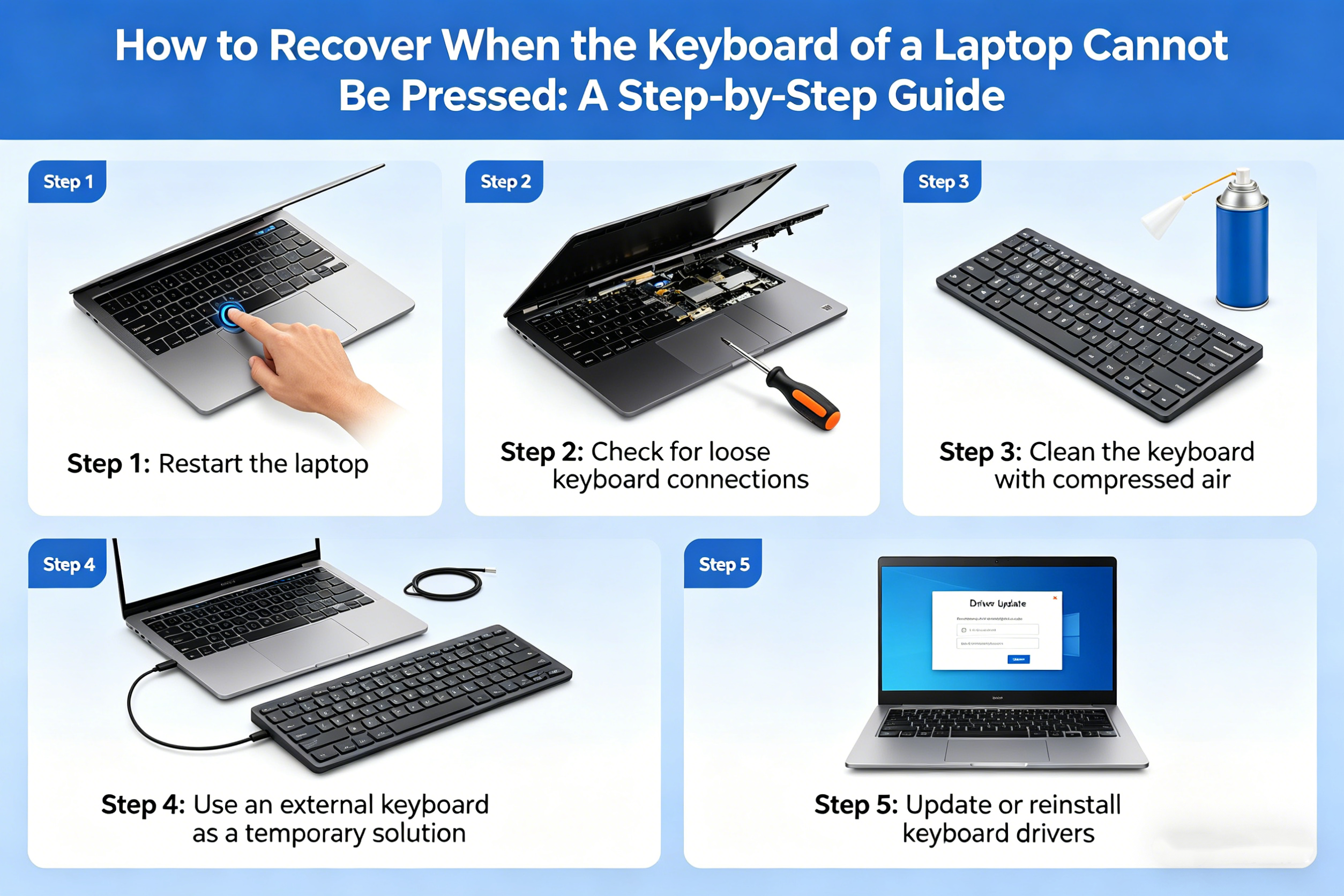
    How to Recover When the Keyboard of a Laptop Cannot Be Pressed: A Step-by-Step Guide

    Brady CottonBy Brady CottonApril 24, 2026
    Facebook Twitter Pinterest LinkedIn Tumblr Email

    A laptop keyboard that suddenly stops responding can be incredibly frustrating, especially if you rely on it for work, study, or leisure. Whether it’s a physical issue, a software glitch, or a system malfunction, there are several methods you can try to restore full functionality to your laptop keyboard. Here’s a comprehensive guide to help you recover when your laptop keyboard cannot be pressed.

    Step 1: Check for Physical Issues

    Before diving into software-based fixes, it’s essential to first ensure there are no physical issues with your laptop keyboard.

    • Clean the Keyboard: Dust, dirt, or debris can sometimes cause individual keys or even the entire keyboard to become unresponsive. Use a can of compressed air to blow out any dirt from between the keys. If necessary, you can lightly dampen a microfiber cloth with water or isopropyl alcohol and gently wipe the keyboard.
    • Check for Sticky Keys or Obstructions: Sometimes, physical objects like food crumbs or liquid spills can cause a keyboard to stop working. Inspect your keyboard to see if any keys are stuck or jammed.
    • External Keyboard: If you have an external USB or Bluetooth keyboard available, connect it to your laptop. If the external keyboard works, it could indicate a hardware issue with the built-in laptop keyboard, which may need repair or replacement.

    Step 2: Restart the Laptop

    If there’s no obvious physical problem, the issue might be related to software or system glitches. A simple restart can sometimes resolve these problems by refreshing the system and restarting any processes that could be causing the keyboard to malfunction.

    • Shut down the laptop completely (not just hibernate or sleep mode).
    • Wait for a few seconds, and then power it back on.
    • Test the keyboard once the laptop restarts to see if it’s functioning properly again.

    Step 3: Check the Keyboard Settings

    Sometimes, the problem may be due to a setting or configuration that was inadvertently changed. Here are a few things to check:

    • Sticky Keys Feature: Windows and macOS both have accessibility features like “Sticky Keys” that can alter how the keyboard responds. Check if Sticky Keys or other accessibility features are turned on.

      For Windows:

      1. Go to Settings > Ease of Access > Keyboard.
      2. Ensure that “Sticky Keys” and “Filter Keys” are turned off.

      For macOS:

      1. Go to System Preferences > Accessibility > Keyboard.
      2. Make sure “Sticky Keys” is disabled.
    • Language and Input Settings: Sometimes, an incorrect keyboard layout or language setting can cause the keyboard to behave strangely. Make sure your system is set to the correct keyboard layout.

      For Windows:

      1. Open Settings > Time & Language > Language.
      2. Ensure that the Preferred language and keyboard layout match your location or preference.

      For macOS:

      1. Go to System Preferences > Keyboard > Input Sources.
      2. Ensure your desired input source is selected.

    Step 4: Update or Reinstall Keyboard Drivers

    Outdated or corrupted keyboard drivers are a common cause of unresponsive keyboards. Updating or reinstalling these drivers can often fix the problem.

    • Windows:
      1. Right-click the Start Menu and select Device Manager.
      2. Expand the Keyboards section, right-click your keyboard device, and select Update Driver.
      3. Follow the on-screen instructions to update the driver. If no update is available, you can also try uninstalling and reinstalling the driver.
      4. To uninstall, right-click on the keyboard device, select Uninstall device, and then restart your laptop. Windows should automatically reinstall the driver upon restart.
    • macOS:
      macOS typically handles keyboard drivers automatically, but ensuring your system is up-to-date can help. Check for updates by:

      1. Going to System Preferences > Software Update.
      2. Install any available updates, as they may include fixes for hardware-related issues.

    Step 5: Perform a System Restore or Reset (Windows)

    If the above methods don’t solve the problem and the keyboard is still unresponsive, performing a system restore may help. A System Restore can revert your system to a previous point when the keyboard was functioning correctly.

    • Windows:
      1. Type System Restore into the Start Menu search bar and select Create a restore point.
      2. In the System Properties window, click on the System Restore button.
      3. Follow the prompts to restore your system to an earlier state.

    If System Restore doesn’t work, you can try a Reset:

    1. Go to Settings > Update & Security > Recovery.
    2. Under Reset this PC, click Get started and follow the instructions.
    • macOS:
      macOS doesn’t have a “restore” function like Windows, but you can reset your system settings by restarting your Mac and holding down Command + R to enter macOS Recovery. From there, you can choose to reinstall macOS or use the Disk Utility to repair the system.

    Step 6: Check for Hardware Issues

    If all software fixes fail and the keyboard remains unresponsive, there could be a deeper hardware issue with your laptop. Some common hardware problems include:

    • Loose or damaged keyboard connection: The ribbon cable connecting the keyboard to the motherboard might be loose or damaged.
    • Faulty keyboard: The physical keyboard itself may have failed due to wear, liquid spills, or other issues.

    At this point, it’s best to contact the manufacturer’s customer support or visit a professional repair service for further diagnosis. If your laptop is under warranty, you may be eligible for a free repair or replacement.

    Step 7: Use an External Keyboard (Temporary Solution)

    If you need immediate access to your laptop and cannot resolve the keyboard issue right away, you can use an external USB or Bluetooth keyboard. This will allow you to continue using your laptop until you can fix the built-in keyboard.

    • USB Keyboard: Plug a USB keyboard into one of your laptop’s USB ports.
    • Bluetooth Keyboard: If your laptop supports Bluetooth, pair it with a wireless Bluetooth keyboard to regain full functionality.

    Conclusion

    A laptop keyboard that stops responding can be a nuisance, but most issues can be resolved with the right troubleshooting steps. Start by checking for physical issues and cleaning the keyboard, then move on to software-based fixes such as restarting the laptop, adjusting keyboard settings, and updating drivers. If these methods don’t work, performing a system restore or resetting your system may help. For more serious hardware problems, it’s advisable to contact technical support or visit a repair service.

    With these steps, you should be able to get your laptop keyboard working again in no time, or at least have a temporary solution to continue your work.

    Share. Facebook Twitter Pinterest LinkedIn Tumblr Email

    Related Posts

    VoIP Numbers: A Business Fad Or Should You Really Use One?

    From London Apps to Desert Maps: Tech-Driven Road Trips in Dubai

    Unlock your iPhone in 3 Different Ways

    Leave A Reply Cancel Reply

    You must be logged in to post a comment.

    voopoo drag 6
    oxva xlim 3 ultra
    sp2s sen x disposable vape
    • Popular
    • 3D Printer REVIEW
    • XIAOMI
    April 18, 2026

    VOOPOO DRAG 6 Hands on Review: Vape Beast with Smart Power & Premium Control

    April 8, 2026

    OXVA NeXLIM vs XLIM Pro 2 Pod Hands-On Review (2026)

    March 16, 2026

    OXVA Slimstick VS OXVA Slimstick X Vape Hands-on Review

    March 5, 2026

    OXVA XLIM PRO 3 vs XLIM GO 2: Hands-On Review

    December 26, 2025

    ACMER ASCARVA 4S: Precision CNC Power for Makers, DIYers & Small Workshops

    June 23, 2024

    ACMER P2 20W Laser Engraver Fixed Focus Engraving: Hands on Review

    May 30, 2024

    xTool F1 Ultra Review: World’s First 20W Fiber & 20W Diode Laser Engraver

    May 30, 2024

    Anycubic Kobra 3 Combo Review: The Multicolor Masterpiece?

    April 23, 2026

    The largest battery-powered Xiaomi flagship of all time is here! Xiaomi 17 Max will be unveiled in May: A versatile large-screen flagship.

    April 22, 2026

    Starting from 3399 yuan! Redmi K Pad 2 Released: 8.8-inch + Dimensity 950

    April 22, 2026

    Redmi Buds 8 Released: 50dB deep noise reduction, supports location tracking and loss prevention

    April 22, 2026

    Xiaomi S Mini LED 2026 Series Released: 2000nits Anti-Reflection Screen + 288Hz Ultra-High Refresh Rate

    fc 26 coins
    New Arrivals
    • Tomoro D15 35K Disposable Vape Tomoro D15 35K Disposable Vape
    • Ploox Mini Hookah 25K Disposable Vape Kit Ploox Mini Hookah 25K Disposable Vape Kit
    • Lost Vape Thelema Solo 100 Pro Vape Mod Kit Lost Vape Thelema Solo 100 Pro Vape Mod Kit
    • SMOK Vaporock X1 Pod System Kit SMOK Vaporock X1 Pod System Kit
    • WASPE 4-in-1 100K Disposable Vape WASPE 4-in-1 100K Disposable Vape
    • SMOK Alpha Mix Pod System Kit SMOK Alpha Mix Pod System Kit
    • VOOPOO Argus G4 Mini Pod System Kit VOOPOO Argus G4 Mini Pod System Kit
    • IPLAY NEXUS 45k Disposable Pod IPLAY NEXUS 45k Disposable Pod
    • IPLAY NOVA 45k Disposable Pod IPLAY NOVA 45k Disposable Pod
    About
  • Igeekphone.com provides the first global tech news and reviews about smartphone, vapes, e-cigar, smart home, 3D printers, e-bike,tablets, RC drones, VR headset, and other accessories. It's the best platform to improve your brand and product.
  • Contact us: info@igeekphone.com
  • Check Our Privacy Policy Here.
  • Note: *Right now we have US editor and EU editors for review, especially for Amazon US and EU.
  • *Shop and Compare Price Here*
  • Facebook
  • Youtube
  • OUR BEST VAPE PARTNERS
  • VAPE ONLINE STORE
  • HAYATI PRO MAX PLUS
  • VAPORESSO
  • VOOPOO
  • OXVA
  • NEXA
  • MASKKING
  • TODOO
  • SP2S
  • VEIIK
  • OTHER BEST PARTNERS
  • SVBONY
  • Chuwi
  • Blackview
  • Fossibot
  • Unihertz
  • Flsun
  • Anycubic
  • Xtool
  • Oukitel
  • Mukkpet Ebike
  • Ugreen
  • Copyright © 2026 igeekphone

    Type above and press Enter to search. Press Esc to cancel.