










Many iPhone users want to change their Apple ID region to access apps, games, movies, or services that are unavailable in their current country. Switching to another App Store region can help users download region-exclusive apps, test foreign services, or access different pricing and subscription options.
This guide explains how to safely change your Apple ID country or region on an iPhone, along with important precautions and troubleshooting tips.
Why Change Your Apple ID Region?
Apple’s App Store content varies by country. Some apps and services may only be available in specific regions due to licensing agreements, local laws, or developer restrictions.
Users commonly switch Apple ID regions to:
- Download apps unavailable locally
- Access overseas streaming platforms
- Install region-exclusive games
- Use international payment services
- Test foreign App Store content
- Access Apple services launched in other countries first
For example, some AI apps, gaming platforms, or productivity tools may appear earlier in the US App Store than in other regions.
Important Things to Know Before Switching Regions
Before changing your Apple ID country or region, Apple recommends checking several account conditions.
1. Cancel Active Subscriptions
You must cancel active subscriptions such as:
- Apple Music
- Apple TV+
- iCloud+
- App subscriptions
Subscriptions usually need to expire completely before the region can be changed.
2. Spend Remaining Apple ID Balance
If your Apple ID still has account balance or gift card credit, you may not be able to switch regions until the balance reaches zero.
3. Leave Family Sharing
Users participating in Apple Family Sharing may need to leave the family group before changing regions.
4. Re-download Some Apps Later
Certain apps may not exist in the new region’s App Store. Even previously downloaded apps can sometimes become unavailable after switching countries.
5. Payment Method May Be Required
Apple often requires a valid payment method issued in the selected country or region. However, some users choose “None” when available for free app downloads.
Step-by-Step Guide: How to Change Apple ID Region on iPhone
Step 1: Open Settings
On your iPhone:
- Open Settings
- Tap your Apple ID profile at the top
Step 2: Enter Media & Purchases
- Tap Media & Purchases
- Select View Account
- Authenticate using Face ID, Touch ID, or password
Step 3: Open Country/Region Settings
- Tap Country/Region
- Select Change Country or Region
You will now see a list of available countries and regions.
Step 4: Choose the New Region
Select the country you want to switch to, such as:
- United States
- Japan
- United Kingdom
- South Korea
- Singapore
Different regions provide access to different App Store content and services.
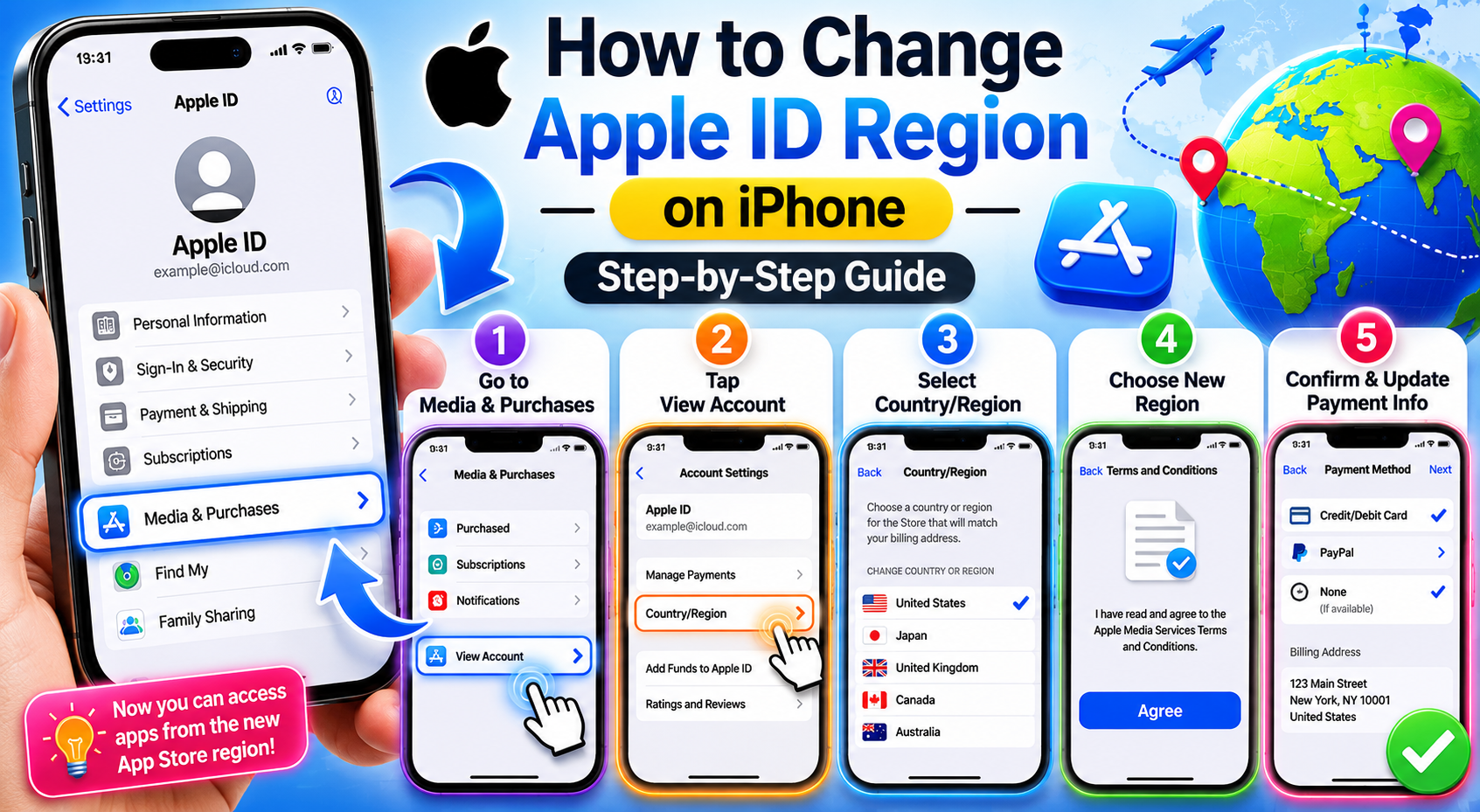
Step 5: Agree to Apple’s Terms
Read and accept the Apple Media Services Terms and Conditions for the selected region.
Step 6: Enter Payment Information
You may be asked to provide:
- Payment method
- Billing address
- ZIP/postal code
- Phone number
If the “None” option appears, you can sometimes skip adding a payment card for free apps.
Step 7: Complete the Switch
After verification, your App Store region will update automatically.
You can now:
- Open the App Store
- Search for region-exclusive apps
- Download foreign App Store content
How to Switch Between Multiple Apple IDs
Some users prefer creating a separate foreign Apple ID instead of permanently changing regions.
This method helps avoid:
- Subscription conflicts
- Payment issues
- App compatibility problems
Steps to Use Another Apple ID
- Open Settings
- Tap Media & Purchases
- Sign out of the current account
- Sign in with another Apple ID from a different region
This allows quick access to another App Store without changing the primary iCloud account.
Common Problems and Solutions
“Cannot Change Region” Error
Possible causes:
- Active subscriptions
- Existing Apple balance
- Family Sharing membership
- Pending purchases
Solution:
- Cancel subscriptions
- Spend remaining balance
- Leave Family Sharing
- Wait for pending transactions to finish
Payment Method Rejected
Some regions require:
- Local bank cards
- Region-specific billing addresses
Possible workaround:
- Use “None” if available
- Use gift cards from that region
Apps Disappear After Switching
Some apps are restricted by region and may no longer update or appear in your purchase history after changing countries.
Is Changing Apple ID Region Safe?
Yes, changing Apple ID regions is officially supported by Apple. However, users should understand the possible effects on:
- Subscriptions
- Purchases
- App availability
- Payment methods
Using a secondary foreign Apple ID is often the safest option for users who only need occasional access to another App Store.
Final Thoughts
Changing your Apple ID region on an iPhone is a useful way to access international apps, games, and digital services unavailable in your local App Store. Whether you want to explore the US App Store, install Japanese games, or test overseas applications, Apple provides built-in tools for region switching directly in iOS.
By following the correct steps and understanding the account limitations beforehand, users can safely switch between App Store regions and enjoy a broader range of iPhone apps and content.